
Folders remain essential. They are lightweight, easy to search, and ideal for everyday storage in Documents, Pictures, Downloads, and cloud-synced locations. But a folder is permanently tied to the volume that contains it. It inherits that drive’s filesystem, free space, security model, and operational limits.
A virtual hard disk changes that relationship. Instead of treating a collection of files as a directory within C:\ or another physical drive, Windows can place them inside a disk-image file—usually a .vhdx file—and expose that file as a distinct disk. It can have its own volume label, filesystem, drive letter, free-space meter, and encryption state.
That makes virtual drives one of Windows’ most overlooked storage features. Here are seven things a virtual drive does that an ordinary folder cannot.
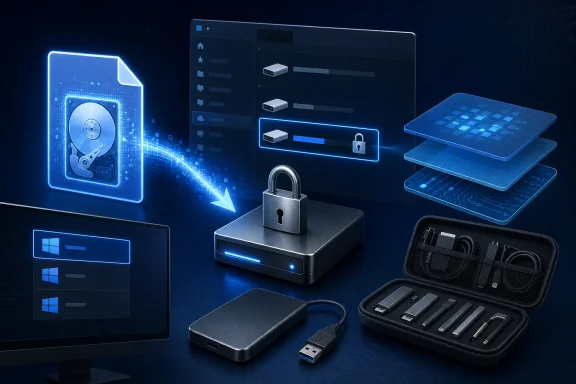 1. It Mounts as a Real Separate Disk
The first advantage is also the most immediately visible: a VHDX can appear in File Explorer as a separate local drive, rather than as another branch in an existing folder hierarchy.
A mounted virtual disk may show up as E:\, V:\, or any available drive letter. Windows sees the disk image as a local disk with its own partition and volume, not simply as a file container. It reports independent capacity and free space based on the virtual disk’s configuration.
Why that changes file management
A folder such as D:\Projects\Archive always belongs to D:. Its available capacity is whatever free space remains across the whole physical drive. If the drive is crowded by games, media, backups, and applications, that folder has no separate identity in practical storage terms.
A virtual drive, by contrast, creates a hard boundary between the contents inside the VHDX and the rest of the host drive. Windows displays the virtual volume separately, allowing users to treat it much more like an external SSD or a secondary internal disk.
That separation can be useful for:
- Project archives that should not be mixed with ordinary data
- Large media libraries with a defined storage allocation
- Scratch disks for video editing or data processing
- Portable tool collections
- Test data that should remain isolated from personal files
- Self-contained backup sets
The drive letter itself can also improve workflow. An application, script, or command-line utility can reliably target V:\Builds instead of a deep and potentially changing path such as D:\Users\Name\Documents\Development\ClientA\Release\Builds.
Detach without deleting
The more important distinction is that virtual drives can be detached. Detaching a VHDX removes its volume from File Explorer, Disk Management, and most normal application access without deleting the underlying disk-image file.
The files have not been erased. They are simply no longer mounted.
That is fundamentally different from hiding a folder, changing its attributes, or removing a shortcut. A hidden folder can still be found by applications, search tools, backup software, malware running in the same user context, or anyone who enables hidden-file visibility. A detached virtual disk is no longer available as a live volume until it is attached again.
This does not make detachment a security feature by itself. Anyone who can access the .vhdx file may be able to mount it. But it is a meaningful operational boundary that folders do not provide.
2. It Can Create a Lockable BitLocker Container
A folder cannot be independently protected by BitLocker. BitLocker encrypts volumes, not individual folders. That limitation is where a VHDX becomes particularly useful.
Because Windows treats a mounted VHDX as a disk volume, a properly configured data VHDX can be encrypted with BitLocker Drive Encryption. The result is a password-protected encrypted container that remains a single ordinary-looking file while detached.
Selective encryption without encrypting everything
Full-disk encryption remains the correct baseline for laptops, desktops, and any device containing personal or company data. Encrypting the system drive protects the operating system, user profile, temporary files, hibernation data, and much more if the device is lost or stolen.
But full-disk encryption does not create a separate vault during a running Windows session. Once a user signs in and the system drive is unlocked, files on that volume are generally available according to Windows permissions.
A BitLocker-protected VHDX can serve a different purpose: it can keep a specific group of files inaccessible until the user mounts the virtual disk and unlocks it. When work is complete, the user can close open files, dismount the VHDX, and return the encrypted data to an offline state.
This approach works well for:
- Tax documents and financial records
- Sensitive client material
- Personal identity documents
- Private research archives
- Offline password-export backups
- Confidential work files that must be separated from day-to-day data
Important BitLocker limitations
This is a useful capability, but it should not be oversold. A BitLocker VHDX is not a substitute for encrypting the Windows system drive.
If Windows itself is not encrypted, information may still leak through temporary files, application caches, autosave locations, search indexes, page files, crash dumps, clipboard history, or backup copies created outside the virtual drive. Applications can also save recent-file lists and thumbnails elsewhere on the system.
There is another critical distinction for advanced users: native-boot VHDX installations have different BitLocker constraints. A VHDX used to boot Windows directly is not the same scenario as a data VHDX used as an encrypted vault. Native boot has restrictions that make it unsuitable for the simple “BitLocker-encrypted portable Windows disk” concept.
The practical rule is straightforward:
- Use full-device BitLocker to protect the computer and its operating system.
- Use a BitLocker data VHDX when a discrete set of files needs an additional lockable container.
- Keep recovery keys protected and stored separately from the device.
3. It Enforces a Real Storage Ceiling
Folders can grow until the host drive fills up. A virtual hard disk can be configured with a maximum capacity, giving a project, application environment, or archive a storage budget that Windows will enforce.
This is one of the most practical reasons to use virtual drives.
A folder has no built-in quota of its own
Consider a development project that generates build artifacts, logs, package caches, Docker layers, databases, virtual environments, and downloaded dependencies. The folder may begin at a few hundred megabytes, then grow into tens or hundreds of gigabytes without warning.
The parent drive absorbs that growth until it cannot. Once the physical disk is nearly full, the impact can spread beyond the project:
- Windows updates may fail
- Applications may crash or refuse to save files
- Temporary directories may fill
- Restore points may be affected
- Performance can degrade sharply on a nearly full SSD
- Other users or workloads can lose storage unexpectedly
A standard folder does not provide a simple, universal way to say: this project may use up to 50 GB, and no more.
Fixed-size versus dynamically expanding VHDX files
A VHDX solves the problem by setting a defined virtual capacity at creation time.
A fixed-size VHDX allocates nearly all of its configured capacity on the host drive immediately. A 100 GB fixed VHDX consumes roughly 100 GB of host storage from the start. This makes its disk-space footprint predictable and can be preferable for certain performance-sensitive or controlled environments.
A dynamically expanding VHDX starts much smaller and grows as data is written inside it, up to the maximum capacity selected during creation. A 100 GB dynamic VHDX may initially consume only a small amount of host storage, then expand over time as files are added.
Both types give the virtual volume a ceiling. If the disk reaches its configured limit, writes inside the VHDX fail with a disk-full condition rather than spilling into the rest of the host drive.
The hidden risk of dynamic disks
A dynamic VHDX is convenient, but it does not eliminate the need for capacity planning. Its maximum virtual size may be 100 GB, while the physical drive holding it may have far less free space than that.
For example, a 200 GB dynamic VHDX stored on a host drive with only 40 GB free can become a problem if the contents inside the virtual disk expand quickly. The VHDX may be allowed to grow in theory, yet the host filesystem may run out of real capacity before the virtual disk reaches its own limit.
The safer approach is to monitor both values:
- Free space inside the mounted virtual drive
- Free space on the host volume holding the
.vhdxfile
A virtual drive can contain a workload. It cannot manufacture storage capacity.
4. It Preserves an Entire Disk Structure in One Portable File
A folder can contain thousands of files, nested directories, access-control entries, alternate data streams, and metadata. Moving it is possible, but the process can be slow, error-prone, and difficult to verify—especially across external drives, network shares, cloud providers, or filesystems with different capabilities.
A VHDX packages a complete virtual disk into one file.
One file, one transport unit
When the virtual disk is detached, its backing file can be copied, moved, archived, or backed up like any other large file. Once attached on another compatible Windows system, the contents become immediately usable as a mounted volume.
That gives VHDX files a major advantage over moving a deeply nested folder tree:
- Fewer individual filesystem operations
- A simpler handoff and archival process
- Less chance of accidentally omitting a subfolder
- A single object to checksum or inventory
- Consistent internal directory layout
- A volume that can retain its own filesystem characteristics
For a large project with hundreds of thousands of small files, handling one VHDX can be substantially more manageable than asking a backup tool or file-copy operation to enumerate each item separately.
Better than ZIP for live use
Compressed archives such as ZIP files also consolidate many files into one object. But they are designed primarily for packaging and extraction, not active use.
A ZIP archive usually must be unpacked before an application can reliably work with its contents. Editing files in place is cumbersome, file permissions may not translate cleanly, and repeated repacking consumes time and temporary disk space.
A VHDX is different. Once attached, it behaves as a writable disk volume. Files can be opened, edited, saved, renamed, and deleted normally. There is no extraction phase before work begins.
That makes a virtual disk especially valuable for active archives: collections that need portability but are still opened and modified regularly.
Detach before copying
The key operational rule is simple: detach the VHDX before treating it as a backup or transport file whenever possible.
Copying a live, actively mounted disk image may produce an inconsistent result if applications are writing data at the same time. A database, virtual machine, or development environment can have cached writes in progress even when it appears idle.
For valuable data:
- Close applications using the virtual drive.
- Wait for pending writes to finish.
- Detach the VHDX.
- Copy or back up the detached
.vhdxfile. - Verify the backup where appropriate.
- Attach the VHDX again only after the transfer is complete.
A VHDX makes data transport simpler, but it does not remove the need for disciplined backup procedures.
5. It Lets You Use a Different Filesystem Boundary
Every ordinary folder inherits the filesystem of the volume where it resides. A folder on an NTFS drive is an NTFS folder. A folder on an exFAT drive inherits exFAT’s capabilities and limitations. There is no folder-level option to switch its behavior to FAT32, ReFS, or another filesystem.
A virtual disk can be partitioned and formatted independently from its host volume.
A disk inside a file can have its own format
A VHDX stored on an NTFS drive can itself be formatted as another Windows-supported filesystem. That allows the host drive and the virtual drive to serve different roles.
For example:
- An NTFS host volume can hold a FAT32 VHDX for compatibility testing.
- A project archive can be given its own NTFS volume label and permission model.
- A removable-device staging area can use a filesystem chosen for a particular workflow.
- A test environment can be isolated from the metadata and rules of the main drive.
This is useful for developers and administrators who need to validate how an application behaves under different filesystem limits. FAT32, for example, has well-known restrictions that can affect testing, including the individual file-size ceiling that does not exist on NTFS.
Ext4 requires an important caveat
The idea of placing an ext4 filesystem inside a virtual disk is technically sound in a Linux or virtual-machine workflow. However, Windows File Explorer does not natively treat arbitrary ext4-formatted VHDX volumes as ordinary browsable Windows drives.
That distinction matters.
A VHDX can hold a Linux filesystem, but Windows’ built-in Disk Management and File Explorer tools are primarily designed for Windows-supported filesystems. Accessing an ext4 volume may require Linux, a virtual machine, Windows Subsystem for Linux workflows, or specialized software. It should not be assumed that simply creating an ext4 virtual disk will make it appear normally in Explorer.
For Windows users, the strongest use case is usually not “run every filesystem directly inside Windows,” but rather create a controlled disk boundary for a filesystem-specific test environment.
Filesystem isolation is more than compatibility
Separate filesystem formatting can also help avoid accidental cross-contamination. A test volume can be created, filled with sample data, damaged intentionally, reformatted, or discarded without touching the system drive.
That makes VHDX files useful for:
- Installation testing
- Data-recovery practice
- Application compatibility checks
- Automated build environments
- Removable-media preparation
- Training labs and demonstrations
A folder can isolate organization. A virtual drive can isolate the disk itself.
6. It Can Contain a More Portable Development Environment
Development tools are notorious for leaving traces throughout a Windows installation. Even when applications are installed to a specific folder, they may create registry keys, configuration files, caches, package stores, environment variables, service entries, shortcuts, and user-profile data elsewhere.
A virtual drive cannot eliminate every one of those behaviors. But it can greatly improve containment when used with the right type of tools.
Best fit: portable and self-contained applications
A VHDX works especially well for applications that are genuinely portable or largely self-contained. These tools can be placed on the virtual disk alongside their dependencies, source files, packages, SDKs, and generated output.
Useful candidates often include:
- Portable code editors
- Standalone compilers and SDKs
- Command-line toolchains
- Arduino and embedded-development packages
- Self-contained database utilities
- Test datasets
- Build output directories
- Package caches intended for a single project
The benefit is not merely that the files are on another drive letter. The project environment can be archived as a unit, duplicated for experimentation, or moved to external storage after completion.
The registry remains the weak point
Traditional Windows installers can still scatter components across the system. They may write to the registry, install shared runtimes, add context-menu handlers, create services, register file associations, or place data under %AppData%, %LocalAppData%, and %ProgramData%.
That means a VHDX is not an automatic “clean uninstall” solution.
It is more accurate to describe it as a containment tool, not a perfect sandbox. The more portable and self-contained the software, the better the result. For highly integrated development stacks, containers, virtual machines, Windows Sandbox, or dedicated test machines may be more appropriate.
WSL and Docker deserve special attention
Windows users often discover VHDX files indirectly through Windows Subsystem for Linux or container platforms. These tools can create large virtual-disk files that grow quietly as package managers, container images, build caches, and development data accumulate.
That experience highlights both the appeal and the danger of VHDX-backed development environments. They are easy to move and conceptually self-contained, but they can consume substantial host storage and may not automatically shrink when data is deleted inside the guest environment.
Deleting files inside a dynamic VHDX does not necessarily mean the .vhdx file instantly becomes smaller on the host filesystem. Reclaiming space may require compaction procedures, and those operations should be performed carefully with valid backups and the relevant environment shut down.
The lesson is clear: virtual drives simplify isolation, but they still need maintenance.
7. It Can Boot a Separate Windows Installation
The most advanced capability on this list is native VHDX boot. Windows can be configured to boot directly from a Windows installation stored inside a VHDX file, without launching a conventional virtual machine.
This is far beyond what a folder can do.
A disk image that appears in the boot menu
With the appropriate setup, a compatible Windows image can reside inside a VHDX stored on a physical drive. Windows Boot Manager can then offer that installation as a boot-menu option alongside the main Windows installation.
The advantages are substantial for specialized scenarios:
- Testing a separate Windows configuration
- Maintaining a disposable lab environment
- Keeping a deployment image in a reusable format
- Running a dedicated troubleshooting installation
- Creating repeatable development or validation environments
- Experimenting without repartitioning the main disk
Instead of shrinking partitions and committing a section of the drive permanently to another operating system, the additional Windows environment is represented primarily by a VHDX file and boot configuration entry.
Native boot is not casual dual boot
This feature is powerful, but it is not a simple click-and-go replacement for conventional dual booting. It involves disk preparation, image deployment, boot configuration, and careful handling of the Windows Boot Configuration Data store.
It also has restrictions that matter in real-world use:
- Native boot requires the modern
.vhdxformat for current Windows deployments. - The VHDX must reside on a suitable local basic disk configuration.
- Booting a VHDX from a network share is not supported.
- Hibernation is not supported for native VHDX boot, although sleep may be available.
- Nested VHDX arrangements are not supported in this context.
- BitLocker behavior has important limitations for native-boot VHDX scenarios.
- The host partition must have enough free space for a dynamically expanding VHDX and for Windows’ operating requirements.
A native-boot VHDX should therefore be treated as an advanced deployment and testing feature. It is excellent for administrators, IT professionals, lab builders, and enthusiasts who understand boot recovery and maintain verified backups. It is not the ideal first VHDX project for a casual user.
When a Folder Is Still the Better Choice
Virtual drives are capable, but they are not universally better.
A normal folder remains the right choice when files need to be:
- Instantly accessible at all times
- Indexed and searched without mounting a disk first
- Easily synced by consumer cloud-storage clients
- Shared through familiar network paths
- Used by applications that expect standard user-profile folders
- Opened without administrative storage-management steps
- Managed with the least possible complexity
Folders also have less overhead. They do not require attaching, detaching, initializing, formatting, assigning drive letters, monitoring a virtual capacity limit, or planning around a single large container file.
The risk of putting too much into one VHDX is similar to the risk of putting too much into one external drive: if that one file is corrupted, unavailable, accidentally deleted, or poorly backed up, a large amount of data can become inaccessible at once.
That does not make VHDX files unsafe. It means they must be managed as important disk images, with backups that are independent, tested, and preferably versioned.
The Practical Case for Virtual Drives in Windows
A virtual drive is not a replacement for folders. It is a different storage primitive—one that combines the convenience of a normal file with many of the behaviors of a real disk.
Its value comes from the boundaries it can enforce:
- Visibility boundary: detach it when the contents should disappear from daily workflows.
- Encryption boundary: use BitLocker on a data VHDX for a separate locked container.
- Capacity boundary: prevent a workload from consuming unlimited host storage.
- Filesystem boundary: create a dedicated format and test space independent of the host volume.
- Portability boundary: move an entire live filesystem as one file.
- Environment boundary: contain portable tools, SDKs, project data, and caches.
- Boot boundary: run a separate Windows environment without conventional repartitioning.
For ordinary documents and everyday files, folders remain faster, simpler, and more transparent. But when a collection of data needs to behave like its own disk—with a defined size, identity, lifecycle, and security posture—a VHDX virtual drive gives Windows users a capability that folders can never truly duplicate.
