
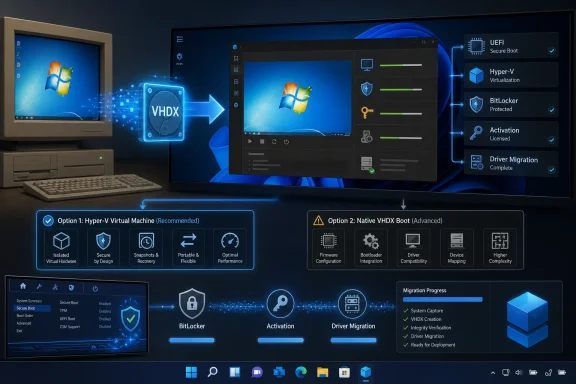
But the article’s two routes are not equally routine. Running the captured installation in Hyper-V is the low-risk preservation method. Native-booting that same VHDX on a different PC is a much more consequential hardware migration, with activation, BitLocker, boot configuration, storage, and driver implications that deserve attention before anyone treats bcdboot E:\Windows as a universal finish line.
Microsoft’s own Disk2VHD documentation confirms the central mechanism described by MakeUseOf. Disk2VHD uses Windows Volume Shadow Copy to take a consistent point-in-time snapshot while the old system remains online; it preserves partition information for selected volumes while copying only the data actually in use. That is why a 250 GB source drive containing roughly 90 GB of data can yield an approximately 88 GB dynamically expanding virtual disk file rather than a 250 GB file.
The important qualification is that this is a snapshot, not a magical migration layer. It preserves the old Windows environment as it existed at capture time. It does not guarantee that every old driver, activation state, hardware-bound app, encrypted volume, boot component, or security product will behave the same way when that image sees a virtual motherboard or an entirely new physical one.
 Disk2VHD is built for this job, with one critical warning
Disk2VHD remains a useful Microsoft Sysinternals utility precisely because it can capture an active Windows installation without booting into recovery media. Microsoft says it can create virtual hard disks for Hyper-V and supports consistent copies through Volume Shadow Copy Service. On the first virtual boot, Windows detects the virtual hardware and installs drivers available in the image.
That makes it a credible answer for people who need occasional access to an old environment rather than another full-time desktop. It also means the first boot should be treated as a test: disconnect unnecessary peripherals, avoid giving the old machine unrestricted access to corporate shares, and expect Windows to adjust drivers and possibly demand activation.
There is one omission in the MakeUseOf procedure that can produce a particularly confusing failure. Microsoft explicitly warns against attaching a newly created VHD or VHDX on the same system it was captured from if it will later be booted. Windows can change the virtual disk’s signature to avoid colliding with the original physical disk. Because boot configuration data can refer to disks by signature, the resulting image may then fail to locate its boot disk in a VM.
In short: create the image, copy it to the new PC or separate storage, and test it there. Do not mount it on the source PC merely to inspect it if the plan is to boot it later.
BitLocker is another hard stop rather than a minor checkbox. Microsoft’s Disk2VHD documentation says it does not support converting BitLocker-enabled volumes. A user must fully decrypt the source volume before capturing it, which is a material security and time cost on a machine that was encrypted for good reason. This is one place where the “20 minutes” estimate in the original account will often not hold.
Hyper-V is the preservation route most users actually need
For most Windows enthusiasts and IT pros, the better destination for an old PC image is a Hyper-V virtual machine. It keeps the old environment available, reduces the need to repartition or alter the boot path of the new PC, and makes deletion genuinely simple: shut down the VM, remove its files and configuration, and the old environment is gone.
Microsoft’s current Hyper-V requirements also make the edition boundary clear. The full Hyper-V role is supported on Windows 10 and Windows 11 Pro or Enterprise, with a 64-bit processor, Second Level Address Translation, firmware virtualization enabled, and sufficient memory for the host and guest. Windows Home systems may expose related virtualization components, but Microsoft does not list Home as an edition that can enable Hyper-V itself.
MakeUseOf is right that Hyper-V’s enhanced session mode can make a Windows guest feel less like a remote console. Microsoft describes enhanced session mode as an RDP-based connection that supports a resizable, high-DPI-aware window, shared clipboard, file transfer, audio, printers, local drives, and selected USB devices. It is an excellent way to copy a legacy file out of an old installation or run a single app without logging out of the host.
The claim that this requires no extra guest drivers is mostly fair for modern Windows guests, but the enhanced-session experience is not automatic in every capture. Microsoft says Remote Desktop must be enabled inside the VM. Windows 10 version 2004 and later, along with Windows 11, can also need Windows Hello-only sign-in disabled before the enhanced-session sign-in prompt appears. An old Windows 7 image will boot differently than a Windows 10 or Windows 11 guest and should not be expected to deliver the same integration.
Generation selection is also more than a menu choice. A Generation 1 Hyper-V VM emulates legacy BIOS-era hardware; Generation 2 uses UEFI-style virtual firmware and is the appropriate match for many newer installations. Choosing the wrong generation can leave an otherwise healthy image unable to boot. Before creating the VM, determine whether the source Windows installation was installed in legacy BIOS/MBR or UEFI/GPT mode.
VirtualBox remains a reasonable fallback for Windows Home users, but its role here is different: it is a workaround for the absent Hyper-V role, not a reason to discard a VHDX image blindly. The old VHD format is broadly supported by VirtualBox, whereas the P2V capture should be planned around the platform that will actually run it. Converting a large disk image after the fact adds time, another failure point, and another copy demanding storage.
Native VHDX boot is useful, but it is not a casual dual boot
Microsoft supports native boot from VHDX for Windows 10 and later. This capability allows Windows Boot Manager to start an operating system contained in a local VHDX without launching Hyper-V. It can provide near-native CPU and storage behavior and is appropriate when a legacy workload genuinely needs direct access to the machine’s hardware.
It is also where the original tutorial becomes too confident. Microsoft’s native-boot documentation is written around preparing a VHDX, applying a generalized Windows image, placing that file on a local basic disk, and explicitly creating a boot entry that targets the correct system partition and firmware type. Its UEFI example specifies the EFI system partition with bcdboot, rather than relying only on a mounted Windows volume and an unspecified boot-store destination.
The simple bcdboot E:\Windows command may work in a particular configuration because BCDBoot can locate the active boot environment. It is not the same thing as validating a P2V image across a new UEFI PC, different storage controller, different firmware setup, and potentially different Windows edition. Administrators should confirm the boot entry, its VHDX path, and the new machine’s UEFI versus legacy boot arrangement before restarting.
Native boot also carries restrictions that sharply reduce its appeal as a casual convenience feature:
- A Windows 10 or Windows 11 native-boot installation requires VHDX, not the older VHD format.
- Windows cannot hibernate when running through native VHDX boot, although sleep is supported.
- The host volume holding the native-boot VHDX cannot be protected with BitLocker, and BitLocker cannot be used inside the VHD’s volumes for this scenario.
- The physical host partition needs enough free space not only for the dynamically growing VHDX, but also for a page file that native VHDX boot places outside the image.
- A VHDX copied from the internet can carry a Mark-of-the-Web
Zone.Identifiertag that Microsoft says can block native boot or cause application failures after the November 2022 Windows updates.
Those are not obscure enterprise footnotes. They change the setup decision for a new laptop whose internal SSD is already protected by BitLocker. A Hyper-V guest can reside on an encrypted host volume. A native-boot VHDX, under Microsoft’s documented limitation, cannot.
Moving the Windows image also moves licensing and application problems
The first boot on radically different hardware is a licensing event as much as it is a driver event. Microsoft’s activation guidance says Windows digital licenses are associated with device hardware and that a significant hardware change, including a motherboard replacement, can require reactivation. A user whose digital license is linked to a Microsoft account has a recovery path through the Activation troubleshooter, but that is not the same as a promise that every old installation will reactivate cleanly.
The risk is greater with OEM-era systems, retired licenses, and applications that bind themselves to hardware identifiers. Microsoft’s Disk2VHD page still carries a specific licensing caution for Windows XP, Vista, and Windows 7: OEM installations of those versions may not be transferable to a virtual disk under their license terms. That warning is old, but it captures the broader reality: preserving an installation technically does not settle the license rights for Windows or the software installed inside it.
The prudent workflow is to consider the old image an archive first. Capture it, verify that it boots in an isolated VM, confirm that the files and applications needed are present, and make a second offline copy before allowing updates, driver changes, or cleanup. If the old system is still supported and must touch the network, update it. If it is Windows 7, Windows 8.1, or a similarly obsolete environment preserved only for a legacy application, keep it offline except where a carefully controlled network connection is essential.
The best use is a temporary bridge, not a permanent second desktop
The strongest part of MakeUseOf’s advice is the idea of keeping the old system as a single portable file. That has genuine operational value: the image can live on backup storage, be started only when necessary, and be removed when the final dependency is retired. It is substantially cleaner than keeping an old tower alive solely for one application.
The correction is that users should pick one goal. If the goal is access to old files, settings, or a few software tools, create the VHDX and run it in Hyper-V. If the goal is to preserve a hardware-dependent workload at native speed, test native VHDX boot only after accounting for BitLocker, activation, firmware mode, free host storage, page-file growth, and the loss of hibernation.
A virtualized old PC is a very good migration safety net. Treating it as an effortless second installation on new hardware is where a useful recovery technique turns into an avoidable weekend of boot repair and reactivation prompts.
