
winget upgrade --all command.The strongest value in this collection is not that it reveals secret Windows features. Most have been present for years. It is that the features can reduce repetitive desktop work when used with the right expectations: preview updates before installing them, treat forced process termination as a last resort, and do not mistake a disposable virtual environment for a completely sealed security boundary.
Microsoft’s current documentation supports the core capabilities MakeUseOf describes, while also spelling out limitations that should change how Windows 11 users deploy them.
 WinGet can update software, but it cannot manage every installer
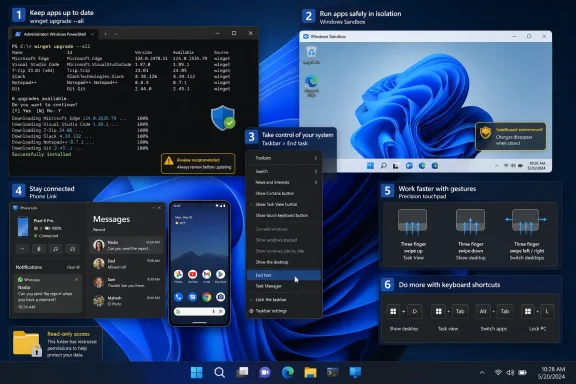
The command winget upgrade --all is the most immediately useful item in MakeUseOf’s roundup. Windows Package Manager checks installed packages that it recognizes, then attempts to update those with a newer version available. Running winget upgrade first provides the review step MakeUseOf recommends, showing candidates before an administrator—or a home user—commits to an all-app update run.
The missing detail is that WinGet’s inventory is not a universal inventory of every program on a PC. It can only update applications for which it can identify an installed package and an applicable package source. Apps with no detectable version may be skipped unless the user explicitly includes unknown versions; packages that have been pinned may also be excluded from --all.
That makes the command excellent for reducing routine patching friction, but it should not be mistaken for a replacement for enterprise patch management or a guarantee that every browser plug-in, line-of-business client, portable utility, driver tool, or vendor updater has been covered. For managed Windows fleets, the practical use is as a supplement: identify the applications WinGet can handle cleanly, pin packages that require controlled upgrade timing, and retain a separate process for software outside its catalog.
There is another operational issue. WinGet invokes installers supplied by package publishers, and installer behavior varies. Some updates can prompt for input, some may request a restart, and some programs deliberately retain prior versions side by side. A workstation user can normally tolerate that variability. An IT administrator running broad update jobs should test the exact package set first and use logging rather than treating --all as a silent, risk-free maintenance switch.
Taskbar End task is faster, but it bypasses an app’s normal exit path
MakeUseOf highlights the Windows 11 taskbar’s End task option, which places a direct process-kill command on the right-click menu for running apps. It is genuinely quicker than opening Task Manager, locating the process, and choosing the same action there. Microsoft documented the feature as being enabled through the End task toggle under Settings’ developer-related controls; the exact Settings presentation can vary with the Windows 11 build, so searching Settings for “End task” is safer than relying on a menu path copied from an older guide.
The important practical distinction is that End task is not the same as closing an app normally. A normal close lets the application save state, flush queued writes, close files, and potentially warn about unsaved work. End task asks Windows to terminate the process. That is precisely why it helps when an app is frozen, but it is also why routinely using it merely to keep background activity down is a poor habit.
For ordinary desktop programs, close the app first and use End task when it will not respond. Be particularly cautious with editors, database clients, virtual machines, development environments, file-transfer tools, and anything currently writing data. The taskbar shortcut removes clicks; it does not remove the usual data-loss risk of a forced termination.
Windows Sandbox is more capable—and less isolated by default—than the quick description suggests
Windows Sandbox is the feature in the MakeUseOf list with the greatest security value, provided it is configured for the task. It launches a lightweight, temporary Windows instance backed by hardware virtualization. When the Sandbox session closes, installed applications, local files, and the session’s ordinary state are discarded; a fresh session begins from a clean image.
MakeUseOf says it is only for Windows 11 Pro users. Microsoft’s documentation shows a broader supported set: Windows Sandbox is available on Pro, Enterprise, Pro Education/SE, and Education editions, though not Windows 11 Home. The machine also needs virtualization enabled, at least two CPU cores, available disk space, and sufficient RAM—Microsoft lists 4 GB as a minimum and recommends 8 GB.
More significantly, the default Sandbox configuration is not a network-dark containment chamber. Networking is enabled by default, and Microsoft warns that an untrusted application can thereby reach an internal network. Clipboard sharing is also enabled by default. Users can further expose host folders through mapped folders, and write-enabled mapped folders can retain changes after the Sandbox itself is deleted.
For opening a suspicious download, Microsoft’s own safer pattern is more restrained: disable networking, disable the virtual GPU where appropriate, and map in only the required folder as read-only. That approach preserves the Sandbox’s convenience while avoiding the false confidence that “nothing can affect the main PC” can create. The default environment is isolated from the host kernel, but its deliberately enabled sharing features still need to be treated as pathways.
Phone Link mirroring depends on the handset, not just Windows 11
Phone Link’s phone-screen and Android-app features can feel like a lightweight alternative to picking up a handset every few minutes. MakeUseOf is right that mouse and keyboard interaction works, and Microsoft supports launching eligible Android apps in separate windows, pinning them to Start or the taskbar, and using them alongside Windows apps.
The limitation is device support. Phone screen is not a universal Android feature. Microsoft describes it as available on select Android devices in select markets, with supported brands and models varying over time. The general Phone Link pairing experience reaches more devices, but that does not mean every paired Android phone can mirror its screen or present its apps on the PC.
The setup also assumes a Windows 10 or Windows 11 PC, Android 10 or later for the Android feature set, Link to Windows support on the phone, and both devices on the same Wi-Fi network. Work or school Android profiles remain unsupported in Phone Link. That makes it a convenience layer for a personal handset, not an Android emulator and not an answer for testing arbitrary APKs.
MakeUseOf’s claim about an expanded view using up to 90 percent of screen space may apply to a particular eligible device and app configuration, but Microsoft’s general Phone Link support material does not present it as a universal capability. Users should confirm the Phone screen entry appears in their own Phone Link app before building a workflow around mirroring.
Precision touchpads and the shortcut list reward a small amount of setup
Touchpad gesture customization is an easy win on laptops that use a Windows precision touchpad. Microsoft confirms that three- and four-finger swipes and taps can be remapped from Settings > Bluetooth & devices > Touchpad. Defaults include three-finger app switching and four-finger virtual-desktop switching; users can tune the controls around the work they actually do.
The caveat is hardware. Some gestures require a precision touchpad, and laptops using manufacturer-specific touchpad drivers may expose different controls or place them in the OEM utility instead. A user whose gestures do not match a guide should first look for the “Your PC has a precision touchpad” message in Settings rather than assuming Windows is malfunctioning.
The keyboard-shortcut portion of the MakeUseOf list deserves one correction. Win + ., Win + V, Win + Z, and Win + K respectively open the emoji panel, clipboard history, Snap Layouts, and Cast controls. Clipboard history must be enabled on its first use, and users who enable cloud syncing should remember that copied text can be synchronized through their Microsoft or work account. Clipboard history is not a place to casually leave credentials, recovery codes, or confidential snippets.
Moving an active window between displays requires Win + Shift + Left Arrow or Win + Shift + Right Arrow. The arrow key is essential. Win + Ctrl + Shift alone is not the multi-monitor move command, and omitting the direction turns a useful shortcut into an incomplete instruction.
Windows 11’s less obvious conveniences are worth learning because they save time repeatedly, not because they are magic. Start with WinGet’s preview mode, customize gestures only after confirming the touchpad supports them, and enable Sandbox with a restrictive configuration when examining an untrusted file. Those choices turn a scattered set of buried features into a safer, repeatable Windows workflow.
