
That gap has created a durable niche for compact Windows utilities: focused apps that solve one recurring annoyance with less ceremony than a large suite. The best of them do not attempt to replace Windows. They make everyday Windows workflows feel finished.
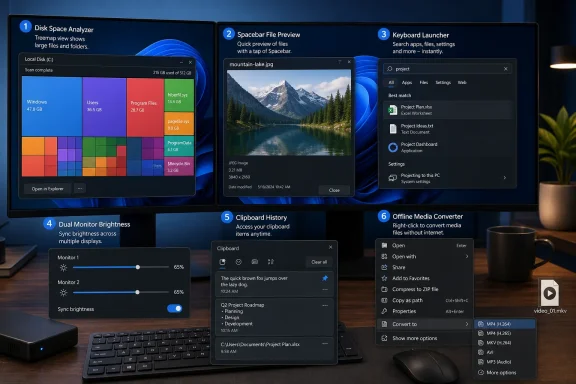
Six utilities stand out for their combination of modest install size, quick setup, and unusually high practical value: WizTree, QuickLook, Flow Launcher, Twinkle Tray, Ditto, and File Converter. They are not identical in design philosophy, maintenance model, or resource footprint. Some are genuinely tiny; others are lightweight only when compared with the heavyweight applications they can replace.
The common thread is more important than the download number. Each tool removes a repetitive step that Windows users perform hundreds of times a year.
 Why Small Windows Utilities Still Matter
Modern Windows software often expands to meet every imaginable use case. That can be useful, but it can also mean a simple task—checking a file, launching an app, adjusting a monitor, converting media—becomes a chain of menus, windows, and prompts.
A focused utility changes the equation. Instead of adding an ecosystem, account requirement, subscription screen, or permanent dashboard, it sits quietly in the background until the exact moment it is needed.
The appeal is especially clear on Windows 11 systems, where the operating system already provides broad functionality but occasionally misses the final mile:
- Windows Search can feel unpredictable when launching tools or locating files.
- Storage management is informative but not always immediate or granular.
- File Explorer previews depend heavily on file type and installed handlers.
- External monitor controls often still require physical buttons.
- Clipboard History is useful but intentionally limited.
- File conversion frequently drives users toward ad-heavy web services.
These six apps address those weak points directly. Still, “small” should not be confused with “risk-free.” Utilities that read disk metadata, watch the clipboard, interact with displays, install shell extensions, or load plugins deserve the same care as any other software. Downloading from a project’s legitimate distribution channel, reviewing requested permissions, and avoiding abandoned forks remain essential habits.
WizTree: The Fastest Route to a Full Drive
WizTree is the utility to install before a low-storage warning becomes a crisis. Its purpose is simple: show exactly which folders and files are consuming space, then let the user act on that information.
The core experience is dramatically faster than the traditional “right-click, Properties, wait” routine. Select a drive, run a scan, and WizTree presents a hierarchical folder view, a list of large files, and a graphical treemap that makes storage hogs immediately visible.
Why WizTree Feels So Fast
On an NTFS volume, WizTree gets its speed from the way it gathers file information. Rather than visiting every directory and calculating every item one by one, it reads the file system’s Master File Table, or MFT.
The MFT is a central NTFS data structure containing records for files and directories. By building its view from that structure, WizTree can inventory many internal SSDs in seconds instead of minutes.
That approach makes WizTree particularly effective for:
- Finding old Windows installation folders after an upgrade.
- Identifying bloated game libraries and download directories.
- Locating virtual-machine disks, ISO files, backups, and archives.
- Hunting down large video exports and duplicate-looking files.
- Freeing space ahead of a major Windows feature update.
- Understanding whether the problem is one giant file or thousands of smaller ones.
The treemap view deserves special attention. Each block represents a file, sized in proportion to its space usage. A single unexpectedly huge block can reveal the source of a storage problem faster than any alphabetical folder list.
The Important NTFS Limitation
WizTree’s best performance is tied to NTFS. That is the default file system for most Windows system drives, so it is not a major limitation for the average desktop or laptop. But removable media, memory cards, and external drives may use exFAT or FAT32, where the MFT shortcut does not exist.
The app can still inspect those volumes, but it must use a more conventional scanning approach. The near-instant experience should not be assumed on every storage device.
There is another practical caution: discovering large files is not the same as safely deleting them. System-managed folders, restore points, application caches, and directories under C:\Windows or C:\ProgramData can be large for valid reasons. WizTree is excellent at investigation, but it should not become a license to delete unfamiliar files blindly.
A Better Windows Storage Workflow
WizTree works best as a diagnostic tool rather than a permanent cleanup service:
- Scan the affected drive.
- Sort by size or inspect the treemap.
- Verify a large folder’s purpose before removing anything.
- Use the owning application’s uninstall or cleanup process where possible.
- Re-scan to confirm the recovered capacity.
For a utility with an installer around the five-megabyte range, that level of disk visibility is exceptionally efficient. WizTree is one of the strongest examples of a small Windows utility delivering an outsized return.
QuickLook: Preview First, Open Only When Necessary
The built-in File Explorer preview pane remains useful, especially when toggled with Alt + P. But it is a panel inside Explorer, it occupies screen space, and support varies by file type. That is where QuickLook offers a more immediate approach.
Select a file, press the Spacebar, and QuickLook opens a large preview window. Press Space again or Escape to close it. For anyone who sorts screenshots, photographs, documents, invoices, downloads, or design assets, the benefit becomes obvious within minutes.
A Faster Way to Triage Files
QuickLook removes a surprisingly common pattern:
- Double-click a file.
- Wait for the associated application to launch.
- Confirm it is the wrong file.
- Close the application.
- Repeat.
That process is especially wasteful with PDFs, images, media files, and documents stored under generic names. QuickLook turns it into a quick visual check without permanently opening the file in its default application.
Useful scenarios include:
- Reviewing a camera folder before importing selected shots.
- Checking multiple PDFs for the correct invoice or form.
- Inspecting screenshots before attaching them to an email.
- Viewing text and code files without opening an editor.
- Checking Office documents without launching a full productivity suite.
- Quickly verifying whether a downloaded archive contains the expected content.
Plugins Expand the Format Coverage
QuickLook’s broader usefulness comes from its plugin model. The base app handles many common formats, while optional plugins can add preview support for categories such as Office documents, enhanced PDFs, CAD drawings, PostScript files, and other specialized content.
That is a major advantage over relying solely on File Explorer’s preview handlers. It allows the user to expand support only when a workflow demands it.
However, the plugin system is also the point where caution matters. A preview plugin parses potentially complex file formats, so it should be obtained from a trusted project source and kept current. Users working with sensitive files should be particularly selective about adding community extensions.
A Note for PowerToys Users
Windows power users should recognize that Microsoft’s PowerToys Peek utility covers similar territory. It also provides quick file previews with a keyboard shortcut and may be the more logical choice for someone who already runs PowerToys.
QuickLook remains compelling because it is purpose-built around the familiar Spacebar workflow and has a mature ecosystem of format extensions. The better pick comes down to preference, supported formats, and whether reducing the number of background utilities matters more than a particular preview experience.
The key point is that Windows does not need another full file manager to make file inspection smoother. A small preview layer is enough.
Flow Launcher: One Keyboard Shortcut for Several Windows Habits
Flow Launcher is the largest download in this group, with its installer sitting around the 97MB mark. That makes it difficult to call “tiny” in the strictest sense. Yet it still earns a place because it can consolidate several Windows workflows into a single, keyboard-first interface.
Invoke it with Alt + Space by default, type a few characters, and Flow Launcher can launch an application, locate files, run calculations, open settings, execute commands, perform web searches, and trigger plugins.
It is less a replacement for the Start menu than a replacement for switching between the Start menu, Run dialog, Calculator, browser search field, Settings search, and various one-off utilities.
Why a Launcher Can Feel Faster Than Windows Search
The biggest advantage is not necessarily raw search speed. It is intent recognition. A launcher accepts short, direct input without making users decide which Windows interface fits the task.
Typing a calculation can return the answer. Typing an app name can launch it. Typing a system command can start a shutdown or restart action. Typing a search prefix can send a query to a chosen search engine.
That reduces cognitive overhead, particularly for keyboard-focused users.
Flow Launcher is well suited to people who routinely:
- Launch development tools, browsers, editors, and terminals.
- Search specific folders or indexed file locations.
- Perform quick arithmetic and unit conversions.
- Open Windows settings pages frequently.
- Run command-line or PowerShell actions.
- Search bookmarks or web services.
- Want a customizable alternative to the Start menu search box.
The Everything Integration Question
Flow Launcher can use Windows Search for file results, but it can also integrate with Everything, the well-known NTFS file indexer. That distinction matters.
Windows Search is useful for content-aware indexing and system integration, but it can be slower or less predictable for pure filename discovery. Everything is optimized for fast file-and-folder lookup and can make Flow Launcher’s file searches feel exceptionally responsive.
The trade-off is that this turns one utility into a two-utility setup. That is worthwhile for heavy file search users, but unnecessary for those who only want fast app launching and calculations.
Plugins Are Both the Strength and the Risk
Flow Launcher’s plugin store is a major reason it can become a central productivity hub. Community extensions can add support for services, media controls, developer workflows, note systems, task tools, clipboard actions, and more.
But plugin ecosystems introduce a trust boundary. A plugin may receive search queries, execute commands, access local files, or communicate with online services depending on its purpose. Installing an extension simply because it appears convenient can create unnecessary privacy or security exposure.
This is especially important for plugins marketed around downloading content from online video and social platforms. Their availability does not eliminate platform rules, copyright obligations, or the possibility of malicious or poorly maintained code.
The sensible Flow Launcher setup is restrained:
- Start with core launch, calculator, and settings functions.
- Add only plugins that solve a routine problem.
- Review plugin permissions and maintenance activity.
- Remove extensions that are no longer needed.
- Avoid treating a community plugin catalog as a vetted enterprise app store.
Used carefully, Flow Launcher is an outstanding Windows productivity utility. It is not the smallest app here, but it may remove the greatest number of repetitive interactions.
Twinkle Tray: External Display Brightness Without the Button Hunt
Windows handles laptop brightness reasonably well because the operating system can communicate directly with the integrated panel. External displays are another story.
For many desktop monitors, brightness adjustment still means reaching under the bezel, navigating a tiny on-screen display, finding the right menu, and repeating the process for every monitor. Twinkle Tray replaces that ritual with a system-tray control panel.
It exposes brightness sliders for compatible connected displays, supports individual or synchronized adjustment, and can assign hotkeys for quick changes.
How It Works
Twinkle Tray communicates with compatible monitors using DDC/CI, a control standard that lets a computer send certain display commands over the same connection used for video.
In a good setup, the process is seamless. Click the tray icon, move a slider, and the monitor’s real backlight brightness changes. No physical controls, no manufacturer-specific display utility, and no hunting through menus.
This is particularly useful for:
- Dual- and triple-monitor workstations.
- Mixed monitor setups with different brightness levels.
- Shared desks where settings change throughout the day.
- Users who prefer keyboard shortcuts to mouse interaction.
- Evening workflows where a lower display brightness is more comfortable.
- Matching perceived brightness across screens.
Twinkle Tray can also provide broader display controls on hardware that exposes them, including contrast and power-state options. Its usefulness grows with the number of monitors connected.
Compatibility Is Not Guaranteed
DDC/CI is common, but it is not universal, and compatible monitors may ship with the setting disabled in their own on-screen menus. Docking stations, adapters, KVM switches, older connections, graphics drivers, and some display models can interfere with communication.
That means Twinkle Tray is best viewed as a high-value utility with a hardware dependency. Before building a workflow around it, users should confirm that each monitor is detected and responds correctly.
There are also edge cases involving graphics driver software. Display-management features from GPU vendors can sometimes conflict with DDC/CI utilities, and a driver update may affect a setup that previously worked.
Twinkle Tray’s convenience is substantial, but it should not be judged solely by idle memory use. It is based on Electron and has a broader feature set than a barebones native tray app. That is not inherently a problem, especially on modern PCs, but it is a reminder that “small utility” describes a focused mission more accurately than it guarantees microscopic resource usage.
Ditto: Clipboard History for People Who Copy Real Work
Windows Clipboard History, accessed with Windows + V, is one of the operating system’s most underrated built-in features. It stores recently copied items, supports pinned entries, and can synchronize selected data between devices when configured with the same account.
Its limitations become apparent when clipboard data turns into part of a workflow. The non-pinned Windows history is cleared after a restart, and the interface is not designed for extensive organization or long-term retrieval.
Ditto fills that gap.
More Than a Second Chance to Paste
Ditto watches clipboard activity and stores copied items in a local database, making past clips available later through a configurable hotkey. It can retain text, images, HTML, file-related clipboard data, and other supported formats.
The result is a clipboard that behaves more like a searchable working archive.
That is useful for:
- Reusing email signatures and standard responses.
- Keeping frequently used commands and code snippets.
- Saving file paths, server names, and support instructions.
- Recovering content copied earlier in the day or week.
- Managing repeated text blocks during documentation work.
- Reusing screenshots and image fragments.
- Organizing persistent clips into groups.
For people who constantly switch among browsers, chat apps, remote-desktop sessions, code editors, and Office applications, that can be a meaningful productivity upgrade.
Privacy Is the Central Trade-Off
A clipboard manager is inherently sensitive software. It may see authentication codes, passwords, API keys, private customer data, financial information, and confidential text copied from corporate tools.
That does not make Ditto unsafe by definition. Its local-first design is a meaningful positive, and its open-source status gives technically capable users the opportunity to inspect the project. But the security model must match the user’s behavior.
A sensible Ditto configuration should include:
- Excluding password managers and other sensitive applications where appropriate.
- Disabling or limiting network sharing unless it is genuinely needed.
- Setting a reasonable retention policy rather than keeping everything forever.
- Periodically deleting old clips.
- Using full-disk encryption and a strong Windows sign-in method.
- Treating copied secrets as exposed data until they have been cleared.
Ditto can synchronize clipboard content between PCs, but that should not be oversold as effortless cloud synchronization. Its sharing features require deliberate configuration and are most appropriate for trusted systems under the same user’s control.
The utility’s visual design is functional rather than fashionable. That may be a positive for users who value speed, density, and keyboard control over animation and polish. Its interface looks old-school because the mission is old-school: copy something once, find it later, paste it reliably.
File Converter: Offline Conversion From the Right-Click Menu
File conversion is one of the web’s most frustrating routine chores. Search for a converter, upload a file, navigate advertisements, question the site’s privacy practices, wait for processing, and download the result. That workflow is especially poor when the file is sensitive or the conversion is something simple, such as turning a WAV file into MP3 or converting a large video for easier sharing.
File Converter moves the process into File Explorer. After setup, select a supported file, open the right-click context menu, choose a preset conversion, and let the work run locally.
The Convenience of Contextual Conversion
The app’s strength is that it does not require a separate “conversion session.” There is no need to open a full media editor, remember output settings, or search the web for a one-time service.
Typical uses include:
- Converting video files to more compatible formats.
- Extracting audio from video.
- Turning audio into a smaller or more portable format.
- Resizing or re-encoding images.
- Creating web-friendly image formats.
- Preparing media for a phone, messaging service, or presentation.
- Repeating a custom conversion preset from File Explorer.
File Converter relies on FFmpeg for much of its audio and video processing. That is a strong technical foundation: FFmpeg is widely used across the media software world and supports an enormous range of codecs and containers.
Do Not Confuse Containers With Quality
The right-click simplicity can hide an important reality: converting a file can alter quality, metadata, compatibility, and file size in ways that are not always obvious.
Changing an .mp4 file to another .mp4 configuration, for example, may still re-encode the video with a different codec, bitrate, resolution, frame rate, or audio setting. A smaller output file is not automatically better, and a converted file may not preserve transparency, subtitles, chapters, color information, or editing-friendly quality.
For important media, use a test copy first. Confirm that the output opens correctly, looks acceptable, and contains the expected audio, subtitles, or metadata before replacing the original.
Scope Matters
File Converter is strongest for images, audio, and video. Claims that a media converter can seamlessly handle every type of document should be treated carefully. Document conversion often requires different engines, may depend on installed applications or office components, and can introduce layout changes that are unacceptable in professional files.
That is not a weakness in the app’s core purpose. It is a reminder that the utility is best understood as an offline media conversion shortcut, not as a universal file-format solution.
The offline model is its real advantage. Files remain on the local machine rather than being uploaded to an unknown service, reducing both waiting time and privacy concerns.
The Real Value Is Reduced Friction, Not Just Small Downloads
These six utilities show that the best Windows enhancements often solve problems so mundane that they are easy to underestimate. Finding a giant folder, previewing a PDF, launching an app, changing display brightness, retrieving copied text, or converting media may only take a few seconds each time.
But those seconds come with interruption. They break concentration, force context switches, and invite small errors. Repeating them day after day creates a larger cost than the individual tasks suggest.
WizTree offers near-instant disk analysis on NTFS volumes. QuickLook turns file inspection into a tap of the Spacebar. Flow Launcher consolidates scattered keyboard and search habits. Twinkle Tray makes multi-monitor brightness management practical. Ditto gives copied data a longer and more useful memory. File Converter keeps common media conversion offline and close to the files themselves.
Not every user needs all six, and installing every productivity utility available is its own form of clutter. The strongest Windows setup is selective: identify the action that repeatedly interrupts work, add the smallest trustworthy tool that eliminates it, and keep the rest of the system clean.
That approach does not make Windows unrecognizable. It makes Windows feel more like the operating system it should have been all along.
