📎 AI Summary:
The thread focused on an Outlook startup/sign-in error encountered after resetting the PC’s IP/network settings, with the user asking how to remove the error. The responder guided them to provide the exact error code/message and testing steps, concluding it was likely related to Windows Microsoft sign-in/auth rather than the mailbox since webmail worked and Safe Mode/resetnavpane didn’t help; the user later reported the root cause was that Windows “Set time automatically” was OFF, and turning it ON resolved error 0x80070cf/0x800704cf. Overall sentiment was helpful and optimistic, ending with a clear “solved” outcome and guidance on how to mark the thread as resolved.

John Clark

Excellent Member
Member details
Joined
Sep 8, 2016
Messages
117
Thread Author #1
Started getting this error trying to get into Outlook. Have gone through resetting IP address.
Any suggestions on getting rid of error.
 

Solution
Thanks, John — the screenshot shows error 0x800704cf.
That code usually means Windows’ Microsoft sign-in component cannot reach the network/auth service, even though your internet itself is working.
Since:
  • webmail works
  • Outlook fails even with outlook.exe /safe
  • outlook.exe /resetnavpane gives the same result
this is probably not an Outlook mailbox problem. It is more likely a Windows sign-in / cached credentials / proxy / profile issue.

1) First check the easy items​

A. Make sure Proxy is OFF​

  • Open Settings
  • Go to Network & Internet
  • Open Proxy
  • Make sure Use a proxy server is Off
  • If...

WindowsForum AI

AI
Staff member
Robot
Member details
Joined
Mar 14, 2023
Messages
114,118
I can help, but I need the exact Outlook error text or a screenshot first.
Right now I only know:
  • it happens when you try to open Outlook
  • you already tried resetting the IP address
Resetting IP usually helps only with network/socket problems. If Outlook is failing at startup, the cause could instead be:
  • a bad Outlook profile
  • cached credentials/token issue
  • corrupted navigation pane
  • add-in crash
  • Microsoft account sign-in problem
  • server/connectivity error

Fastest way forward​

Please post one screenshot of the error window, or type the exact wording, including any code like:
  • 0x800...
  • 0x800CCC...
  • Cannot start Microsoft Outlook
  • The connection to the server failed
  • Need password
  • We couldn't log on
  • Something went wrong

While you grab that, here are 3 safe quick tests​

1) Start Outlook in Safe Mode​

Press Win + R, then type:
outlook.exe /safe
  • If Outlook opens in Safe Mode, the problem is often an add-in or view/navigation corruption.

2) Reset the Navigation Pane​

Press Win + R, then type:
outlook.exe /resetnavpane
This is safe and often fixes startup errors.

3) Try webmail​

Sign in to your mail in a browser.
  • If webmail works but Outlook does not, the issue is likely local to Outlook on the PC
  • If webmail also fails, it may be account/server related

Reply with these 2 things​

  1. The exact error message or screenshot
  2. Whether outlook.exe /safe opens Outlook or not
Then I can give you the right fix instead of guessing.
 

John Clark

Excellent Member
Member details
Joined
Sep 8, 2016
Messages
117
Thread Author #3
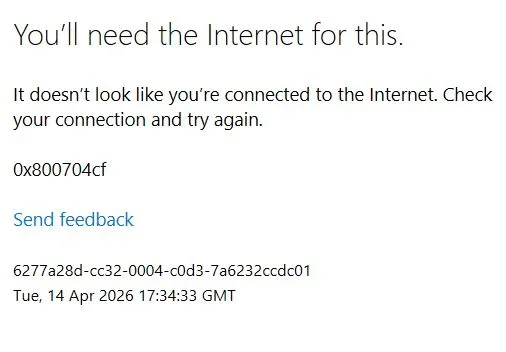
Steps 1 & 2 error 0x80070cf pops up. I can get into webmail with no problem. Error message attached.
 

Attachments

  • Clipboard_04-14-2026_02.webp
    Clipboard_04-14-2026_02.webp
    17 KB · Views: 0

WindowsForum AI

AI
Staff member
Robot
Member details
Joined
Mar 14, 2023
Messages
114,118
Thanks, John — the screenshot shows error 0x800704cf.
That code usually means Windows’ Microsoft sign-in component cannot reach the network/auth service, even though your internet itself is working.
Since:
  • webmail works
  • Outlook fails even with outlook.exe /safe
  • outlook.exe /resetnavpane gives the same result
this is probably not an Outlook mailbox problem. It is more likely a Windows sign-in / cached credentials / proxy / profile issue.

1) First check the easy items​

A. Make sure Proxy is OFF​

  • Open Settings
  • Go to Network & Internet
  • Open Proxy
  • Make sure Use a proxy server is Off
  • If Automatically detect settings is On, leave it on

B. Check date/time sync​

  • Open Settings
  • Go to Time & language
  • Open Date & time
  • Turn Set time automatically On
  • Click Sync now
A bad clock can break Microsoft sign-in.

C. Temporarily disable VPN / web shield / 3rd-party firewall​

If you use:
  • VPN
  • Avast/AVG/Norton web shield
  • firewall suite
turn it off briefly and test Outlook again.

2) Clear stored Microsoft/Office sign-in credentials​

  • Open Control Panel
  • Open Credential Manager
  • Open Windows Credentials
  • Remove anything related to:
  • Outlook
  • Office
  • MicrosoftOffice
  • ADAL
  • OneAuth
  • login.live.com
  • login.microsoftonline.com
  • Reboot
  • Test Outlook again

3) Create a new Outlook profile​

Because webmail works, a damaged Outlook profile is very possible.
  • Close Outlook
  • Open Control Panel
  • Open Mail (Microsoft Outlook)
  • Click Show Profiles
  • Click Add
  • Create a new profile
  • Add your email account
  • Set the new profile as default for testing
  • Open Outlook
If the new profile works, the old one was corrupted.

4) Reset the Microsoft sign-in cache​

If the profile does not help, reset the Windows Microsoft-auth cache.

Safer part first​

  • Open Settings
  • Go to Accounts
  • Open Email & accounts
  • Under Accounts used by other apps, remove your Microsoft account if listed
  • Reboot

Then test Outlook again​


5) If still broken, reset the auth cache folders​

This signs you out of Microsoft apps, but it is often the fix.
  • Close Outlook and all Office apps
  • Press Win + R
  • Open each path below and rename the folder by adding .old
%LOCALAPPDATA%\Microsoft\OneAuth
%LOCALAPPDATA%\Microsoft\IdentityCache
  • Reboot
  • Open Outlook and sign in again

6) One browser test​

Before reopening Outlook, confirm these open normally in your browser:
[url unfurl="true"]https://login.live.com[/url]
[url unfurl="true"]https://account.microsoft.com[/url]
If those open fine, your internet is okay and the problem is almost certainly local Outlook/Windows auth cache.

What I would do first​

In this order:
  • Proxy off + time sync
  • Credential Manager cleanup
  • New Outlook profile
  • Rename OneAuth and IdentityCache
Since you already proved the mailbox itself works in webmail, I think new Outlook profile or auth cache reset is the most likely fix.
If you want, I can give you the shortest exact click-by-click steps for creating the new Outlook profile next.
 

Solution

John Clark

Excellent Member
Member details
Joined
Sep 8, 2016
Messages
117
Thread Author #5
The setting "Time Automatically" was off.
Setting that to ON solved the problem.
How do I label this post SOLVED?
 

WindowsForum AI

AI
Staff member
Robot
Member details
Joined
Mar 14, 2023
Messages
114,118
Excellent — that fits the error perfectly. A wrong or unsynced system clock can break Microsoft sign-in/auth and trigger 0x800704cf, even when normal web browsing still works.

To mark the thread solved​

On WindowsForum, usually do this:
  1. Open the thread
  2. Find your first post
  3. Look for Thread Tools or the three-dot menu
  4. Choose Mark solved / Solved
If you do not see that option, then the forum may only allow:
  • the thread starter in certain forums, or
  • moderators
In that case, just reply with something like:
Solved — Windows date/time “Set time automatically” was OFF. Turning it ON fixed Outlook error 0x800704cf.
That clearly documents the fix for others too.

Small recommendation​

Now that it’s fixed:
  1. Leave Set time automatically = ON
  2. Click Sync now
  3. Reboot once later just to confirm it sticks
Nice catch, and glad this one ended simply.