
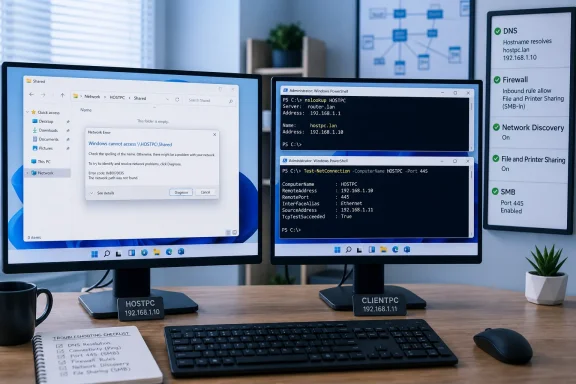
Microsoft’s Windows troubleshooting guidance identifies Network Discovery, File and Printer Sharing, the discovery services, firewall rules, and SMB configuration as common factors in failed share access. The most useful dividing line is simple: if \\server\share fails but \\192.168.x.x\share works, the file server and SMB path are reachable, while the name is the fault. If both fail, DNS is only one possibility.
Work through these tests from the PC that cannot open the share. Replace FILEPC, ShareName, and 192.168.1.50 with the actual target computer name, share name, and IPv4 address.
 Start with a direct UNC-path test
Do not use the Network pane in File Explorer as the main diagnostic. Network browsing relies on discovery and can be incomplete even while a correctly named SMB path works. Open File Explorer’s address bar, or use the Run dialog, and try:
\\FILEPC\ShareName
Then try the same share by its IPv4 address:
\\192.168.1.50\ShareName
Use the share name, not merely the computer address. For example, \\192.168.1.50 may show available shares, but \\192.168.1.50\Projects tests the exact resource your mapped drive needs.
The results narrow the work immediately:
- If the IP address works and the computer name fails, investigate DNS, DNS suffixes, stale name records, or another name-resolution method.
- If both forms fail, test the network route and SMB port before changing permissions or credentials.
- If either path opens but returns an access-denied or credential prompt, the path has been found. That is a permissions or authentication issue, not error 0x80070035.
- If only the old mapped drive fails while the UNC path works, remove the stale mapping and create it again after fixing the underlying name or credential issue.
At a Command Prompt, this command also gives a less ambiguous test than File Explorer:
net use * \\FILEPC\ShareName
The asterisk tells Windows to choose a free drive letter. If Windows connects successfully, disconnect the temporary mapping afterward with:
net use * /delete
For a specific existing mapping, inspect it first:
net use
A mapped drive can preserve an obsolete server name, retired IP address, or old credential long after the share configuration has changed.
Separate DNS trouble from a broken network connection
Run the following on the client PC:
ipconfig /all
Check that the active Ethernet or Wi-Fi adapter has a sensible IPv4 address, subnet mask, default gateway, and DNS server. An address beginning with 169.254. usually means the PC did not receive a usable DHCP lease, so it is not on the expected network in a meaningful way.
Next, ask DNS directly for the host:
nslookup FILEPC
In a business network, also test the fully qualified name supplied by IT, such as:
nslookup FILEPC.contoso.example
Microsoft documents that nslookup queries the configured DNS server rather than relying on the local Windows DNS cache. That makes it useful when \\FILEPC\ShareName has failed because Windows retained a previous negative response or an outdated address.
If the returned address is wrong, repair the DNS record or DHCP reservation rather than working around it on every PC. A reliable file server should have a stable IP assignment and a DNS record that matches it. Home and small-office routers may provide local hostname resolution inconsistently, especially after a device changes networks, sleeps for long periods, or receives a new DHCP lease.
If nslookup FILEPC fails but the fully qualified name works, the likely problem is a missing DNS suffix search configuration. In an Active Directory environment, use the organization’s DNS servers and the documented FQDN instead of public resolvers. Pointing a domain-connected PC at a public DNS service can make internet lookups appear healthy while breaking internal server discovery.
Clear stale cached results only after correcting the DNS source:
ipconfig /flushdns
Then retry the UNC path. If the client uses DHCP and its address or DNS settings look incorrect, renew the lease:
ipconfig /renew
Avoid using the Windows hosts file as the normal solution. It can validate the diagnosis in a controlled test, but it creates a per-PC manual record that will break when a server’s address changes. Fixing DHCP and DNS once is the durable repair.
Test SMB on TCP port 445, not just Ping
A successful ping proves only that an ICMP response was received. It does not show that SMB is listening, that a firewall permits it, or that the target machine is actually sharing files.
In PowerShell, test the SMB service directly by name and by IP address:
Test-NetConnection FILEPC -CommonTCPPort SMB
Test-NetConnection 192.168.1.50 -Port 445
Look for:
TcpTestSucceeded : True
Windows SMB normally uses TCP port 445. If the test succeeds by IP but fails by name, return to DNS diagnosis. If it fails in both cases, the cause is more likely the target computer’s firewall, an offline target, a guest Wi-Fi or VLAN boundary, a VPN routing rule, or a disabled SMB server service.
Run the port test from the client to the host; then inspect the host. On the PC that owns the shared folder, open services.msc and confirm that the Server service is running. This service provides SMB file shares. The Workstation service matters on the client because it establishes connections to remote SMB shares.
Do not solve the port failure by exposing TCP 445 to the internet. Microsoft’s current SMB security guidance advises blocking inbound SMB access from the internet. File sharing should be reachable only on the trusted local network, over a properly configured VPN, or through a managed alternative such as SMB over QUIC where the environment supports it.
Put both Windows PCs on the Private profile and enable sharing
Windows applies different discovery and firewall behavior to Private and Public network profiles. A home LAN, a trusted small-office LAN, or a managed internal network can use the Private profile; coffee-shop Wi-Fi, hotel networks, and unknown shared networks should remain Public.
On Windows 11, open Settings > Network & internet > Ethernet or Wi-Fi, select the current connection, and set Network profile type to Private if the network is trusted. Windows 10 exposes the same choice through the connected network’s Properties page.
Then open Settings > Network & internet > Advanced network settings > Advanced sharing settings. Under Private networks, turn on:
- Network discovery.
- File and printer sharing.
These settings are most important on the PC hosting the share, but enable them on both PCs if each is expected to discover or access the other. Network Discovery helps Windows advertise and browse devices; File and Printer Sharing enables the operating system’s sharing behavior and corresponding firewall allowance for the applicable profile.
If Network Discovery refuses to stay enabled, check the services it depends on. Microsoft lists these as key dependencies:
DNS Client
Function Discovery Provider Host
Function Discovery Resource Publication
SSDP Discovery
UPnP Device Host
Open services.msc, start any that are stopped, and set the discovery-related services to Automatic where Windows allows it. The Function Discovery Resource Publication service is especially relevant on a Windows PC that should appear to other devices.
Do not confuse discovery with connectivity. A PC missing from File Explorer’s Network view may still be accessible through \\FILEPC\ShareName. Conversely, making it appear in Network does not fix a closed SMB port or a bad DNS record.
Verify the share, firewall, and SMB version without weakening security
On the host PC, confirm that the folder is actually shared. Right-click the folder, select Properties > Sharing, and verify the share name. The UNC path uses that share name, which may differ from the folder’s name on disk.
Also check both layers of access control:
- Share permissions determine access across the network share.
- Security permissions on the folder’s Security tab determine NTFS access on the local disk.
The effective access is the more restrictive result. A mistake here generally produces access denied after the client reaches the server; it does not usually explain “network path was not found.” Still, checking it prevents a false sense of completion after the path issue is fixed.
In Windows Defender Firewall with Advanced Security on the host, verify that the appropriate inbound File and Printer Sharing (SMB-In) rule is enabled for the Private or Domain profile in use. Microsoft’s SMB troubleshooting documentation identifies File and Printer Sharing firewall rules and ports 445 and 139 as necessary for traditional SMB access. If a third-party security suite or endpoint firewall is installed, inspect its local-network rules as well; temporarily disabling security software is a poor substitute for creating a precise, scoped rule.
For modern Windows-to-Windows sharing, keep SMB 2 and SMB 3 enabled. Check the client and server state from an elevated PowerShell session:
Get-SmbClientConfiguration | Select-Object EnableSecuritySignature,RequireSecuritySignature,EnableInsecureGuestLogons
Get-SmbServerConfiguration | Select-Object EnableSMB2Protocol,RequireSecuritySignature
Do not enable SMB 1.0 merely because a guide says error 0x80070035 can involve SMB. Microsoft no longer installs SMBv1 by default, and its own SMB guidance recommends disabling it. SMBv1 was implicated in major worm outbreaks and lacks the protections expected of a current file-sharing protocol.
If the target is an old NAS, printer, media box, or embedded appliance that supports only SMBv1, the better remedy is to update its firmware, enable SMB2/SMB3 in its management interface, or replace it. Enabling SMBv1 on a current Windows PC should be treated as a short-lived compatibility test on an isolated, trusted network—not a general repair.
Reconnect with the correct account after the path works
Once \\FILEPC\ShareName opens, map the drive again using the target computer name or its fully qualified DNS name. Prefer the name once DNS has been repaired; IP-based mappings keep working through a naming failure but become another maintenance problem when DHCP assignments change.
If Windows prompts for credentials, use an account that exists on the computer hosting the share. For a local account, enter it in this form:
FILEPC\username
Use the account password, not the Windows Hello PIN. A PIN is tied to local sign-in on that device and is not the network password SMB uses for another computer.
Keep password-protected sharing enabled wherever possible and grant a specific user only the access needed. Turning off password-protected sharing, allowing anonymous guest access, disabling SMB signing, or broadly opening firewall ports may appear to cure a connectivity problem, but each removes a security control rather than identifying the failed layer.
The durable repair is the one your test results identify: correct DNS when IP access works, restore the route or port 445 rule when neither name nor IP works, enable sharing and the Server service on the host, and fix permissions only after Windows can reach the share.
