
Microsoft Support’s clean-boot documentation is clear about the key result: if an application works after Windows starts with non-Microsoft services and startup apps disabled, another service or startup program is interfering. If it still fails in that stripped-down state, the cause is more likely the app itself, the current Windows user profile, or a Windows component the app depends on.
This guide assumes Windows reaches the desktop and that the affected program can be launched long enough to fail. If the entire PC will not boot, use Windows Recovery Environment instead. Also note that Windows 10 reached end of free security-update support on October 14, 2025; its troubleshooting controls remain much the same, but a persistent Windows 10 machine should be treated as a separate security and lifecycle problem after the immediate application failure is resolved.
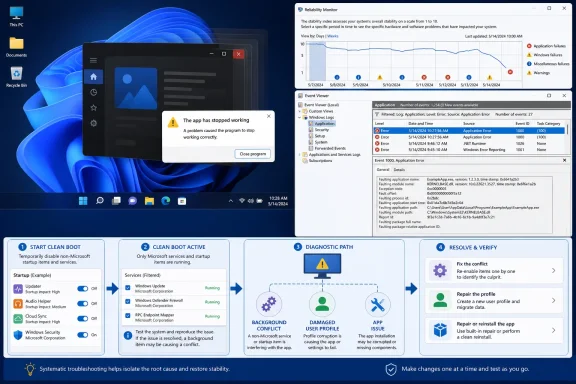 Capture the failure before changing anything
Do not begin by disabling antivirus, deleting folders, or changing registry values. First, reproduce the crash once, write down the approximate time, and note whether it affects one application, several unrelated desktop programs, or Microsoft Store apps as a group.
Open Reliability Monitor with Win + R, type perfmon /rel, and press Enter. Microsoft’s command reference confirms that the /rel switch opens Reliability Monitor. Find the day and time of the failure, then select the red critical-event marker. An application crash entry commonly identifies the executable, an exception code, and sometimes the module involved.
Reliability Monitor is useful because it gives a chronological view. If Adobe Acrobat, a game launcher, and a browser extension host started failing immediately after the same driver or security-product update, that timing is more useful than a single isolated error code. Conversely, if only one app has been failing for weeks while the rest of the PC remains stable, the evidence points away from Windows-wide repair work.
Then open Event Viewer with Win + R, type eventvwr.msc, and press Enter. Go to Windows Logs > Application, select Filter Current Log, choose Critical and Error, and narrow the time range to the minute when the app closed. Microsoft Learn identifies Application Error, Event ID 1000 as the actual application-crash record; Event ID 1001 may be associated with Windows Error Reporting.
Open the event that matches the failed launch and preserve these fields:
- The faulting application name and full path establish whether the expected executable actually crashed.
- The faulting module name and path can reveal a third-party DLL, overlay, security component, or runtime loaded into the app.
- The exception code distinguishes an ordinary crash record from a permissions, runtime, or initialization problem.
- The event time lets you match the Event Viewer record to Reliability Monitor and to recent software, driver, or update changes.
Do not treat the faulting module as a guilty verdict. A Windows DLL named in the log may merely be where the process finally stopped after another program corrupted memory or injected code. The stronger clue is repetition: the same app, module, and exception code appearing at every failed launch is a reproducible signature; different modules on every crash suggest a broader instability or an incomplete update.
Use a clean boot to test the background-software theory
A clean boot is not Safe Mode. It starts normal Windows while excluding non-Microsoft services and startup applications, leaving the Windows components needed for a regular desktop session. That makes it far more useful for identifying conflicts with endpoint security suites, RGB and peripheral software, cloud-sync clients, audio enhancers, screen-recording overlays, VPN clients, launcher updaters, and similar background tools.
Sign in with an administrator account, then open System Configuration by typing msconfig in Start search. On the Services tab, select Hide all Microsoft services first. This is the safeguard that prevents an experiment from becoming a broken Windows installation. Once Microsoft services are hidden, select Disable all and apply the change.
Next, open the Startup tab in System Configuration and choose Open Task Manager. In Task Manager’s Startup apps section, disable every enabled third-party startup item. Take screenshots or make a list first; Microsoft Support specifically advises keeping track of what was disabled because you will need to restore legitimate items after testing.
Restart, then launch the affected program in the clean-boot environment. Test only the original symptom. Do not decide the crash is fixed because the app window stays open for two seconds longer than before; perform the action that normally triggers the immediate exit, whether that is signing in, opening a project, accessing a camera, loading a plug-in, or switching to a particular view.
There are only two meaningful outcomes:
- The app works in a clean boot. A non-Microsoft service or startup application is part of the failure path.
- The app still closes immediately. Stop blaming startup clutter. The evidence has ruled out the most common background-conflict category, and the next tests should focus on the application and user account.
A clean boot can temporarily remove functionality that an app needs, including a device utility, licensing helper, VPN, smart-card component, or audio driver companion. That is why it is a diagnostic state, not a permanent configuration to leave in place.
Find the conflicting service without guessing
If the app works in a clean boot, do not re-enable every startup item at once. Microsoft Support recommends a divide-and-conquer approach: enable roughly half the disabled non-Microsoft services, restart, and retest. If the crash returns, the offender is in that half; if the app remains stable, the offender is in the other half. Continue halving the suspect set until one service remains.
Repeat the same process for startup apps through Task Manager. This reduces a list of 32 candidates to a handful of reboots instead of testing them individually.
Keep a simple record for each test: enabled items, restart time, result, and the Event Viewer signature. The record matters when a service has a vague display name such as “Update Service” but belongs to a recognizable product folder. It also prevents a false conclusion caused by an app that crashes only after a delayed background component finishes loading.
Once you identify the culprit, the right remedy depends on its role:
- Update the conflicting product from its publisher, then retest with its service enabled.
- If the item is an overlay, recording tool, peripheral utility, or optional launcher, leave it disabled or remove it if its feature is not needed.
- If it is endpoint protection, a corporate VPN, device-management agent, or accessibility software, do not simply uninstall it on a managed machine. Give IT the Event ID 1000 details, the exact faulting module, and the clean-boot result so they can adjust policy, update the agent, or obtain a supported exclusion.
- If the conflict began directly after a driver or utility update, roll back or reinstall that specific component rather than resetting Windows.
Return Windows to normal startup after testing. In System Configuration, restore normal startup behavior and re-enable only the services and startup entries you have verified as safe. Leaving a machine in a partial clean boot may break printing, syncing, encryption, backup, licensing, VPN access, or device-specific features later.
Test whether the Windows user profile is the trigger
When an app fails under one account but works in a clean boot—or when the crash log suggests access denied, a missing path, or a configuration error—the user profile becomes a serious suspect. Microsoft Learn’s Store-app troubleshooting documents cases where an app dies during initialization because the logged-in account lacks required permissions; this is one reason “the app works for another user” is a valuable diagnostic result rather than a coincidence.
Create a temporary local test account through Settings > Accounts > Other users > Add account, choosing the option to add a user without a Microsoft account if you only need a short-lived diagnostic profile. Make it an administrator for the test, sign out, sign in to that new account, and launch the same app.
If the program opens normally under the new account while it continues to close under the original one, do not reinstall Windows. The app installation may be sound, while its per-user configuration, cached credentials, access permissions, or profile data is damaged.
For a desktop app, first look for a publisher-supported reset of its preferences or a way to rename its user configuration folder so the program creates a fresh one at next launch. Back up that folder before changing it; some applications store local databases, templates, mail archives, project settings, or license information there.
For a Microsoft Store app or an app that exposes Windows repair controls, go to Settings > Apps > Installed apps in Windows 11, or Apps & features in Windows 10. Open the app’s advanced options and select Repair first. Microsoft Support says Repair attempts to fix the program without removing app data; Reset is the next step if Repair does not work, and it can remove the app’s data and settings. Treat Reset as destructive until you have confirmed where the app keeps important local information.
If the new account proves the original profile is damaged and resetting the app’s own settings does not help, Microsoft Support’s supported profile-recovery route is a replacement account. Move personal files deliberately—Documents, Desktop, Pictures, downloads, and project folders—rather than blindly copying the entire old profile, including hidden application-data folders that may carry the broken setting into the new account. Applications may need to be signed in, configured, or reinstalled afterward.
Repair the app only after the evidence narrows the cause
If the app fails in a clean boot and fails under a fresh user account, its own installation or dependency chain is the leading suspect. Update the app from its publisher, then use its built-in repair option if available. Traditional desktop programs may expose Repair or Change in Control Panel’s Programs and Features; otherwise, uninstalling and reinstalling from the publisher’s current installer is usually cleaner than repeatedly launching the same damaged installation.
Match the repair effort to the scope of the failure. One broken app does not justify a full Windows reset. Several unrelated apps failing with the same third-party DLL in their Event ID 1000 records does justify focusing on that shared component. Multiple apps failing with different modules, across clean boot and a new user account, is when Windows component repair or an in-place Windows reinstall becomes reasonable escalation.
The useful outcome is not merely getting one program to open. It is ending with a cause you can name: a specific background service, startup item, damaged per-user setting, or faulty application installation. Clean Boot, Reliability Monitor, and Event Viewer turn an “app closes immediately” complaint into evidence that can be fixed—and, just as importantly, kept from returning after the next update.