

Microsoft’s current Windows shortcut documentation lists Ctrl+C as Copy, Alt+Tab as the task switcher, and Windows+E or Windows+R as shell shortcuts in both Windows 10 and Windows 11. If those combinations do nothing everywhere, the issue is usually a keyboard, accessibility setting, remapping tool, or managed-device restriction—not a missing Windows feature.
The useful dividing line is simple. Test Ctrl+C after selecting text in Notepad, test Alt+Tab with two ordinary desktop windows open, and test Windows+E to open File Explorer. If only Ctrl+C fails, focus on the application, clipboard, or Ctrl key. If Alt+Tab and Windows+E both fail too, move directly to accessibility settings, policy, and keyboard software.
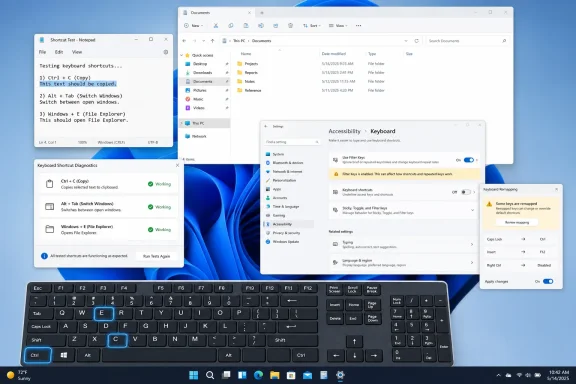 Confirm Which Part of the Shortcut Is Failing
Start by testing the individual keys rather than repeating the same broken shortcut. Press the Windows key alone: the Start menu should open. Press and release Ctrl in Notepad, then use the arrow keys or type normally. Try both left and right Ctrl, Alt, Shift, and Windows keys if the keyboard has them.
A failure limited to one side of the keyboard is a strong hardware clue. For example, if right Ctrl works but left Ctrl does not, Windows is unlikely to be blocking Ctrl+C globally; the left Ctrl key, its switch, or the keyboard’s internal mapping is the likely fault. Laptop keyboards can develop the same problem after a spill, debris under a keycap, or physical wear.
Then check whether the failure follows the keyboard:
- Disconnect a USB keyboard, wait a few seconds, and connect it directly to a different USB port rather than through an unpowered hub.
- Recharge or replace batteries in a wireless keyboard, reseat its receiver, and re-pair Bluetooth hardware if applicable.
- Test the keyboard on a second PC, or test the affected PC with another keyboard.
- If an external keyboard works while the built-in laptop keyboard does not, stop changing Windows settings and investigate the laptop keyboard or its vendor driver.
Microsoft’s hardware troubleshooting guidance specifically recommends reconnecting USB devices, trying a different port, bypassing hubs, checking wireless connections, and updating device drivers. Those steps matter because Windows cannot reliably distinguish a physically missing modifier key from a shortcut intentionally disabled by software.
Turn Off Filter Keys and Check Sticky Keys
Filter Keys is designed to help people who may press keys briefly or repeatedly by making Windows ignore certain inputs. It is useful accessibility technology, but it can make fast typing and quick modifier combinations feel unreliable—especially when a key must be held long enough before Windows accepts it.
On Windows 11, open Settings > Accessibility > Keyboard. On Windows 10, open Settings > Ease of Access > Keyboard. Turn Filter Keys off, then test the failed shortcuts again. Also open the Filter Keys settings page and disable its keyboard shortcut if you do not intend to use the feature; otherwise it can be enabled again accidentally through its activation sequence.
Check Sticky Keys in the same area. Sticky Keys does not normally disable Ctrl+C or Alt+Tab, but it changes how modifier keys behave by allowing them to remain active after being pressed. If Windows appears to think Ctrl, Alt, Shift, or the Windows key is held down when it is not, turn Sticky Keys off temporarily and retry.
There is a naming trap worth avoiding. Filter Keys is the consumer accessibility setting found in Settings. Keyboard Filter is a separate Windows Device Lockdown component used on dedicated, kiosk, education, and enterprise systems to suppress selected keys and key combinations. Microsoft documents Keyboard Filter as available for Enterprise, Education, and IoT editions; it can block predefined or custom shortcuts, including combinations an organization does not want available on a locked-down device.
That distinction changes the diagnosis. Turning off Filter Keys in Settings will not override a Keyboard Filter deployment, Assigned Access kiosk configuration, or a management policy sent by an employer or school.
Check Whether a Policy Disabled Windows-Key Shortcuts
If Ctrl+C and Alt+Tab work but Windows+R, Windows+E, Windows+D, Windows+I, and similar combinations do not, the most likely Windows-level cause is the policy named Turn off Windows Key hotkeys.
On an unmanaged Windows 11 Pro, Enterprise, or Education PC, open Local Group Policy Editor by typing gpedit.msc in Start search. Go to:
User Configuration > Administrative Templates > Windows Components > File Explorer
Open Turn off Windows Key hotkeys. Set it to Not Configured or Disabled, apply the change, sign out and back in, and retest Windows+E or Windows+R.
Microsoft documents this policy as NoWindowsHotKeys, with the backing registry value named NoWinKeys under the current user’s Explorer policies. When the policy is enabled, Windows-key hotkeys are unavailable. It does not explain a broken Ctrl+C or Alt+Tab, so do not treat it as a universal keyboard-shortcut repair.
On a work or school PC, do not change the policy locally without authorization. Domain Group Policy and Microsoft Intune can reapply the setting after a refresh, restart, or sign-in. Instead, open Command Prompt and run:
gpresult /scope user /r
Microsoft’s gpresult tool reports the Resultant Set of Policy applied to the signed-in user. Give the output to the IT team along with the exact shortcut that fails. A useful report says “Windows+E does nothing, but Ctrl+C and Alt+Tab work,” rather than simply “the keyboard is broken.”
Kiosk-style configurations may intentionally block a broader range of shortcuts. Microsoft’s Assigned Access documentation lists several Windows-key combinations and security-related shortcuts that can be blocked for assigned accounts. In that situation, restoring shortcuts is an administrative design decision, not a desktop troubleshooting task.
Rule Out Keyboard Managers and App-Level Conflicts
If shortcuts work in Notepad and File Explorer but fail in a specific app, Windows is functioning normally. The application may use a different command mapping, have an active dialog box, reserve the shortcut for another function, or disable it in a particular document mode.
Test the affected shortcut in a second app before reinstalling anything. Ctrl+Shift+V, for example, is not universally implemented as “paste plain text”; Microsoft notes that shortcut behavior can vary by application. The same is true for many developer tools, remote-control clients, games, virtual machines, and browser-based applications.
Next, temporarily exit software that can remap or capture keystrokes. Common examples include Microsoft PowerToys Keyboard Manager, AutoHotkey scripts, Logitech Options+, Razer Synapse, Corsair iCUE, gaming overlays, remote-desktop tools, virtual machine software, and screen-recording utilities. Use the program’s own exit option or disable its remapping profile; do not uninstall it before you know it is responsible.
Pay particular attention to these patterns:
- If Windows-key shortcuts fail only while gaming software is running, look for a “Game Mode,” “Win Lock,” or tournament-lock setting on the keyboard or in its control software.
- If the Windows key itself works but its combinations do not, check the Windows hotkeys policy before blaming the physical key.
- If shortcuts fail only inside a Remote Desktop session, test them on the local desktop too. Microsoft notes that the enterprise Keyboard Filter feature is not supported in Remote Desktop sessions, while remote-session clients can independently decide where certain key combinations are sent.
- If Ctrl+C appears to fail but Ctrl+X, Ctrl+V, and Ctrl+A work, verify that text or a file is actually selected and test copying in Notepad. The problem may be the clipboard or the application’s selection state rather than the keyboard shortcut.
Update the Driver Only After Basic Tests
Driver work is appropriate when the keyboard behaves inconsistently across programs, modifier keys intermittently fail, or the problem began after a Windows update, docking change, or new peripheral installation. It is less useful when the keyboard works perfectly except for a narrow, policy-like group of Windows-key combinations.
First run Windows Update and install available updates, including optional driver updates if they are clearly associated with the keyboard, Bluetooth adapter, or laptop input device. Then open Device Manager, expand Keyboards, select the relevant device, open Properties > Driver, and use Update Driver. Microsoft’s support guidance recommends this route instead of downloading unidentified “driver updater” utilities.
For a laptop, the PC manufacturer’s keyboard, chipset, hotkey, and firmware packages may matter more than the generic keyboard entry in Device Manager. A keyboard with dedicated function layers, macro keys, or a physical shortcut-lock control may also require the manufacturer’s configuration utility to restore its default behavior.
Reboot after a driver update or after disabling a remapping utility. A restart clears held modifier states and reloads keyboard services, but it should confirm a change you made—not substitute for identifying one.
Use the Failure Pattern to Avoid the Wrong Fix
The practical lesson is that shortcut troubleshooting should be scoped before it is “fixed.” Filter Keys can interfere with accepted keystrokes; Windows policy can disable Windows-key combinations; kiosk controls can intentionally suppress broader shortcuts; and an app or remapping tool can override commands without affecting Windows itself.
For a personal PC, the efficient repair order is: verify the keyboard hardware, turn off Filter Keys, test in Notepad and File Explorer, close remapping software, inspect the Windows-key policy only if Windows-key combinations are affected, then update the driver. For a managed PC, stop after identifying the pattern and collect gpresult output for IT.
Once Ctrl+C works in Notepad, Alt+Tab switches ordinary desktop windows, and Windows+E opens File Explorer, the Windows shortcut layer is restored. Any remaining failure is specific to the application, remote session, keyboard profile, or organization’s intentional policy.