
Microsoft Support’s current Windows 11 guidance includes disabling power saving for the Wi‑Fi adapter, setting the wireless power plan to Maximum Performance, checking the adapter driver, and using Windows’ reset tools only after less disruptive steps fail. Microsoft Learn separately documents that ipconfig exposes the active default gateway and that route print shows the default route as 0.0.0.0.
The important distinction: a Windows troubleshooter may report that it “fixed” the gateway when it has simply reset or renewed the adapter. If the connection dies again five minutes later, the gateway message is a symptom, not proof that your router is defective.
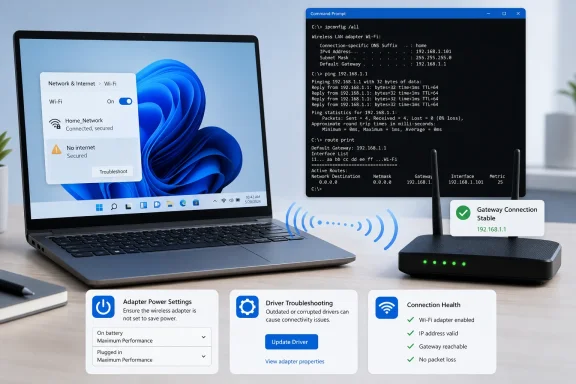 Confirm which connection is actually failing
Start while the problem is happening, if possible. Open Command Prompt and run:
ipconfig /all
Find the adapter that is currently in use. For Wi‑Fi, look under Wireless LAN adapter Wi-Fi; for a wired connection, look under Ethernet adapter Ethernet. Ignore disconnected adapters, virtual adapters, old VPN adapters, and Bluetooth network entries unless they are the connection you intend to use.
Write down these three values:
- The IPv4 address.
- The Default Gateway.
- The DHCP Server.
A typical home network might show an IPv4 address such as 192.168.1.50 and a Default Gateway such as 192.168.1.1. The exact numbers vary by network. What matters is that the IPv4 address and gateway are on the same local network.
If Windows reports an address beginning with 169.254, the PC has assigned itself an Automatic Private IP Addressing address because it did not obtain a usable DHCP lease. In that case, do not begin by changing DNS servers or editing a gateway manually. Test the router, access point, Ethernet cable, switch port, or DHCP service first.
Next, test the gateway directly. Replace the example address with the gateway shown by ipconfig /all:
ping 192.168.1.1
Run the command during a disconnect, not only after the connection has recovered.
If the gateway ping times out while other devices on the same Wi‑Fi network work normally, the fault is likely between this PC and the local network: its Wi‑Fi or Ethernet adapter, its driver, radio conditions, cable, or power behavior. If every device loses access to the gateway, rebooting or reconfiguring Windows is unlikely to solve the underlying problem. Check the router, modem, access point, switch, or ISP service instead.
You can also inspect Windows’ active routes:
route print
Under the IPv4 route table, look for a route beginning with 0.0.0.0. That is the default route. If it points at an unexpected gateway, or a VPN and a physical adapter are competing for the lowest route metric, the issue may be configuration rather than a failing network card.
Stop Windows from powering down the active adapter
For intermittent dropouts that happen after idle periods, on battery, or after waking the PC, power management is one of the first settings worth checking. Microsoft Support specifically recommends disabling adapter-level power saving for Wi‑Fi connection problems.
- Right-click Start and select Device Manager.
- Expand Network adapters.
- Identify the adapter in use. Its name may include Intel, Realtek, MediaTek, Qualcomm, Broadcom, or your laptop manufacturer.
- Right-click it and select Properties.
- Open the Power Management tab.
- Clear Allow the computer to turn off this device to save power.
- Select OK, then restart Windows.
Do this only for the adapter that is dropping out. Disabling power saving on every virtual, VPN, Bluetooth, and unused Ethernet adapter creates clutter without diagnosing anything.
Some adapters do not show a Power Management tab. That is normal: the driver and hardware expose different controls on different systems. Do not try to force the missing setting through Registry edits or random “advanced” tweaks from forum posts. If the tab is absent, move on to the driver and power-plan checks.
For Wi‑Fi, also set the active wireless power policy to favor stability:
- Open Control Panel and select Hardware and Sound > Power Options.
- Next to the active plan, select Change plan settings.
- Select Change advanced power settings.
- Expand Wireless Adapter Settings > Power Saving Mode.
- Set it to Maximum Performance for both On battery and Plugged in if the connection is unstable.
- Apply the change and restart the PC.
This setting applies to wireless adapters, not wired Ethernet. It can reduce laptop battery life, so treat it as a stability trade-off rather than a universal optimization. If the problem disappears after the change, you have useful evidence that adapter power behavior was involved.
Update—or roll back—the network driver deliberately
A driver update can repair an adapter that fails to resume correctly, loses its DHCP lease, or mishandles roaming between access points. It can also introduce a regression. The right response depends on when the failures began.
In Device Manager, open the active adapter’s Properties and select the Driver tab. Record the Driver Provider, Driver Date, and Driver Version before changing anything. That gives you a way to verify what actually changed and a route back if the replacement is worse.
If the disconnects began after a Windows Update, a manufacturer utility update, or a driver installation, select Roll Back Driver if that button is available. Restart, then test the connection through the same workload that caused the failure—video calls, game downloads, VPN use, or simply an extended idle period.
If the issue predates the current driver, download the network driver from the PC maker’s support page for the exact laptop or motherboard model. For laptops in particular, the system manufacturer’s package is usually the sensible first choice because it may include platform-specific power and radio settings. Microsoft Support also advises obtaining a backup driver before uninstalling an adapter, because losing the driver while offline turns a short repair into a second problem.
Avoid generic “driver updater” applications. They often obscure where a driver came from and make it harder to reverse a bad change. Windows Update can also offer driver updates, but a device-maker package is preferable when you are responding to a known adapter problem.
If updating and rolling back are unavailable or ineffective, use Uninstall device on the active adapter in Device Manager, restart Windows, and let Windows reinstall the adapter. Have the manufacturer’s driver saved locally first. Do not check any option to remove the driver package unless you already have a replacement ready.
Use Windows repair commands in the right order
Windows 11’s Get Help app includes a Network and Internet troubleshooter. Run it early, but read its result as a diagnostic clue rather than a final diagnosis. A temporary repair after the troubleshooter runs is consistent with an adapter reset, address renewal, or network-stack reset; it does not establish why the failure occurred.
For a persistent configuration problem, open Command Prompt as administrator and run Microsoft’s recommended commands one at a time:
netsh winsock reset
netsh int ip reset
ipconfig /release
ipconfig /renew
ipconfig /flushdns
Then restart the PC.
These commands repair different layers. netsh winsock reset rebuilds the Winsock catalog used by Windows networking software. netsh int ip reset resets TCP/IP configuration. ipconfig /release and ipconfig /renew ask a DHCP-enabled network for a fresh address lease, while ipconfig /flushdns clears cached name-resolution records.
A DNS flush alone cannot repair a gateway that does not answer pings. Likewise, a successful renewal does not prove the Wi‑Fi radio is stable. The sequence is worthwhile when the routing or DHCP configuration is corrupted, but it should not be used as a substitute for testing the gateway during the outage.
Do not use ipconfig /release or broad reset commands casually on a PC with a manually assigned address, specialist VPN client, Hyper-V virtual switch, or corporate networking configuration. Document the existing settings first and involve IT if the device is managed.
Keep Network Reset as the last local step
Windows 11’s Network reset option is the heavy-handed final repair: Settings > Network & internet > Advanced network settings > Network reset > Reset now. Microsoft warns that it removes installed network adapters and restores their settings to defaults after restart.
That can resolve tangled adapter settings after an upgrade or failed configuration change. It can also remove virtual switching and require you to recreate VPN, Hyper-V, or other networking software settings. Known connections may revert to the Public network profile, which affects device discovery and file sharing.
If the fault remains after adapter power settings, a confirmed driver change, and targeted Windows repairs, stop treating this as a Windows-only issue. Test with another device on the same Wi‑Fi network, try a different Ethernet cable or switch port for wired connections, and check whether the router’s local management page remains reachable when the Internet drops. A gateway that is unreachable from multiple devices points away from the PC and toward the network equipment.
The best outcome is not merely seeing Windows declare the problem fixed. It is a stable gateway ping through the period that previously caused the disconnect—and a repair you can explain, reproduce, and reverse if needed.
