
Microsoft’s current support documentation draws an important line that is often missed in generic troubleshooting advice: changing a keyboard layout changes how physical key positions are interpreted, but it does not change the Windows display language. A PC can still be set to English while interpreting the same physical keyboard as United Kingdom, United States-International, French AZERTY, or another installed layout.
Before reinstalling drivers or changing registry settings, identify the symptom. The pattern tells you whether Windows is translating keys differently, an accessibility setting is filtering keystrokes, or the hardware itself is failing.
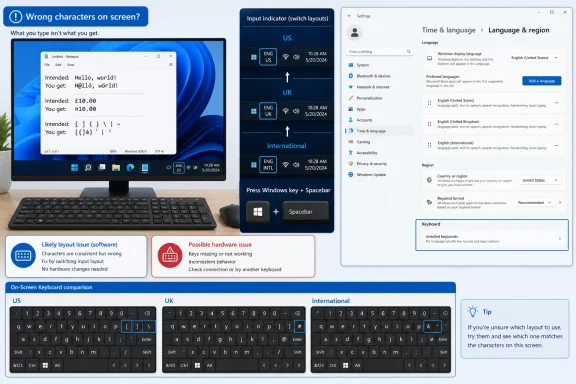 Identify whether Windows is translating keys or losing them
Open Notepad and type a short test string using letters, numbers, and punctuation: qwerty, 12345, and the keys around Enter, Shift, and Backspace. Do the same test in a second application, such as a browser address bar.
A layout issue is usually consistent and repeatable. For example, pressing Y always produces Z, or the key beside Enter always produces a different punctuation mark. A U.S. keyboard configured as a U.K. layout is a classic case: the @ and quotation-mark positions appear reversed. A French AZERTY layout, meanwhile, changes several familiar letter and number positions.
Filter Keys produces a different pattern. It does not deliberately swap Q for A or move punctuation. Instead, it can ignore brief presses, delay input, or suppress repeated presses. If a key must be held longer than usual, fast typing drops letters, or key repeats behave oddly, investigate Filter Keys.
Hardware faults are less tidy. A damaged or contaminated keyboard may generate repeated characters, miss a small cluster of keys, send input without being pressed, or produce different results from the same key at different times. Those symptoms should not be treated as a language-layout problem simply because the visible output looks wrong.
This distinction saves time: a clean, predictable key-for-key substitution points to Windows input settings; erratic behavior points toward the keyboard, its connection, or a device-specific driver problem.
Switch back to the intended keyboard layout
Look at the input indicator in the notification area on the right side of the Windows taskbar. It may display a language abbreviation such as ENG or an input identifier such as US. Select it to see every keyboard layout currently available, then choose the one that matches the physical keyboard in front of you.
Microsoft documents a faster method: hold the Windows key and press Spacebar to cycle through installed layouts. Release the Windows key after selecting the correct one. This shortcut is useful when the taskbar is hidden or when a layout changed in the middle of typing.
Do not assume that a layout named “English” is necessarily the U.S. layout. Several English-language keyboard layouts can be installed under one language:
- US is the standard layout for most keyboards sold in the United States.
- United Kingdom changes several punctuation positions.
- United States-International adds dead keys, which wait for another keypress to create accented characters. With that layout, typing an apostrophe followed by a vowel may create a character such as
éinstead of two separate characters.
The last case frequently looks like a malfunction even though Windows is doing exactly what the selected layout requests. If quotation marks, apostrophes, grave accents, or tildes appear to “stick” until the next letter, check for United States-International before replacing any hardware.
The same check matters at the Windows sign-in screen. Microsoft warns that a change in Windows display language can also change the keyboard layout selected for sign-in. Use the input-language icon on the sign-in screen before entering a password, and use the password reveal control if the keyboard mapping is in doubt.
Remove layouts you never intend to use
Switching back fixes the immediate problem. Removing unused layouts prevents the same shortcut from creating it again.
In Windows 11, open Settings > Time & language > Language & region. Under the installed language that contains the unwanted layout, select the three-dot menu and choose Language options. In the Keyboards section, select the unwanted keyboard layout and choose Remove.
Keep the distinction between a language and a keyboard layout in mind. You may want Windows menus, Microsoft Store content, and spell-checking in English while retaining a non-U.S. layout for a bilingual workflow. In that case, remove only the unwanted keyboard layout rather than deleting the whole language pack.
Microsoft also notes that keyboard layouts are not always stored beneath the language that appears to match them. If the layout is not listed under your current Windows display language, inspect the Language options page for the language associated with that layout. This is why a user may see an unexpected U.K. or international layout even when English is the only obvious language in the main Settings list.
Windows will not let you remove the only keyboard layout available for the current display language. If the Remove button is unavailable, add the intended layout first, select it, and then remove the unwanted one. Do not delete your sole usable layout while troubleshooting; if the physical keyboard is already producing unfamiliar characters, keep the On-Screen Keyboard available as a fallback.
If the taskbar input indicator is missing, search Settings for Input Indicator or open Taskbar settings and ensure the input indicator system icon is enabled. The indicator is more than cosmetic: it is the quickest visible confirmation of which layout Windows is using at that moment.
Turn off Filter Keys when input is delayed or dropped
Filter Keys is an accessibility feature designed to ignore brief, repeated, or unintended keystrokes. It can be valuable for users who need it, but it can make a normal keyboard feel slow, unresponsive, or inconsistent if enabled accidentally.
In Windows 11, open Settings > Accessibility > Keyboard and turn Filter Keys off. Windows also exposes related sensitivity controls there, so verify that the main Filter Keys switch is disabled rather than merely changing one timing option.
A long-standing Windows shortcut can enable or disable Filter Keys by holding the right Shift key for eight seconds. This is especially easy to trigger during gaming, cleaning a keyboard, or holding Shift while working through a sign-in or remote-session problem. If your Windows version shows a Filter Keys keyboard-shortcut option, turn that off as well if you do not use the feature.
Filter Keys should be treated as a response-timing diagnosis, not a cure-all. Turning it off can resolve lost, delayed, and unwanted repeated keystrokes. It will not fix a stable Y-becomes-Z mapping, because that behavior is controlled by the selected layout.
Use the On-Screen Keyboard to separate software from hardware
Windows includes an On-Screen Keyboard, or OSK, that can be operated with a mouse or touch input. Open it from Settings > Accessibility > Keyboard > On-Screen Keyboard, or press Windows key + Ctrl + O.
The OSK is a useful controlled comparison because it bypasses the physical keyboard’s switches, cable, wireless receiver, and internal key matrix. Click a few letters and punctuation keys with the mouse in Notepad.
If clicking the OSK produces the expected characters while pressing the corresponding physical keys does not, the active Windows layout is likely correct and the physical keyboard or its connection deserves attention. For a laptop, connect a known-good USB keyboard and repeat the same test. For a desktop keyboard, try a different USB port and avoid an unpowered hub during testing.
If the OSK produces the same unexpected characters as the physical keyboard, the problem remains in Windows input configuration. Recheck the taskbar input indicator, the installed layouts, and any language-specific Input Method Editor settings. Microsoft’s OSK documentation confirms that it is a separate Windows accessibility keyboard, but it still follows the active Windows input environment; it is a diagnostic comparison, not a separate language configuration.
A keyboard that misbehaves before Windows loads, such as in a firmware setup screen, is also unlikely to be fixed by changing Windows language settings. Test cautiously, since firmware screens may use a fixed U.S.-style layout for punctuation. Focus on whether the physical key is consistently detected, repeats on its own, or fails entirely.
Leave driver repairs for actual device errors
Reinstalling a keyboard driver is often recommended first because it is easy to describe, but it is rarely the first useful step for a predictable wrong-character problem. A layout mismatch affects every application in a consistent pattern; a generic keyboard-driver reinstall does not change which installed layout Windows has selected.
Check Device Manager only if the keyboard is intermittently disconnected, missing, failing in a specific application after the settings checks, or displaying a warning symbol or error code. Microsoft’s Device Manager guidance recommends updating or reinstalling a device driver when Windows reports a device error such as Code 18, Code 31, Code 32, or Code 41.
For a laptop keyboard, use the PC manufacturer’s support page for model-specific keyboard, hotkey, chipset, and firmware updates rather than installing a random driver package. A laptop’s Fn row and special keys may depend on vendor software, while standard letters and punctuation generally rely on Windows’ normal HID keyboard handling.
If a known-good external keyboard works correctly under the same Windows account and layout, while the built-in keyboard still emits the wrong characters, stop changing language settings. The practical next step is hardware service, cleaning after a spill only where the manufacturer permits it, or replacement of the affected keyboard assembly.
