
169.254.x.x address as a strong sign that Windows could not obtain one from the router.Do not start by assigning a random static IP address. That can conceal the failed DHCP exchange, create an address conflict, or put the PC on the wrong subnet. The faster route is to establish whether the failure follows the PC, the Ethernet adapter, the cable and switch port, or the router’s DHCP service—then reset only the layer that has actually failed.
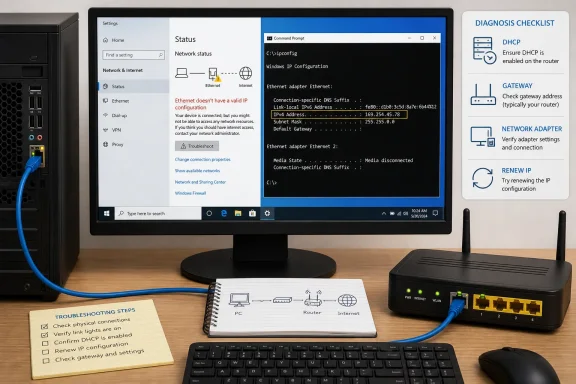 Read the IP address before changing anything
Open Command Prompt as administrator, then run:
ipconfig /all
Find the section headed Ethernet adapter Ethernet—or the name assigned to your wired connection—and check four lines:
Media Stateshould not sayMedia disconnected. If it does, Windows is not seeing an active physical Ethernet link.DHCP Enabledshould normally sayYeson a home or ordinary office network.IPv4 Addressshould match the private range used by the rest of the network, often192.168.x.x,10.x.x.x, or172.16.x.xthrough172.31.x.x.Default Gatewayshould show the router or network gateway address. A usable IP address without a default gateway can still leave the PC unable to reach the internet.
An address beginning with 169.254. is Windows Automatic Private IP Addressing, often shortened to APIPA. Windows assigns it when an adapter is set for DHCP but does not receive a lease. It permits limited communication with similarly configured local devices, but it does not provide a route to a normal router or the internet.
Microsoft’s ipconfig documentation confirms that /renew works only for adapters configured to obtain an address automatically. So if DHCP Enabled says No, a lease renewal cannot fix the configuration until DHCP is restored.
Separate a PC fault from a cable, port, or router fault
Before resetting Windows networking, perform two quick swap tests. They are more revealing than running the same commands repeatedly.
First, connect the same Ethernet cable to another computer, game console, or laptop with an Ethernet port. If that device also fails to receive a normal IP address, the PC is unlikely to be the cause. Try a known-good cable and a different LAN port on the router or switch.
Then connect the affected PC with that known-good cable to a port that is known to work. The outcomes point in different directions:
- If another device works on the same cable and port but the Windows PC does not, investigate the PC’s adapter settings, driver, VPN software, or local network stack.
- If the affected PC works after changing only the cable, replace the original cable. A connector can look intact while failing under use.
- If moving to another router or switch port fixes it, the original port may be disabled, misconfigured, damaged, or assigned to a different VLAN in a managed network.
- If no wired device receives an address, restart and examine the router or contact the network administrator; the DHCP service, switch, or upstream equipment is the likely fault.
Link lights are useful but not conclusive. Intel’s Ethernet adapter documentation notes that an adapter’s link light can illuminate even when communications with its link partner are not properly established. A lit port only proves there is some electrical link; it does not prove that DHCP traffic is reaching the router.
If Wi-Fi devices in the same home can browse normally while this Ethernet PC receives 169.254.x.x, the router’s DHCP service is probably operating, but that does not clear the Ethernet path. The cable, switch port, Ethernet adapter, VLAN assignment, or a device-specific DHCP reservation or filtering rule can still block this one machine.
Put the Ethernet adapter back on automatic DHCP
In Windows 11, open Settings > Network & internet > Ethernet. Next to IP assignment, select Edit, choose Automatic (DHCP), and save the setting.
In Windows 10, open Settings > Network & Internet > Ethernet, select the connected network, and look for IP assignment. On either version, you can also use the older adapter interface:
- Press
Win + R, typencpa.cpl, and press Enter. - Right-click Ethernet and choose Properties.
- Select Internet Protocol Version 4 (TCP/IPv4), then choose Properties.
- Select Obtain an IP address automatically and Obtain DNS server address automatically.
- Select OK, then close the windows.
Microsoft recommends DHCP because it supplies the IP address, subnet mask, default gateway, and usually DNS server information as one coordinated configuration. A manually entered DNS server will not repair an adapter that has no valid IP address or gateway in the first place.
There is one important exception: corporate PCs, servers, lab machines, and some specialist equipment may intentionally use static addressing. Do not change a known static configuration on a managed network without recording the existing address, gateway, DNS servers, and VLAN details—or checking with the administrator. In that environment, the error can reflect a switch-policy or network-design issue rather than a Windows setting.
Next, verify that the Windows DHCP Client service is present and running. Press Win + R, enter services.msc, and find DHCP Client. Its status should be Running and its startup type should ordinarily be Automatic. Microsoft’s DHCP troubleshooting checklist also calls out an enabled adapter, a current adapter driver, working cables, MAC filtering, and blocked UDP ports 67 and 68 as possible causes of a failed lease.
Renew the lease, then reset the Windows IP stack
Once Ethernet is set to DHCP, open Command Prompt as administrator and run these commands in this order:
netsh winsock reset
netsh int ip reset
ipconfig /release
ipconfig /renew
ipconfig /flushdns
Restart Windows when the commands complete, even if the final output looks successful. Microsoft lists this sequence for resetting the Winsock catalog and TCP/IP stack, releasing and renewing the address lease, and clearing the DNS resolver cache.
Each command has a different job. ipconfig /release gives up the existing DHCP lease, while ipconfig /renew asks for a replacement. netsh int ip reset rebuilds parts of Windows’ TCP/IP configuration, and netsh winsock reset resets the Windows sockets catalog that networking software can extend or corrupt.
ipconfig /flushdns is often included in the same repair sequence, but it is not a DHCP fix. It clears cached name-resolution records. If the PC has a 169.254.x.x address or no default gateway, DNS is not the primary problem; the renew result is the important clue.
Do not run /release during a Remote Desktop session or while depending on a VPN connection: it intentionally drops DHCP-configured network access. If the PC has several adapters—Ethernet, Wi-Fi, VPN, Hyper-V, WSL, or USB networking—ipconfig /all can show their exact names. You can target a single adapter with commands such as:
ipconfig /release "Ethernet"
ipconfig /renew "Ethernet"
Use the adapter name exactly as Windows displays it.
Repair the Ethernet adapter only when the failure follows the PC
If the cable and router port work with another device, but the Windows PC remains disconnected or cannot renew its lease, check the adapter itself.
Open Device Manager > Network adapters. Locate the wired adapter—commonly branded Intel, Realtek, Broadcom, or a USB Ethernet vendor—and look for a warning symbol. Right-click it and choose Enable device if that option appears. Then open Properties and check the device status and driver details.
Microsoft recommends reinstalling the network adapter driver if simpler network repairs do not work, especially after an update. Download the current wired-network driver from the PC or motherboard manufacturer on another device first and copy it by USB if necessary. Then in Device Manager, uninstall the Ethernet adapter and restart Windows; install the saved vendor driver if Windows does not restore a working one automatically.
For USB-to-Ethernet adapters, also test a different USB port and avoid unpowered hubs during diagnosis. The adapter may be receiving enough power to appear in Device Manager while failing under sustained network activity.
On a business network, stop after confirming the local adapter, cable, and DHCP setting. A network administrator may need to inspect the switch port, VLAN assignment, MAC address controls, DHCP scope capacity, DHCP relay configuration, or the DHCP server’s logs. Microsoft’s enterprise DHCP guidance recommends collecting client and server evidence at the same time because it identifies where the DHCP exchange stops—discover, offer, request, or acknowledgement—rather than guessing from the Windows error alone.
Use Network Reset last—and expect it to remove configuration
Windows 11’s Network reset is at Settings > Network & internet > Advanced network settings > Network reset. In Windows 10, go to Settings > Network & Internet > Status > Network reset. Select Reset now, confirm, and allow the PC to restart.
This is the broadest local repair in the guide. Microsoft says Network Reset removes installed network adapters and their settings, then reinstalls the adapters with default settings after restart. It can resolve a damaged configuration, but it also removes work you may need to recreate.
Before using it, record or export anything that depends on networking customization. That includes VPN client settings, virtual switches used by Hyper-V or other virtualization software, custom DNS and static IP settings, and special adapters installed by security products. Windows may also return known networks to the Public profile, which can affect file sharing and device discovery.
If the PC still receives no valid IP address after DHCP is enabled, a known-good cable and port have been tested, the adapter driver has been repaired, and Network Reset has completed, the evidence has moved beyond a routine Windows configuration fault. At that point, a 169.254.x.x address is the useful conclusion: Windows is still not receiving a DHCP lease, and the next repair belongs with the Ethernet hardware, switch path, router, or DHCP service—not another DNS tweak.
