
Microsoft’s current Personal Vault documentation confirms that the feature is available to OneDrive personal accounts on Windows 11 and Windows 10 version 1903 or newer, as well as through OneDrive on the web and mobile apps. It is not the same thing as a protected folder for a work or school OneDrive account, and it may not be available in every market. Microsoft also limits free OneDrive Basic users to three Vault files; Microsoft 365 Personal and Family subscribers can store more, up to their available OneDrive storage allocation.
The important difference is the prompt. Ordinary OneDrive files become accessible once your Windows session and OneDrive account are active. Personal Vault asks you to prove your identity again before it opens. Depending on how your Microsoft account is configured, that can mean Windows Hello face recognition, a fingerprint, a PIN, Microsoft Authenticator, or a code delivered by email or SMS.
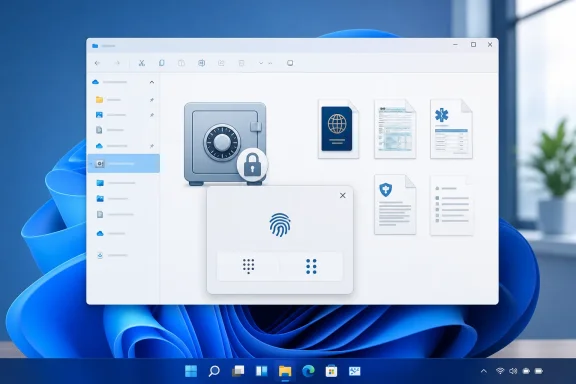 Personal Vault is a second gate, not a magic safe
Personal Vault should be thought of as a selective second authentication barrier inside OneDrive. It is useful when someone can sit at your unlocked computer, borrow a device where you are already signed in, or access an active OneDrive session. It also blocks direct sharing from the Vault, reducing the chance of accidentally sending a highly sensitive document through a normal OneDrive sharing link.
Microsoft describes the service as adding protection to the files while retaining OneDrive’s normal cross-device access. Its documentation also says Personal Vault files are not left unprotected or cached on a PC, device, or browser when the Vault is locked. On Windows 10, Microsoft specifically documents that Vault files synchronize into a BitLocker-encrypted local area when they are in use.
There are limits that are easy to overlook. Personal Vault does not make a compromised Microsoft account safe by itself, and it does not protect a file after you deliberately move it out, download it elsewhere, print it, or copy its contents into another application. It is also not end-to-end encryption in the sense that only you hold the decryption key. Treat it as a high-value folder with an additional identity check, backed by the normal security of your Microsoft account and your Windows device.
Use a strong, unique Microsoft account password and enable account-wide two-step verification anyway. If you use an authenticator app, favor it over SMS where possible; a text-message code is better than no second factor, but it is less resistant to phone-number takeover attacks than an app-generated code or a hardware security key.
Set up Personal Vault from File Explorer or OneDrive
On a Windows PC, start by confirming that you are signed in to the personal OneDrive account where you want the Vault. Open File Explorer and select OneDrive – Personal in the navigation pane. Personal Vault may appear among your OneDrive items, or it may be available when you click the OneDrive cloud icon in the notification area near the clock.
Open Personal Vault. If this is the first time you have used it on that PC, select Get started, Next, or Continue when OneDrive presents the setup screen. The precise labels can vary slightly between the File Explorer integration, OneDrive web interface, and app versions.
OneDrive will then ask you to verify your identity. Follow the offered route carefully:
- Confirm that the displayed Microsoft account and recovery information are yours.
- Choose an available verification method, such as Microsoft Authenticator, Windows Hello, a security code by email, or a code by text message.
- Complete the prompt and wait for the Vault window to open.
- If Microsoft asks you to add or update security information, do that before relying on the Vault for irreplaceable documents.
The first successful verification enables the Vault on that device. Microsoft’s support guidance makes an important distinction here: Personal Vault setup is device-specific. Enabling it on your Windows 11 desktop does not automatically configure the Vault experience on a second PC or on your phone. You will need to complete a verification step when using another device.
If Personal Vault is missing, verify three things before assuming it is broken: that you are using OneDrive Personal rather than a work or school account, that Windows 10 is version 1903 or later or that you are on Windows 11, and that the OneDrive sync app is running. You can also open OneDrive in a current version of Edge, Chrome, or Firefox and look for the Personal Vault folder there.
Move sensitive files without creating stray copies
Once the Vault is unlocked, it works much like a OneDrive folder. You can drag files or folders into it in File Explorer, or select files in OneDrive and use Move to followed by Personal Vault. Moving is preferable to copying for documents that should exist in only one place: it reduces the chance that an old, ordinary OneDrive copy remains searchable and shareable outside the Vault.
Before moving a file, close it in Word, Excel, Adobe Acrobat, a photo editor, or any other program. This avoids moving a document while an application is still writing temporary data or holding a lock on it. Then confirm OneDrive has finished synchronizing before you delete a previous local copy.
A sensible starting collection is small:
- Store identity documents, tax filings, password-recovery records, legal papers, and insurance documentation that genuinely need an extra prompt.
- Keep actively collaborated files, frequently shared family photos, and ordinary project work outside the Vault because Personal Vault files cannot be shared directly.
- Do not use the Vault as the only copy of an irreplaceable record; retain an appropriate backup plan, such as an encrypted external drive stored securely.
Microsoft allows folders as well as individual files, so it is reasonable to use a simple structure such as Identity, Financial, Home, and Recovery. Avoid putting sensitive information in the filename itself. A name like Passport-Jane-Doe-2026.pdf reveals something useful even before a document is opened.
That caution is especially relevant to Windows 10. Microsoft states that, when Personal Vault is locked on Windows 10, file names and hashes are not protected by the Vault. The contents remain behind the authentication barrier, but the existence and names of files can still disclose information. Use neutral filenames such as ID-2026-01.pdf or Record-A.pdf if filename privacy matters.
Unlock only when you need the file
To access a Vault item, open Personal Vault from File Explorer, the OneDrive notification-area menu, or OneDrive on the web. OneDrive will request the configured verification method again. Authenticate, work on the file, and then lock the Vault immediately when you are finished.
Microsoft says Microsoft Authenticator can generate a verification code even without an Internet connection, which can be useful when a laptop is offline. However, a Vault file that is online-only still needs to be downloaded before Windows can open it. If you are preparing for travel or an outage, open the needed item in advance and ensure OneDrive has synchronized it—but remember that locally available content deserves the same care as any other sensitive file on the PC.
For the safest routine on a shared computer, use the web version of OneDrive in an InPrivate or Incognito session, unlock the Vault, complete the task, lock it, and close the browser window. This reduces the amount of account session information and browser history left behind.
Be cautious when opening Vault files in desktop applications. Microsoft notes that a document opened in a Windows app can leave its filename in that app’s Recent list or elsewhere in Windows. For documents where the title alone is sensitive, open and review them through OneDrive on the web when practical, or clear the application’s recent-items history after working with them.
Automatic locking is a fallback, not the habit to trust
Personal Vault does not stay open indefinitely. On the web, Microsoft says it locks after 20 minutes of inactivity. On a Windows PC, the lock interval can be changed in OneDrive settings: select the OneDrive cloud icon in the notification area, open Help & Settings, choose Settings, open the Account tab, and find the Personal Vault lock wait-time setting.
The timeout is a safety net for the moment when you walk away from your computer and forget. It is not a reason to leave the Vault unlocked. An active file session, a video playing from the Vault, or ongoing work may keep the session in use longer than you expect; locking it yourself removes that ambiguity.
To lock it manually, open the Personal Vault folder in OneDrive and choose Lock. If you cannot find the command in File Explorer, use the OneDrive cloud icon and open the Vault from there, or lock it through OneDrive on the web. Reopening it later will require identity verification again.
The automatic lock also changes how you should handle editing. Microsoft supports editing Office documents stored in Personal Vault on a PC or through the web. On mobile, Office documents can be viewed, but Microsoft says they need to be moved out of the Vault for editing. Do not move a file out simply for convenience unless you intend to remove that extra protection; use a PC or browser for edits instead.
Deletion and sharing require extra care
Personal Vault’s sharing restriction is intentional. If you need to send a file to an accountant, family member, doctor, or attorney, you must first move it out of the Vault and then share it through an appropriate secure method. Do not treat that move as a harmless technical step: the file is now governed by the permissions and visibility of its destination folder.
Deletion also behaves differently enough to merit a deliberate check. Microsoft says files deleted from Personal Vault through Windows 10 do not appear in the PC’s Recycle Bin. If the file had already synchronized to OneDrive, it can still be found in the OneDrive.com recycle bin. On the web and mobile apps, Vault-deleted items are visible in the recycle bin only while the Vault is unlocked.
For critical records, verify that a move into Personal Vault has completed before deleting a source copy, and periodically test that you can unlock the Vault using your preferred verification method. Store Microsoft account recovery information securely outside the account itself. A Vault that you cannot unlock because you lost the only authenticator device is not a successful security setup.
Personal Vault is most valuable when it stays boring: a small collection of high-impact records, accessed rarely, protected by a strong Microsoft account and locked the moment you are done.