
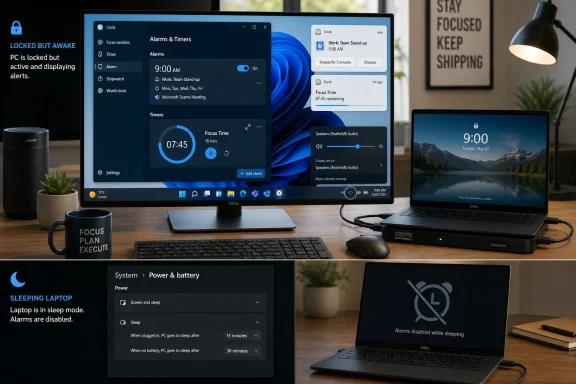
That distinction is the source of most “my Windows alarm never went off” reports. A locked screen is fine. A sleeping laptop, hibernating PC, or powered-off device is not a dependable alarm clock. Set the alarm first, then test the notification path and power behavior before trusting it for anything time-sensitive.
 Create an alarm for a single event or a recurring schedule
Open Clock from Start, or press the Windows key and search for Clock. In the navigation pane, select Alarms. Windows includes a preset alarm, but creating a dedicated entry is safer than repeatedly editing a generic one: the label makes its purpose obvious, and its on/off switch makes it easy to suspend without deleting the schedule.
Select the Add button—normally a plus sign—to create an alarm. Set the time, then give the alert a descriptive name such as “Join deployment call,” “Leave for school,” or “Check backup job.” The label is more than cosmetic: it is what you will see in the notification when several reminders compete for attention.
For a one-time reminder, leave repeating disabled and save the alarm. After it fires, turn it off or delete it so it does not become background clutter. Clock is at its most useful when alarms have a clear ongoing role rather than becoming an unattended list of old commitments.
For a repeating alert, enable the repeat option and select the relevant days. A weekday-only alarm is usually better than an every-day alarm for work and school routines; selecting Monday through Friday avoids an unnecessary Saturday wake-up. Windows Central’s walkthrough of the Windows 11 Clock interface also notes that the alarm editor includes repeat-day choices, a sound selection, and snooze controls.
Choose a sound that is recognizably different from ordinary Windows notification tones. The goal is not volume alone: an alarm should be identifiable quickly enough that you know whether it needs immediate action. If the editor offers a snooze interval, reserve a short snooze for alerts that genuinely need it; for a deadline, meeting, or medication reminder, use a second alarm a few minutes later instead of relying on a snooze prompt.
Once saved, make sure the alarm’s switch is on. Editing an alarm does not guarantee it is active, and a visually similar list of enabled and disabled entries is an easy place to make a mistake. Create a test alarm two minutes ahead, lock the PC, and confirm that it produces both a visible alert and an audible sound.
Use separate timers instead of reusing one countdown
Select Timer in Clock for countdowns: breaks, laundry, software builds, oven checks, or a fixed-length meeting segment. Microsoft says the app offers four preset timers and lets users add new ones. The preset entries are useful for quick work, but named custom timers reduce errors when you need more than one running at once.
Select Add, enter the duration, name the timer, and save it. Use names tied to the thing being timed—“Pasta 9 min,” “Build verification 20 min,” or “Stand-up wrap 5 min”—rather than generic labels such as “Timer 1.” When several countdowns finish near each other, labels are the only reliable way to tell which task needs attention.
You can create multiple timers and start them independently. This is preferable to resetting one timer over and over because resetting destroys the original deadline. For example, while a 45-minute focus block runs, start a 10-minute break timer and a 25-minute download check without losing the longer session.
A timer can remain usable when the Clock window is closed. It can also work while the Windows device is locked, which means there is no need to leave the app frontmost or prevent the display from turning off. Do not confuse the display turning off with sleep: the screen may go dark while Windows remains awake, but an actual sleep transition undermines the alert.
If a timer is important, avoid treating it as a background stopwatch. Start a short test timer after any major Windows update, notification-policy change, audio-device change, or move between a dock and the laptop’s built-in speakers. Those are the moments when an otherwise sound timer configuration can become silent.
Make notifications and sound part of the setup
Clock alarms and timers ultimately depend on Windows notifications. If Clock is allowed to run but its notifications are disabled, hidden from banners, or muted, the countdown can end without the usable on-screen and audio signal you expected.
In Windows 11, open Settings > System > Notifications. First, make sure notifications are enabled globally. Then find Clock under the app notification list and verify that its notifications are turned on. Enable notification banners if you need the alert to interrupt what is on screen, make sure it can appear in Notification Center so missed alerts remain reviewable, and enable its sound option.
Windows 10 places equivalent controls under Settings > System > Notifications & actions. Look for Clock or Alarms & Clock in the list of senders, depending on the app naming shown by the installed version. Confirm that app notifications, banners, Action Center entries, and notification sounds have not been disabled.
Microsoft’s notification guidance makes clear that Windows can show banners and retain alerts in Notification Center, where alarm prompts can expose actions such as Snooze and Dismiss. But Notification Center is a recovery mechanism, not proof that an alert was noticed on time. If you only find the timer notification afterward, check banners, sounds, Do Not Disturb, and sleep settings rather than assuming the countdown itself failed.
Also inspect the actual audio route. A laptop connected to a USB-C dock, Bluetooth headset, external monitor, or HDMI receiver may send the alarm sound to a device that is muted, out of range, or in another room. Select the speaker icon in the taskbar, verify the output device, and increase the device volume—not merely the volume of a browser tab or media player. Microsoft specifically recommends keeping a laptop or tablet plugged in and setting the device volume high enough to hear the alert.
Do Not Disturb can change what reaches the screen
Windows 11’s Do Not Disturb silences most notifications, but Microsoft says alarms and reminders are among the alerts that can still show as banners while it is enabled. That makes Clock alarms a reasonable choice during a focus period, though a test remains wise if the reminder is mission-critical.
Open Settings > System > Notifications and expand the Do Not Disturb options. Check whether Windows turns it on automatically during scheduled hours, while duplicating a display, when gaming, or when an app runs full-screen. These automatic rules are easy to forget, especially on a work PC that moves between meetings, presentations, and full-screen remote sessions.
Priority notifications offer another safeguard. In the same settings area, Windows lets you decide which apps may surface notifications during Do Not Disturb. If Clock does not behave as expected on a particular PC, add it to the allowed apps where the interface provides that option, then run the two-minute test again.
Be careful with Focus sessions. Microsoft’s Focus feature can be started from the Clock app, Settings, or the notification area, and it turns on Do Not Disturb by default. A Focus session is useful for a timed work block, but it is designed to reduce interruptions. Treat its ending notification as a productivity cue, not as a substitute for an alarm that must wake you or pull you away from the computer.
Stop Windows from sleeping through the deadline
For Windows 11, open Settings > System > Power & battery > Screen, sleep, & hibernate timeouts. Set an appropriate “make my device sleep after” value while plugged in for the duration of the alarm or timer. You can let the screen turn off; keeping the display awake wastes power and is unnecessary. The setting that matters is sleep.
On Windows 10, the comparable path is Settings > System > Power & sleep. Adjust the sleep timeout for the active power condition—battery, plugged in, or both. A common failure is changing the plugged-in setting at a desk, then later relying on the alarm while the laptop runs on battery under a much shorter sleep timeout.
Do not set “Never” permanently merely to preserve a timer. For a short task, temporarily extend the sleep timeout, keep the device on AC power if possible, and restore a power-saving value when finished. For an overnight alarm, a phone, smart speaker, or dedicated alarm clock is the safer primary device because Windows Clock is not documented as a wake-from-sleep service.
Finally, check Settings > Time & language > Date & time if alarms appear at an unexpected local hour, particularly after travel, remote work across time zones, or a manually changed clock. Microsoft recommends either enabling automatic time-zone detection or selecting the correct time zone manually.
Windows 10 remains capable of running Clock alarms and timers, but Microsoft ended free Windows 10 security updates and technical support on October 14, 2025. The Clock workflow is largely the same, yet Windows 11 is the supported platform for a PC that is regularly connected to networks and entrusted with routine work.
