
Microsoft’s current Learn documentation places these controls under Settings > System > Advanced > For developers on Windows 11 version 25H2 and later. On earlier Windows 11 builds, look for the older For developers settings page instead. The interface moved, but the prerequisite did not: Device Portal remains disabled until an administrator enables Developer Mode and explicitly turns on the Device Portal toggle.
For a developer validating an MSIX package, collecting an ETW trace from a test PC, or checking live resource use without sitting at the device, the portal is useful. It can list and manage processes, deploy or remove app packages, inspect sideloaded app storage, gather crash data, collect traces, and display live CPU, memory, disk I/O, network, and GPU activity. It also has enough control to change networking settings, terminate system processes, or restart the computer, which is why treating it as a temporary diagnostic service rather than a permanent convenience feature is the right approach.
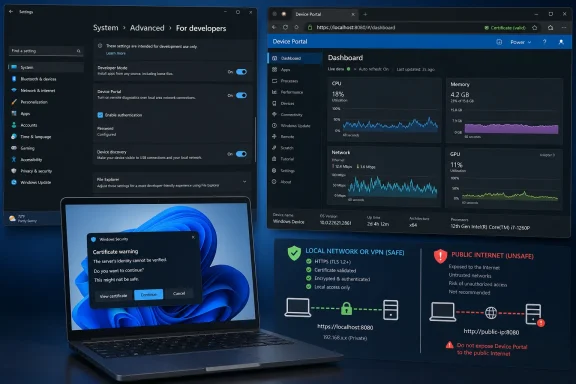 Enable Developer Mode before touching Device Portal
Sign in with an account that has local administrator rights. Open Settings, search for “Advanced,” then open System > Advanced and scroll to the For developers section. Turn on Developer Mode, read the Windows warning, and approve the change.
Microsoft says Developer Mode installs a package of developer capabilities and enables debugging and deployment options. It can also enable the Windows development SSH components used for remote app deployment, although those SSH services are tied specifically to Device Discovery, not Device Portal itself. Do not turn on Device Discovery merely because you are using Device Portal; its purpose is to advertise the PC on the local network through mDNS and enable PIN-based pairing for remote deployment targets.
A practical division is simple:
- Enable Developer Mode on a development PC or a device that must accept development builds.
- Enable Device Portal only on the machine whose diagnostics or app deployment you need to manage in a browser.
- Enable Device Discovery only when the device needs to be found and targeted remotely for supported deployment workflows.
If the Developer Mode switch is unavailable or the change fails, stop before trying registry edits on an organization-managed PC. Microsoft notes that an employer’s policy can disable these controls, and the Developer Mode package may also fail to download when Windows Update, WSUS policy, a metered connection, or incomplete servicing prevents the feature-on-demand package from installing. Local Visual Studio work may still function, but browser-based Device Portal access depends on that package and its Web Management service.
Turn on Device Portal and use the address Windows gives you
With Developer Mode enabled, return to the same For developers area and turn on Device Portal. Windows may request confirmation while it installs or activates the required components. When the switch is on, the settings page displays one or more connection addresses. Copy the address shown there rather than guessing a port number.
This is where older guides often become misleading. Documentation for Windows Device Portal historically listed desktop defaults of HTTP port 50080 and HTTPS port 50043. Current Microsoft documentation says desktop Windows normally claims an available dynamic port above 50,000 to avoid conflicts, and that chosen port generally persists across reboots. A hard-coded 50043 URL may therefore simply point nowhere on a current PC.
The addresses Windows shows represent two different connection scopes:
- For the same PC, use the localhost address, such as
[url]http://localhost[/url]:<PORT>or[url]http://127.0.0.1[/url]:<PORT>. - For another device on the same LAN or connected VPN, use the displayed HTTPS address, generally in the form
https://<PC-IP-address>:<PORT>.
Use localhost when the browser is running on the machine being examined. It keeps the session on that PC and removes the need to expose the portal across the network. It is especially suitable for inspecting a local process, capturing ETW output, or testing a REST API workflow.
For a second computer, enter the exact HTTPS address shown by Windows in a modern browser. The Device Portal setting is responsible for its firewall rules; manually creating broad inbound rules before enabling the feature is unnecessary and makes later cleanup harder. If the remote address will not load, first verify that the PC is powered on, connected to the intended network, and using the precise port currently displayed in Settings. Then verify that the network profile and any organization firewall policy permit the connection.
Do not use a public IP address, port-forward the portal through a home router, or publish it through a reverse proxy. Device Portal is intended for local-network, VPN, and controlled development use. Its ability to manage apps, processes, files, device settings, and power state makes it unsuitable for Internet exposure.
Keep authentication on and understand the certificate warning
The first remote HTTPS visit may produce a certificate warning. This does not necessarily mean the portal failed to encrypt traffic. Microsoft documents that Device Portal generates its own self-signed root certificate authority and creates certificates for endpoints including localhost, the PC hostname, and local IP addresses. Browsers warn because their trusted certificate stores do not recognize that self-signed root.
For a one-off lab session, confirm you have reached the correct test PC before proceeding through the browser’s certificate-warning path. Do not train yourself to click through such warnings on an address you did not expect, on a shared network, or while connected to a device that contains sensitive data. A certificate warning means the browser cannot independently verify the server identity; it is a meaningful protection against connecting to an impostor at that address.
For repeated team or enterprise use, replace the default arrangement with a certificate from a trusted internal certificate authority. Microsoft provides a supported WebManagement.exe -SetCert route for installing a PFX certificate and requires the Web Management service to be restarted afterward. Use a hostname rather than an IP address where possible. DHCP can change an address, causing Windows to generate a different certificate for the new IP and bringing certificate warnings back; a stable hostname avoids that churn.
Keep Device Portal authentication enabled. Microsoft’s own warning is unusually direct: disabling authentication also permits unencrypted HTTP access, allowing anybody with the computer’s IP address to connect to and control the device. There is a narrow use case for that setting in an isolated, disposable lab where every network participant is trusted and the device holds no personal or production information. A home Wi-Fi network, office LAN, hotel network, or shared test subnet does not meet that standard.
If you need to assign or reset portal credentials from an elevated Command Prompt, Windows exposes this supported syntax:
webmanagement -Credentials <username> <password>
Choose a unique, long password. The username must fit HTTP Basic Authentication conventions, so avoid colons and use simple ASCII characters. Do not reuse a Windows sign-in password or an enterprise administrator password for a diagnostic web service. When using the portal interactively, authenticate only over its HTTPS endpoint for remote sessions.
Use the portal for diagnostics without overextending its privileges
After sign-in, begin with read-only work. The Performance page provides live resource graphs, while the Running Processes page shows process information for applications and system components. The ETW page can enable providers and save collected events, and the performance-tracing capability can produce ETL traces for analysis with Windows Performance Analyzer.
Those tools can shorten a remote troubleshooting session considerably, particularly when the affected device is a test rig, tablet, kiosk, or virtual-machine host. But they are not passive monitoring pages. Device Portal can terminate processes, deploy and remove packages, manage sideloaded application files, modify Wi-Fi profiles, and expose power controls. A remote operator with the portal credential has substantial influence over the host.
Treat an enabled portal like any other administrative interface:
- Limit remote use to a trusted LAN or a secured VPN, and prefer localhost when remote access adds no value.
- Use a dedicated test device or test account where practical, especially when deploying unsigned or development-signed packages.
- Capture the trace or retrieve the diagnostic artifact you need, then stop tracing and close the session rather than leaving the console open.
- Avoid changing network configuration through the portal unless you have alternate access to the PC, because altering its active connection can immediately disconnect your browser session.
Developers automating against Device Portal’s REST API should also account for its anti-CSRF design. Microsoft requires a session-derived token on non-GET operations when using the HTTPS service. A browser handles that process for the portal interface; a standalone script must obtain and send the required cookie and request header, or use Microsoft’s documented automation approach. Do not “solve” API friction by disabling authentication and falling back to HTTP.
Shut down the remote surface when the work is finished
When diagnostics, deployment testing, or trace collection is complete, return to Settings > System > Advanced > For developers and turn off Device Portal. This stops exposing the portal as a browser-accessible management surface; it is the minimum cleanup step after a temporary remote session.
Leave Developer Mode enabled only if the PC will continue to build, install, debug, or test development software. Microsoft explicitly advises ordinary day-to-day users not to activate it without a development need. If the machine was set up solely for a test, disable Developer Mode too. That also stops the developer-mode SSH service where it applies.
For a workstation that must retain Developer Mode but does not need a continuously available browser console, keep Device Portal off and enable it only for the testing window. Windows separates those controls for a reason: development permissions and remotely reachable diagnostics have different risk profiles. The cleanest Device Portal deployment is the one that exists only as long as the diagnostic or testing task requires.