
Microsoft’s current Colors documentation, which covers both Windows 11 and Windows 10, confirms the basic route: choose Manual under Accent color, then select a recent color, a built-in Windows color, or View colors to open the full picker. Windows Central’s Windows 11 walkthrough independently describes the same path and the separate switches for title bars and taskbar surfaces.
For most PCs, this is a five-minute Settings change. It does not require a theme patcher, Registry edit, or a third-party taskbar utility.
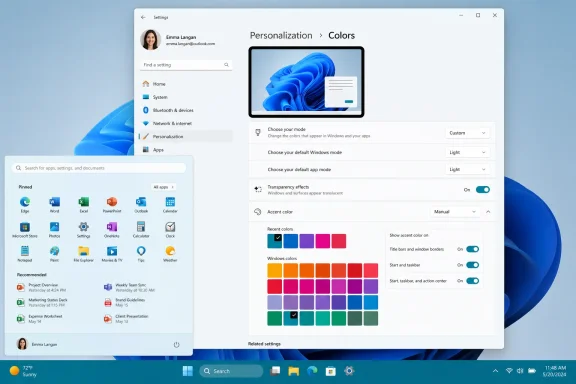 Choose a color Windows will not replace with wallpaper blue
Open Settings, select Personalization, and then choose Colors. Find Accent color and change its selector from Automatic to Manual.
Automatic tells Windows to derive a highlight color from the current desktop background. That can be convenient with a static wallpaper, but it also means the color can shift when you change the background or apply another theme. Selecting Manual makes the accent a deliberate system preference rather than a byproduct of the wallpaper.
You can now choose one of the shown swatches, reuse a color listed under Recent colors, or select View colors. The last option is the one to use when the supplied palette does not contain the hue you want. Move through the picker until the preview is close, then open the more detailed controls if you need to enter a precise RGB value.
The choice is saved immediately. You do not need to sign out, restart Explorer, or reboot. Look first at Settings itself, buttons, selected controls, links, and indicators beneath open taskbar apps; those are common places Windows uses the accent even before you enable broader surface coloring.
A custom accent is a system preference, not a universal paint bucket. It can influence Windows shell elements and apps that respect the setting, but it cannot force every app to recolor. Microsoft’s Windows app-development documentation explains why: developers can draw their own title bars or explicitly set their own title-bar colors. A browser, game launcher, creative application, or Electron-based app with a custom top frame may therefore retain its own design even while traditional desktop windows reflect the new accent.
Put the color on title bars and window borders
To make the selected accent easier to spot across open windows, turn on Show accent color on title bars and window borders on the same Colors page.
This is the more restrained option. It colors the top bar and/or perimeter of windows that use Windows-managed frame styling without turning the whole Start-and-taskbar area into a solid field of color. It works well when the purpose is practical: distinguishing the active window quickly on a crowded desktop, or adding a small visual signature without making the taskbar visually dominant.
Do not expect every window to look identical. Modern Windows apps may use custom title-bar layouts, and some programs effectively treat the title-bar region as part of their own interface. Microsoft’s developer guidance explicitly allows that approach. If an individual app does not reflect the setting, the Personalization toggle has not necessarily failed; that app may simply be drawing its own chrome.
The setting also does not make color a reliable status signal. Microsoft warns developers that display color can be changed by color filters or high-contrast settings and says apps should not rely on color alone to convey important information. For personal customization, that means a colored border is useful as a visual cue, but it should not be the only way you tell active and inactive windows apart.
Unlock Start and taskbar coloring with Custom mode
The second switch, Show accent color on Start and taskbar, is governed by your Windows color mode. If it is disabled or missing, scroll back to Choose your mode.
Microsoft documents a firm limitation here: the Start menu, taskbar, and related system surfaces cannot be personalized with an accent color while Windows is set to ordinary Light mode. Select either Dark or Custom to enable the option.
For people who want a light application workspace but a colored Start menu and taskbar, use Custom rather than switching everything to Dark:
- Under Choose your mode, select Custom.
- Set Choose your default Windows mode to Dark.
- Set Choose your default app mode to Light if you prefer white Settings pages and light-aware apps.
- Return to the accent options and enable Show accent color on Start and taskbar.
This configuration is the practical answer to an otherwise confusing Windows behavior. The system-facing shell can remain dark enough to accept the accent color, while supported apps continue to use light surfaces. If you select Light for the default Windows mode, the Start-and-taskbar accent option is intentionally unavailable; it is not a permissions problem and reinstalling a theme will not change it.
Windows 10 uses the same broad Personalization > Colors path, though its labels and checkbox-style controls can look different from Windows 11’s switches. Windows 10 reached end of support for most consumer editions on October 14, 2025, so this guide’s recommended configuration is aimed at Windows 11 systems that remain in normal support. The underlying accent-color controls are still useful on managed Windows 10 deployments where an organization has a supported servicing arrangement.
Pick a color that stays readable in both modes
A custom color can look polished in the picker and still be unpleasant after it lands behind white taskbar icons, title text, or selection indicators. Avoid treating the RGB picker as a branding exercise alone; test the result in the places where you work.
Start with a mid-tone color: a blue, teal, green, violet, or red that is clearly visible without being near-black or near-white. Microsoft’s Windows deployment documentation for the underlying WindowColor setting says Windows enforces brightness adjustments to protect text readability and advises a luminosity range between 25% and 75%. In plain terms, very dark and very light selections may not be shown exactly as entered.
That adjustment is deliberate, but it is not a substitute for checking your own desktop. After applying the accent, open Settings, File Explorer, and a few daily applications. Switch between Light and Dark app modes if you use Custom mode. Look at the active taskbar indicator, selected navigation items, title text, and the window controls at the top right.
A few practical choices reduce visual friction:
- Use a medium-bright accent if you enable color on the taskbar, because a muted charcoal or nearly black shade can become hard to distinguish from the dark system surface.
- Keep the title-bar and border switch off if a saturated accent makes every open window feel visually busy; the accent can still identify active controls and taskbar indicators.
- Use the same custom accent in both light and dark app modes only after testing both, since a color that stands out against dark gray can feel washed out on white.
- Turn off Transparency effects temporarily if you cannot judge the taskbar color against a busy wallpaper, then re-enable them after choosing the shade you prefer.
Accessibility settings take precedence over decoration. Contrast themes and color filters can substantially change how the chosen accent appears, and that is expected behavior. If text becomes difficult to read or interface elements become difficult to distinguish, choose a less extreme accent before reaching for third-party theming tools.
Keep the result when you change themes
A theme can include background images, colors, sounds, and other personalization choices. Once you have tuned an accent color and the two display switches, save the configuration from Settings > Personalization > Themes so it is easy to restore after experimenting with other themes.
The useful distinction is simple: the accent color defines a shared highlight identity for Windows, while the two surface switches decide how prominently that identity is displayed. Enable title bars and borders for a focused desktop cue; use Dark or Custom mode when you also want the color on Start and the taskbar; and leave the Start-and-taskbar switch off when you want the accent to remain subtle.
The change takes effect at once, so the final test is on your own display: open the windows you use every day, verify that text and controls remain clear, and adjust the custom color before saving the theme.
