

msinfo32), that can collect a single report covering the PC’s hardware, Windows build, installed drivers, services, startup programs, devices, and much of its software configuration. For support work, that is usually more useful than a screenshot of Settings: it gives the person troubleshooting the issue a consistent snapshot of the machine at the time the problem occurred.
Microsoft documents msinfo32 as a view of the computer’s hardware, system components, and software environment. The important operational detail is easy to miss: run it with administrator rights before you save the report. Microsoft Support warns that, without elevation, some drivers can be shown as stopped simply because System Information cannot refresh the data it needs.
A report is not a fix and it does not replace event logs, crash dumps, or a precise description of what went wrong. It is the inventory that lets support staff identify a mismatched driver, an unsupported Windows release, a missing device, an unexpected startup item, or a configuration difference between a working PC and a failing one.
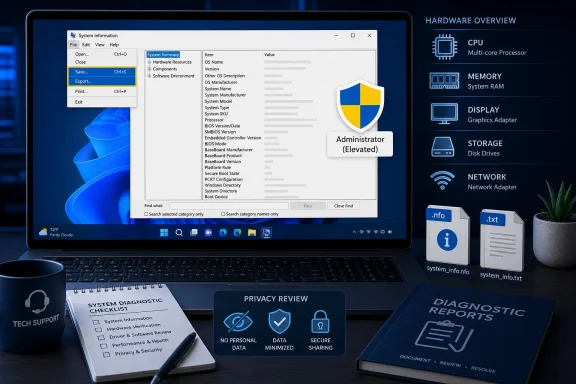 Open System Information with the right permissions
Press Windows key + R, type msinfo32, and press Enter. You can also search the Start menu for System Information.
For a support-quality report, search for System Information, right-click the result, and choose Run as administrator. Approve the User Account Control prompt if Windows asks. The tool may take a moment to populate every category, particularly on systems with many devices, drivers, or installed applications.
Once it opens, wait until the status activity stops before saving a report. Exporting while the utility is still collecting information can leave you with an incomplete snapshot, especially in lengthy areas such as loaded modules and software environment data.
The left pane is organized into three major groups:
- System Summary provides the essentials: Windows edition and version, OS build, system manufacturer and model, BIOS or UEFI version, processor, installed memory, Secure Boot status, and the current system directory.
- Hardware Resources covers items such as IRQs, memory allocations, DMA channels, and resource conflicts. It is usually most valuable when investigating legacy hardware or devices that are failing to initialize correctly.
- Components lists device-focused information, including display adapters, storage controllers, network adapters, problem devices, USB hardware, audio devices, and driver details.
- Software Environment covers services, running tasks, startup programs, Windows Error Reporting entries, loaded modules, and environment variables.
For most ordinary cases, begin with System Summary, then open the area that matches the problem. A display issue calls for Components > Display and Components > Problem Devices; a network failure calls for Components > Network > Adapter and Software Environment > Services; a boot or performance complaint often benefits from Software Environment > Startup Programs and Running Tasks.
Save an NFO report when support needs the full snapshot
The most complete and practical format is an NFO file. In System Information, select File > Save, choose a location such as Documents or Desktop, give the file a meaningful name, and save it.
Use a name that records the computer and the date without exposing more information than necessary, such as:
OfficePC-Windows11-msinfo-2026-08-23.nfo
An .nfo report preserves the structured System Information data. A technician can open it in msinfo32 and browse the same categories rather than working through a long plain-text document. This makes it the better choice when someone has specifically asked for an “MSInfo report,” “NFO,” or “System Information file.”
Do not confuse this Windows .nfo format with the old plain-text information files that sometimes use the same extension. The file produced by System Information is intended to be reopened through the tool itself. Double-clicking it on a Windows PC should normally launch System Information; if file associations have changed, open System Information first and use File > Open.
An NFO report is also the appropriate format when the recipient needs to inspect items that do not translate as cleanly to plain text, including the category structure and detailed driver inventory. It is not inherently safer to share than a text report, however. The format changes how the information is stored and read; it does not remove identifying or configuration data.
Export a text file when the report must be searchable
To create a human-readable report, select File > Export in System Information. Choose a location and enter a file name ending in .txt, such as:
OfficePC-msinfo-2026-08-23.txt
The distinction between Save and Export is consequential:
- File > Save creates an
.nforeport intended for System Information. - File > Export creates a
.txtreport that can be opened in Notepad and searched with Ctrl+F. - A text export is often easier to attach to a ticketing system, paste into a restricted support portal, or inspect before sending.
- An NFO file is usually better when a technician needs the complete report in its original navigable structure.
Microsoft’s command reference makes a related detail explicit: the /nfo switch appends the .nfo extension automatically when needed, but /report does not automatically add .txt unless you include it in the file path. The graphical interface is simpler, but the same distinction is worth remembering if you later automate report collection.
Text reports can be large. Do not assume a long delay means the utility has failed; the report may be collecting extensive driver, service, and module information. Save the file locally first, confirm that it exists and has a reasonable size, then attach or transfer a copy rather than working from an open file in a temporary location.
Review the report before you send it
An msinfo32 export is a diagnostic handoff, not a harmless generic document. It can reveal the computer name, device model, Windows build, user-profile paths, installed software, startup entries, services, connected hardware, network adapter details, and driver versions. Depending on the system and its configuration, Software Environment entries can also reveal application paths or custom environment-variable values.
Open the saved file yourself before sharing it. In an NFO file, use the category tree; in a text file, search for the items below. This review takes only a few minutes and prevents the common mistake of sending a broad inventory to an unintended recipient.
Pay particular attention to:
- System Name and user-profile paths, which may identify the person or organization using the PC.
- OS Name, Version, and Build, which tell support exactly which Windows release is installed.
- BIOS Version/Date, BaseBoard Product, and System Model, which matter for firmware, driver, and warranty investigations.
- Problem Devices, which may identify a device with a missing driver or a reported error code.
- Display, Storage, and Network sections, which are often essential for graphics, disk, connectivity, docking, and VPN cases.
- Startup Programs and Services, which can expose management tools, security products, virtualization software, and other installed components.
If a third-party support provider asks for the report, send it only through the provider’s authenticated support case, established company file-sharing process, or another approved channel. Avoid posting a complete report in a public forum. If the issue needs community help, extract only the relevant details — for example, Windows build, GPU driver version, and the entry under Problem Devices — after removing identifying values.
Do not edit an NFO file in a text editor. If you need a redacted version, export a text report, create a copy, and remove the unnecessary lines from that copy. Keep the original NFO privately in case official support later needs the unmodified diagnostic snapshot.
Create reports from an elevated command prompt
For repeatable help-desk work, Microsoft also supports command-line exports. Open Command Prompt as administrator and use /nfo for the structured report or /report for text.
msinfo32 /nfo "%USERPROFILE%\Desktop\msinfo-report.nfo"
msinfo32 /report "%USERPROFILE%\Desktop\msinfo-report.txt"
The %USERPROFILE%\Desktop path saves the result to the signed-in user’s desktop without requiring you to hard-code a user name. Use quotation marks because Windows paths can contain spaces.
Microsoft Learn documents additional msinfo32 options that are useful in managed environments. msinfo32 /showcategories displays the internal category IDs; /categories can limit the report to selected sections; and /computer can connect System Information to a remote computer when the operator has the necessary permissions to access Windows Management Instrumentation on that machine.
That last option should not be treated as a remote-support shortcut for arbitrary PCs. It depends on permissions and remote-management configuration, and a failed connection is often a policy, firewall, or WMI-access issue rather than evidence that the target system is broken. For a single user asking for help, generating the report locally remains the simplest and most reliable route.
A completed NFO or text report gives support a timestamped configuration baseline. Save it immediately after reproducing the issue when possible, review it for sensitive details, and send the format the recipient requested: NFO for full structured analysis, text for quick search and selective sharing.