

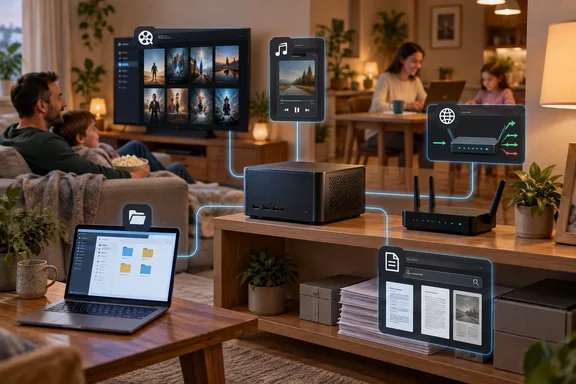
His argument is simple. People use a home server when it solves a problem they already have. Nobody asks for observability. People do ask what's on tonight, and where last year's tax return went.
His list is personal experience, not a controlled study. What follows checks each recommendation against the projects' own documentation and flags the caveats that matter most for Windows and PC users.
Jellyfin: the streaming service you actually own
Lewis calls Jellyfin a free, open-source media server for movies, TV, music and photos. In his view it works best for TV and film. It has clients for smart TVs, PCs and phones, and it runs in a browser. It has no ads and no subscription. His one "slight snag" is transcoding: when a client can't play a format, the server has to convert it. He suggests a machine with Intel Quick Sync or a dedicated GPU.
Jellyfin's documentation backs that up and adds detail. The client always asks for transcoding by sending the server a profile of what it can handle. The server then picks the best quality within those limits. The docs describe four playback modes, from lightest to heaviest server load:
- Direct Play: the file goes out untouched, with almost no load.
- Remux: the container changes, but the audio and video streams don't.
- Direct Stream: only the audio is transcoded.
- Transcode: the video stream is re-encoded, which is the expensive one.
The dashboard shows which mode is in use. When something stutters, that's the first place to look.
HDR content is where the GPU advice really matters. Jellyfin can't pass HDR through when it transcodes, so HDR video has to be tone-mapped to SDR. The project says doing that in software can be too slow for real-time playback even on modern CPUs. It says even a basic Intel iGPU can match a Ryzen 5800X for this job. Jellyfin supports hardware acceleration on modern GPUs from Intel, AMD, Nvidia, Apple and Rockchip. Its hardware guide still favours Intel on non-Apple systems and says AMD is not recommended because of weaker H.264 encoders.
Notes for PC builders from Jellyfin's hardware guide:
- RAM: at least 8GB. Add more if the server runs Windows 11, which the docs call a heavier OS.
- Storage: about 100GB of SSD for the OS, Jellyfin's own files and the transcoding cache. Avoid SMR hard drives for Jellyfin's data.
- Network: wired gigabit Ethernet. The docs advise against Wi-Fi and Powerline for the server.
- Old CPUs: starting with Jellyfin 10.11, x86 CPUs must support SSE4.1.
- Raspberry Pi: the docs say most single-board computers, the Pi 5 included, are too slow for a good experience.
Security note: Lewis uses WireGuard for remote access, and that's a sensible choice. Jellyfin's own docs say bluntly that the server is not designed to be exposed directly to the internet and should sit behind a properly configured firewall. A VPN helps, but it doesn't replace good network setup.
Section summary: Jellyfin is the easiest win with a household, provided the server hardware can handle transcoding and you don't port-forward it to the open internet.
Navidrome: your CD shelf becomes a streaming app
Lewis ripped his CD collection at the highest quality he could and loaded it into Navidrome. Now anyone on his home network can use its browser player. He points out that Navidrome speaks the Subsonic API, so it works with many third-party players. He names Symfonium for its Android Auto support.
Navidrome's documentation supports this. It describes itself as a standalone browser-based server that doubles as a lightweight Subsonic-compatible server. It lists support for Subsonic, OpenSubsonic, Madsonic and Airsonic clients, including apps for Android TV, CarPlay and Android Auto. Features that matter for a family:
- Multiple users, each with their own play counts, playlists and favourites
- Multi-library access controls, so one person's collection can stay separate from another's
- On-the-fly transcoding, which can be set per user or per player (Opus is supported)
- Automatic library monitoring, so newly ripped albums show up without manual rescans
The Windows angle is strong here. The project provides builds for Windows (32- and 64-bit Intel), Linux and macOS, plus Docker images. It says FFmpeg must be installed for Navidrome to work properly. That's the step people most often miss when a Windows install won't play anything. The project also says it runs on hardware as modest as a Raspberry Pi Zero, so an old laptop is plenty.
Navidrome is built for music only, not video. That makes it a companion to Jellyfin, not a replacement.
Section summary: If Jellyfin is your film library, Navidrome is your record shop. It's light, Windows-friendly and works with many clients.
Pi-hole: the one nobody notices until it's gone
Lewis calls Pi-hole "the invisible service." It filters DNS for the whole network, blocking ads, trackers and malicious domains for every device. When he turned it on, his family noticed that "everything looks different" but couldn't say why. He also mentions per-device content restrictions for homes with children.
Pi-hole's post-install documentation explains how to make that work across the whole house:
- Preferred: set your router's DHCP to give Pi-hole's address as the DNS server. Every device then gets filtering automatically.
- If the router can't do that: use Pi-hole's built-in DHCP server, but turn off the router's DHCP first.
- Last resort: set Pi-hole as the DNS server on each device by hand.
There's one more catch: after installation, the Pi-hole machine doesn't use Pi-hole itself. If you point the host at itself and Pi-hole fails, the host loses DNS. That can also block repair attempts that need an internet connection. Change that setting carefully.
Lewis's big warning is the single point of failure. If the Pi-hole crashes or someone unplugs it, the household loses internet. Strictly speaking, what breaks is name resolution, but to a teenager mid-stream that's the same thing. His fix is a second Pi-hole running on a Pi Zero 2 W, with blocklists kept in sync. He estimates the cost at about $20. That figure is his own estimate, not a verified current price. Before rolling Pi-hole out to the whole house, test it on a few devices first.
Remember what DNS filtering can't do. It blocks domains. Ads served from the same domain as the content you want will get through.
Section summary: Lewis's top pick for beginners. It's cheap and effective, but plan for redundancy before the family starts relying on it.
Nextcloud: a self-hosted rival to OneDrive
Lewis describes Nextcloud as a self-hosted alternative to OneDrive or Google Drive. It handles phone photo backup and file storage, and it has calendar and office-suite features he compares to Microsoft Office and Google Workspace. His family uses it only once or twice a week, but he says it still beats paying for Microsoft Office.
That comparison needs a caveat. Nextcloud's user manual (the current stable edition covers Nextcloud 35) says administrators can switch features on and off. It also says the New document, New spreadsheet and New presentation options only appear if an editor is enabled. The office experience depends on which apps you install and configure. It's not guaranteed to match Microsoft 365. Features that make Microsoft 365 hard to leave for many users, such as co-authoring polish, Outlook integration and enterprise compliance tools, are a different conversation. "Beats paying" is a personal value judgment, not a finding of feature parity.
Out of the box, Nextcloud's web interface covers the basics you'd expect from a cloud drive. You get Recent and Favorites views, sharing with public links, version history, a trash bin for recovering deleted files, and in-browser previews. Lewis adds that optional extensions can bring local AI features if the server is powerful enough.
Section summary: Nextcloud can replace a lot of your OneDrive use. How close it gets to Microsoft 365 depends on how much configuration you're willing to do.
Paperless-ngx: finding the 1040 in seconds
This is the most practical service on the list. Lewis scans or emails PDFs and JPGs into Paperless-ngx, which runs OCR so the text becomes searchable. Receipts, tax records and medical bills can then be found by keyword and sorted by date. The downside he names is the initial backlog: a bin of paperwork can take hours to digitise.
He also says recent versions support local AI models for classifying and tagging documents. This needs precision, because "AI" and "local" don't always go together. Paperless-ngx's own documentation describes a set of optional features backed by a large language model (LLM): AI-assisted suggestions, similar-document retrieval, and a document chat. They are off by default and never replace the built-in, non-LLM matching.
Where your documents end up depends on the backend you choose. The configuration reference lists two options, "openai-like" or "ollama." It says that with Ollama, the AI features will be run locally on your machine. The other option sends requests to OpenAI or any compatible provider. The project is direct about what that means: enabling these features sends document content (and metadata) to the LLM backend you configure. If that backend is a remote/hosted provider, your documents leave your server and may incur usage charges. The docs recommend a local backend (Ollama, or a self-hosted OpenAI-compatible gateway) for anyone concerned about privacy. If Paperless holds your family's medical bills, that means you.
Even without an LLM, Paperless-ngx already suggests tags, correspondents and document types. It uses a conventional machine-learning model trained on your own documents. Other features worth knowing about:
- Two-factor authentication for each account, with recovery codes
- Public share links, which need no login. Treat them carefully when the file is a tax return.
- A trash bin that keeps deleted documents for 30 days by default
- Email ingestion, with OAuth2 support for Gmail and Outlook accounts
Section summary: Paperless-ngx solves a real household problem well. If you turn on AI, choose a local backend unless you're comfortable sending your records to a cloud provider.
Where to start
Lewis ends with the same idea he started with: services that solve everyday problems stick, and niche ones don't. His suggested order is Pi-hole first, since it's easy and cheap, and then a media server, either Jellyfin or Navidrome.
That's reasonable advice, with one adjustment. Pi-hole changes something every device depends on, so it's the service most likely to cause complaints if it breaks. A household that already has a folder of ripped films and a smart TV may be better off starting with Jellyfin. It's hard to break the house with a media server.
Keep in mind that none of these services comes with a support desk. Once the family depends on your server, you're responsible for backups, updates, secure remote access and the midnight "why won't Netflix load" call, which will really be a DNS problem. That's the trade for no subscriptions and full ownership of your data. For many WindowsForum readers, an old PC with an Intel iGPU and a spare SSD is enough to try all five.
References
- The 5 self-hosted services that turned my family from skeptics into daily users How-To Geek · 2026-09-30T21:00:14+00:00
- Accessing your files using the Nextcloud web interface — Nextcloud 35 User Manual docs.nextcloud.com
- Transcoding | Jellyfin jellyfin.org