

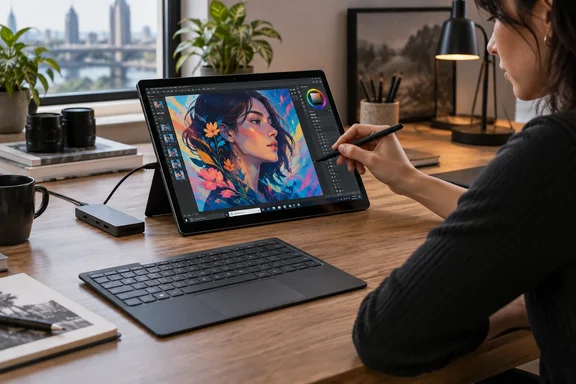
ASUS ProArt PZ14 puts a Snapdragon X2 Elite PC behind a 14-inch OLED panel
The PZ14 (model HT7407) is a tablet first. The processor, battery and other components all sit behind the display, and the keyboard is a separate accessory with no hinge. ASUS announced it at CES in January 2026 and calls it its most powerful creator tablet so far. It uses an 18-core Snapdragon X2 Elite with Adreno graphics and a Hexagon NPU (the neural processing unit that handles on-device AI work) rated at up to 80 TOPS. Configurations go up to 32GB of LPDDR5X memory and a 1TB PCIe 4.0 SSD. Without the keyboard, the ProArt PZ14 measures just 9mm (0.35″) thick and weighs just 790 grams (1.74 pounds).
TechPP tested the top configuration for two weeks: the Snapdragon X2 Elite X2E-88-100, 32GB of RAM and a 1TB NVMe SSD. TechRadar's unit had the same chip, and TechRadar lists it as 18 cores, up to 4.7GHz with Adreno X2-90 graphics. The chip's exact tier is worth knowing if you are comparing machines. Creative Bloq calls the X2E-88-100 the second best of the new Snapdragon chips, a step down from the Elite Extreme in the ZenBook A16. It adds that with two fewer cores and a tighter thermal envelope, the A16 was faster in its benchmarks. Some spec databases call the PZ14's chip "Elite Extreme." Creative Bloq's reading is the one backed by a side-by-side test.
ASUS lists other specs that matter in daily use. There are two USB4 Type-C ports with display output and power delivery, an SD Express 7.0 card reader, Wi-Fi 7, an 8MP IR front camera for Windows Hello and a 13MP rear camera. The battery is 75Wh and ships with a 68W charger. ASUS's product page adds a single-fan design rated up to 25W TDP, with fan-off "0 dB" operation under light loads and four fan modes. TechPP found the fan starts and the chassis warms up under load. ASUS says the device is IP52 rated and tested to MIL-STD-810H. IP52 means limited protection against dust and splashes. It does not make the tablet waterproof or drop-proof, and TechPP also warns against treating the military-standard label as permission to drop it.
The Lumina Pro OLED earns the PZ14's reputation
Reviewers agree that the display is the main reason to buy this device. ASUS calls the 14-inch 16:10 panel "Lumina Pro OLED." It claims 100% DCI-P3 coverage, Delta E under 1, Pantone validation, a 144Hz variable refresh rate, up to 1,000 nits of HDR peak brightness and an anti-reflection coating it says cuts reflections by 65%. These are ASUS's figures, not independent measurements. TechPP's hands-on impression fits them: deep blacks, accurate colour and 243 pixels per inch that stays sharp when you zoom into fine edits.
The resolution needs one correction. ASUS's global press release gives the panel as "2800 x 1800." Liliputing and LaptopMedia both list a 14 inch, 2880 x 1800 pixel OLED display featuring a 144 Hz refresh rate. The math agrees with them: a 2880 × 1800 panel at 14 inches works out to about 243 PPI, the density ASUS quotes. The "2800" figure looks like a typo.
Notebookcheck scored the device 90.3% and called the touchscreen a gorgeous 144 Hz OLED touchscreen. TechPP says it watched Netflix on it and preferred the experience to its own iPad Pro. The problems come from the size, not the image. At 14 inches and 16:10, the tablet feels very wide held close to the face. Portrait mode is awkward for reading and scrolling, and one-handed use is close to impossible. Buyers who picture an iPad-style couch tablet should take that seriously. Buyers who picture a portable drawing surface on a desk can mostly ignore it.
ASUS Pen 3.0 and a hingeless keyboard favour the desk over the lap
According to ASUS, the Pen 3.0 supports Microsoft Pen Protocol 2.6, with 4,096 pressure levels, tilt, palm rejection and magnetic wireless charging. It also has haptic feedback and a "brush-sound" feature that imitates pen on paper. That explains the scribbling sound TechPP heard while taking notes, which it called a thoughtful touch that still sounds artificial. TechPP rates the note-taking second only to the iPad Pro among tablets it has used, and better than the Apple Pencil in some cases. Its main complaint is that the glossy glass feels slippery under the nib. It suggests a matte screen protector, which is a reviewer workaround, not an ASUS accessory.
The keyboard shows the design trade-off most clearly. ASUS specs it as a detachable Bluetooth keyboard with 1.7mm key travel, a touchpad and a Copilot key. It attaches to the bottom edge of the tablet with magnets. TechPP found the typing about as good as a thin-and-light laptop, with a full-size touchpad. However, the magnets are weak enough to let go, and without a hinge the tablet can tip backwards on a lap or uneven surface. ASUS presents the same wireless design as a benefit, since you can place the keyboard wherever you like. Both descriptions are true. The design works well on a café table and poorly on a train seat.
TechPP also found that the magnets holding the stand cover were weak. The tablet slipped out of the cover while being held and survived the fall. ASUS markets the magnetic stand cover as protection and support for sketching and typing.
Which accessories come in the box depends on your region
Before comparing prices, check exactly what is in the box. TechPP's Indian unit came with the keyboard, the Pen 3.0 and the magnetic stand cover, and the review counts this as a real advantage over the iPad Pro, where those accessories cost extra. That is not true everywhere. TechRadar's spec list describes the accessories optional: ASUS Pen 3.0, Bluetooth keyboard, stand cover. ASUS's global press release says the pen is part of a "soft bundle" and that the bundled accessories and their warranty may vary by country or region.
Price has the same problem. TechPP quotes ₹2,69,990 for the 32GB model in India, and NDTV Gadgets gives the same Indian figure: If you judge it purely as a Rs. 2,69,990 laptop, there are better options. Treat that as an Indian price for a bundled 32GB configuration. It is not a global list price. The operating system can differ too. TechPP says the PZ14 ships with Windows 11 Home or Pro depending on configuration (its unit ran Home), and LaptopMedia lists both editions. IT buyers who need domain join, BitLocker management or Intune enrolment without an edition upgrade should confirm they are getting a Pro SKU.
There is also a small spec disagreement. TechPP lists Bluetooth 6.0, while LaptopMedia's spec sheet gives Bluetooth · 5.4, and ASUS's global release doesn't state a Bluetooth version. Assume 5.4 unless your regional spec sheet says otherwise. The keyboard is a Bluetooth device, so this is more than a footnote. LaptopMedia also lists a single 2230 M.2 NVMe PCIe 4.0 slot for storage. The memory is soldered to the board, so pick your RAM tier at purchase.
Snapdragon X2 Elite performance: CPU and NPU are strong, the GPU is where you compromise
TechPP reports fast everyday responsiveness and says the X2 Elite competes with Intel's Core Ultra 7 series and AMD's Ryzen AI Max+. However, it prints no benchmark tables of its own. Crowd-sourced figures give a rough idea: NanoReview's listing shows Geekbench 6 (Single-Core) 3548 · Geekbench 6 (Multi-Core) 18797 · Cinebench 2024 (Single-Core) 139 · Cinebench 2024 (Multi-Core) 1379. ASUS's own comparisons are against its previous PZ13 with Snapdragon X Plus. ASUS claims 1.8× the Cinebench R24 multi-core score, 1.7× in Blender and 3.0× in Puget Bench for DaVinci Resolve. ASUS says those tests were run under Fan profile in MyASUS, and idle the laptop for 10 mins prior to running the benchmark under AC mode. In other words, the PZ14 was plugged in and in Performance mode. Unplugged, in a quieter fan mode, expect lower numbers.
Graphics are the weak point. TechPP judges the integrated Adreno GPU as adequate but behind Radeon and Intel Arc options. Its view is that the PZ14 can handle games and heavier creative applications decently but not at the top tier. TechRadar ran into game compatibility problems, not performance ones. Microsoft Office ran fine, and it was only when testing some of the games at the end of the test that those compatibility issues did appear. Treat gaming on this device as a bonus that depends on the title.
The NPU is the X2 Elite's strongest feature on paper. ASUS pairs it with its own AI apps. StoryCube tags and sorts media libraries, and MuseTree, according to ASUS, generates images from text prompts locally on the NPU without a network connection. As a Copilot+ PC, the PZ14 also supports Microsoft's on-device features. ASUS's own product page still labels Recall and Click to Do as previews.
TechPP measured strong SD Express performance: sequential reads of 730MB/s from the SD Express 7.0 reader. It did not publish a write figure or say which card it used. Your results will depend on having an SD Express card. Ordinary UHS cards will run at their own, slower speeds.
Windows 11 on Arm makes the PZ14 a real PC, with Prism emulation as the gap to check
TechPP calls Windows 11 the tablet's biggest strength and its biggest weakness. The strength is that the PZ14 runs full desktop applications, multiple windows and ordinary file management, which no iPad offers. The weakness is that Windows 11's small controls, menus and toolbars are awkward to use with fingers, even in tablet mode. The pen helps. TechPP also complains about disruptive Windows Update interruptions. It could not judge first-time setup, because its unit was pre-owned and already set up.
For creative work, the compatibility situation is better than Windows on Arm's reputation suggests. TechRadar reports that Lightroom Classic, Photoshop, Premiere Pro, After Effects, and DaVinci Resolve all ran well, with no compatibility or performance issues. TechPP agrees that most creator apps now run natively. The remaining gaps are older programs and plug-ins that still run through x86 emulation, which TechPP says can cost performance and sometimes features. As Liliputing put it when the device launched, the Windows ecosystem hasn't completely adapted to Arm yet.
Microsoft's documentation explains how that emulation works. Prism is the Windows on Arm layer that runs x86 and x64 applications. In Windows 11 24H2 and later, it emulates more CPU features, including AVX, AVX2, BMI, FMA and F16C, which some older creative and scientific software needs. By default, Prism balances speed against compatibility. If an app misbehaves, you can change its settings for that app alone:
- Right-click the app's executable and choose Properties.
- Open the Compatibility tab and find the Windows on Arm section.
- Select Change emulation settings.
- Try the preset groups in order: Default, Safe, Strict, Very strict. Each step gives up performance for a better chance of compatibility.
- If an app only broke after a Windows update, try "Hide newer emulated CPU features." This returns Prism to its earlier CPU feature set for that app.
Microsoft warns that changing emulation settings can make an app crash or refuse to launch. If that happens, set it back to Default. One inference goes beyond the documentation: Prism handles applications, not hardware drivers. Check older peripherals, such as drawing tablets, audio interfaces, colour calibrators and licence dongles, separately to confirm they have Arm64 drivers.
Battery life on the ProArt PZ14 is an all-day advantage
TechPP's battery results are its own mixed-use estimates, not a standard rundown test. It reports about 12 to 14 hours with light-to-medium use, 10 to 11 hours with heavy use including gaming, and as much as two days when using only the browser. The review says battery life stayed consistent whether or not performance mode was on. ASUS's figures use its own test conditions: up to 22 hours of FHD video playback, 16 hours of web browsing and 16 hours of video streaming. The two sets of numbers aren't directly comparable, but they point the same way. Hardzone's review, quoted on ASUS's site, also highlights battery life that kept surprising the reviewer after days of use as a primary machine.
In practice, the PZ14 can get through a working day without its 68W charger. Because both USB4 ports accept power delivery, a single USB-C cable to a dock can also handle charging and an external monitor. TechPP says it misses a built-in HDMI port. There is also no headphone jack, so wired audio needs a USB-C adapter or USB-C headphones.
What the ProArt PZ14 means for creators and IT buyers
Buy the PZ14 if your workflow is mostly pen, colour-critical editing and desktop creative apps that already run natively on Arm, and you usually work at a table. Skip it or wait if you want a one-handed reading tablet, need to type on your lap, rely heavily on GPU performance, or depend on legacy x86 plug-ins you haven't tested. For fleet buyers, the edition, the regional bundle and the soldered memory matter more than the benchmark numbers.
- The 14-inch 2880 × 1800 OLED panel is the PZ14's standout feature, and it is also why the tablet is hard to hold for long.
- The hingeless Bluetooth keyboard types like an ultrabook keyboard, but TechPP found the tablet can tip over on a lap because nothing holds the screen rigid.
- Accessory bundles, operating system edition and price vary by region, and the ₹2,69,990 figure applies to India's 32GB configuration.
- Before buying, test your specific plug-ins, games and peripheral drivers on Windows 11 on Arm. Use Prism's per-app emulation settings as a fallback, not a guaranteed fix.
- Memory is soldered and can't be upgraded later, so choose between 16GB and 32GB carefully.
- Treat ASUS's benchmark gains over the PZ13 as plugged-in, Performance-mode results, and treat the Adreno GPU as the weakest part of the package.
The PZ14 shows that a Windows tablet can now match an iPad Pro on display quality and pen feel while running a full desktop workload. TechRadar's clean run through the Adobe suite and TechPP's verdict of 4.1 out of 5 suggest the hardware is mostly ready. What still holds it back is Windows 11's touch interface and a shrinking set of x86 holdouts. Anyone deciding now should test their own apps rather than rely on a benchmark chart.