

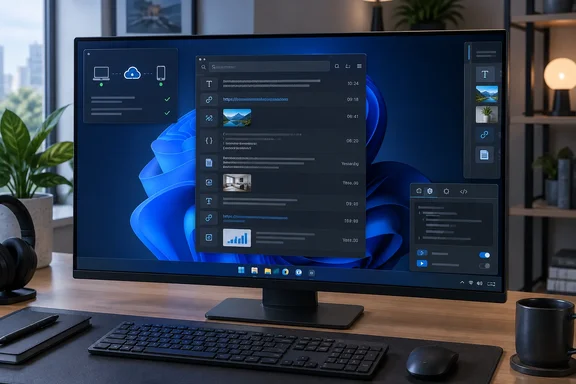
That result is one person's opinion, not a benchmark. Still, the four tools do different jobs, and his reasons for dropping three of them are a useful guide if you're picking your own. Below is what he found, what each project says about itself, and what Windows 11 and Windows 10 already give you.
The problem: Win + V has a short memory
Patel's complaint was simple. He copies dozens of snippets, links, screenshots and bits of text a day, and Windows only remembers the latest 25. Once an item falls off the list, he has to go back and copy it again.
Microsoft's own support page on the clipboard confirms that limit. It also lists a few other limits worth knowing before you decide the built-in tool isn't enough:
- 25 entries maximum. Older items are removed automatically as new ones come in, unless you've pinned them.
- 4 MB per item. Only text, HTML and bitmap formats are supported.
- Off by default. The first time you press Windows logo key + V, you have to select Turn on.
- Cleared on restart. Everything except pinned items disappears when you reboot. Many users don't realize this.
- Optional cloud sync. Under Start > Settings > System > Clipboard you can turn on clipboard history across your devices. It's tied to your Microsoft account or work account, and you need to sign in with the same account on every device.
So the built-in panel isn't just a 25-item list. Pinning is a real workaround for snippets you reuse all the time, and the sync option covers some cross-device needs. But if you want a large history that survives a reboot, or support for more formats, you need a third-party tool. Patel's article doesn't say whether he tried pinning first.
Section summary: Win + V is fine for quick copy-and-paste. It is not a long-term archive, and a restart wipes everything you haven't pinned.
Ditto: the one that stayed
Ditto was the first tool Patel installed and the one he kept. He left most settings at their defaults and says it felt like something Windows should have included from the start. His main praise was that he could pull up an old entry quickly instead of copying it again. The many options were there if he wanted them, but he could ignore them. Within a few days, he says, Ditto felt like part of Windows rather than an extra app.
The project's GitHub page describes Ditto as an extension to the standard Windows clipboard. It saves every copied item in a database so you can retrieve it later, and it handles text, images, HTML and custom formats. Getting started looks like this:
- Install it using the installer, the portable build, the Microsoft Store app, Chocolatey (
choco install ditto) or Winget (winget install -e --id Ditto.Ditto). - Copy things as usual with Ctrl + C.
- Open Ditto from its system tray icon or with the default hotkey, Ctrl + ` (the backtick key, which shares a key with the tilde on US layouts).
- Paste an item by double-clicking it or pressing Enter. It goes into the window you were last using.
The project describes itself as "Local First": no login, no cloud, no telemetry. Those are the developers' claims, not the result of an independent privacy audit. Even so, a tool that works without an account suits Patel's goal of something that simply stays out of the way.
One thing to watch: if Ctrl + ` already does something in your code editor or terminal, change Ditto's hotkey before the two start fighting.
ClipCascade: a sync tool, not a history tool
ClipCascade is where Patel's experience and the tool's actual purpose seem to diverge. He liked that it ran quietly in the background and had a simple layout. But he set it up with Docker, and that made it feel out of place in his everyday Windows routine. It worked, but he had to think about the setup more than he wanted, and he eventually stopped using it.
That's partly because ClipCascade isn't mainly a clipboard history manager. Its GitHub topic listing describes it as a lightweight utility that automatically syncs the clipboard across devices, no key press required. Its purpose is to move what you copy between your machines. Keeping a long list of past clips on one PC is not what it was built for.
The Docker part of the setup is the self-hosted server. There is also a native Windows app. The project's releases page lists a Windows Installer (ClipCascade.msi) and a Portable/Standalone Executable (ClipCascade.exe), along with clients for macOS, Android and Linux. It also advertises dual-mode sync: Peer-to-Server (P2S) or Peer-to-Peer (P2P) and end-to-end encryption. In peer-to-peer mode, the README says the server is needed only for signaling and authentication.
If you do self-host it, two practical points:
- Change the default password. The Docker Hub listing's sample compose file ships with default admin credentials: Username: admin, Password: admin123. Change that before you expose the server anywhere.
- Expect a SmartScreen warning. The README says that because the app isn't registered with Microsoft, you may see a warning suggesting that it could be unsafe. The developer points out that the source is open if you want to review it or compile it yourself. Take that as a reason to check the code or build it, not as permission to turn off your antivirus.
XDA has covered ClipCascade before as a self-hosted alternative to Windows' cloud sync. One earlier piece argued that the built-in sync only works on Windows devices (and Android, with an app), and it also means your data is stored in the cloud at some point.
So Patel is right that it felt like a poor fit, but the reason matters. ClipCascade is a good tool aimed at a different problem. If you're running Windows, a Mac and an Android phone and already have a home server, it could be exactly what you want.
Section summary: Use ClipCascade to share one clipboard across several devices. Don't pick it expecting a Ditto-style archive on a single PC.
Edge Drop: the shelf you have to get used to
Edge Drop was the most different of the four. You move your mouse to the edge of the screen, and a shelf slides out with everything you've copied. Text, links, images, screenshots and files each show up as separate cards. You can drag an item straight into another app, and items copied together get grouped automatically. Patel liked the idea, but he never started reaching for the shelf out of habit, and he kept going back to Ditto.
The project's README fits his description, and it adds some detail:
- It captures plain text, URLs, rich HTML, images, spreadsheet cells and multi-file selections. For files it stores references on disk, not copies of the files.
- It has shelf search. The retained history is adjustable from 100 to 1,000 items, with 250 as the default.
- It includes privacy controls: an incognito mode that pauses clipboard monitoring, auto-delete timers (1 hour, 6 hours, 24 hours or 7 days), and an option to clear unpinned items on restart.
- It stores history in encrypted form using Windows DPAPI and checks the clipboard every 600 milliseconds.
- It works across multiple monitors. The shelf can sit on the left, right or top edge, and it's hidden while fullscreen games are running.
Two notes. First, despite the name, the README states that Edge-Drop is an independent project and has no connection to Microsoft or the Edge browser. Second, the author describes it as a solo-maintained project in active beta, and it currently runs only on Windows. It's not yet as mature as Ditto or CopyQ.
CopyQ: more power than he needed
CopyQ was the most feature-packed of the four. Patel liked the tabs for sorting different kinds of content, and he found the ability to edit an entry before pasting it handy. But he didn't want to spend time configuring a clipboard manager. He wanted to copy something, find it later and move on.
CopyQ's GitHub repository calls it an advanced clipboard manager with editing and scripting features. The feature list backs that up:
- It runs on Windows, Linux and macOS 13 or later.
- It stores text, HTML, images and custom formats in tabs, with notes and tags.
- It supports system-wide shortcuts, custom commands, a command-line interface and scripting.
- It can ignore content copied from specific windows or matching specific text. That's useful for keeping passwords out of your history.
- It includes a simple Vim-style editor.
On Windows you can install it with the setup program, a portable ZIP, Scoop (scoop install copyq) or Chocolatey (choco install copyq). Open the history from the tray icon, press F2 to edit an entry and press Enter to paste it into the window you were last using.
Patel's verdict of "too much for me" is fair, but it says more about him than about CopyQ. If you work on both Windows and Linux, or you want scripted clipboard automation, CopyQ is the strongest option here.
Which tool fits which user
| Tool | Best for | Setup effort on Windows | Why Patel dropped it |
|---|---|---|---|
| Win + V (built in) | Quick recall, pinned snippets, syncing through a Microsoft account | None | 25-item limit |
| Ditto | A large local history with minimal friction | Low (installer, Store, Winget) | Kept it |
| ClipCascade | One clipboard across Windows, macOS, Linux and Android | Medium to high (needs a server or P2P setup) | Docker setup felt like overhead |
| Edge Drop | Visual, drag-and-drop workflows | Low, but still in beta | Shelf never became a habit |
| CopyQ | Power users, scripting, cross-platform use | Low to install, high to fully customize | More configuration than he wanted |
A word on security
Every tool in this roundup keeps a lasting record of what you copy. That can include passwords, API keys, one-time codes and confidential documents. Before you install one, check:
- whether it can skip certain apps or content (CopyQ can)
- whether it has an incognito mode or auto-delete timer (Edge Drop does)
- whether anything leaves your machine (Ditto says it doesn't; ClipCascade and Windows' own sync do by design)
On managed business PCs, check with your IT department before installing any third-party clipboard tool.
The bottom line
Patel's conclusion holds up: if you just want Win + V with a longer memory, Ditto is the easy pick. But "only one stuck" doesn't mean the other three failed. ClipCascade is a cross-device sync tool, and judging it as a clipboard history manager misses what it does. CopyQ is a power tool for people who want to set it up their way, and Edge Drop is an early beta with a different way of working. The best clipboard manager is the one you'll actually use without thinking about it, and for most Windows users that will probably be Ditto.
References
- I tried replacing default Windows clipboard with 4 open source tools, and only one stuck XDA · 2026-09-27T21:30:18+00:00
- Ditto - Clipboard Manager github.com
- github.com github.com