

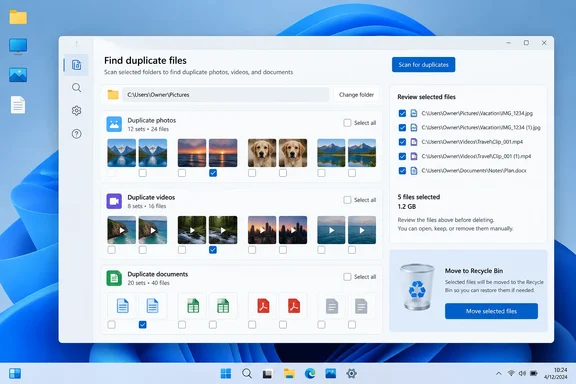
CCleaner 7 Moves Duplicate Finder Out of the Tools Menu
The guide comes from PCWorld's Martin Appel. It was translated from the Swedish sister publication PC för Alla. It covers CCleaner 7.x, the current generation of the Windows cleanup utility. PCWorld's case for bothering is simple. Phone cameras now produce very large photo and video files, many new PCs ship with fairly small drives, and backup or sync tools sometimes create extra copies without you noticing. Those are reasons duplicates pile up. PCWorld does not measure how much space a typical scan recovers, so any savings depend on what you have stored.
In CCleaner 7, the Duplicate Finder is part of a redesigned product. When version 7 launched in October 2025, the download site Free-Codecs reported that the Improved Disk Analyzer now detects and deletes duplicate files in bulk, letting you preview image thumbnails and choose whether to keep the newest or oldest version of each file. The same report said you can decide to permanently delete files or send them to the Recycle Bin for added safety, and that CCleaner 7 also adds ARM64 architecture support.
The move confused people who used the older version. Several threads on CCleaner's community forum ask where the tool went. One user wrote that the finder used to be under tools and could no longer find it after the version 7 update. Another user, on build 7.0.984.0, finally found the duplicate finding function via the Disk Analyzer icon in the sidebar. In PCWorld's current walkthrough, Duplicate Finder has its own entry in the left-hand menu. The exact spot seems to have changed between 7.x builds, so go by the labels in the version you have installed.
CCleaner's own help pages haven't fully caught up. The company's support article describing the feature still sends Windows users to Tools > Duplicate Finder and a "Match by" panel, which belong to the older interface. If you're on 7.x and can't find those menus, that's expected.
Installing and Updating to CCleaner 7.x
PCWorld lists two ways to install:
- From the Microsoft Store. Type "CCleaner" in the Windows search field, click Install, and accept the prompt.
- From CCleaner's website, using the "Free Download" button to get a standard installer.
If you already have an older CCleaner, you may need to update to 7.x yourself before these steps apply. PCWorld says that, depending on your version, you can do this with "Check for updates" in the bottom-right corner or through Settings > Updates. CCleaner's download page currently lists the Windows product as version 7.11. It names Windows 11, 10, 8.1, and 7 as supported, in 32-bit and 64-bit editions.
CCleaner is freemium: the basic tier is free and a Professional tier adds features. PCWorld gives the Professional price as roughly $30 a year. Check that figure at checkout, because subscription prices change. PCWorld says the free edition is enough for finding duplicates. It also warns that the company markets hard, with in-app warnings such as "You have an urgent performance problem" that mainly promote the paid service. PCWorld's advice is to ignore those warnings and stick to the duplicate cleanup. The tool doesn't need a subscription, and neither does the job you're doing.
Scanning and Removing Files in CCleaner 7's Duplicate Finder
Here is PCWorld's 7.x workflow, in order:
- Open CCleaner, click Duplicate Finder in the left-hand menu, and select Start Now.
- Choose where to scan. Click Drives and pick a drive to search it all, or choose Select specific folders and use Browse to limit the search to, for example, your Documents folder.
- Click Scan. When it finishes, the duplicates appear in a list grouped by file type.
- To remove everything automatically, open Bulk Selection and choose either Keep the oldest files or Keep the newest files.
- For a more careful pass, click Deselect All and tick only the files you want gone.
- To check a specific result, click the three-dot menu beside it and choose View information. The link under Location opens the folder that holds the file. You can also remove the file from this view.
- When your selection is final, click Move to Bin. Click Delete only if you don't want to be able to recover the file.
You'll know it worked when the selected files are gone from their folders and, if you chose Move to Bin, they show up in the Windows Recycle Bin. The space isn't actually freed until you empty the Recycle Bin. This two-step process is your safety net, so don't empty the bin until you've checked that the photo library, project folder, or synced folder you cleaned still looks right.
PCWorld itself notes that deleting everything can be risky, which is why step 5 exists. The View information panel gives you the context the list lacks. Two files can have the same content and still both be needed if different programs expect them in different folders.
Why CCleaner 7's Simpler Matching Calls for Narrow Scans
The older Duplicate Finder let you define what counted as a duplicate. CCleaner's support page describes searching for files with the same file Name, Size, Modified date, and Content, and you could combine those criteria. A separate CCleaner guide for the older tool describes Ignore settings. For example, if a file is marked as hidden in the computer's file system and you've selected Hidden Files in Ignore, CCleaner won't consider it a duplicate. That version also had Include and Exclude tabs for specifying drives and folders.
Users say most of that is gone in version 7. One forum poster wrote that the finder had more options to Match by Name, Size, Date Modified and Content but in version 7 all these options are gone, and added that they were no longer sure what criteria the results were based on. A paying Professional customer on 7.0.984.0 complained that all the functions that made this tool useful in previous versions of CCleaner are gone– can't whitelist/blacklist folders, extensions, file sizes, etc. and that they could no longer export the file list. These are user reports from CCleaner's own forum, not a documented changelog. Still, they fit PCWorld's description of the new tool as simple and stripped-back.
In practice, this means your scan location is now the main way to control the scan. The older tool let you exclude hidden files or whole folder trees. The 7.x tool, as PCWorld describes it, gives you a choice between a whole drive and specific folders. If you pick your Pictures, Videos, Downloads, or Documents folder, most of the results will be personal files you can judge yourself. If you pick all of C:, you'll get results you may not be qualified to judge.
CCleaner's older guidance on this still applies. The company's support documentation states that it is not safe to remove all the duplicates CCleaner finds, and that the finder cannot work out which files are needed. It also says: We recommend that you don't delete any duplicates located in C:\Windows or C:\Program Files; some programs on your PC are likely to need these to run properly. That advice was written for the older interface, but the reasoning behind it doesn't depend on the version. Apps often ship identical copies of the same library in their own folders, and a duplicate finder will flag them.
The bulk options in 7.x carry the same risk. "Keep the oldest files" and "Keep the newest files" choose a survivor by date, not by location or purpose. If the newest copy sits in a OneDrive-synced folder and the oldest sits in an app's data directory, a date rule has no idea which one matters. Some user reports also suggest the tool can be temperamental. One forum user trying to scan an E: drive said they got an error message reading "something went wrong". If a whole-drive scan fails, scanning individual folders is a sensible fallback, and it's the safer approach anyway.
AllDup Is the Free Option for Users Who Miss the Old Controls
If you relied on the old filters and exports, PCWorld points to AllDup as a more powerful free alternative. PCWorld says it has many advanced features for searching large numbers of files and lets you tailor searches much more closely. The trade-off, in PCWorld's view, is an interface that may put off inexperienced users. That's PCWorld's assessment. WindowsForum hasn't tested AllDup against CCleaner.
PCWorld's install steps for AllDup:
- Go to the AllDup website (alldup.de, English section) and select Download from the top menu.
- Click "AllDup (Freeware)" to open the download page.
- Click the top Download button and save the installer somewhere on your drive.
- Double-click the file and follow the installer.
The choice is fairly clear. If you have a folder full of phone photos and want the extra copies gone in five minutes, CCleaner 7's finder fits. If you need content-only matching, exclusion lists, or an exported report before deleting anything, which is the sort of thing the Professional user above said they paid for, the 7.x tool doesn't offer that, based on what users describe. A dedicated duplicate tool like AllDup is the better fit.
What this means for you
If your drive is filling up with personal media, you can use CCleaner's free Duplicate Finder today without paying. Scan one folder at a time and review before you delete. If you manage PCs for other people, or you need to control exactly how files are matched, skip CCleaner 7's finder for that job and use a more configurable tool. Nobody needs Professional just for duplicate finding. PCWorld says the free edition is enough, so you can dismiss the upgrade prompts.
- Update to CCleaner 7.x first, because PCWorld's menu labels (Duplicate Finder, Start Now, Bulk Selection) don't exist in older versions that use Tools > Duplicate Finder.
- Use Select specific folders to aim scans at personal folders such as Documents or Pictures rather than scanning a whole system drive.
- Never remove duplicates found in C:\Windows or C:\Program Files, which CCleaner's own guidance warns programs may need.
- Prefer Deselect All with manual selection over the Keep oldest or Keep newest rules, and check the Location field for anything you're unsure about.
- Choose Move to Bin rather than Delete, and empty the Recycle Bin only after you've confirmed nothing you need is missing.
- Try AllDup if you need the matching criteria, exclusions, or exports that users say disappeared in CCleaner 7.
CCleaner 7 made duplicate removal easier to reach and quicker to run. Users say it did that by dropping the filters that used to stop you making mistakes, so the judgment is now yours. CCleaner's help pages still describe the old Tools menu, and forum threads are still asking for the missing Match by options, so it's fair to expect the tool to keep changing across 7.x builds. For now, CCleaner's finder is a good fit for a quick cleanup of personal files you know well, while dedicated tools like AllDup remain the choice for finer control.