

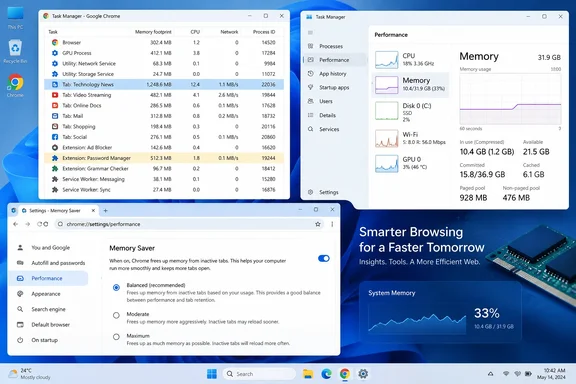
Google’s current Chrome Help documentation confirms that Memory Saver, page preloading, performance issue alerts, Chrome’s internal Task Manager, and the “continue running background apps” toggle are all supported desktop features. But each tackles a different source of resource use. Treating them as one universal 15GB fix risks turning off useful browser behavior without addressing the tab, extension, renderer, or web app actually consuming memory.
Chrome’s RAM figure is a collection of processes, not one problem
Windows Task Manager can show Chrome using a startling amount of memory, but Chrome intentionally divides work across multiple processes. Individual tabs, extensions, GPU work, network services, and background pages can be separate entries. That architecture improves stability and security: a crashed or compromised tab should not necessarily take down the entire browser.
The consequence is that the overall Chrome total is an incomplete diagnosis. A browser session with 40 ordinary tabs may use less memory than one with five heavyweight web applications, several persistent extensions, a video call, and an active Google Docs document. A high total also does not automatically mean a memory leak or a Chrome defect; Windows may keep otherwise reclaimable memory in use while RAM is plentiful.
Chrome’s own Task Manager is therefore the right first stop. Press Shift + Esc in Chrome, then sort by Memory footprint. Google’s support guidance specifically recommends looking for resource-heavy tasks and entries labeled “Background page.” This view is more useful than closing browser windows blindly because it distinguishes a problem tab from an extension or background worker.
Before ending a task, save any work in that tab. Chrome warns that ending a process can discard unsaved data. If one site repeatedly rises to the top after a fresh restart, test it in an Incognito window with extensions disabled; that comparison separates a website’s own demands from an extension injecting code into it.
Memory Saver reduces idle-tab pressure, with trade-offs
Memory Saver is the most broadly applicable setting in the MakeUseOf walkthrough. In Chrome’s Performance settings, it deactivates unused tabs and reloads them when the user returns. Google offers Moderate, Balanced, and Maximum levels; the latter makes inactive tabs eligible sooner, while Balanced is the recommended default.
For a laptop with dozens of reference tabs open, this can materially improve responsiveness because it frees resources for foreground tasks and for Windows itself. It is particularly helpful when a user’s tab habit, rather than a single misbehaving site, is the primary cause of pressure.
It does have limits. Chrome deliberately avoids deactivating some tabs, including those playing audio or video, participating in a call or screen share, downloading files, holding partially completed forms, pinned tabs, or using connected devices. Those exclusions are sensible, but they explain why enabling Memory Saver may deliver modest results in some sessions rather than a dramatic fall in RAM use.
Users should also set exceptions with care. A site that must stay live—such as a monitoring dashboard, a web-based phone client, or an application that can lose unsaved work—belongs in Chrome’s “Always keep these sites active” list. Adding broad exceptions defeats the purpose. In a managed environment, administrators can centrally govern high-efficiency behavior and tab-discard exceptions through Chrome Enterprise policies, which is useful where browser sessions run on shared or memory-constrained endpoints.
Performance alerts are a signal, not an automatic cure
Chrome’s Performance issue alerts can recommend deactivating a tab when browsing performance suffers, and the “Fix now” action applies Chrome’s suggested intervention. Google describes the alerts as a response to poor browsing performance rather than a permanent monitor that independently proves a page is wasting RAM.
That distinction matters for troubleshooting. An alert can identify a troublesome tab quickly, but an administrator or power user should still ask why it was resource-intensive. Was it a meeting page, a dashboard refreshing every few seconds, a runaway script, an extension, or an application that simply requires more memory to do its work?
Chrome also now offers a tab-hover option that shows memory use directly in the tab strip on Windows, Linux, and ChromeOS. That makes it easier to spot outliers without opening Chrome Task Manager every time. It is a better routine diagnostic tool for heavy tab users than assuming that all inactive tabs are equal.
The practical workflow is simple:
- Start with Chrome Task Manager and identify the top consumers by memory, not just the total browser number.
- Disable or remove extensions that appear as persistent high-memory background tasks, then restart Chrome and retest.
- Enable Memory Saver at Balanced first, moving to Maximum only if unused tabs remain a recurring problem.
- Add only genuinely business-critical sites to the list of tabs that must remain active.
Extensions deserve more scrutiny than generic browser tweaks
The source article correctly calls out extensions, but this is the part users should treat as a security and administration task as well as a performance exercise. An extension with permission to read and change data on every site can inject scripts across much of a browsing session. Even a legitimate extension may consume memory continuously through a background page or service worker.
Remove extensions that are no longer needed rather than merely leaving them installed and disabled. For extensions that must remain, review their permissions and whether they are maintained. An abandoned coupon finder, screen recorder, sidebar assistant, shopping tool, or tab manager can impose more cost—and more privacy exposure—than the browser feature it was originally installed to add.
For organizations, this is a reason to inventory extensions rather than depend on users to clean them up ad hoc. Chrome Enterprise provides policy controls for extension installation and browser behavior, while Windows endpoint management platforms can help identify machines where Chrome’s process count or memory usage is persistently abnormal. The individual “delete unused extensions” advice is sound; it simply does not substitute for policy when hundreds of PCs are involved.
Preloading trades resources for speed, rather than fixing runaway memory use
Turning off Preload pages can reduce speculative work Chrome does to make likely next pages load faster. Google states that Chrome may preload pages a user is likely to visit, and distinguishes Standard from Extended preloading. The feature can involve cookies and, depending on settings, pages sent through Google to obscure the user’s identity from the destination site.
This is a legitimate privacy, bandwidth, and resource trade-off. It is not evidence that Chrome has loaded a large number of full web applications into RAM. Users on limited-memory machines, metered connections, or battery-sensitive laptops may prefer to turn preloading off or keep it at the less aggressive setting. On a well-provisioned desktop, the perceived slowdown may outweigh any savings.
MakeUseOf’s personal observation that disabling preloading produced no noticeable speed difference is useful as one person’s experience, but it cannot be generalized. A user who frequently clicks suggested search results or navigates predictable site flows may notice it more than someone who works inside a few long-lived tabs all day.
Chrome does have a managed memory-limit option
The source article says Chrome “doesn’t have” a memory usage limit comparable to Microsoft Edge’s browser-level control. That is incomplete. Google’s Chrome Enterprise documentation lists a Chrome browser memory limit policy for Windows, macOS, and Linux. When configured, it sets a ceiling for a Chrome browser session; Chrome begins closing tabs once that limit is reached to conserve memory.
This is not a friendly consumer slider in Chrome Settings, and it is more aggressive than Memory Saver because it can close tabs. But for IT administrators, kiosks, shared PCs, virtual desktops, and tightly provisioned devices, the policy changes the comparison with Edge. Chrome lacks a prominent end-user cap, not a memory-limit mechanism altogether.
The background-app setting is similarly more specific than it first appears. Turning off “Continue running background apps when Google Chrome is closed” prevents Chrome’s background mode from remaining active after the last window closes. It can reclaim idle memory and stop background behavior, but it may also interrupt extension-dependent notifications or services. It is useful for users who expect closing Chrome to mean closing Chrome; it is not a remedy for a tab that consumes 15GB while the browser is open.
For most Windows users, the concrete outcome is less dramatic but more reliable than a headline RAM number: identify the offending process, remove unnecessary extensions, allow Chrome to deactivate genuinely idle tabs, and reserve the more restrictive settings for machines where memory pressure is visible in normal work.
References
- My browser was using 15GB of RAM until I changed these things MakeUseOf · 2026-09-19T13:00:15+00:00