

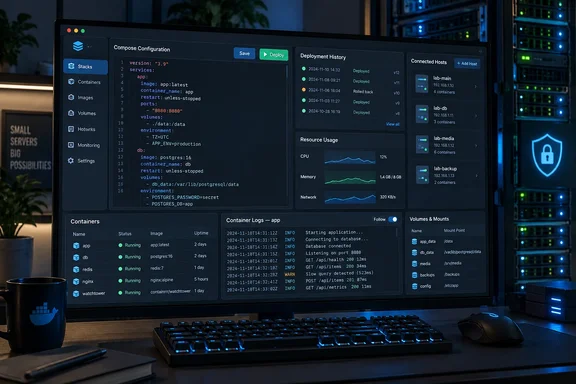
Dockhand brings Compose editing and container operations together
Pande’s starting point was a Debian system managed through the command line. Creating a directory, adding a Compose configuration, and running docker compose up -d worked well initially, he reports. As his collection grew, finding the right configuration, environment-variable file, and logs became a recurring chore.
That is a specific organizational problem, rather than evidence that Docker Compose itself becomes unsuitable beyond a few applications. A Compose stack groups an application’s services and their configuration into a deployment. Dockhand’s appeal is that it puts those definitions alongside the controls and information needed to operate the resulting containers.
The official project repository describes a visual Compose editor, container start and stop controls, real-time logs, interactive shell access, and management of local and remote Docker hosts. Its website also advertises templates, Git-based deployment, stack-view image updates, Compose validation, and a dependency graph. Those capabilities substantiate the central premise of Pande’s experience: configuration and day-to-day operations can share a browser interface.
Pande reports that the Stacks view exposes resource consumption and volume mounts, while the editor provides syntax coloring and validation. He also describes entering environment variables manually or loading a .env file, then examining dependencies, logs, and deployment history without returning to separate terminal sessions. These usability observations remain his account; they are not independently reproduced time savings or WindowsForum test results.
The practical gain is fewer transitions between tasks. When an application fails after a configuration change, having its definition, deployment output, and container logs close together can shorten the investigation. That is an inference from the documented workflow, not a claim that Dockhand diagnoses application failures automatically.
Nor does using Dockhand require abandoning command-line operations altogether. The project explicitly includes an interactive shell, and Pande describes using its Shell tab to run commands inside containers. For some tasks, the terminal has moved into the browser rather than ceased to exist.
Dockhand’s recent releases strengthen the Compose troubleshooting loop
The project’s release notes provide a more concrete account of the workflow than a general promise of easier container management. Dockhand v1.0.47, released September 12, added live Compose output during deployments and a per-stack deployment-history tab. These additions put the progress and record of a deployment next to the stack being managed.
Deployment output and container logs serve different purposes. The former records what happened while applying a stack operation; the latter exposes output from the application’s containers. Having both available helps an operator distinguish an unsuccessful deployment from a service that deployed but then encountered a runtime problem.
The same release added a warning before saving a stack whose Compose-file location would not survive a container recreation. It also fixed backups for stacks whose folders were bind-mounted over the data volume. Both changes underline an important limit of a browser interface: persistence still depends on where files are stored and how those locations are mounted.
Dockhand v1.0.48, released September 14, followed with a choice of which stack operations display the full log, a fix for action buttons on stopped and freshly created stacks, and a correction to registry authentication over TLS on remote HTTPS environments. Its notes also describe displaying image tags, rather than only digests, in vulnerability scans and alerts. These are useful operational refinements, not evidence of a new container runtime.
For someone evaluating the experience Pande describes, the version context matters. His September 19 account appeared after those deployment-history improvements. An older installation should not be assumed to offer precisely the same troubleshooting workflow, and the documented fixes give existing users specific reasons to review their installed version.
Adopting Compose stacks requires a file-location decision
Existing Compose users need not treat Dockhand as a reason to rebuild every application from scratch. The project advertises adoption from other container managers, and a maintainer-confirmed GitHub discussion explains the distinction between discovering a stack and bringing it under Dockhand’s editable management.
In that discussion, a user moving from Dockge described Compose files and optional .env files under per-application directories. Another user subsequently reported that copied directories appeared as “untracked,” but that the Compose files could not be viewed or edited until the stacks were adopted. A maintainer confirmed the intended transition: adoption makes the stack internal and editable.
That distinction is useful when planning a migration. Seeing a running application in a dashboard does not, by itself, establish that the dashboard owns or can edit its deployment files. The discussion also establishes that the relevant stack directories must be accessible inside the Dockhand container. It does not justify a universal claim that mounting any existing directory will automatically complete a migration.
Relative file paths deserve particular attention. Dockhand’s manual says that stacks using relative volume paths, such as ./config.yml:/config.yml, require matching paths rather than the simple named-volume quick-start arrangement. Its documented example creates /opt/dockhand on the host, mounts that directory at /opt/dockhand inside Dockhand, and sets DATA_DIR=/opt/dockhand.
The purpose is to align the filesystem locations involved in deployment. A configuration file being visible to Dockhand and a mounted file being available where the application expects it are separate requirements. For an existing stack with relative paths, file placement should be settled before adopting and redeploying it—not discovered through a failed application start.
A sensible evaluation therefore starts with one understood stack. Establish where its Compose file, environment settings, and referenced files reside; make the necessary directory accessible to Dockhand; and confirm that adoption produces an editable internal stack. Then use deployment output and application logs to assess the result before extending the approach to other services. This is a cautious evaluation sequence, not a documented one-click migration or rollback guarantee.
Dockhand’s Docker access makes authentication a first-run task
The most consequential setup detail is easy to miss: Dockhand’s manual says authentication is disabled on first launch. It instructs users to enable it under Settings > Authentication and create the first administrator account. Network access to the interface should be restricted before reaching that stage.
The manual’s basic Docker deployment publishes port 3000, stores persistent data, and mounts the Docker socket so Dockhand can manage containers. Its security guidance explicitly says the interface should not be exposed directly to the public internet. It recommends a private network, VPN access, or an external authenticating proxy that gates requests before they reach Dockhand.
There is also a clear edition boundary. In the free edition, every authenticated user has full administrative access to every environment and feature, according to the manual. Enterprise adds role-based access control, allowing custom permissions and restrictions to particular environments. A shared login-capable installation therefore needs a different assessment from a single-operator home lab: authentication alone does not give free-edition users separate privileges.
For Linux hosts, Docker socket permissions can cause a “permission denied” error when adding the local environment. The manual documents matching the host socket’s group ID, obtained with stat -c '%g' /var/run/docker.sock, and adding that group to the Dockhand container. It specifically discourages making the socket accessible to every host user. These are Linux socket instructions, not a Windows-wide troubleshooting procedure.
A socket proxy is another documented option, filtering access to Docker API endpoints. That introduces an explicit functionality trade-off. In the manual’s proxy configuration, leaving EXEC disabled blocks the container terminal, volume browsing, and in-container file browser; those operations can return 403 Forbidden. Backup functionality separately requires the archive API to be allowed.
The proxy does not make Dockhand harmless to expose. The manual warns that permitted operations can still include stopping containers, deleting volumes, pulling images, and reading logs. Centralizing Docker management necessarily centralizes substantial authority, so the access model is part of the product decision—not an optional hardening exercise after deployment.
Remote hosts and image scanning broaden Dockhand’s role
Dockhand’s documented remote-host options include a local socket, a direct Docker API connection, and its Hawser agent. Hawser Standard targets environments such as LANs with stable addresses, while Hawser Edge uses outbound connections for hosts behind NAT or firewalls. Connections are configured under Settings > Environments.
For administrators managing several Docker machines, that is a meaningful extension beyond a local Compose editor. The interface can become a shared operating point for applications on different hosts. It also makes the free edition’s all-environments administrative access especially relevant: adding hosts increases what an authenticated operator can control.
Pande reports using that central interface for a lab that includes custom ARM and RISC-V application images, alongside additional repositories and registries. That is an attributed deployment experience, not a comprehensive compatibility matrix. It should not be read as proof that every Dockhand component, scanner, or application image supports every architecture.
Updates and automation broaden the workflow further. The project advertises scheduled deployments and updates, Git-based stack deployment, webhooks, and automatic synchronization. Pande describes checking for newer images and approving their use to update his applications. These capabilities reduce repeated management steps, but the decision to permit unattended changes remains separate from the ability to perform them.
Pande also reports using Grype and Trivy integrations to examine images for vulnerabilities. Dockhand’s release notes corroborate active work on vulnerability scanning, including fixes to scan output and alerts. The supported benefit is that findings become available within the management workflow; neither source supplies evidence that scanning makes an image trustworthy or establishes that an application update will behave correctly.
Keeping those distinctions intact makes the feature more useful. A deployment record helps explain an operation, an image scan identifies reported vulnerabilities, and application logs expose runtime behavior. No single view replaces the others.
What this means for your Docker Compose setup
Evaluate Dockhand if locating configurations and moving between operational tools has become a recurring burden; keep your current workflow if it already makes those tasks straightforward. The evidence supports a practical consolidation tool, without establishing a universal productivity advantage over the CLI.
- Start with an existing stack whose configuration and file locations you understand, rather than adopting every application at once.
- Check relative volume paths before deployment; Dockhand’s manual requires matching paths for that case instead of its simplest named-volume setup.
- Restrict network access before first launch, then enable authentication under Settings > Authentication.
- Treat every free-edition account as an administrator of all connected environments; environment-specific permissions require Enterprise.
- Use deployment output, container logs, and vulnerability findings for their different purposes, and do not equate a successful scan with a verified application update.
Dockhand’s strongest case is the everyday work between writing a Compose file and keeping its application running. Its editor, deployment history, logs, and multi-host controls give that work a common interface. For a Compose-heavy lab, the useful next step is a controlled adoption of one stack, with storage and access boundaries settled first; that will show whether the browser removes enough friction to justify another administrative service.
References
- Dockhand gave my Compose files a front end, and I stopped using a terminal to manage my Docker apps XDA · 2026-09-19T21:30:17+00:00
- Dockhand User Manual - Docker Management Documentation dockhand.pro
- Dockge to Dockhand #84 github.com