

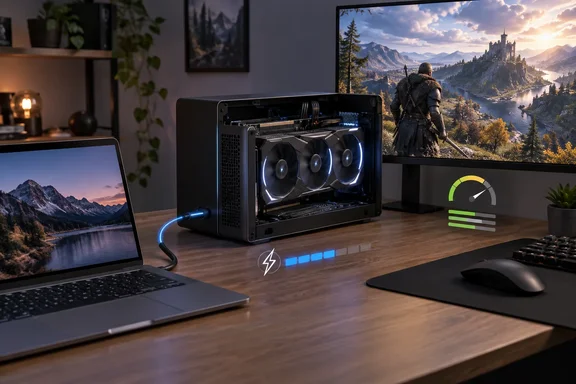
What an eGPU actually is
An eGPU setup puts a normal desktop graphics card into a separate box called an enclosure. The enclosure gives the card a PCIe slot and its own power supply, then connects to the laptop over a fast external link, most often Thunderbolt or USB4.
BGR's explainer makes a point that trips up plenty of shoppers. A laptop spec sheet can say "RTX 5090," but the chip inside is a laptop-grade part that is weaker than the desktop RTX 5090 with the same name. With an eGPU you can connect the full desktop card to a laptop and use it for games and other rendering-heavy work.
A full setup has four parts:
- An eGPU enclosure (sometimes called a dock) that fits and powers your card
- A desktop graphics card
- The right cable, usually Thunderbolt. Plenty of enclosures come with one, but check.
- An external monitor, which BGR lists as required. In practice it's the best-performing option rather than the only one.
Section summary: An eGPU won't turn your laptop into a desktop. It's a desktop graphics card in a box, tied to your laptop by a cable, and that cable matters a lot.
Compatibility: a USB-C port isn't enough
This is where most buyers go wrong. A USB-C port that looks right doesn't mean the laptop supports external graphics. Razer's Core X page is clear about it: laptops need a Thunderbolt 3 port with external graphics (eGFX) support. The same page says the enclosure works with Thunderbolt 3 systems running Windows 10 RS5 or later, and takes cards up to three slots thick. The standard Core X has a 650W internal ATX power supply and the Chroma version has 700W.
USB4 has made things more predictable. Microsoft's Windows Hardware Lab Kit requirements say any system with a USB4 host router and user-accessible USB4 ports must support PCIe tunneling on every exposed USB4 connector, and Microsoft names external GPUs as a main reason for that rule. Windows 11 also requires Microsoft's own USB4 connection manager drivers. That manager sets up USB4 and Thunderbolt 3 routers, creates and removes data paths, and splits bandwidth between tunnels.
This is still a platform requirement, not a promise that every combination works. Firmware, BIOS settings, security policies and GPU drivers can all get in the way. PCIe tunneling can also be switched off as a security setting, and when it's off Windows won't create the tunnel an eGPU needs.
Pre-purchase checklist
- Look up your exact laptop model, not just the product line, and confirm the port supports external graphics. Charging or video output alone doesn't count.
- Check the enclosure's limits: which host connections it supports, the largest card it fits, how much power it delivers and which power connectors it has.
- Check the GPU's size and power draw against those limits. A flagship card in a small enclosure is where builds go wrong.
- Confirm driver support for your Windows version and processor platform.
- Update everything first. Razer's support guidance tells users to confirm eGPU support with the laptop maker and to update BIOS, firmware and Thunderbolt software.
- Use the cable the enclosure maker specifies, connected directly to the laptop.
Setup: the basic sequence and where it goes wrong
BGR describes the process like this: seat the GPU in the enclosure, connect the enclosure to the laptop, turn the enclosure on, then boot the computer. If the laptop detects the card, plug your monitor into the GPU's video output and set it as the main display.
That order is a sensible default, but it isn't universal. Hot-plugging depends on the enclosure, the connection type and the drivers. Razer says its Core X units work as plug and play once the first setup is done. OCuLink is different, and we'll get to that below.
BGR's "assuming your laptop detects the GPU" skips the part that most often goes wrong. If the card doesn't show up, go back through the checklist: port support, firmware, cable, and whether PCIe tunneling has been disabled. Windows 11's Device Manager can show USB4 routers if you switch the view to Devices by connection, which gives you a quick way to confirm the link is working at all.
Performance: the tax you always pay
Every eGPU loses some performance compared with the same card in a desktop. BGR cites MakeUseOf's testing, which found that you always lose something when data goes over Thunderbolt. Recent benchmarks show how much.
Thunderbolt 5 was supposed to shrink the gap. According to VideoCardz, while Thunderbolt 3 and 4 were limited to PCIe 3.0 x4 (32 Gbps), Thunderbolt 5 supports PCIe 4.0 x4, delivering 64 Gbps. Controllers still cost you something, though. VideoCardz explains that despite offering the same theoretical bandwidth of 64 Gbps, Thunderbolt 5 relies on controllers at both ends, which introduces overhead and reduces performance.
| Connection | What testing found (as reported) |
|---|---|
| OCuLink vs. Thunderbolt 5 | OCuLink increased gaming performance by up to 16.28% on average |
| OCuLink vs. desktop slot | About 7-8% slower than a direct PCIe connection to the motherboard |
| Thunderbolt 5 vs. desktop slot | Lagged by roughly 19-25% on average, with worst cases approaching a 36% drop |
Those TechPowerUp figures come from specific hardware and games, so your results will differ. Treat them as a rough guide. The gap also grows with the card. XDA Developers found that the performance gap between OCuLink and Thunderbolt 5 eGPUs becomes more apparent as GPU power increases, and ray-traced games suffer most because of the heavier traffic between CPU and GPU.
Even with the loss, a big card over a cable is still very fast. Notebookcheck reports that ETA Prime tested an RTX 5090 in Razer's Thunderbolt 5 Core X V2 and got around 90 FPS in Cyberpunk 2077 at 4K Ultra settings with DLSS disabled.
Two more points, based on general industry knowledge. First, plugging a monitor straight into the eGPU usually works better than sending frames back to the laptop's own screen, because the rendered image doesn't have to travel back over the link. Second, the laptop's CPU can hold back a high-end card, especially in games that push for high frame rates.
OCuLink: faster, but less convenient
BGR notes that MakeUseOf found OCuLink more dependable, with one catch: the setup has to be connected before anything is powered on, or no signal gets through. That fits with how OCuLink works. TechPowerUp describes it as having limited laptop support, no hot swap, and no integrated power or display features. Tom's Hardware adds that it is hardly used in consumer laptops.
Thunderbolt's advantage is convenience. VideoCardz points out that the USB-C based cable can also deliver power, connect displays, and handle other peripherals. One cable that charges the laptop, drives the eGPU and runs your desk accessories is a big reason most buyers accept the performance hit.
So is it worth it?
BGR's conclusion is blunt. Between the performance loss and the price, you're probably better off building a gaming PC, even a budget one. It notes that an eGPU station alone can run several hundred dollars before you buy a card. For people starting from nothing, that's hard to argue with.
The picture changes depending on what you already have:
- Good fit: You already own a laptop with confirmed eGPU support and ideally a spare desktop card. You carry the laptop for work, and you want serious graphics when you're at your desk. Thin laptops with weak or heat-limited graphics gain the most, a point BGR attributes to MakeUseOf.
- Weak fit: You'd be buying the laptop, enclosure, card and monitor all at once, mainly for gaming. A gaming laptop or a desktop is likely to give you more for the money.
- Middle ground: Creative and GPU-accelerated work. The link penalty may matter less than having the card's VRAM and compute at all, but check that your software supports the card before you buy.
The bottom line
An eGPU is a real upgrade path with real compromises. It makes the most sense when the parts are already paid for and the laptop is confirmed compatible. It makes the least sense as a cheap way to get a gaming rig. USB4 and Windows 11's built-in connection manager have made eGPUs more predictable, and Thunderbolt 5 has narrowed the gap, but you still lose some performance over the cable. The question to settle before you buy isn't whether an eGPU works. It's whether it works on your specific laptop, with the card you want, at a price that beats just building a desktop.
References
- Notebookcheck Logo notebookcheck.net
- Razer Core X - Thunderbolt™ 3 eGPU | Razer Middle East and North Africa razer.com
- Thunderbolt 5 eGPU tested, OCuLink leads in RTX 5070 Ti test - VideoCardz.com videocardz.com