

That is the central argument behind Brady Snyder’s September 21 MakeUseOf account of reconsidering Arc after making it his primary desktop browser. His experience illustrates a useful purchasing—and migration—principle: a replacement does not need every feature of the product it replaces. It needs the features you actually depend on, together with a maintenance policy you can accept.
There are two important qualifications. Chrome’s current documentation offers more sidebar behavior than Snyder’s description suggests, including an expand-on-hover option. And Arc’s maintenance status deserves more precision than simply saying it no longer receives security updates: The Browser Company says it receives “Chromium updates only,” while directing users seeking “active security patches and enterprise-grade protection” to Dia.
Chrome’s vertical tabs remove a concrete reason to choose Arc
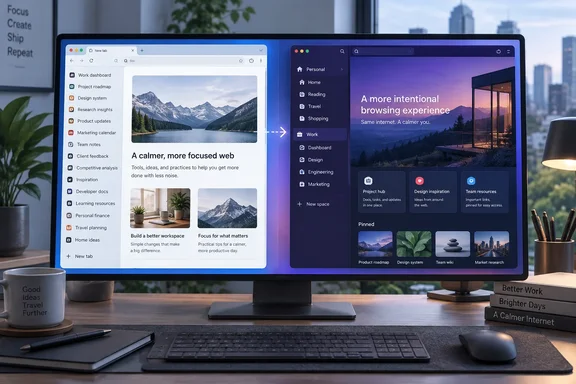
Vertical tabs move the tab strip from the top of a browser window into a sidebar. Instead of progressively squeezing page labels into a horizontal row, the browser provides a list that can scroll vertically. Google documents page-title display, adjustable sidebar width, tab grouping, and hover behavior for Chrome’s implementation.
The practical advantage is recognition. With many pages open, a list gives page titles more room, making it easier to distinguish several pages from the same website. It does not make hundreds of tabs visible simultaneously; it makes the collection easier to scan and scroll.
The trade-off is window width. Space reserved for the sidebar is space unavailable to the webpage. On a wide desktop display, that may be an easy exchange. In a narrow browser window, the ability to resize or collapse the sidebar becomes more important than the fact that it exists.
Snyder identifies vertical tabs as his indispensable Arc feature, rather than claiming Chrome now matches every Arc capability. A separate comparison from Tab Group Vault similarly argues that Chrome’s native vertical tabs narrow Arc’s differentiation while identifying Spaces and other Arc-specific organization tools as remaining differences. That is a feature comparison, not evidence that everyone will work faster in Chrome.
For Windows readers, Microsoft Edge is also relevant: Snyder notes that it has offered vertical tabs on Windows and macOS for years. Chrome’s addition matters because it brings the layout to another mainstream browser, not because the layout itself is new.
Chrome’s sidebar needs no experimental flags
Google documents vertical tabs as an ordinary desktop Chrome setting. Its current help page does not establish a minimum release number or a rollout date, so neither should be inferred from the feature’s presence in the documentation.
To enable the layout:
- Right-click an existing tab or the blank space in Chrome’s tab strip.
- Select Show Tabs Vertically.
- Confirm that the tabs now appear at the side of the window.
- Adjust the sidebar’s width to suit the page titles and webpage space you need.
There is also a settings route: open Settings > Appearance, then choose Vertical under Tab position. On macOS, Google additionally documents View > Show Tabs Vertically.
The location of the right-click matters. Snyder describes right-clicking an open window, but Google specifies a tab or blank tab-strip space. Right-clicking inside a webpage is not the documented procedure.
The change is reversible. Right-click a tab or the tab-strip space and select Show Tabs Horizontally, or return to Settings > Appearance > Tab position and choose Horizontal. This makes vertical tabs something readers can evaluate without committing to a new browser or rebuilding their organization first.
Chrome’s hover setting changes the small-screen trade-off
Snyder reports that Chrome cannot automatically show and hide the sidebar. Google’s current documentation supplies a narrower but useful correction: it explicitly documents an Expand Collapsed Tabs by Hovering option, accessible by right-clicking the sidebar’s “Menu open” control.
Google also says hovering over a tab or page in collapsed view can reveal its full title, and hovering over a tab group can preview its tabs. These behaviors should not be conflated with every possible form of automatic sidebar hiding. They do, however, mean readers should try the built-in hover option before assuming an extension is necessary.
For particularly large tab collections, scrolling is only one route to a page. Google documents Ctrl + Shift + A for Tab Search on Windows and Linux, and Command + Shift + A on macOS. Alternatively, enter @tabs in the address bar, press Tab or Space, and type words from the page you want.
A sidebar and search solve different parts of the problem: the sidebar preserves visible context, while search avoids scanning the whole collection when you already know what you need.
Arc’s pinned-page workflow remains a separate advantage
A vertical list is the most visible part of Arc’s interface, but it is not the whole organizational model. The Browser Company describes Spaces and Profiles as ways to separate activities within a window. Snyder’s account also emphasizes Folders, pinned pages, temporary tabs, and the link previews Arc calls Peeks.
According to Snyder, Arc’s pinned pages retain a particular starting URL, letting him explore links and return to that saved starting point through the sidebar. He describes Peeks as previews that can be dismissed, moved into a new tab, or opened in a split-screen view. For his research workflow, that relationship between a durable starting page and temporary exploration is a substantial part of Arc’s appeal.
Those observations explain why Chrome’s addition can be sufficient for one Arc user and insufficient for another. Someone who mainly wants readable tab labels can get much of the desired benefit from Chrome’s layout. Someone who relies on Arc’s pinned-page navigation must evaluate the behavior of the replacement, not merely its appearance.
Chrome does have documented tab groups and ordinary pinned tabs, but those features should not be presented as exact equivalents. Google describes pinning as keeping a compact, icon-only tab; that does not establish Arc-like saved-URL or Peek behavior.
Chrome’s groups also have their own persistence rules. Google says group changes are automatically saved and synced across devices when browsing history and tabs are synced with a Google Account. Closing a group preserves it for reopening from the bookmarks bar or the Tab groups menu.
There is a consequential distinction between closing and deleting. Deleting a synced tab group removes it from other devices using the same Google Account. Ungrouping leaves the local tabs open but also deletes the group across those devices. Arc users experimenting with Chrome’s organization should understand those consequences before treating “close,” “delete,” and “ungroup” as interchangeable cleanup actions.
Arc’s maintenance warning matters more than interface polish
The strongest reason to reassess Arc is the vendor’s own support language. Its website says: “Arc receives Chromium updates only. For active security patches and enterprise-grade protection, download Dia instead.”
That supports a clear conclusion: Arc’s stated maintenance offering is narrower than the one The Browser Company promotes for Dia. It does not support saying Arc receives no updates whatsoever, nor does it establish that a particular installed version contains a known, unpatched vulnerability.
The company’s CVE assignment policy helps explain the boundary. It distinguishes vulnerabilities in third-party components such as Chromium from issues specific to its own implementation. For upstream problems, it says it contacts the component supplier and defers assignment when appropriate; implementation-specific vulnerabilities can receive the company’s own CVE records.
Consequently, receiving Chromium updates and receiving comprehensive product maintenance are different assurances. The homepage warning gives security-conscious users a sound reason to plan a move without waiting for an incident. There is no need to manufacture a currently exploitable Arc flaw to make that recommendation useful.
The CVE policy also says it issues records only for the most recent supported client versions and does not assess older or retired versions in the same way. That is a disclosure policy, however, not a version-by-version Arc retirement schedule. It should not be used to declare every Arc installation unsupported on a particular date.
Dia is the vendor’s preferred destination, but adopting it is a separate product decision. Its security documentation says AI requests can send relevant page content through its servers to outside AI providers, and some proactive features prepare information automatically. It also says Dia should not be used for work involving protected health information or other data users are legally obligated to protect under a law such as HIPAA.
Those are specific boundaries, not evidence that Dia is generally unsafe. They do reinforce why an Arc user seeking familiar tab organization need not treat an AI-focused successor as the automatic replacement. Chrome and Edge belong in the comparison too.
Choose a Chrome migration around the Arc behavior you use
Try Chrome’s vertical layout with a representative set of work before making it your default browser. The useful comparison is whether you can find pages, preserve important starting points, and manage temporary research without adding friction—not whether two sidebars look alike.
For workplace browsing, make that comparison within your organization’s approved-browser and account rules. A personal preference for Arc, Chrome, or Dia does not settle whether a browser is appropriate for managed work or sensitive records.
- Enable Chrome’s vertical tabs from a tab’s context menu or Settings > Appearance > Tab position, rather than using experimental flags.
- Try the documented expand-on-hover option before deciding that Chrome’s collapsed sidebar requires an extension.
- Compare Arc’s Spaces, pinned-page navigation, and Peeks separately from the basic vertical layout.
- In Chrome, close a group when you want to preserve it; understand the cross-device consequences before deleting or ungrouping a synced group.
- Treat Arc’s “Chromium updates only” notice as a reason to review your maintenance requirements, without assuming it proves a specific unpatched vulnerability.
- Evaluate Dia’s AI data handling independently instead of accepting it solely because The Browser Company recommends it.
Chrome has made returning from Arc a more practical choice for people whose essential requirement is vertical tabs. Arc’s richer organization can still justify a preference, but the vendor’s maintenance warning changes the cost of keeping that preference indefinitely. The sensible next step is a deliberate workflow trial in a replacement browser, while there is still time to choose on usability rather than under the pressure of a security incident.
References
- Arc lost its biggest advantage for me when Google Chrome added this feature MakeUseOf · 2026-09-21T17:30:13+00:00
- Manage tabs in Chrome - Computer - Google Chrome Help support.google.com