

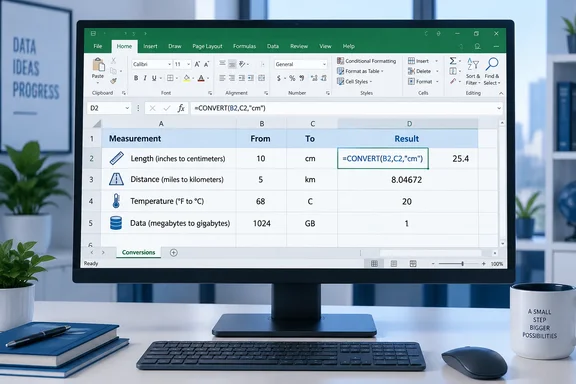
Tony Phillips describes that approach in How-To Geek: give each measurement a row, separate the input and output units into columns, and reuse one formula. Microsoft’s documentation confirms the underlying capability, including conversions involving distance, temperature, pressure, speed, and information units. The practical payoff is a worksheet whose calculations remain attached to the measurements they describe.
Excel CONVERT replaces repeated lookups with three inputs
The syntax is short:
=CONVERT(number,from_unit,to_unit)
The first argument is the value being converted. The second identifies its existing unit, and the third specifies the result’s unit. Microsoft lists the function for Excel for Microsoft 365, Excel 2024, Excel 2021, Excel 2019, and Excel 2016, with Mac editions also listed for Microsoft 365, 2024, and 2021. This procedure does not depend on a newly announced Excel feature.
These examples illustrate the calculation:
| Formula | Meaning | Result |
|---|---|---|
=CONVERT(36,"in","cm") | Convert 36 inches to centimeters. | 91.44 |
=CONVERT(5,"mi","km") | Convert 5 miles to kilometers. | 8.04672 |
=CONVERT(68,"F","C") | Convert 68 degrees Fahrenheit to Celsius. | 20 |
Phillips uses these examples in How-To Geek, and Microsoft documents the Fahrenheit-to-Celsius example directly. Temperature demonstrates why a built-in conversion function is useful: Excel handles the change in scale and the offset without requiring a separately written formula.
Unit codes written directly into a formula need double quotation marks because they are text. Cell references do not. The function expects supported codes such as in, mi, and C, rather than arbitrary descriptions such as “inches,” “miles,” or “degrees Celsius.” Microsoft explicitly documents the accepted names and their case sensitivity.
For a single measurement, typing a search query may still be the simpler choice. CONVERT becomes more compelling when the values already live in Excel: another row can use the same calculation, while the original measurement remains visible beside the result.
A four-column Excel layout makes CONVERT reusable
Start with a blank area of the worksheet so that the conversion columns do not replace the source data. Use four headings: Measurement, From, To, and Result.
A basic cell-reference version makes the relationship easy to inspect:
- Enter the four headings in cells A1 through D1.
- Enter
36in A2,inin B2, andcmin C2. Enter the unit codes as plain cell text, without surrounding quotation marks. - In D2, enter
=CONVERT(A2,B2,C2). The expected result is91.44. - Add another measurement and its unit codes on the next row, then copy the result formula down for that row.
For example, a second row containing 5, mi, and km should produce 8.04672. The formula’s structure stays the same because the number and the units now come from cells. Microsoft documents using a cell reference for the numeric input, and How-To Geek’s workflow extends that arrangement to the unit fields.
For a growing list, Phillips recommends making the range an Excel table. With those exact column headings, the table formula is:
=CONVERT([@Measurement],[@From],[@To])
These are structured references: [@Measurement] means the value in the Measurement column on the current table row. According to Phillips’s walkthrough, using a calculated column in an Excel table lets the formula fill down as measurements are added. The bracketed version is intended for an actual Excel table; the ordinary A2/B2/C2 version is the straightforward alternative for a normal worksheet range.
There is an important boundary to this flexibility. Changing From changes what the original number means. If a row contains 5, mi, and km, swapping the unit codes tells Excel to convert five kilometers to miles; it does not take the previous kilometer result and convert it back. Preserve the input value and its true source unit, then change the destination unit when you want another representation of that same measurement.
Phillips suggests displaying results with two decimal places for readability. That is a presentation choice, not a universal precision requirement: the miles-to-kilometers example would appear as 8.05 rather than showing all of 8.04672. Choose a display that makes sense for the measurements, and do not mistake a short displayed value for evidence that every conversion naturally produces only two decimal places.
CONVERT needs exact unit codes, especially for IT measurements
Microsoft’s unit names and prefixes are case-sensitive. C denotes Celsius, while c denotes a thermodynamic calorie; M is the metric prefix for mega, while m is milli. Those are different meanings, not interchangeable spellings.
For information units, Microsoft documents bit and byte, along with decimal and binary prefixes. Its prefix table distinguishes kilo, k, with a multiplier of 1,000, from kibi, ki, with a multiplier of 1,024. Mega, M, means 1,000,000; mebi, Mi, means 1,048,576. The exact spelling matters when constructing supported information-unit codes.
That distinction gives PC and IT users a reason to keep units in separate columns. If an imported value has an ambiguous label, the calculation cannot resolve that ambiguity for you. Establish whether the input represents bits or bytes, and which multiplier its label means, before selecting the code. A correctly executed formula can still answer the wrong question when its source unit is wrong.
The same issue extends beyond computing. Microsoft distinguishes gallon, gal, from imperial gallon, uk_gal, and ounce mass, ozm, from fluid ounce, oz. Choosing a valid but inappropriate unit may yield a numeric answer rather than an obvious warning.
Excel does reject unsupported combinations. Microsoft documents these failure conditions:
| Result | Documented cause | What to inspect |
|---|---|---|
#VALUE! | An input has an incorrect data type. | Check that Measurement contains the numeric value, with its unit kept separately. |
#N/A | A unit does not exist. | Check the code’s spelling and capitalization. |
#N/A | The units belong to different measurement groups. | Check that the conversion is between compatible quantities, such as distance and distance. |
#N/A | A unit does not support the supplied binary prefix. | Check the prefix-and-unit combination rather than assuming every combination is accepted. |
These errors follow Microsoft’s documented rules. For example, miles cannot be converted to Celsius: they describe different kinds of quantity.
Phillips’s table wraps CONVERT in IFERROR to replace failures with a readable message:
=IFERROR(CONVERT([@Measurement],[@From],[@To]),"Enter valid units")
A broader message is more accurate for a shared worksheet, because Microsoft documents invalid numeric input as well as invalid units:
=IFERROR(CONVERT([@Measurement],[@From],[@To]),"Check measurement and units")
Keep the unwrapped formula while diagnosing a problem if you need to distinguish #VALUE! from #N/A. Replacing both with the same text improves presentation but removes that immediate diagnostic clue. Neither version can establish that a valid unit code truthfully describes the imported measurement.
Use Excel CONVERT when the measurements need to stay together
Choose the reusable worksheet approach when you already have a list of measurements, expect more rows, or want the original values retained alongside the calculations. An isolated conversion need not become a spreadsheet project.
- Keep the numeric measurement, its source unit, the destination unit, and the result in separate columns.
- Use
=CONVERT(A2,B2,C2)for an ordinary worksheet range, or the structured-reference formula inside an Excel table with matching headings. - Preserve the true source unit when changing the destination; swapping the unit columns reinterprets the input number.
- Check capitalization, bit-versus-byte meaning, and decimal-versus-binary prefixes before trusting an information-unit conversion.
- Investigate formula errors before hiding them with IFERROR, and choose displayed decimal places to suit the measurements.
CONVERT earns its place through a small workflow improvement: the calculation stays with the data, and the next measurement can reuse the same formula. Once the source units are established correctly, Excel can handle the repetitive arithmetic without sending each row on a round trip through a search engine.
References
- I stopped Googling unit conversions—Excel's CONVERT function does the work for me How-To Geek · 2026-09-21T18:00:13+00:00
- CONVERT function | Microsoft Support support.microsoft.com