

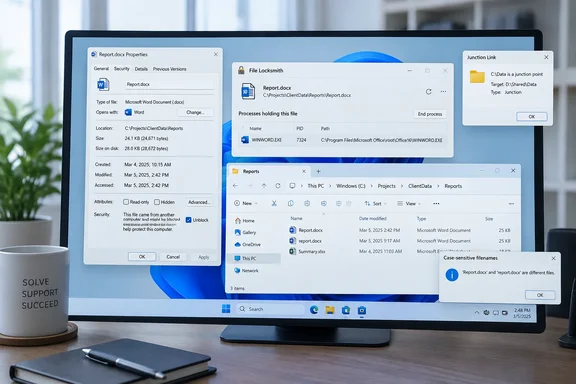
Below are the five behaviors, how to confirm which one you've hit, and how to fix each one without breaking something else.
1. Blocked downloads: the file carries a "Mark of the Web"
When a browser saves a file from the internet, Windows can attach a hidden note to it. That note is an NTFS alternate data stream called Zone.Identifier, usually known as the Mark of the Web (MotW). It records which security zone the file came from. Microsoft's documented ZoneId values are:
| ZoneId | Zone |
|---|---|
| 0 | My Computer |
| 1 | Local intranet |
| 2 | Trusted sites |
| 3 | Internet |
| 4 | Restricted sites |
Several Windows components read this tag:
- SmartScreen checks it before an installer launches.
- Microsoft Office blocks VBA macros by default in files marked as coming from the Internet zone. Microsoft's Office deployment guidance says a ZoneId of 2 doesn't trigger the block, but a ZoneId of 3 does.
- PowerShell won't run a downloaded script under the
RemoteSignedexecution policy unless the script is signed by a trusted publisher or has been unblocked.
Check a file. In PowerShell, from the folder that holds the file, run:
Get-Content .\yourfile.exe -Stream Zone.Identifier
If the output includes ZoneId=3, the file is marked as coming from the internet. Microsoft engineer Eric Lawrence notes that Windows 10+ includes the referrer URL, source URL and other information in the Zone.Identifier stream. That's why the output often shows exactly where the file came from. Running dir /r in Command Prompt also lists the streams, and Microsoft's Office guidance shows you can open the stream in Notepad with notepad filename:Zone.Identifier.
Remove the mark (only when you trust the file). Right-click the file, choose Properties, and tick Unblock on the General tab. Or use the PowerShell cmdlet Unblock-File. Microsoft says both methods do the same thing: they remove the zone information. Neither one scans the file or makes it any safer. Unblocking just means you're vouching for the file yourself.
The archive question
TweakTown says that extracting a downloaded ZIP with File Explorer's Extract all copies the tag onto every extracted file, so a whole folder of scripts can suddenly refuse to run. That's the intended design. Lawrence puts it directly: archive extractors must correctly propagate the MotW from the archive file itself to each file extracted from the archive.
In practice, results have varied:
- Windows' own ZIP handling has had bypass bugs. The best known is CVE-2022-41049, where attackers craft ZIP files, which evade warnings on attempts to execute packaged files, even if ZIP file was downloaded from the Internet.
- Third-party extractors behave differently. For years 7-Zip didn't propagate the mark at all. BleepingComputer reported that Pavlov added a new setting in 7-zip 22.00 that enables you to propagate MoTW streams from downloaded archives. A later fix in version 24.09 addressed the case where 7-Zip File Manager didn't propagate Zone.Identifier stream for extracted files from nested archives.
- Forensics site dfir.ru reported that Microsoft's newer propagation rules for mounted disk images, which were implemented in their own software (like Windows Explorer and its supporting libraries), but third-party tools (like WinRAR) don't follow the new rule.
What this means for you: If one folder of extracted scripts is blocked and a similar folder isn't, the tool you used to extract them may be the reason. A file without the mark isn't proof it came from somewhere safe, either. Neowin notes the tag can disappear when a file is copied to a file system that doesn't support NTFS Alternate Data Streams. Lawrence adds that an administrator can turn off writing the mark through Group Policy: Administrative Templates > Windows Components > Attachment Manager > "Do not preserve zone information in file attachments."
In short: a blocked download usually just carries a tag. Check for it before you unblock anything, and don't turn off zone tagging to make the warnings stop.
2. "Destination Path Too Long": the 260-character limit is still around
Microsoft's Win32 documentation defines MAX_PATH as 260 characters, counting the terminating null character. The Windows API can handle extended-length paths of roughly 32,767 characters, but only when an app uses them. Microsoft even gives a familiar example: cloning a Git repository with long file names into a folder that already has a long name.
Starting with Windows 10 version 1607, Microsoft removed the MAX_PATH limit from many common Win32 file and directory functions. Two conditions apply, though:
- The system setting has to be turned on.
- The app's manifest has to declare it
longPathAware.
Microsoft states that apps which haven't opted in keep the old behavior. Turning on the setting doesn't fix everything.
Windows 11 Pro / Enterprise (Group Policy):
- Press Win + R, type
gpedit.msc, and press Enter. - Go to Computer Configuration > Administrative Templates > System > Filesystem.
- Double-click Enable Win32 long paths, select Enabled, and click OK.
Windows 11 Home (Registry):
- Back up the registry first: in Registry Editor, choose File > Export, set Export range to All, and save the .reg file somewhere safe.
- Go to
HKEY_LOCAL_MACHINE\SYSTEM\CurrentControlSet\Control\FileSystem. - Set the
LongPathsEnabledREG_DWORD to1. Set it back to0to undo the change.
Microsoft also documents an elevated PowerShell command for the same change:
New-ItemProperty -Path "HKLM:\SYSTEM\CurrentControlSet\Control\FileSystem" -Name "LongPathsEnabled" -Value 1 -PropertyType DWORD -Force
Restart afterward. Microsoft explains that each process caches the value after its first relevant file call, so apps that were already running won't see the change. Admins managing many machines can push the same policy through Intune's Policy CSP.
What success looks like: long-path-aware apps such as modern developer tools stop failing on deep trees. TweakTown says File Explorer still stops at 260 characters, which matches Microsoft's warning that the shell and the file system have different requirements. The fix that always works is shorter folder names, or moving the tree closer to the drive root. TweakTown also suggests robocopy for moving deep trees that Explorer won't touch. That's a reasonable tool to try, but the guide gives no specific switches, so test it on a copy first.
3. "Access is denied" on folders you supposedly own
Inside Documents you'll find items called My Music, My Pictures, and My Videos, and opening any of them returns "Access is denied." They aren't really folders. They're junctions: reparse points that redirect a path to another location.
Microsoft's documentation says Windows Vista moved user data from Documents and Settings to Users. The old locations were kept as compatibility junctions, so C:\Documents and Settings points to C:\Users, and each profile's My Documents points to Documents. These junctions are marked hidden and system, and their permissions deny read access to everyone.
That's deliberate. An app can follow a specific path through a junction, but listing a junction's contents fails. Without that block, backup tools would copy the same data twice or get stuck in circular references.
See them yourself:
dir /AL "%USERPROFILE%\Documents"
Each entry shows a <JUNCTION> label with its real target in brackets. "Access is denied" on a junction doesn't mean anything is wrong with the folder it points to.
TweakTown says deleting a junction removes only the link and leaves the target alone. Our advice is simpler: leave the junctions Windows created where they are. Older software may still depend on them, and the space you'd recover is zero.
4. "File In Use": something is holding a handle
Renames, moves, and deletes fail when a process has the file open in a way that blocks the operation. The dialog doesn't always name the program responsible. TweakTown points out that File Explorer itself is a common culprit, because its preview pane and thumbnail generation can keep a file open.
Built-in method: Resource Monitor
- Press Win + R, type
resmon, and press Enter. - Open the CPU tab.
- Type the file name into the search box in Associated Handles.
The list shows the processes holding the file at that moment. Handles come and go, so search again if the result looks stale.
Faster method: PowerToys File Locksmith
- Open PowerToys, select File Locksmith, and turn on Enable File Locksmith.
- Right-click the file or folder, choose Show more options, then Unlock with File Locksmith. If you select a folder, Microsoft says it scans all of its files and subfolders.
- If the list looks incomplete, click Restart as administrator. Processes run by other users don't show up otherwise.
Microsoft's documentation also describes a command-line version, FileLocksmithCLI.exe. Its --json option produces machine-readable output, and --wait makes a script pause until the file is released, which is handy in build scripts.
Be careful with End task. It kills the process, and anything unsaved is lost. Close the app normally when you can, and never end System or svchost.exe.
5. Windows' naming rules: case, reserved words, and trailing dots
Case. Windows keeps the case you type, but by default it ignores case when comparing names, so Report.txt and report.txt count as the same file. Microsoft notes that NTFS supports case-sensitive behavior but doesn't use it by default. Clone a Linux-built Git repository with two files that differ only by case, and one of them is lost.
If a project really needs both, Microsoft's WSL documentation describes a fix that works per folder:
- Create a new, empty folder. The setting can't be changed on a folder that already has contents.
- In PowerShell as Administrator, run
fsutil.exe file setCaseSensitiveInfo <path> enable. - Clone or unpack the project into that folder.
- To verify, run
fsutil.exe file queryCaseSensitiveInfo <path>.
Microsoft warns that some Windows apps change file name case and may then fail to find files in a case-sensitive folder. Setting Git's core.ignorecase to false on a folder that ignores case isn't a fix either: Microsoft says it can cause confusing errors, false conflicts, or duplicate files.
Reserved names. CON, PRN, AUX, NUL, COM1–COM9, and LPT1–LPT9 are reserved for devices dating back to DOS. Microsoft's file-naming reference adds that an extension doesn't help: NUL.txt is treated the same as NUL. Superscript digit versions such as COM¹ are reserved too.
Trailing dots and spaces. Microsoft says the Windows shell and user interface don't support names ending in a space or a period, even when the underlying file system does. TweakTown named a file "notes." in Explorer and it was saved as "notes" without any warning. Files like this from a Mac or Linux machine can confuse sync tools.
The takeaway: diagnose before you repair
TweakTown's approach is sound: when a file error looks random, work out which rule it hit before you reach for a repair tool. Our quick triage:
- Download or script blocked? Check for
Zone.Identifierbefore unblocking anything. - Copy fails on a deep tree? Shorten the path first and change the long-path policy second.
- Access denied on a legacy-named folder? Run
dir /AL. It's probably a junction. - File in use? Use Resource Monitor or File Locksmith, and close the app properly rather than killing it.
- Files missing after a Git clone? Clone into a new folder with case sensitivity turned on.
None of this is new. Most of these behaviors date back to DOS or Windows Vista, and Windows keeps them for compatibility.
References
- 5 Windows file behaviors that explain the errors you keep running into - TweakTown TweakTown · 2026-10-04T19:16:11+00:00
- Windows keeps track of where downloaded files came from, here's how to check - Neowin neowin.net
- Mark-of-the-Web: the rules changed, the tools didn’t dfir.ru