

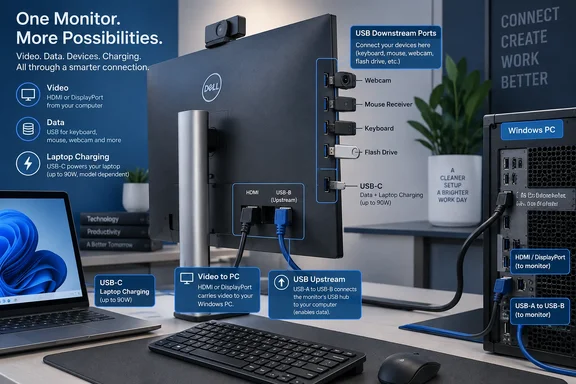
Engadget’s guide correctly identifies the mistake behind many “dead USB port” support tickets: a monitor can show a perfectly good image over HDMI or DisplayPort while its keyboard, webcam, flash drive, or wireless receiver remains invisible to Windows. The display cable and the monitor’s USB hub are often two different connections.
Dell’s current support guidance reaches the same conclusion for monitors using HDMI or DisplayPort: attach the monitor’s USB upstream cable to the computer, or the monitor’s downstream ports will not carry data. Lenovo and HP documentation use the same upstream/downstream distinction across their monitor lines. The practical lesson is simple: a screen connection is not automatically a USB connection.
The Port Labels Matter More Than the Port Count
USB terminology describes the direction of the hub connection, not simply the physical shape of the socket.
The upstream port is the monitor hub’s link back to the host computer. On older and business-oriented monitors, it is commonly a square-ish USB Type-B socket, often paired with a USB-A-to-USB-B cable in the box. Newer displays may use USB-C as their upstream port, and high-end models can use Thunderbolt.
Downstream ports are where peripherals connect. They are often USB-A ports on the monitor’s side or underside, though newer displays increasingly include USB-C downstream ports for accessories, storage, charging, or a wired headset.
A monitor with “two USB ports” therefore does not necessarily have one of each. Lenovo’s current ThinkVision T27-40, for example, lists one USB-B upstream connection and four downstream ports: three USB-A and one USB-C. Other displays use USB-C as the sole upstream link and provide several USB-A or USB-C ports for accessories.
The port shape is a useful clue, but it is not proof. USB-C is especially easy to misread because the same connector can be used for upstream data, downstream data, video input, charging, or some combination of those roles. Check the printed icon near the port, the on-screen display menu, or the monitor’s manual before assuming a USB-C socket accepts video or connects an accessory.
Why HDMI and DisplayPort Leave the Hub Disconnected
A desktop PC connected to a monitor over HDMI or full-size DisplayPort normally needs two cables if the monitor’s USB hub is to be used:
- An HDMI or DisplayPort cable sends the picture and, when supported, audio.
- A USB upstream cable connects the monitor’s hub to Windows.
That arrangement can seem redundant because both cables run to the same screen. Technically, though, the monitor is performing two jobs: it is receiving a display signal and functioning as a USB hub. Those functions do not share a path merely because they reside in the same enclosure.
This distinction is particularly relevant to desktop systems. A graphics card’s DisplayPort or HDMI output normally handles display output, while the monitor’s USB upstream cable should connect to a USB port on the motherboard’s rear I/O panel or to another active USB host port on the PC. Plugging the upstream cable into a passive extension, an unpowered hub, or the wrong device can create intermittent disconnects that look like a Windows driver problem.
If the display is connected by HDMI or DisplayPort and its USB devices do nothing, there is a fast diagnosis: find the monitor’s port marked USB upstream, connect it to the PC using the supplied cable, then check Device Manager. Windows should enumerate a USB hub and any attached devices. If it does not, test the upstream cable and the PC USB port before reinstalling drivers.
USB-C Can Reduce the Cable Count, With Conditions
USB-C can carry video, USB data, and power through one cable, but it does so only when the monitor, PC, and cable support the required features.
VESA’s DisplayPort Alt Mode allows compatible USB-C hardware to send DisplayPort video over the USB-C connection while retaining USB data. USB Power Delivery can allow the same link to charge a laptop. The result is the familiar one-cable desk setup: connect a supported laptop to a monitor’s USB-C upstream port, and the monitor provides a picture, access to its keyboard, mouse, Ethernet adapter, webcam, and possibly laptop charging.
That convenience should not be confused with a guarantee. USB-C identifies the connector; it does not promise the capabilities. A USB-C port may support data only, charging only, video output, USB4, Thunderbolt, or a limited mixture. A cable also matters: a charge-focused USB-C cable may not support the data rate, video mode, or power level needed by a particular monitor.
Lenovo’s current L27h-48 specification illustrates how specific the requirements can be. Its USB-C upstream port supports USB data, DisplayPort 1.4 Alt Mode, and up to 75 W of USB Power Delivery. A different USB-C port on another monitor may provide only 15 W for accessories, or may be a downstream data port with no display-input capability at all.
The reliable buying and setup rule is to look for four separate statements in the specifications:
- The monitor’s USB-C port is marked as an upstream or host connection.
- The PC’s USB-C port supports DisplayPort Alt Mode, USB4 video tunneling, or Thunderbolt video output.
- The cable supports the necessary data, video, and charging capabilities.
- The monitor supplies enough wattage for the laptop’s workload, rather than merely enough to slow battery drain.
A laptop that needs more power than the display provides may still work, but it can charge slowly, lose charge under heavy workloads, or display a power warning. USB Power Delivery’s specification permits far higher wattage in some configurations, but the number that matters is the monitor’s advertised output and the laptop’s actual demand.
The Built-In Hub Is Best for Low-Drama Desk Gear
The monitor hub is most useful when it eliminates recurring cable access problems. A keyboard and mouse receiver, wired keyboard, webcam, headset dongle, smart-card reader, or occasional flash drive are sensible devices to place within reach at the monitor.
For a desktop tower under a desk, front- or side-mounted monitor ports are often more convenient than rear I/O. For laptop users, the hub reduces the disconnect sequence to a single USB-C or Thunderbolt cable. Some monitors add Ethernet, audio, and a KVM switch, allowing one set of peripherals to move between two computers when the active video input changes.
The hub is less ideal as a universal high-speed storage dock. All downstream devices share the upstream connection’s available bandwidth. Dell’s documentation explicitly notes that multiple devices transferring large files share the speed of that one upstream link. A monitor may advertise several 5Gbps or 10Gbps downstream ports, but that does not mean every connected SSD receives the full advertised rate at once.
For large backups, high-bitrate capture devices, or multiple fast external SSDs, a direct motherboard USB port, a purpose-built USB4 or Thunderbolt dock, or a PCIe expansion solution may be the better option. The monitor hub is a convenience hub first; performance depends on the monitor’s internal controller, the upstream mode, cable quality, connected display resolution, and the host PC.
Watch for KVM and Input-Switch Behavior
Monitors with more than one upstream connection introduce another layer: the USB hub must be assigned to a host.
A display can have HDMI and DisplayPort inputs for two computers plus separate USB-C and USB-B upstream ports. In that configuration, the monitor’s on-screen menu may include a USB selection setting, an automatic KVM mode, or a setting that follows the selected video input. Without that assignment, the monitor may show Computer A’s picture while the keyboard and mouse remain connected to Computer B.
This is a real operational concern before switching inputs. Dell’s manuals warn users not to change USB upstream ports while attached storage is active, because changing the host disconnects the storage device. Treat it like unplugging a USB drive: close files, eject removable media in Windows when appropriate, and then switch the monitor’s USB host.
Wireless receivers can also be troublesome when crowded beside USB 3.x devices or high-speed storage. If a mouse or keyboard becomes erratic only when connected through the monitor, move the receiver to another port, use a short USB extension to place it away from the display’s electronics, or connect it directly to the PC. Do not assume the radio interference is a Windows issue.
A Five-Minute Setup Check for Windows PCs
Before troubleshooting software, verify the physical topology.
- Connect HDMI or DisplayPort for video, then attach the monitor’s dedicated USB upstream cable to the PC if the display is not using USB-C or Thunderbolt for its host connection.
- Plug a known-good low-speed device, such as a wired mouse or USB flash drive, into a downstream monitor port and see whether Windows detects it.
- Confirm that the monitor’s USB hub is enabled in the on-screen menu, especially if the display has standby charging, USB selection, or KVM settings.
- Use the monitor’s supplied cable where possible, since it is more likely to meet the display’s required data and power specification.
- For USB-C setups, verify the PC port’s video capability and the monitor’s advertised charging wattage rather than relying on the connector alone.
The point of those extra monitor USB ports is not that the monitor has become a second computer. It is that the screen can serve as the desk’s connection point, with one upstream link carrying peripherals back to Windows. Once that link is present—and assigned to the correct PC—the ports stop being mysterious and become useful exactly where a user needs them.