

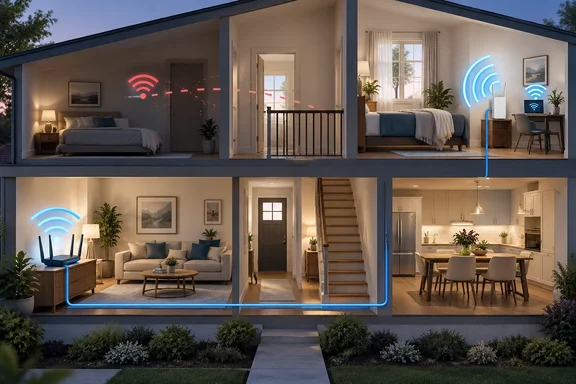
Below is what she did, why it works, where the claims need limits, and how to check the result on a Windows PC.
The problem with repeating yourself
White's case against extenders comes down to backhaul. An extender, or a wireless mesh node, has to take in traffic and also send it back to the rest of the network. If Wi-Fi is already struggling to cover the distance, putting more of the trip on Wi-Fi works against you. In her words, you're still adding another link that can be affected by "interference, weak signal, and shared airtime."
Her fix was to put the part of the trip that needs to be stable on a cable. Ethernet runs from the main router to a second access point (AP), and only the last short hop from that AP to her devices is wireless. She says this avoided spending Wi-Fi airtime to carry the same traffic back to the router. Her summary is that she extended the wired network first, rather than stretching the original signal.
One caveat. White says extenders "don't help much" and describes a drop in speed as "inevitable." That's her opinion, not a benchmark. She gives no before-and-after numbers, hardware models, cable category or test results. Wireless backhaul does use radio capacity, but products and homes differ a lot. Her success is a personal report.
Section summary: Wired backhaul removes one wireless hop that could become a bottleneck. It doesn't make your internet faster than your ISP plan, and it won't fix a badly placed or badly configured AP.
Placement gets easier once the AP doesn't need to hear the router
The second benefit White describes is less obvious. An extender has to sit somewhere between the router and the dead zone. Too far from the router and its own link is weak. Too close and it doesn't reach the area you need. She calls this the "halfway point problem."
With a cable, that trade-off goes away. The AP never needs to hear the router's signal, so it can go right where devices need coverage. White says she effectively created a new Wi-Fi cell where the signal had been weakest.
Microsoft's own advice supports thinking about placement carefully. Its "Wi-Fi and your home layout" guide for Windows 10 and Windows 11 recommends:
- Reduce the walls and obstacles between the AP and your devices.
- Put the AP toward the middle of the room or home, and higher if possible, not in a corner or under a desk.
- Watch for sources of interference, such as a metal filing cabinet.
- Note that the strongest signal is usually a few feet from the AP, not right next to it.
The band matters as well. Microsoft says 2.4 GHz has longer range and gets through walls better, while 5 GHz offers faster throughput but shorter range. It describes 6 GHz as the fastest option when you're close to the router, but it needs a Wi-Fi 6E router, plus a Windows device and adapter drivers that support Wi-Fi 6E. Putting an AP close to where you use your devices helps most on the faster, shorter-range bands.
Same network name, different channels
Once you have two APs, you have two radios that could interfere with each other. White kept the same network name, credentials and security settings on both, but made sure they used different channels. She points out that this matters most on 2.4 GHz, where there's little non-overlapping spectrum, and that 5 GHz and 6 GHz are worth checking too.
This matches enterprise practice. Cisco Meraki's channel-planning documentation says APs whose coverage overlaps should use different non-overlapping channels, because that stops them adding to each other's channel utilization or interfering. Its explanation: devices on the same channel within range of each other share the air like an old Ethernet hub. Each waits for the channel to be clear, so a busier channel means more waiting and lower speeds.
On which channels to use, Microsoft's guidance is direct: "Pick channel 1, 6, or 11. These channels don't overlap and will provide the best reliability." Microsoft also advises you to choose a channel that has the fewest access points on it (unless that channel has the weakest low signal). Intel's channel guide gives the same advice and a regional note: European users can also use Channels 12 and 13 on the 2.4 GHz band, but should treat these the same as Channel 11, as they will interfere with, and receive interference from, Channel 11.
For 5 GHz, Microsoft says overlap is less of a problem and suggests the channel with the fewest APs at a similar signal strength. To see what's around you, Microsoft suggests getting a Wi-Fi network analyzer app from Microsoft Store and using its network-graph feature. Look at the results from several rooms before you pick a channel.
Three points to keep in mind:
- Changing the channel happens on the AP, not the PC. As one Microsoft Q&A answer notes, the wi-fi radio channel must be changed on the router not on your wi-fi network card.
- "Auto" isn't always right. Microsoft notes that some APs' automatic channel selection works well and others don't, so check what it chose.
- The same SSID doesn't guarantee smooth roaming. Devices decide when to switch APs, and some hold on to a weak signal for too long. The shared name makes switching possible, not automatic. Microsoft also recommends different SSIDs for each band if you want to see which band a device is using. That's a separate question from sharing one name across two APs.
Section summary: Use matching names and credentials if you like, but keep overlapping APs on separate channels. On 2.4 GHz, choose from 1, 6 and 11 based on what an analyzer shows.
Test locally before blaming your ISP
This is the most useful part of White's piece. Full signal bars don't tell you much, so she measured throughput between a wired device and a Wi-Fi client on her own network. That takes the internet connection out of the result and shows whether the wired backhaul and new AP are working. Her advice: if local speeds near the new AP look poor, look for the problem somewhere else.
She doesn't say which tool she used. A common choice is iPerf, and Cisco's wireless throughput-testing guide shows how it works:
- Start a server on the wired machine:
iperf3 -s - Run a basic TCP test from the Wi-Fi client:
iperf3 -c SERVER_ADDRESS - Test both directions. Cisco calls wireless-to-wired traffic "upstream" and wired-to-wireless traffic "downstream," and recommends testing each.
- Keep the wired endpoint close to where the traffic ends up. In a home, that usually means plugging it into the same router or switch as the new AP.
Some practical advice for a meaningful comparison:
- Run each test several times and keep device positions the same.
- If you can, measure in the weak-coverage room before and after adding the AP.
- Microsoft also recommends recording speed-test results in several places around the home first, then testing again after each change.
On Windows 11, Cisco's guide notes that Settings > Network & internet > Wi-Fi > your network name shows the band, channel, driver version and link speed. That helps confirm the PC joined the AP you expected. Cisco stresses that link speed is a theoretical maximum and real throughput will be lower. It also warns that an outdated Wi-Fi driver can reduce performance.
When local results disappoint
If the numbers near the new AP are poor, check these before you call your ISP:
- The Ethernet link: Check the cable, the ports and the link speed the AP reports.
- AP mode: Make sure the new AP is running as an access point, not creating a second routed network. Menu names differ by manufacturer.
- Channel and band: Confirm the client is on the band you expect and the channel isn't crowded.
- 2.4 GHz channel width: If the signal is strong and the channel is clear but the connection is still unreliable, Microsoft suggests checking whether width is set to Auto or 20/40 MHz and trying 20 MHz.
- The client: Update the driver, and try a second device with a different Wi-Fi adapter.
The cable is the catch
White admits the cable run was the annoying part. Depending on the home, it may mean running cable along baseboards or through walls, and she accepts that isn't always possible. Renters, historic buildings and finished basements can rule out neat cable routes. Anything involving drilling into walls depends on your building and any local rules, so this isn't a DIY wall-drilling guide. Her argument is that you only have to do the work once.
Where you can't run a cable, extenders and wireless mesh still have a place. Microsoft's own guidance suggests an extender when moving the AP or your device isn't possible. The real question isn't whether extenders are bad. It's whether a wireless hop is a compromise you have to accept or one you can avoid.
The bottom line
White's approach is mostly good network engineering on a home scale:
| Step | What it does | What it doesn't do |
|---|---|---|
| Wired backhaul to a second AP | Removes a wireless relay hop | Raise your ISP speed |
| AP placed near your devices | Puts a strong signal where you need it | Fix interference from other networks |
| Separate channels | Cuts contention between your own APs | Guarantee smooth roaming |
| Local throughput test | Separates home-network issues from ISP issues | Measure coverage throughout the house |
If you have a dead zone and can run a cable, this is worth doing. Then test it yourself, because the numbers on your own network matter more than anyone else's account.
References
- How I extended my Wi-Fi connection without ruining my speeds How-To Geek · 2026-09-27T19:00:16+00:00
- Validate and Test Wi-Fi 6/6E and Wi-Fi 7 Wireless Throughput - Cisco cisco.com
- Guide to Configure Wi-Fi Channels and Channel Widths to Improve Network Connection intel.com