

Microsoft's Bluetooth disconnect guide starts with power-saving settings
Microsoft describes the problem in broad terms. If your Bluetooth connection frequently drops or requires constant re-pairing, it can interrupt audio playback, file transfers, or peripheral use. It names three likely causes: this issue is often caused by power-saving settings, outdated drivers, or temporary system glitches. Those are common causes, not a diagnosis for any particular PC, adapter, or accessory.
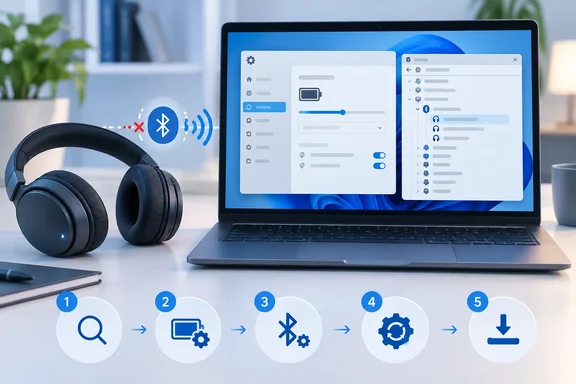
The page has separate tabs for Windows 11 and Windows 10, with nearly the same steps in each. There are five steps in both. Some copies of the page stop at four, which leaves out the driver update.
| Step | Action | Tool used |
|---|---|---|
| 1 | Run the automated Bluetooth troubleshooter | Get Help app |
| 2 | Turn off Energy Saver (Windows 11) or Battery Saver (Windows 10) | Taskbar battery icon |
| 3 | Uncheck "Allow the computer to turn off this device to save power" | Device Manager |
| 4 | Restart Bluetooth Support Service | services.msc |
| 5 | Update the Bluetooth driver | Device Manager |
Each step lines up with one of the three causes. Steps 2 and 3 deal with power saving, Step 4 deals with temporary glitches, and Step 5 deals with drivers. Step 1 hands the job to an automated tool. Because of that mapping, the list works as a way to narrow down the cause, not just a set of random fixes.
The troubleshooter is where Microsoft wants you to start on both versions. For Windows 11, the guide says to start by running the automated Bluetooth troubleshooter in the Get Help app. It gives the same advice for Windows 10 and says the tool will automatically run diagnostics and attempt to fix this Bluetooth problem. Microsoft only says it will "attempt" a fix. It doesn't promise one.
Microsoft's broader Bluetooth troubleshooting page also lists a way to reach the troubleshooter through Settings. On Windows 11, select Start > Settings > System > Troubleshoot > Other troubleshooters. Next to Bluetooth, select Run and follow the instructions. On Windows 10, the same page puts it under Settings > Update & Security > Troubleshoot. Under Find and fix other problems, select Bluetooth, then Run the troubleshooter.
Don't expect too much from the automated tool. In a Microsoft Q&A thread, a Windows 11 Pro user whose headphones dropped out for about two minutes at a time wrote that the Windows troubleshooter is simply cooked. That is one user's experience. It is still a good reason to go through the manual steps if the troubleshooter finds nothing.
Windows 11's Energy Saver and Windows 10's Battery Saver are the first thing to check
Step 2 is where the two Windows versions differ, but only in name. On Windows 11, select the Battery icon from the taskbar and check if Energy Saver Mode is enabled. On Windows 10, the same step says to select the Battery icon from the taskbar and check if Battery Saver Mode is enabled. In both cases you turn the mode off if it's on.
The step's heading says "Battery saver mode" in both tabs, but in the Windows 11 instructions the toggle is called Energy Saver. If you look for "Battery Saver" in the Windows 11 quick settings, you may not find it.
The guide says only that the mode can interfere with Bluetooth. It doesn't say which adapters or accessories are affected, or that turning it off always solves the problem. An answer in the Microsoft Q&A community states the reasoning more directly: Battery saver can power down Bluetooth and cause disconnects. That is a volunteer's explanation, not Microsoft's.
Treat this step as a test. If the drops stop when the mode is off and come back when it's on, you've found a likely link and can decide whether you'd rather have the battery savings or a stable connection. If nothing changes, turn the mode back on and move to Step 3.
Device Manager's power checkbox is a lasting fix, when your adapter has it
Step 3 goes further than Step 2. Energy Saver is a system-wide mode that switches on and off, but the Device Manager setting controls whether Windows can switch off the Bluetooth hardware to save power. Microsoft's instructions for both Windows 11 and Windows 10 are:
- Select Start, type Device Manager, and select it from the search results.
- Expand the Bluetooth category.
- Right-click your Bluetooth device.
- Open the Power Management tab.
- Clear the checkbox labeled "Allow the computer to turn off this device to save power."
Microsoft's step goes straight from right-clicking the device to the Power Management tab. Answers in the Microsoft Q&A community describe it more completely: open Device Manager > Bluetooth, right-click the Bluetooth adapter > Properties > Power Management, then uncheck "Allow the computer to turn off this device to save power." So select Properties first. Then select OK to save the change.
Some PCs don't have this setting at all. The same Q&A answer adds: If this tab is unavailable, skip this step. The Windows 11 Pro user with the dropping headphones reported the same thing: I have tried to access the power management tab, and it does not show for bluetooth on my pc. Whether the tab appears depends on the adapter and its driver. A missing tab doesn't mean something is broken, and there's no reason to hunt for another way to get it.
The Bluetooth category in Device Manager usually lists more than one entry. Microsoft's broader driver guidance says the adapter's name may include the word "Bluetooth" or "Radio". That entry, the adapter itself, is the one to check first.
Restarting Bluetooth Support Service deals with temporary glitches
Step 4 covers the "temporary system glitches" cause. Microsoft's steps: Select Windows key + R and type services.msc and then click Ok. Scroll down to Bluetooth Support Service, right-click, and select Restart.
This restarts the Windows service behind Bluetooth. It doesn't restart the PC, and it doesn't remove and re-pair the device. It's quick and easy to undo, so it's a reasonable thing to try when a device that worked yesterday suddenly won't stay connected. Microsoft doesn't say how long any improvement should last. If drops come back after every service restart, that points to one of the other two causes.
A volunteer answer in Microsoft Q&A adds one more check: make sure the Bluetooth Support Service is set to Automatic. You can see the startup type in the same services.msc window. That advice doesn't come from Microsoft's own guide, so treat it as an extra check, not an official step.
Updating drivers in Device Manager is the last step, with more options after it
Step 5 finishes the short guide with the simplest version of the driver procedure: Select Start, type Device Manager and select it from the search results. In Device Manager, expand Bluetooth, right-click your Bluetooth device, and select Update driver.
Microsoft's broader "Fix Bluetooth problems in Windows" page adds useful detail. After you select Update driver, choose Search automatically for updated driver software and follow the prompts. Restart if you're asked to, then check whether the connection is stable. If Windows can't find a newer driver, Microsoft says to download the latest Bluetooth driver from the PC manufacturer's website. That page also calls an outdated or incompatible driver one of the most common causes of Bluetooth connection problems.
It also explains why a Windows update can break a connection that used to work: if you recently upgraded to Windows 11 or installed Windows 11 updates, the current driver may have been designed for an earlier version of Windows.
A manufacturer's driver may come as a single executable (.exe) or as loose files. For loose files, including at least one .inf and one .sys file, use Update driver, then Browse my computer for drivers, and point it at the folder where you saved them.
Windows Update may not carry the newest driver. In the Q&A thread about disappearing headphones, a volunteer suggested that updating the Intel Killer Wi-Fi/Bluetooth combo driver from your laptop maker not just Windows Update can also help. That is a suggestion for one type of hardware, not a documented fix. It does match Microsoft's advice to check the PC maker's site.
If none of the five steps works, Microsoft's broader page covers the basics the short guide skips. Make sure the accessory is on, charged, and in range. Turn it off and back on. Microsoft also warns that unshielded USB devices can sometimes interfere with Bluetooth, so keep the accessory away from devices plugged into USB 3.0 ports. The next step up is to remove the device under Settings > Bluetooth & devices > Devices on Windows 11, or Settings > Devices > Bluetooth & other devices on Windows 10, and pair it again. The last resort is to uninstall the adapter in Device Manager and let Windows reinstall it. A separate Microsoft article on missing Bluetooth notes that some Bluetooth problems come from firmware, which the PC maker may provide updates for.
Accessories can have their own power-saving behavior too. A Microsoft Q&A answer about a mouse and keyboard that dropped every 10 to 15 minutes noted that some Bluetooth devices have power-saving features that cause them to disconnect when they're not in use. If only one accessory drops and it tends to happen after it sits idle, check that accessory's own sleep settings before changing anything in Windows.
What this means for you
If one or more of your Bluetooth devices keeps dropping, go through Microsoft's five steps in order. Try one change at a time and test after each, so you know which one helped. Windows 11 users need the Energy Saver toggle, not Battery Saver. Windows 10 users still get these instructions, but Microsoft's broader Bluetooth page notes that after October 14, 2025, Microsoft will no longer provide free software updates from Windows Update, technical assistance, or security fixes for Windows 10. That makes the manufacturer's website even more important as a driver source on those PCs. IT staff supporting mixed fleets should keep the two version-specific paths separate. Microsoft's guide doesn't include any Group Policy or Intune controls for these settings.
- Run the Get Help Bluetooth troubleshooter first, but if it finds nothing, keep going with the manual steps.
- Turn off Energy Saver (Windows 11) or Battery Saver (Windows 10) to test it. Leave it off only if the drops clearly stop.
- In Device Manager, open the Bluetooth adapter's Properties and clear "Allow the computer to turn off this device to save power". Skip this step if there's no Power Management tab.
- Restart Bluetooth Support Service from services.msc when a connection that used to be stable starts failing suddenly.
- If Windows can't find a newer Bluetooth driver, get the latest one from the PC manufacturer's website, especially after a major Windows upgrade.
- Before changing Windows settings, rule out battery, range, interference from USB 3.0 devices, and the accessory's own sleep settings.
Microsoft's short guide works because it's in the right order. Power management is the most likely cause and the easiest to test, the service restart covers temporary glitches, and a driver update comes last because it's the step most likely to fix a problem that keeps coming back. If all five steps fail, the broader Bluetooth troubleshooting page takes over, with re-pairing, uninstalling the adapter, and firmware checks as the next options.
References
- Bluetooth keeps disconnecting in Windows | Microsoft Support Microsoft Support · 2026-09-24T00:00:00+00:00
- Fix Bluetooth problems in Windows | Microsoft Support support.microsoft.com