

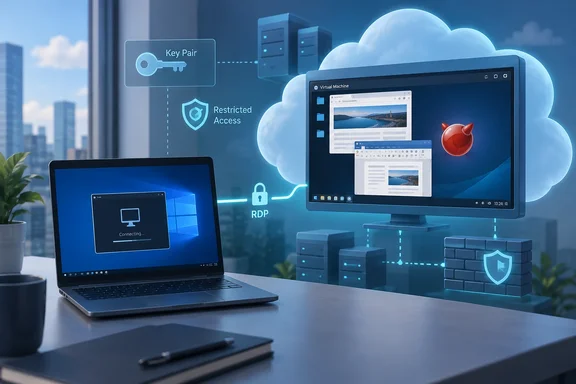
The Register picked up the announcement with the headline "2026 just became the year of FreeBSD on the (Amazonian cloud) desktop". The joke works because the claim is small. FreeBSD didn't gain a desktop installer or a new desktop distribution. What shipped is a new image flavour for EC2, Amazon's virtual machine service, built to reproduce the experience of launching a Windows instance. For WindowsForum readers, the useful parts are the mechanism, the security steps and the rough edges in the AWS Console.
FreeBSD Desktop AMIs Put KDE Behind an RDP Login on Amazon EC2
An AMI, or Amazon Machine Image, is the disk image EC2 uses to start an instance. The FreeBSD Project already publishes several EC2 flavours, including base, cloud-init, builder and small images. The project's own status report says it now publishes FreeBSD on both amd64 (Intel and AMD) and arm64 (Graviton) EC2 instances, with AMI IDs published via the SSM Parameter Store and the FreeBSD website. The desktop flavour joins that set.
The source commit that added it went into FreeBSD's main branch on September 7, 2026, under the title "EC2: Add desktop flavour". It lists Amazon as sponsor. According to the commit, desktop images enable xrdp, boot to a KDE desktop and are meant to be "as compatible as possible with EC2 Windows AMIs." The build configuration adds KDE, Chromium, LibreOffice, Xorg, xrdp and xorgxrdp to the standard EC2 package set. It also includes a first-boot package upgrade for security updates and the AWS Systems Manager agent, which is installed but not enabled by default. The image partition is just under 20 GB, which the build comments blame on the desktop components bloating the image compared with stock FreeBSD.
Percival says he built these images for newcomers. "Desktop AMIs are designed to make it easier for new users to discover and start using FreeBSD," he wrote, adding that they can be booted in EC2, including under the AWS Free Tier. "Indeed, I've carefully designed the AMIs to behave as much like Windows images as possible," he added, "with the exception, of course, that since they run FreeBSD, you don't have to pay for the operating system."
The final clause of that quote needs a correction. The FreeBSD image carries no licence charge, but Percival's own pricing note says users still pay for the EC2 infrastructure underneath it. "Free Tier eligible" and "free to run indefinitely" are different claims.
How the Desktop Flavor Borrows the Windows AMI Password Trick
The Windows resemblance goes deeper than the use of RDP. When you launch a Windows AMI on EC2, AWS doesn't give you a password directly. The instance generates a random administrator password, encrypts it with the public half of the key pair you chose at launch, and writes the result to the instance console. You then call EC2's GetPasswordData API with your private key to decrypt it. The FreeBSD desktop images reproduce that flow.
A first-boot script named ec2_setpass does the work. It takes the SSH public key that EC2 placed in the ec2-user account and generates a random 16-character password. It sets that as the account password, encrypts it with the public key using RSA PKCS#1 padding and prints the base64 result to the console. The script even ends with the line "Message: Windows is Ready to use", which is the marker EC2's password tooling expects from a Windows instance.
The same script prints the SHA-1 and SHA-256 fingerprints of the xrdp host certificate to the console. A companion script generates a self-signed 4,096-bit RSA certificate at first boot, valid for 365 days. As a result, the console output gives you everything you need to connect safely: the username, an encrypted password only you can decrypt, and a fingerprint to check against the certificate warning your RDP client will show.
This design has a practical consequence, and it comes straight from Percival's instructions. The key pair has to be an RSA key stored in PEM format with no passphrase, or password encryption won't work. You create an SSH key even if you never use SSH. Its job here is to act as the decryption key for your desktop password.
The commit also marks two of these scripts as temporary. ec2_setpass is expected to move into FreeBSD's ec2-scripts package. ec2_desktop_extras, which rebuilds font, icon and MIME caches and generates the xrdp keys, is meant to disappear once other packages take over that work. Neither change affects how the images behave today, but it shows the plumbing is still settling.
Launching a FreeBSD 15.1-STABLE Desktop AMI From the AWS CLI
Percival's walkthrough uses the AWS CLI rather than the web console, for reasons explained in the next section. He ran it from FreeBSD, but notes that Amazon supports the AWS CLI on Linux, macOS and Windows. His example uses the ca-west-1 (Calgary) region; you should use your own. Placeholders below replace his demonstration values.
Step 1: Create a security group that allows RDP only from your address
Create a group, then allow TCP port 3389 from your public IP as a single-host /32 range:
aws --region <region> ec2 create-security-group --group-name "remote-desktop" --description "Allows RDP Access"aws --region <region> ec2 authorize-security-group-ingress --group-name remote-desktop --protocol tcp --port 3389 --cidr <your-public-ip>/32
Scoping the rule to one address is the most important security choice in the whole procedure. It keeps an internet-facing RDP listener limited to you.
Step 2: Generate and import an RSA key in PEM format
ssh-keygen -q -t rsa -f ec2_desktop_key -N "" -m PEMaws --region <region> ec2 import-key-pair --key-name desktop --public-key-material fileb://ec2_desktop_key.pub
If ssh-keygen isn't available on your system, Percival says you can generate the key pair in the AWS Console instead. Because the private key has no passphrase, treat the file as a credential.
Step 3: Look up the AMI for your region and launch
The AMI ID differs by region, so query the public SSM parameter rather than copying anyone's ID:
aws --region <region> ssm get-parameter --name /aws/service/freebsd/amd64/desktop/ufs/15.1/STABLE --query 'Parameter.Value' --output textaws --region <region> ec2 run-instances --query 'Instances[].InstanceId' --output text --key-name desktop --security-groups remote-desktop --instance-type m7i-flex.large --image-id <ami-id>
To get the ZFS-root image instead of UFS, change ufs to zfs in the parameter path. Percival used an m7i-flex.large instance. The Register describes the m7i-flex family as running 4th-gen Intel Xeon Scalable processors, with 2 to 64 vCPUs and 8 to 256 gig of memory across its sizes. That instance type is his example, not a stated requirement.
Step 4: Retrieve and decrypt the password
aws --region <region> ec2 wait password-data-available --instance-id <instance-id>aws --region <region> ec2 get-password-data --query 'PasswordData' --output text --priv-launch-key ec2_desktop_key --instance-id <instance-id>
In Percival's run, the wait took about 92 seconds. That's a single measurement, not a guarantee.
Step 5: Get the IP address and certificate fingerprint
aws --region <region> ec2 describe-instances --query 'Reservations[].Instances[].PublicIpAddress' --output text --instance-ids <instance-id>aws --region <region> ec2 get-console-output --query 'Output' --output text --latest --instance-id <instance-id> | grep THUMBPRINT
If the fingerprint doesn't appear straight away, wait a few seconds and try again. You'll see two lines: RDPCERTIFICATE-THUMBPRINT (SHA-1) and RDPCERTIFICATE-THUMBPRINT256 (SHA-256). According to Percival, Unix tools generally want the SHA-256 value, while Windows utilities use SHA-1.
Step 6: Connect as ec2-user
Any RDP client needs three things: the username ec2-user, the instance IP and the decrypted password. If you type the password on a command line, you may need to quote it to avoid problems with shell metacharacters. Percival used xfreerdp on FreeBSD and passed the SHA-256 fingerprint on the command line. For Windows and macOS he says only to use the appropriate client for your OS, and he doesn't document specific client settings. Whatever client you use, compare the fingerprint it shows with the console value before accepting the certificate. Success looks like a few seconds of KDE session start-up followed by a Plasma desktop.
Step 7: Tear everything down
When you're finished, terminate the instance, then delete the key pair and security group:
aws --region <region> ec2 terminate-instances --instance-ids <instance-id>aws --region <region> ec2 delete-key-pair --key-name desktopaws --region <region> ec2 delete-security-group --group-name remote-desktop
The security group can't be deleted while an instance still uses it. If step 3 fails right after termination, wait a few seconds and retry. Percival's walkthrough terminates the instance rather than stopping it.
The AWS Console Wizard Still Treats FreeBSD Desktops as SSH Boxes
The CLI path exists because the AWS web console doesn't yet know these images offer RDP. Percival says the console "doesn't understand that these AMIs support RDP, so if you launch an instance via its 'Launch an instance' wizard it will suggest creating a security group with port TCP/22 open rather than port TCP/3389; and the 'Connect' wizard will show SSH instructions rather than the RDP instructions which are shown for Windows."
For anyone used to clicking through the console to launch Windows instances, this is the trap. If you accept the wizard's defaults, you get a security group that opens SSH and leaves RDP closed, so the desktop is unreachable. Worse, a hurried fix is to open 3389 to the world. The CLI walkthrough avoids both by creating the RDP rule explicitly and limiting it to one address. If you do launch from the console, replace the suggested port 22 rule with a TCP 3389 rule limited to your own IP.
Percival says "I've asked Amazon to provide a mechanism for AMIs to be marked as RDP-enabled in order to turn on that missing functionality." That's a request, not a shipped AWS feature. There's no public timeline, and until something changes the console will keep treating these images like any other Unix AMI.
Limits: No arm64, Two Missing Regions, and a 15.2-RELEASE Target
The desktop AMIs are amd64 only for now. Percival says they're not available for arm64 because there is no Chromium package for arm64, a gap he admits he doesn't fully understand. That's a limitation of this flavour only: FreeBSD's other EC2 images do run on Graviton. Anyone hoping for a cheaper Arm-based desktop instance will have to wait.
Percival lists the images as available in every commercial AWS region except Middle East (Bahrain) and Middle East (UAE), which he attributes to ongoing availability issues in those regions. Like all FreeBSD Project AMIs, they're offered with UFS or ZFS root filesystems.
The builds are also still tracking a development branch. Percival's example uses FreeBSD 15.1-STABLE, and he expects the desktop flavour to be part of FreeBSD 15.2-RELEASE when that ships in December 2026. That's his forecast rather than a committed date. For release-branch images, the project says it now aims to have updated AMIs in place within a few hours of advisories being published. That will matter more once desktop images move onto a release branch. For now, the first-boot package upgrade in the build configuration is set to update only the FreeBSD base system repository.
What this means for you
The people who should launch one now are those curious about FreeBSD but unwilling to repartition a laptop or fight graphics drivers. It also suits Windows admins who already know the EC2 Windows workflow and want a throwaway Unix desktop reachable from a familiar RDP client. Anyone looking for a production virtual desktop can wait: the images come from a STABLE branch, the console integration is missing and the release target is months away. Nothing in the announcement pitches them as a managed end-user desktop service.
- Use the AWS CLI path, or override the console's default rule, because the launch wizard proposes an SSH rule on port 22 and never opens RDP on 3389.
- Limit the port 3389 rule to your own public IP as a
/32, and check the RDP certificate fingerprint from the console output rather than clicking through the warning. - Create an RSA key pair in PEM format with no passphrase, because the image uses its public key to encrypt the random
ec2-userpassword you retrieve withaws ec2 get-password-data. - Look up the AMI through the
/aws/service/freebsd/amd64/desktop/SSM parameter for your own region, and don't expect arm64 or the Bahrain and UAE regions to be available. - Budget for EC2 compute and storage even though the OS is free, and terminate the instance and delete its key pair and security group when you're done.
The FreeBSD desktop AMIs don't make 2026 the year of FreeBSD on the desktop in any broad sense. What they do is make trying FreeBSD with a GUI feel like launching a Windows VM on EC2, from the RDP connection to the encrypted password. The next concrete milestones are FreeBSD 15.2-RELEASE, expected in December, and Amazon's answer to Percival's request for an RDP-enabled flag. Until the console catches up, the CLI walkthrough and a tightly scoped security group are the safe way in.