

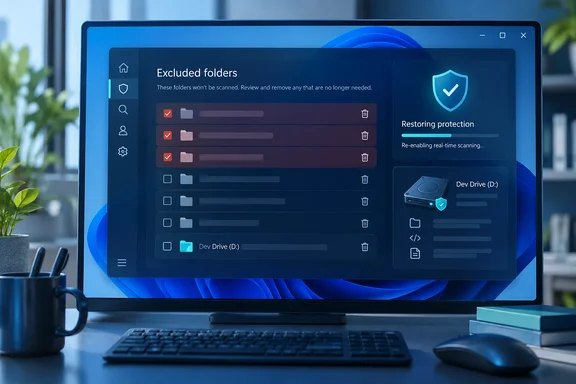
TweakTown guides editor Yasir Mahmood found this on his own PC. He expected an empty list and found five folder exclusions. Four were for Android Studio: the Gradle cache, the Android SDK, the IDE's data folder and a test project called MyApplication. The fifth was C:\TEKKEN 7 Ultimate Edition, left over from a game he had already uninstalled. He didn't remember adding any of them.
Defender didn't go rogue. Developer tools offer to add these entries, people click yes, and then they forget. This guide covers why the leftovers matter, how to find and remove them, and what to use instead.
How the exclusions got there without anyone typing them
Mahmood thinks the Android Studio entries came from a prompt he accepted at some point. Google's documentation backs that up. In Android Studio, Build Analyzer informs you if antivirus software might be impacting your build performance. This can happen if antivirus software, such as Windows Defender, is doing real-time scanning of directories used by Gradle. It then recommends a list of directories to exclude from active scanning and, if possible, it offers a link to add them to the Windows Defender folder exclusion list.
The performance problem is real. Android's configuration guide says that with real-time scanning on, the antivirus software can force the build process to halt each time a file is created while it scans that file.
The same idea runs across JetBrains IDEs, the platform Android Studio is built on. JetBrains' support documentation says that with Windows Defender, the IDE automatically checks whether you have real-time scanning enabled, and whether the scanning is configured to process directories where the IDE writes a lot of files. It also explains how: the IDE runs powershell.exe process to detect if Windows Defender is active and to exclude the folders from the antivirus.
That's why the entries feel like they appeared on their own. You agree to a dialog during a slow build, a script writes the paths, and nothing ever reminds you. The paths look familiar, too. One developer's write-up lists Android Studio's suggested exclusions as the user's .gradle folder, AndroidStudioProjects\MyApplication, the AppData\Local\Google\AndroidStudio folder and the SDK location. That's almost exactly what Mahmood found.
The game entry is easier to explain. Someone, probably him, excluded the install folder once, likely to fix a false positive or a performance problem. Uninstalling the game deleted the files but left the exclusion in place.
Section summary: Most unexplained exclusions come from a prompt you accepted and forgot, not from Windows acting on its own. The issue is that they stick around after the reason is gone.
Why a stale exclusion is a real gap
An exclusion isn't a small preference. Microsoft's exclusions overview on Microsoft Learn calls every exclusion a gap in protection. It says Defender Antivirus exclusions apply to scheduled scans, on-demand scans, real-time protection and potentially unwanted app detections. A folder exclusion covers every file and subfolder inside it.
Microsoft's consumer Support page is narrower. It says exclusions added in Windows Security apply only to real-time scanning, and that files opened by an excluded process are still scanned on demand or on schedule unless a file or folder exclusion also covers them. For a broad folder exclusion, the Learn documentation is the more complete reference, and it says scheduled and on-demand scans skip those paths as well.
Location makes it worse. Four of Mahmood's five paths were inside his user profile. Any program running as him can write there without an administrator prompt. Malware dropped into an excluded folder would avoid Defender's antivirus scans and would have to be caught by its other protections. Microsoft says excluded files can still trigger some behavioral detections and Defender for Endpoint EDR alerts. That's a backup, though, not a replacement for scanning.
Attackers look for these folders on purpose. One open-source project on GitHub, SharpExclusionFinder, is described as a tool designed to find folder exclusions using Windows Defender using command line utility MpCmdRun.exe as a low privileged user, without relying on event logs. If a low-privileged user can map your exclusions, malware running as that user can too.
Section summary: Mahmood's four Android Studio entries were speeding up builds he hadn't run in over a year, and in return four folders went unscanned. That's a bad trade.
Step-by-step: audit your exclusion list
This works in the Windows Security app on Windows 10 and Windows 11. You need administrator rights.
1. Open the list
- Open Windows Security from the Start menu.
- Click Virus & threat protection.
- Under Virus & threat protection settings, click Manage settings.
- Scroll down to Exclusions and click Add or remove exclusions.
- Approve the administrator prompt.
What you should see: A list of entries labeled by type (file, folder, file type or process), or an empty page. An empty page means you have no custom exclusions. Built-in operating system exclusions don't show here.
2. Give every entry a reason
Mahmood used one rule: each entry had to point at something he still uses, and he had to know why it was there. Check each entry like this:
- Is the app, game or tool still installed?
- Do you still use it in a way that needs the exclusion, such as regular builds?
- Is the entry broader than it needs to be, like a whole folder when one file is enough?
- Do you recognize it at all?
An entry you don't recognize isn't proof of malware. You should still look at the path and find out where it came from before you leave it.
3. Find out when an entry appeared (optional)
Event Viewer can sometimes tell you when an exclusion was added:
- Press Win + R, type
eventvwr.msc, and press Enter. - Go to Applications and Services Logs > Microsoft > Windows > Windows Defender > Operational.
- Click Filter Current Log in the right pane, type
5007in the Event ID box, and click OK. - Look for events where the new value mentions Exclusions followed by a path.
Microsoft's event reference describes Event 5007 as a Defender configuration change that records old and new values. It also says that if the change is unexpected, you should review your settings, because malware can cause it. Keep two limits in mind. Event 5007 logs every Defender setting change, not only exclusions, and it doesn't show which app or person made the change. The log also only holds a limited history, so an entry added years ago may no longer be in it.
4. Remove what has no reason to stay
In Windows Security, click an entry to expand it, then click Remove. Mahmood removed all five of his.
To do it from a terminal, open PowerShell as administrator and list everything:
Get-MpPreference | Select-Object ExclusionPath, ExclusionExtension, ExclusionProcess
Then remove a path, replacing the example with your own:
Remove-MpPreference -ExclusionPath "C:\TEKKEN 7 Ultimate Edition"
Microsoft's PowerShell reference lists matching -ExclusionExtension and -ExclusionProcess parameters for the other two types. It also notes that the cmdlet returns an error if you try to remove an exclusion that isn't in the list, so check the spelling of the path if you get one.
5. Re-scan the folders you cleaned up
For folders that still exist, such as the Android SDK on Mahmood's PC, go to Virus & threat protection > Scan options, choose Custom scan, click Scan now, and select the folder. When it finishes, check Protection history in the left pane.
What success looks like: The scan finishes and nothing you depend on shows up as a threat. If a file you trust is flagged and you've confirmed where it came from, add back that one file, not the whole folder.
When an exclusion won't go away
Work and school PCs follow different rules. Microsoft says that by default, exclusions an administrator adds locally are merged with exclusions deployed through Group Policy, Configuration Manager or Intune. When they conflict, Group Policy wins. Group Policy exclusions do show up in Windows Security. On a managed PC, an entry you can't delete, or one that returns after a policy refresh, is probably coming from your organization. Your IT team decides whether it stays.
This also shows up from the developer side. On JetBrains' support page, one commenter says their developers are local admins, but the Windows defender policy will override this. Android's documentation addresses it directly: If a Group Policy limits which directories you can exclude from real-time scanning on your computer, you can move your Android Studio directories to one of the locations that the centralized Group Policy already excludes. In that setup, IT controls the exclusions instead of each developer clicking through prompts.
A removal that fails on a managed PC doesn't mean the PC is compromised. Usually the policy is simply working.
Narrower alternatives to folder exclusions
Exclusions are sometimes the right fix. When Defender keeps flagging a tool you trust, keep the exclusion as small as you can:
| Option | What it skips | Notes |
|---|---|---|
| File | One specific file | Narrowest option, and usually best for a recurring false positive on one executable |
| Folder | Everything in the folder and its subfolders | Large blind spot; often added for performance |
| File type | Every file with that extension anywhere on the PC | Very broad; use rarely |
| Process | Files the process opens | Microsoft notes this does not exclude the executable itself; it reaches further than most people expect |
| Dev Drive performance mode | Nothing; scanning is deferred, not skipped | Developer volumes only, with conditions |
For developers, Dev Drive is the main alternative. Microsoft says performance mode defers scans until after a file-open operation completes, instead of blocking the operation while the scan runs. Microsoft says this gives "significantly better protection" than folder exclusions, which block scans completely. It has requirements. Per Microsoft Learn, performance mode needs:
- Windows 11 and a Dev Drive volume
- Defender Antivirus as the primary antimalware product
- Real-time protection turned on
- Antimalware platform version 4.18.2303.8 or later, and security intelligence version 1.385.1455.0 or later
- A trusted Dev Drive. On an untrusted one, Defender falls back to normal synchronous scanning.
You can check it in Windows Security under Virus & threat protection settings > Manage settings, then See volumes under Dev Drive protection. Your NTFS system drive doesn't qualify. Mahmood says any future Android projects of his will go on a Dev Drive, which beats re-excluding his whole profile.
Make it a regular check
The best habit here is a review every few months. Microsoft's own exclusions guidance recommends periodically reviewing and auditing exclusions and keeping a note of why each one was added. Mahmood now checks the list alongside startup apps and saved credentials. Two neighboring lists deserve the same check:
- Controlled folder access allowed apps: Microsoft warns that any app you allow can change files in protected folders, and if that app is compromised, those folders are at risk.
- Windows Firewall allowed apps: These also pile up from install prompts.
Keep a balanced view. Mahmood's audit is one PC, and it doesn't show that Windows adds exclusions behind your back. Every entry he found has an ordinary explanation. Still, five forgotten exclusions on one tech writer's PC is a good reason to check yours.
Bottom line: Exclusions aren't bad, but leftover ones are. Open the list, make sure every entry still has a reason, remove the rest, and use a single file or a Dev Drive instead of a whole folder where you can.
References
- Windows Security exclusions build up quietly, and mine had entries I did not add by hand - TweakTown TweakTown · 2026-10-03T16:50:10+00:00
- Windows Security exclusions build up quietly, and mine had entries I did not add by hand - TweakTown TweakTown · 2026-10-03T16:50:10+00:00
- github.com github.com