

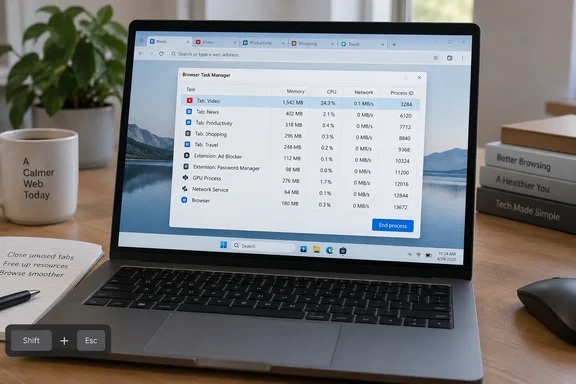
Why the OS view isn't enough
Faisal says macOS Activity Monitor could show Chrome using an absurd amount of memory. It couldn't easily show which of her dozens of tabs was responsible. Windows Task Manager has the same limitation. You see a pile of "Chrome" or "Microsoft Edge" entries and can't tell which one holds your Asana board and which holds a forgotten LinkedIn feed.
The browser's own task manager lists resource use per tab, extension and process. Each browser reports it a little differently, so treat the numbers as estimates and not as audited totals.
How to open it
These are the paths confirmed in vendor documentation.
- Chrome: Google's help page says to select the three-dot More menu, then More tools, then Task Manager.
- Edge: Microsoft Learn says to select Settings and more (…), then More tools, then Browser Task Manager. You can also press Shift+Esc.
- Firefox: Menu > More tools > Task Manager opens the same view. Typing about😛rocesses in the address bar also works. Mozilla community staff note that on Windows, Shift+Esc opens it and shows which tabs are using a lot of memory or CPU.
- Brave: Brave's shortcut reference lists Shift+Esc for the Brave Task Manager on Windows and Linux. The shortcuts can be customized under Settings > System > Shortcuts.
- Vivaldi and Opera: Faisal describes Tools > Task Manager in Vivaldi and Menu > Developer > Task Manager in Opera. I couldn't confirm those menu paths against vendor documentation, so check them in your own build.
- Safari: Faisal says it has no equivalent, so Mac users need Activity Monitor.
If the Shift+Esc shortcut works in your Chromium browser, it's the fastest route on a Windows PC.
Reading the columns correctly
Sort by Memory to find the biggest footprints. Sort by CPU to find what is keeping the processor busy right now. Faisal's results show why both matter.
- Memory snapshot one: LinkedIn led at 1.2GB, with a second LinkedIn tab at 786MB.
- Memory snapshot two: Asana led at 1.6GB. A ChatGPT research conversation used about 1GB, LinkedIn 928MB, Reddit 694MB, a second ChatGPT tab 522MB, and Gmail just over 500MB.
- CPU: Google Meet used roughly 39–49% CPU across two checks, with memory around 490MB. YouTube used more memory but put less load on the processor.
These are one person's snapshots under unspecified conditions. They aren't benchmarks, and they don't mean LinkedIn or Asana always use that much. The useful finding is that the top offender changed between checks.
Edge's documentation adds a caveat. In Edge, the Memory column is native memory, which includes DOM nodes. The optional JavaScript memory column shows the JS heap. Microsoft says the number in parentheses, the "live" value, reflects reachable objects. To add it, right-click the column header and choose JavaScript memory. Those are different measurements, so don't expect them to match each other or the totals in Windows Task Manager.
Acting on what you find
Closing the tab is the obvious fix. Chrome's guidance has two cautions:
- Select a task and choose End process.
- Any unsaved work in that task will be lost.
Chrome's help also suggests looking for entries labeled "Background page." The biggest line item may be an extension or background process, not a webpage.
Firefox's Extensions entry deserves similar care. As Mozilla describes it, it lumps together all enabled extensions. A large number there doesn't point to one culprit.
Keep the tab without paying for it
If you keep tabs open because you'll need them later, every major browser has a way to reclaim the memory without closing the tab.
Chrome Memory Saver (Settings > Performance):
- Chrome deactivates tabs you aren't using and reloads them when you return.
- You choose Moderate, Balanced (recommended) or Maximum.
- An "Always keep these sites active" list protects sites you want left alone.
- Active audio or video, calls, screen sharing, page notifications, active downloads, partially filled forms, pinned tabs and connected USB or Bluetooth devices can all prevent deactivation.
- Chrome can also show tab memory usage on the hover card, under Settings > Appearance.
Edge Sleeping tabs (Settings > Performance, Automatically put tabs to sleep):
- Microsoft's documented default is two hours of inactivity, and you can adjust it.
- Sleeping pauses a page's script timers, which cuts CPU use and releases some memory. Returning to the tab is fast.
- A discarded tab drops its page content from memory entirely, and the page must reload when you return.
- Sleeping is skipped for the active tab, for pages sharing a BrowsingInstance with another page, and for company intranet sites.
- Add sites to "Always keep these sites active" to exempt them.
- Faisal reports a configurable range of 30 seconds to 12 hours. I didn't see that range in the Microsoft page I reviewed, so use the dropdown in your version.
- Edge also includes a Performance detector, which flags high-resource background tabs. Open Settings > Performance and use the three-dot menu beside a listed tab to choose Sleep tab or Close tab.
Firefox tab unloading:
- Mozilla says Firefox automatically selects and unloads open tabs when system memory is low, starting in Firefox 93 on Windows.
- The about:unloads page shows unload priority order, last access time and each tab's memory use.
- You can unload tabs manually from that page or from a tab's context menu.
- Mozilla's list of tabs it avoids unloading includes those playing media, using Picture-in-Picture, or using WebRTC.
- Priority isn't the same as size. MakeUseOf's testing found the heaviest tabs sitting at the bottom of the unload list. It also found that Firefox weighs recency first when you have few tabs.
Vivaldi:
- Memory Saver is under Settings > Performance, with Never, Minimum, Balanced and Maximum levels.
- You can manually hibernate a background tab, Tab Stack or Workspace from its right-click menu.
- A hibernated tab reloads when reactivated, and Vivaldi warns you may lose your place.
- Hovering over a tab shows its memory use, if Show Popup Thumbnails is enabled.
Faisal also says Brave has a Memory Saver with an exception list and Opera snoozes inactive tabs. I couldn't corroborate either against vendor documentation, so check your browser's settings.
Quick troubleshooting checklist
- Open the browser task manager. Shift+Esc works in Chrome, Edge, Brave and Firefox on Windows.
- Sort by Memory, note the top three, then sort by CPU and note those too.
- Check again a few minutes later. Faisal's rankings changed between checks.
- Look for background pages and extensions, not just tabs.
- Save your work before ending any process.
- Turn on your browser's tab-sleeping feature, and exempt tabs you can't afford to have reload, such as calls and long forms.
- If Windows still struggles with a normal workload, the limit may be the RAM itself.
The bottom line
Faisal's conclusion is the right one. A task manager doesn't add RAM. It replaces guesswork with data so you can close a tab, let the browser sleep it, or decide it earns its resources. On Windows, where Shift+Esc is one keystroke away in most browsers, that's an easy first diagnostic.
References
- Your browser has its own task manager, and it exposed my most memory-hungry tabs XDA · 2026-10-05T20:00:18+00:00
- Unload inactive tabs to save system memory in Firefox support.mozilla.org
- firefox taking up to much memory, did some things that didn't work support.mozilla.org