

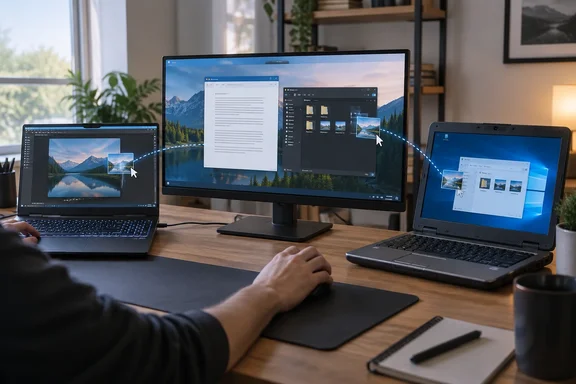
The problem: HDMI only goes one way
Pangaro's starting point is something many people learn the hard way. A laptop's HDMI port sends video out. It doesn't take video in. You can't run a cable between two laptops and have one act as a monitor for the other.
So the extra screen has to come over the network. His old machine was slow to boot, ran Windows 10, didn't qualify for Windows 11, and would shut off if unplugged because the battery was dead. He still had an external monitor and wanted one more screen without buying another.
How spacedesk works
spacedesk is made by datronicsoft and splits the job between two programs:
- Driver (the "server"): The Primary Machine runs the spacedesk DRIVER software. It includes network display server software and display device drivers. This allows to extend or duplicate the Windows Desktop to the screen of another machine over the network.
- Viewer (the "client"): The secondary machine runs the spacedesk Viewer, which shows the extra screen.
Under the hood, the spacedesk server runs a Windows service and the WDDM Display Driver which is visible to Windows just as an own separate virtual graphics adapter. The Driver then works by capturing their screen content, compressing it and transmitting it over the LAN (Local Area Network) to the spacedesk VIEWERs.
To Windows, the old laptop looks like another monitor. That's why Pangaro could rearrange it in the normal Windows display settings instead of learning a separate control panel.
Summary: The newer PC runs the Driver. The old laptop runs the Viewer. Swap them and nothing works.
The mistake to avoid: installing the wrong half
Pangaro admits he first put the server software on the old laptop. Installing the client version there fixed it. It's an easy mistake, because both downloads look alike on the website. The official Microsoft Store listing gives the correct order: Install spacedesk DRIVER software for Windows Primary PC (server). Next, Install this app - spacedesk (remote display) app for Secondary Machine (client).
A simple way to remember it: the Driver goes on the computer whose desktop you want to make bigger. The Viewer goes on the screen you want to add.
Step by step: turning an old laptop into a spacedesk display
- Check the requirements. spacedesk's system requirements page lists the primary machine as Windows 11 / 10 (version 1607 – 26H1), with Nvidia, AMD, Intel or Basic Display graphics. The Windows Viewer supports older systems too: Windows 11, 10, 8.1 and 7, with at least DirectX 10 or DirectX WARP.
- Install the Driver on your main PC. Download it from the official spacedesk website. Restart if the installer asks you to.
- Install the Viewer on the old laptop. spacedesk Windows 10/11 VIEWER can be downloaded/installed from Microsoft Store. spacedesk Windows 7 VIEWER needs to be downloaded from the spacedesk website.
- Make sure the Driver service is on. MakeUseOf notes that the Driver Console sits in the system tray on the primary PC, and that the viewer app on your laptop won't detect anything if the service is off.
- Connect from the Viewer. In Pangaro's case, the old laptop found the main one on its own because both were on the same network. He selected it, the main laptop's screen flickered briefly, and the connection was made.
- Set up the layout in Windows. On the primary PC, open Settings > System > Display. Choose to extend the displays, then drag the monitor tiles to match where the screens sit on your desk.
Success looks like this: the old laptop's screen shows up as an extra monitor in Windows display settings, and you can drag windows onto it. Pangaro kept Word on his main laptop, his publishing site on the external monitor, and a folder of article photos on the old laptop. He could drag images across all three screens without closing anything.
Summary: It takes six steps. Setting up the roles correctly and getting the network connection working cause most of the trouble.
Troubleshooting common problems
- The Viewer can't find the main PC. Check the firewall first. According to MakeUseOf, Windows Firewall can block the connection if it doesn't recognize Spacedesk. During installation, you'll likely see a prompt asking to allow the app through the firewall. Also make sure both machines are on the same network.
- Black screen or "connected but display off." spacedesk's troubleshooting page says to open the Driver Console on a Windows 10/11 primary machine and check whether the connected client's display is detached. To attach, open the Windows Display settings of the primary machine, click the detached secondary display and try to attach it by selecting extend or duplicate.
- Duplicate (mirror) mode is missing. Use dxdiag.exe to check your graphics driver's WDDM version. In case the WDDM version is below 2.0, try to update the graphics adapter by Windows Update or manual download of driver from official website.
- Lag or visual glitches. Old hardware and busy Wi-Fi both hurt performance. The Spacedesk Viewer has options for color depth and compression that directly affect performance. Lower color depth reduces the amount of data being streamed, which helps on slower networks. MakeUseOf also suggests dropping to 720p if an older laptop struggles with 1080p.
Wired vs. wireless connections
Pangaro uses Wi-Fi and plugs in an Ethernet cable when the Wi-Fi is congested or down. spacedesk's manual backs that up with a ranked list of connection types:
| Connection type | spacedesk's performance label |
|---|---|
| Ethernet crossover cable, direct | Best |
| Ethernet through router/switch/hub | Good |
| Wi-Fi direct to access point | Intermediate |
| USB tethering or USB-to-Ethernet | Intermediate |
| Wi-Fi through router/switch/hub | Worst |
These are the vendor's rough rankings, not measured speeds. They still tell you what to try first: if your desk is near the router, run a cable.
What about Windows' built-in Wireless Display?
Pangaro chose spacedesk over Windows' own Wireless Display feature because, in his experience, it lagged and turned pixelated when his home Wi-Fi was busy. That's his experience, not a benchmark. Microsoft's support documentation describes a built-in method:
- Add the optional Wireless Display feature on the receiving PC and open the Wireless Display app.
- On the sending PC, press Windows+K and pick the receiving PC.
Microsoft says the Wireless Display app is available on Windows 11 version 22H2 and later. Earlier Windows 11 versions use the Connect app. Microsoft only documents this as a wireless feature, so if a cable connection matters to you, spacedesk's Ethernet support is a real advantage. If Microsoft's option runs well on your network, it saves you installing a third-party display driver. It's worth trying before you add software to your system.
"Without paying a penny": what free covers
Pangaro calls the setup free. That's true for his situation, with conditions. spacedesk's licensing page lists two tiers for its Windows, Android and iOS Viewers:
- A free non-commercial, private license. Its expiry date appears in the Driver Console, and once it expires you need a newer Driver version.
- A paid commercial business license, bought in the app stores.
The licensing page also says businesses can use the free version as long as no payment option exists in the relevant app store. Pangaro describes a work setup, so if you'll use spacedesk for paid work or at an office, read the current license terms before assuming it costs nothing.
The Windows 10 security question
Pangaro's old laptop runs Windows 10, which fits this job: the Windows Viewer supports it, and the Viewer doesn't need to match the main PC's Windows version. But Windows 10 support ended on October 14, 2025. Machines without Extended Security Updates no longer get security fixes. A laptop that only shows a second screen is fairly low risk, but it's still an unpatched computer on your home network. Stop using it for email and web browsing, and uninstall software you no longer need.
The bottom line
This is a good way to reuse old hardware. It costs nothing if you qualify for the free license, and you set up the screens in the normal Windows display settings. The results depend on a few things: putting the Driver and Viewer on the right machines, a network and firewall that let them talk, hardware that can keep up with the stream, and a clear idea of the license and security trade-offs. Pangaro's 13-year-old laptop now works as a third monitor. If yours still turns on, it's worth a try.
References
- This free app turned my old laptop into a super-capable second monitor How-To Geek · 2026-09-29T19:30:15+00:00
- I turned my old Windows laptop into a perfect secondary screen makeuseof.com
- licensing – spacedesk by datronicsoft spacedesk.net