

Windows Mark of the Web records an origin, not a malware verdict
Mark of the Web, often shortened to MOTW, helps Windows distinguish content received from potentially unsafe locations from content it can treat with fewer restrictions. Microsoft’s Attachment Manager guidance describes files downloaded from websites, received through email, or delivered through messaging apps as possible candidates. Depending on the file and application, that information can prompt a warning, prevent automatic opening, or trigger additional protections.
The detail that makes this useful for investigating downloads is where the information lives. On an NTFS-formatted volume, Windows can associate a separate stream of data with a file. Mark of the Web uses one of these alternate data streams, named Zone.Identifier, to hold security-zone information and, when the downloading application supplies them, origin details.
That separation explains why opening a document normally does not show its download history. The metadata is alongside the file’s ordinary contents rather than a visible paragraph in a document or a separate entry in your Downloads folder. Reading the stream lets you inspect the available information without asking the application associated with the downloaded file to open its contents.
There are two different questions to keep apart. The security zone tells you how Windows classifies the origin. An available download address can help you identify where the file was retrieved. Neither establishes that the contents are harmless, that the address is one you intended to visit, or that the file is appropriate to open.
This is also why a missing mark proves little. Microsoft documents that this mechanism applies to files saved on NTFS, not FAT32-formatted devices. Neowin also notes that transfer, extraction, and manual unblocking can remove or fail to preserve the information. A file that has crossed those boundaries may have an internet origin without retaining the evidence.
File Explorer offers a quick check without changing the file
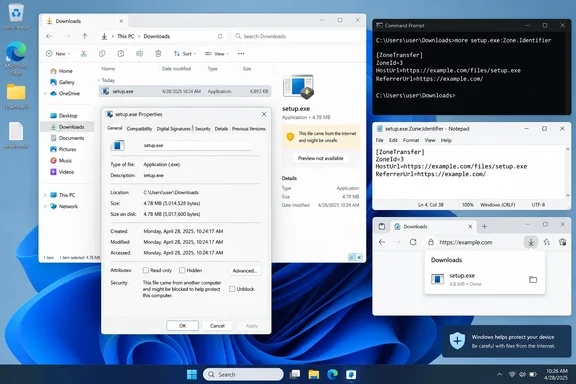
Start with the Properties dialog if your immediate question is whether Windows has flagged a particular file as coming from another computer or an untrusted location. This is the simplest check in Neowin’s Windows 11 procedure, and Microsoft documents the same interface in its Attachment Manager guidance for Windows 11 and Windows 10.
- Open File Explorer and locate the file you want to inspect.
- Right-click the file and select Properties.
- On the General tab, look near the bottom for a security message.
- If an Unblock checkbox is present, leave it unchecked while you investigate.
The message may read: “This file came from another computer and might be blocked to help protect this computer.” Its presence explains why Windows might handle that file cautiously, but the dialog does not provide the detailed download address you may be looking for.
The Unblock checkbox is a separate action from inspecting the warning. Selecting it and applying the change removes the file’s zone information. That can alter how Windows and supported applications handle the file, so clicking it merely to see what happens would discard the very information you are trying to examine.
An absent warning is not a clean bill of health. The file may never have received a mark, or its mark may no longer be present. A restriction can also come from somewhere other than this individual file’s metadata: Microsoft’s Office guidance describes network locations whose security-zone classification causes macros to be blocked even when the expected Unblock control is unavailable.
For a forgotten download, the useful outcome of this first check is therefore modest: you have established whether the Properties dialog currently exposes a security warning and an unblocking option. To investigate the recorded origin, move on to the underlying stream before making a trust decision.
Zone.Identifier can reveal the download address and security zone
Neowin’s more detailed method opens Zone.Identifier in Notepad. The prerequisite is a file whose metadata has been retained on storage that supports the stream. You also need its actual filename and location; the example below is a placeholder, not a command to run unchanged against every download.
- Open Command Prompt or PowerShell in the folder containing the file.
- Run the following command, replacing
filename.extwith the filename you are investigating:
notepad "filename.ext:Zone.Identifier" - Read the stream’s contents, if present, without editing or saving changes.
- Close Notepad when you have finished inspecting the information.
The quotation marks keep a filename containing spaces together as one argument. The colon and Zone.Identifier identify the alternate stream rather than the file’s ordinary contents.
A simple example of the information you might find is:
[ZoneTransfer]
ZoneId=3
A stream may also contain HostUrl and ReferrerUrl. In Microsoft’s Defender hunting explanation, the company explicitly maps HostUrl to its file-origin URL field and ReferrerUrl to its origin-referrer field, corroborating that these values can carry useful download provenance.
For an individual file, HostUrl is the recorded address from which it was downloaded. ReferrerUrl usually identifies the page that led to the download, according to Neowin. Their presence depends on the software that saved the file, so a stream containing only a zone value has not necessarily malfunctioned.
The zone number is the part that explains Windows’ classification:
| Recorded value | Windows security zone | What the value tells you |
|---|---|---|
ZoneId=0 | My Computer | The recorded classification is the local computer zone. |
ZoneId=1 | Local intranet | The recorded classification is the intranet zone. |
ZoneId=2 | Trusted sites | The origin was classified in the Trusted sites zone. |
ZoneId=3 | Internet | The origin was classified in the Internet zone. |
ZoneId=4 | Restricted sites | The origin was classified in the Restricted sites zone. |
These are classifications, not a ranking produced by an antivirus scan. In particular, “Trusted sites” means a security-zone assignment; it does not mean that Windows has examined the file and certified its contents.
Successful inspection means you can read the existing values. If the stream contains a zone but no addresses, this method cannot supply the missing download URL. If the stream is absent, it cannot reconstruct information that was never written or has since been removed. Treat the result as the metadata available now, rather than a complete history of everywhere the file has been.
File Explorer’s preview restriction gives the mark a visible consequence
Mark of the Web is especially useful to inspect when a downloaded file refuses to appear in File Explorer’s Preview pane. Microsoft documents a deliberate change beginning with Windows security updates released on and after October 14, 2025: previews are disabled by default for files marked as originating from the Internet zone. The protection also applies to files viewed on an Internet-zone file share.
Microsoft’s support advisory, KB5070960, explains the reason. Previewing a specially crafted file containing HTML references to external paths could expose NTLM authentication material. The change restricts that preview route before the user intentionally opens the file.
On affected systems, the Preview pane can display: “The file you are attempting to preview could harm your computer. If you trust the file and the source you received it from, open it to view its contents.” That message is a security restriction, not necessarily evidence that the preview handler is broken or that the document is corrupt.
Microsoft documents this behavior for Windows 11 and specified Windows Server releases. Its October 14, 2025 Windows 11 update record for KB5066793 also lists the preview change for the versions covered by that update. The general Attachment Manager guidance covers Windows 10 as well, but that should not be read as confirmation that every preview change has the same Windows 10 scope.
For a trusted downloaded file, Microsoft provides a file-specific override through Properties and Unblock. It cautions that the change may not take effect immediately and will be effective after the next login. If you have already made that deliberate trust decision, an unchanged preview immediately afterward does not by itself establish that unblocking failed.
A network share is a different case. Microsoft’s documented remedy is to use the Security tab in Internet Options to add the share address to the Local intranet or Trusted sites zone. The company warns that this relaxes protection for all files from that share. That is an administrative trust-boundary decision, not an equivalent substitute for unblocking one reviewed download.
Unblocking a file can also change Office’s security decisions
The Properties checkbox deserves caution because its effects are not limited to the particular warning that annoyed you. Microsoft Office also uses Mark of the Web when deciding how to handle downloaded content. Microsoft’s Attachment Manager guidance describes additional protections such as Protected View, while its Office security documentation explains the default blocking of internet-originated VBA macros.
VBA macros are executable automation embedded in supported Office files. Microsoft identifies them as a common route for malware and ransomware, which is why the default behavior in affected Windows Office applications changed from an easily enabled notification workflow to blocking macros in files from the internet. This is an existing security policy, not a new September 2026 release.
Removing the mark can remove that internet-origin barrier. It does not mean that every macro will automatically run in every configuration: Office also evaluates policies, trusted locations, signatures, and other trust settings. Conversely, a user should not assume that unblocking a document “just fixes Preview” and leaves every other protection unchanged.
Microsoft’s documented macro behavior also shows why apparently identical files can behave differently depending on how they arrive. For OneDrive and SharePoint, a browser download can receive Mark of the Web according to the Windows security-zone configuration. Microsoft says that using Open in Desktop App from those services does not give the file the mark, and files downloaded by the OneDrive sync client do not receive it through that path.
Those differences are useful when investigating a business workflow. If one employee downloads a spreadsheet through a browser while another opens it directly in the desktop application, the resulting security treatment need not match. That does not establish that either copy is malicious or that one employee’s Windows installation is faulty.
Microsoft also documents an important network-share limitation: even if Unblock is available, selecting it does not solve Office’s macro restriction when the share itself is considered part of the Internet zone. In that situation, repeatedly unblocking the individual file addresses the wrong boundary. IT needs to examine the location’s classification and the organization’s macro policies.
Inspect first, then make a file-specific trust decision
For an unfamiliar download, keep the mark intact while you investigate. Microsoft recommends verifying the source, checking that the file type matches what you expected, and scanning it with Microsoft Defender Antivirus or another antivirus product before opening it. Unexpected attachments and files from unknown senders remain reasons to stop, even if the recorded address looks plausible.
If you establish that a particular file is trustworthy and need to remove its block, the supported File Explorer procedure is straightforward:
- Inspect any origin information you need before removing it.
- Right-click that file and open Properties.
- On the General tab, select Unblock.
- Select Apply, then OK.
- Retry the intended operation, remembering that Microsoft says the preview override may require the next login.
For administrators working with a verified individual file, Microsoft also documents the PowerShell equivalent:
Unblock-File -Path "C:\Path\filename.ext"
Replace the path with the actual file location. This is an unblocking command, not an inspection command: Microsoft describes it as having the same effect as the Properties checkbox. It should not be used merely to discover whether a file has origin information.
Keep the operation narrow. Removing zone information across a Downloads folder would apply the same trust decision to files that may have unrelated sources and contents. Likewise, changing a share’s zone to restore one preview extends trust beyond that one file. The scope of the remedy should match the scope of what you have actually reviewed.
The practical takeaways are:
- Use Properties for a quick warning check, and leave Unblock unchecked while investigating.
- Read
Zone.Identifierwhen you need the recorded zone or any available origin addresses. - Treat
ZoneId=3as an Internet-zone classification, not a malware detection. - Do not interpret a missing stream or missing URL as proof that a file is local or safe.
- Expect unblocking to affect supported applications as well as File Explorer, and involve IT when network-zone or organizational policies are involved.
Windows’ download-origin metadata is most valuable before it is removed. It can reconnect an unfamiliar file with a recorded source and explain why a preview or macro is restricted, while preserving the protection that prompted the investigation. The sensible next step is to verify the individual file—not to erase the warning first and decide whether it deserved trust afterward.
References
- Windows keeps track of where downloaded files came from, here's how to check - Neowin Neowin · 2026-09-21T23:00:02+00:00
- File Explorer automatically disables the preview feature for files downloaded from the internet | Microsoft Support support.microsoft.com
- Information about the Attachment Manager in Microsoft Windows | Microsoft Support support.microsoft.com