

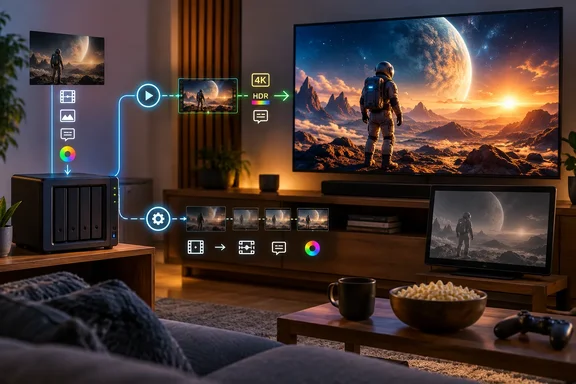
Bhutani's piece describes his own setup. He runs a NAS and a TV, but he doesn't name client models, a server GPU or a Jellyfin version, and he ran no controlled image comparisons. His conclusions are about his own viewing, not benchmarks. The mechanisms behind them are documented, though, and anyone can check them on their own hardware.
Jellyfin's Four Playback Paths Decide Whether a 4K File Arrives Intact
Jellyfin serves media in one of four ways. Its transcoding documentation lists them from lightest to heaviest server load:
| Playback type | What happens to the file | Server load |
|---|---|---|
| Direct Play | Delivered unmodified | Almost none |
| Remux | Container changed; audio and video streams untouched | Low |
| Direct Stream | Audio transcoded; original video untouched | Moderate |
| Transcode | Video stream re-encoded | Highest |
Only the last one touches the picture. Remux and Direct Stream leave the encoded video exactly as it was mastered. Bhutani's goal is Direct Play whenever the client can handle the video, audio and subtitle formats. His reasoning: the server has no business decoding and re-encoding a file the TV already understands.
It matters who makes the decision. Per Jellyfin, transcoding of local sources is always requested by the client. The client will send transcoding profile(s) to the server containing information about its capabilities, such as supported codecs, resolutions, bitrate and additional constraints. The server will then pick the settings with the best quality within its capabilities. The documentation adds that the output resolution is determined by input resolution, input framerate, target output bitrate, input and output codecs, and client constraints. There is no way to manually override the resolution.
So a 4K source doesn't guarantee 4K output. If the client can't handle the file and asks for a transcode, the stream gets rebuilt to fit that client's limits, and the extra resolution you paid for in disk space can be thrown away on the way to the screen. Bhutani puts it bluntly: if a 1080p file Direct Plays on his TV and a 4K file needs constant transcoding, he'll pick the 1080p file every day.
On Windows, codec support can depend on a Store purchase. Jellyfin's codec tables mark H.265/HEVC playback in Edge and Chrome as conditional. For both browsers, Windows needs the HEVC video extension from the Microsoft Store. For Firefox, HEVC is also conditional, with the same Store extension listed as a Windows requirement. A Windows PC without that extension will make HEVC files transcode that would otherwise Direct Play. Bhutani's own observation, that he has to confirm every device at home can decode HEVC because "not all of them can," is the same problem on the TV side.
Subtitle Formats Can Quietly Turn a Direct Play Into a Full Jellyfin Transcode
Subtitles are the least obvious trigger in the chain. Bhutani calls them a regular stress point that "all too often" forces a full transcode. Jellyfin's codec guide explains why: if subtitles need to be transcoded, it will happen one of two ways: they can be converted into another format that is supported, or burned into the video due to the subtitle transcoding not being supported. Burning in subtitles is the most intensive method of transcoding. This is due to two transcodings happening at once; applying the subtitle layer on top of the video layer.
Whether a subtitle track works depends on both the format and the container. Jellyfin's compatibility table lists SubRip Text (SRT) as fully supported in MKV but not in transport stream (TS). ASS/SSA is supported in MKV but not MP4. PGS, the picture-based format common on disc rips, is listed as supported only in MKV. Those are container-level entries, and each client still has its own rules. As one ZimaSpace buying guide puts it, the same HDR title can behave very differently: an HDR file with a client-rendered text subtitle may Direct Play with little server work, while HDR-to-SDR tone mapping plus subtitle burn-in can force decode, filtering, composition, and re-encoding in one session.
Bhutani also says burn-in can reduce picture quality when the server does it in software. Jellyfin's documentation confirms the extra processing, but it doesn't measure quality loss for different subtitle formats or encoders. Treat that part as his experience. The simple fix he lands on is to pick the right subtitle format per title, which usually means a text track the client renders itself.
HDR on Windows and TVs Depends on the Client, Not Just the Panel
Bhutani's biggest claim is that HDR made more difference to his enjoyment than extra resolution did, but only when it played back as mastered. That's a personal judgment. What's documented is how narrow correct HDR playback is in Jellyfin. The codec guide says HDR works on "a very limited range of devices," and the list is specific:
- Windows PCs can play HDR in Edge or Chrome if the display supports HDR and HDR is turned on in Windows settings.
- Dolby Vision on Windows works only in Edge, and only with the Dolby Vision add-on from the Microsoft Store installed. Jellyfin says Edge generally produces better HDR colors than Chrome.
- On Macs with HDR displays, Safari has the fullest support (HDR10, Dolby Vision including Profile 5, and HLG). Chrome and Firefox support HDR10 only, and Firefox only for VP9 and AV1 content.
- iOS devices with HDR-capable displays support HDR10, Dolby Vision and HLG in a browser or the Jellyfin iOS app, but not Swiftfin.
- On Android, Android TV and newer LG webOS TVs, support depends on the device. On webOS, Jellyfin says MKV containers are known to cause problems and recommends turning on the client's force-remux-MKV-to-MP4 option.
Everything else falls back to the server. Devices not listed above do not support HDR on any official client. Any HDR content will have to be converted to SDR by the server for proper playback on these clients. Jellyfin also warns that some Chromium-based browsers on Linux try to tone-map on the client, which "generally looks very bad," with no server involvement.
For Windows users, the checklist is concrete. You need HDR turned on in Windows display settings, Edge rather than Chrome if you want Dolby Vision, the Dolby Vision add-on installed, and the HEVC extension for HEVC sources. An HDR-capable panel alone doesn't meet any of those conditions. Bhutani's summary fits the documentation: a 4K HDR file won't automatically look better just because it contains HDR.
Jellyfin Tone Mapping Is a Rescue Step for SDR Screens, With Hard Limits
Tone mapping converts the brightness and color range of an HDR source into what an SDR display can show. Bhutani calls it one of the most notable upgrades you can make, when it's set up correctly. It helps, but only in a specific situation.
Jellyfin applies tone mapping only when it transcodes. It also can't preserve HDR through a transcode: when the source video is in HDR, it will need to be tone-mapped to SDR when transcoding, as Jellyfin currently doesn't support HDR to HDR tone-mapping, or passing through HDR metadata. In practice, any HDR file that gets its video transcoded comes out as SDR, even on an HDR-capable TV. Tone mapping makes that SDR output watchable. It doesn't turn a transcode into an HDR experience.
That's the strongest reason to aim for Direct Play with HDR material. A guide from seedbox provider RapidSeedbox reaches the same conclusion. It says Dolby Vision tone mapping works in Jellyfin 10.8 and later with jellyfin-ffmpeg 5.0.1-5 or newer, but direct play is always the better option if the device supports HDR. Jellyfin's hardware-acceleration page confirms the version requirement for Dolby Vision Profiles 5 and 8. It also lists hardware-accelerated HDR10 and HLG to SDR tone mapping, and Dolby Vision tone mapping on Rockchip RKMPP from Jellyfin 10.11.
Tone mapping is expensive. Jellyfin says doing it in software is very slow, sometimes too slow for any modern consumer CPU to keep up in real time. It recommends a GPU in every case, noting that even a basic Intel integrated GPU can handle as much of this load as a Ryzen 5800X. RapidSeedbox says the setting lives under Dashboard > Playback > Transcoding as "Enable Tone Mapping."
Bhutani also suggests that poor tone mapping could explain an older movie that looks too bright or too dull. That's a plausible thing to check. He doesn't cite a specific title or configuration, so treat it as a lead to investigate.
Hardware Transcoding on Windows Servers: QSV, NVENC and AMF Help, Partially
Bhutani says hardware transcoding helps preserve picture quality where possible. That's partly supported. Jellyfin's transcoder is its own FFmpeg build, jellyfin-ffmpeg, which ships with the official Windows installers, Docker images and deb packages. On Windows, the supported acceleration methods are Intel Quick Sync Video (QSV), NVIDIA NVENC/NVDEC and AMD AMF. VA-API and Rockchip RKMPP are Linux-only, and Apple VideoToolbox is macOS-only.
Acceleration can be partial. Jellyfin breaks a transcode into stages: decoding, optional deinterlacing, scaling and format conversion, HDR or Dolby Vision tone mapping, subtitle burn-in, and encoding. Any of these can fall back to the CPU because of software, hardware or driver limits, and partial acceleration means higher CPU use and slower transcoding. Jellyfin lists full acceleration for mainstream Intel and NVIDIA GPUs on Windows and Linux and for older AMD GPUs on Windows. AMD Polaris and newer get full acceleration on Linux through VA-API. It also warns that FFmpeg binaries from other sources will only partially accelerate.
A few documented details directly affect Windows server builds:
- No Intel, NVIDIA or AMD GPU can hardware-decode H.264 10-bit (High 10 profile), so Jellyfin falls back to software decoding. The docs suggest re-encoding such files to HEVC 10-bit.
- Integrated GPUs share system memory, and dual-channel RAM doubles their memory bandwidth, which helps with hardware tone mapping.
- On modern GPUs, drive speed can cap transcoding throughput. An SSD or RAM disk for the transcode cache can help.
- The hardware encoder preset in the dashboard trades quality for speed. You can lower it for speed or raise it for quality on a powerful GPU.
Hardware acceleration mainly makes the server faster. Jellyfin says transcoded quality depends partly on the target codec and GPU architecture, so a hardware transcode is still a re-encode. A community guide on peira.dev adds a common pitfall: leaving a codec enabled that your chip can't hardware-decode is a classic cause of "it worked, then this one file broke". Only tick the decoders your GPU actually supports.
What this means for your Jellyfin library
Before you download another 4K remux, find out how your existing files are actually reaching each screen. If your main TV Direct Plays your library, you're already getting the file as encoded, and a higher-resolution copy is a real upgrade only if your display and viewing distance benefit. If the Jellyfin dashboard shows "Transcode" for your HDR titles, you're watching tone-mapped SDR re-encodes, and fixing the chain will do more than a bigger file.
Jellyfin shows the active playback type in its dashboard during playback, which makes this a quick check. The ZimaSpace guide suggests the same approach: record whether the video Direct Plays, whether audio changes, which subtitle formats are rendered by the client, and whether the display accepts the source HDR format.
- Play a representative 4K HDR title on each device you actually use and note the playback type in the Jellyfin dashboard.
- Replay it with your usual subtitle track turned on. If it flips from Direct Play to Transcode, the subtitle format is the cause.
- On Windows clients, confirm HDR is on in display settings, the HEVC video extension is installed, and, for Dolby Vision, you're using Edge with the Dolby Vision add-on.
- If a device can't Direct Play, check that hardware acceleration is set up for your GPU (QSV, NVENC or AMF on Windows) and that tone mapping is enabled.
- Only then decide whether a title needs a different version: a higher-resolution copy, a better-matched 1080p copy, or the same file with a different subtitle track.
Takeaways:
- A video transcode in Jellyfin always turns HDR into SDR, because the server can't pass HDR metadata through a transcode.
- Burned-in subtitles are the heaviest transcode Jellyfin performs, and a text track the client can render often avoids them.
- On Windows, HDR in Jellyfin needs Edge or Chrome with HDR turned on in Windows, and Dolby Vision works only in Edge with the Store add-on.
- A 4K source doesn't guarantee 4K output: when transcoding, the client's profile sets the resolution and there's no manual override.
- Hardware acceleration on Intel and NVIDIA GPUs is fully supported on Windows, but H.264 10-bit still decodes in software on every mainstream PC GPU.
- Keeping a compatible 1080p copy can be the right choice for a device that would otherwise transcode a 4K HDR master.
Bhutani's conclusion, that he now owns plenty of 1080p files that look as good as his 4K copies, is his own. The mechanism behind it is documented, though: Jellyfin only delivers the picture that was mastered when the client can take the file as it is. Until Jellyfin can keep HDR intact through a transcode, which its documentation says it can't do today, the most useful upgrade for most home servers is finding and removing the transcodes, one title and one screen at a time.