

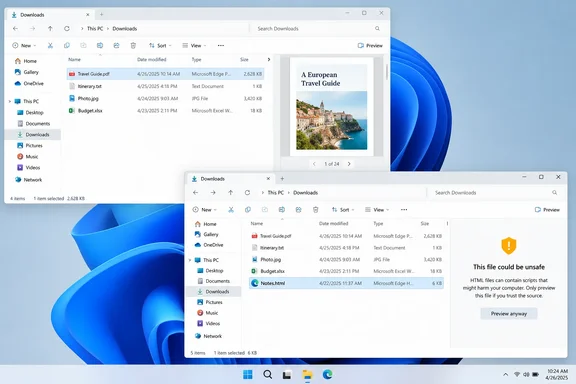
Neowin was first to focus on the change. It is also listed in Microsoft's release notes for KB5124010, and several other outlets have described the same behavior. The facts are clear. The open question for readers is whether they should trust the relaxed behavior, and what the "Preview anyway" button actually does.
KB5124010 Restores File Explorer Previews for Downloaded PDFs and Other Non-HTML Files
Microsoft's support page describes KB5124010 as a non-security cumulative update with "production-quality improvements." It moves Windows 11 24H2 to OS Build 26100.9550 and Windows 11 25H2 to OS Build 26200.9550. NinjaOne's KB catalog lists the same release date and builds: September 22, 2026, for Windows 11 versions 25H2 and 24H2 (OS Builds 26200.9550 and 26100.9550).
The File Explorer entry sits under the update's "Gradual rollout" section. It says the update changes how the Preview pane handles files downloaded from the web. HTML files get a Preview anyway button that lets you acknowledge the warning and see the preview, and non-HTML files such as PDFs are now previewed automatically. Winaero reports the same: for HTML files, a "Preview anyway" button has been added, allowing you to acknowledge the warning and view the file preview. Files in non-HTML formats (such as PDF) now open automatically in the "Preview pane."
The feature has been through testing already. Windows Report covered it when Microsoft released Windows 11 Insider Preview Builds 26100.9539 and 26200.9539 (KB5124010) to the Release Preview Channel for Windows 11 versions 24H2 and 25H2 in early September. Windows Report said then that the September 10 update is rolling out in phases, meaning some features may take time to reach all eligible PCs. The public release carries higher build numbers (.9550) than the Release Preview builds (.9539). The File Explorer wording is unchanged.
There is one wording difference to note. Windows Latest describes the non-HTML restriction as gone entirely, and all downloaded files are previewed automatically. Microsoft's own wording is narrower: "non-HTML files, such as PDFs." Whether a given file type previews still depends on having a preview handler installed for it. Microsoft names PDFs as the example and does not list any others.
Why October 2025's Mark of the Web Block Hit Every Download
The restriction dates to October 2025. Microsoft documented it in knowledge base article KB5070960, first published October 22, 2025. That article says that starting with Windows security updates released on or after October 14, 2025, File Explorer automatically disables previews for files downloaded from the internet. Its stated goal was to block a vulnerability that could leak NTLM hashes when users preview potentially unsafe files.
The article carries one factual correction. Neowin describes KB5070960 as the Windows 11 update that introduced the change. On Microsoft's support site, KB5070960 is the ID of the explanatory article, not an installable update. The behavior itself shipped in the October 14, 2025 cumulative security updates, which Microsoft published under their own KB numbers (KB5066835 for Windows 11 24H2 and 25H2, and KB5066793 for 22H2 and 23H2). If you're searching your update history, look for those, not KB5070960.
Microsoft explains the attack like this. A file containing HTML tags such as <link> or <src> that point to external paths could, when previewed, make Windows reach out to that external location, and attackers could use that to capture credentials. NTLM is Windows' older challenge-response authentication protocol. What leaks is a hash derived from the account password, not the password itself. The user doesn't have to open the file, only select it with the Preview pane open. That's why the Preview pane was a good attack path.
Microsoft's fix keyed on Mark of the Web (MotW), the tag Windows attaches to files that came from the internet Security Zone. Previews were disabled by default for any MotW-tagged file, whatever its type. Microsoft also applied the rule to files viewed on a file share classified as Internet Zone, so the block could hit network locations as well as the Downloads folder. In place of the preview, the pane showed a warning that the file "could harm your computer," with the advice to open it only if you trust the file and its source.
The attack depended on HTML, but the block covered every file type. Windows Latest describes the result: a PDF downloaded from the author's own OneDrive triggered the warning, and there's no option to preview the file right away.
The Unblock Workaround That KB5124010 Mostly Retires
For the past eleven months, Microsoft's official workaround was per-file. If you trust a downloaded file and its source, right-click it in File Explorer, open Properties, and select Unblock. Microsoft warned that the change might not apply until the next sign-in, which made the workaround slow as well as manual. Windows Latest notes that Microsoft requires you to manually unblock the file from Properties > General or use PowerShell scripts.
For Internet Zone file shares, Microsoft documented a broader override: add the share's address to the Local intranet or Trusted sites zone on the Security tab of Internet Options. Microsoft warned that this lowers security for every file on that share. It's a zone-wide trust decision, not a quick per-file fix.
After KB5124010, most of that friction goes away for non-HTML downloads on PCs that have the feature. You shouldn't need to unblock a PDF just to glance at it in the Preview pane. The Unblock option stays in Properties for anyone who wants to clear MotW from a file permanently. Microsoft's release notes don't say whether the new file-type split also covers Internet Zone file shares or only local downloads. If you added shares to Trusted sites as a workaround, leave that setting alone until you've tested the new behavior in your own environment.
"Preview anyway" Is a Click-Through Warning, Not a Safety Check
For HTML, the new button changes the workflow but keeps the warning. Downloaded HTML files still show the security warning in the Preview pane, but now you can click past it without going through Properties or opening the file. Techgenyz describes the sequence: for downloaded HTML files, Windows now displays a Preview anyway option after displaying a security warning. Users can acknowledge a warning before viewing the file.
The button doesn't scan the file, verify where it came from, or strip external references. It records that you accept the risk Microsoft described in October 2025. If the HTML file contains an external reference designed to trigger an authentication attempt, clicking Preview anyway lets that preview go ahead. Microsoft's earlier advice still holds: override the block only when you trust both the file and where it came from.
Keeping HTML behind a confirmation step follows directly from Microsoft's own explanation. The October 2025 FAQ ties the NTLM leak to HTML tags that reference external paths, and HTML is the only format that still requires a click. Microsoft has not said why it now allows all other file types to preview automatically. Neowin reads the relaxation as a sign that the original block was broader than it needed to be. That's a reasonable interpretation, but Microsoft hasn't confirmed it.
Which Windows Versions Get the Relaxed Preview Pane
The scope is narrower than the October 2025 restriction. Microsoft's KB5070960 article lists Windows 11 along with Windows Server 2012, 2012 R2, 2016, 2019, version 23H2, and 2025 as affected by the preview block. The KB5124010 relaxation is documented only for Windows 11 24H2 and 25H2. The release notes say nothing about Windows Server or Windows 11 23H2 getting the new behavior. On those systems, assume the old block remains until Microsoft says otherwise.
There's also early evidence for the next Windows 11 release. WinUpdated reports that update KB5124010 was released at once for three versions of Windows 11 – these are builds 26100.9539 (version 24H2), 26200.9539 (version 25H2), and 26300.9539 (version 26H2). Microsoft published the release notes for 24H2 and 25H2; there is no separate changelog for 26H2. Treat that as a report about preview builds, not a documented feature commitment for 26H2.
Timing matters for 24H2. Microsoft says KB5124010 is the final non-security preview update for Windows 11 24H2. Home and Pro editions reach end of updates on October 13, 2026, and Enterprise and Education editions are supported until October 12, 2027. Winaero repeats the dates: support for Windows 11 version 24H2 (Home and Pro editions) ends on October 13, 2026. So a 24H2 Home or Pro PC can get the new Preview pane behavior only weeks before it stops receiving updates entirely.
Two more limits apply to everyone. Because this is a gradual-rollout feature, Microsoft says availability varies by device and market. Techgenyz puts it plainly: installing KB5124010 does not guarantee that every new option will appear immediately. And since KB5124010 is optional, a PC that only takes Patch Tuesday updates won't get it until the change reaches a security release. For Windows Update for Business, Microsoft says these changes will appear in the next security update.
What Admins Should Weigh Before the October Security Update
For managed fleets, the change reverses a year-old default. Since October 2025, internet-tagged PDFs and other non-HTML files haven't been rendered in the Preview pane. After this rollout they will be, so whatever preview handlers are installed for those formats will run on internet-sourced content again. That's an inference from the documented behavior, not a Microsoft statement. The October 2025 FAQ ties the NTLM risk specifically to HTML, which supports the view that the change is low-risk for that particular attack.
What the KB5124010 notes don't give administrators is a documented control. They mention no Group Policy or Intune setting to keep the stricter all-file block, or to remove the Preview anyway button for HTML. If your security baseline counted on the October 2025 behavior, test the preview update on a pilot ring and find out which formats preview in your environment before October's security release reaches everyone.
Neowin says users who installed the update but don't yet see the new behavior can turn it on with ViVeTool, the third-party utility for toggling hidden Windows feature flags. Microsoft doesn't document a manual enablement method or a feature ID, and no reliable feature ID has been published alongside that claim. Forcing staged features is unsupported and not something to do on managed machines. Waiting for the rollout is the supported path.
What this means for you
Home users on Windows 11 24H2 or 25H2 who missed quick previews can install KB5124010 now from Settings > Windows Update > Advanced options > Optional updates. Everyone else can wait for the October security update. In both cases the feature arrives gradually, so seeing no change straight after installing doesn't mean the update failed. Administrators should pilot the update before relying on the October default, especially if their baseline assumed internet-tagged files would never render in the Preview pane.
- KB5124010 (OS Builds 26100.9550 and 26200.9550) automatically previews downloaded non-HTML files such as PDFs on Windows 11 24H2 and 25H2, subject to a gradual rollout.
- Downloaded HTML files still show a security warning, and the new Preview anyway button bypasses it without checking the file, so click it only for files and sources you trust.
- KB5070960 is Microsoft's explanatory support article for the October 2025 preview block, not the update that installed it. That change shipped in the October 14, 2025 security updates.
- Windows Server and Windows 11 23H2 were covered by the original block but aren't named in the KB5124010 relaxation.
- Right-click > Properties > Unblock still clears Mark of the Web from an individual file, but you shouldn't need it anymore just to preview a PDF.
- Microsoft documents no ViVeTool method or policy control for this behavior, so managed environments should wait for the supported rollout.
Microsoft first responded to the NTLM preview-leak problem by blocking previews for every internet file. KB5124010 keeps the block only where Microsoft's own explanation put the danger, in HTML, and restores normal previews for everything else. Once the October 2025 Patch Tuesday update carries this change to 25H2 PCs that don't install optional updates, most users will find that a downloaded PDF previews the way it did before October 2025, while a downloaded HTML file still needs a deliberate click.