

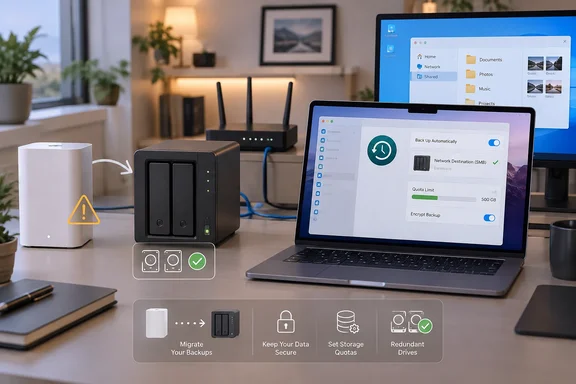
AppleInsider highlighted the change in its September 15 report, but Apple’s own updated Time Machine documentation is the decisive record. Apple says AFP, the Apple Filing Protocol used by Time Capsule and AirPort Disk sharing, is unsupported in macOS 27 and later. The same document confirms that third-party NAS appliances remain valid Time Machine targets when they support the service over Server Message Block.
For households and small offices running both Macs and Windows PCs, the protocol shift is more than a forced hardware refresh. It moves Time Machine backups onto SMB, the file-sharing protocol already used across Windows networks, allowing a single modern NAS to serve Windows file shares and Mac backup storage without relying on Apple’s retired AirPort stack.
Apple’s support page contains a legacy instruction that no longer applies
Apple’s Time Machine support article creates an avoidable point of confusion. It still includes older instructions describing how to select a Time Capsule as a backup disk and how to attach an external drive to an AirPort Extreme or Time Capsule. But the compatibility notice directly above those instructions says Time Machine and other NAS transfers over AFP are not supported in macOS 27 or later.
The compatibility notice is the operative part. A Time Capsule’s internal disk and the USB disk-sharing feature on compatible AirPort hardware depend on AFP; their setup instructions have not turned the hardware into an SMB server. Mac owners should not interpret their continued presence in Apple’s documentation as evidence that an existing Time Capsule will work after the operating-system upgrade.
MacRumors reported in June that AFP removal would cut off Time Capsule backup compatibility, months before Golden Gate’s release. Apple’s post-release documentation now confirms that the warning was not limited to a beta build or a Time Machine interface glitch.
There is an important distinction for anyone keeping an old AirPort unit in service: macOS 27 has not physically disabled its routing, DHCP, Ethernet switching, or Wi-Fi functions. Apple ended AirPort development in 2018, however, and the devices have long been outside current support. Continuing to use one as a router is a separate network-security decision; it does not restore its usefulness as a Time Machine appliance.
An SMB share is necessary, but ordinary file sharing is not enough
The replacement does not have to be a high-end NAS, but it must explicitly support Time Machine over SMB. A device merely advertising SMB file sharing is not automatically a supported Time Machine destination. The NAS needs to advertise or configure a compatible backup share, normally with Bonjour discovery enabled, and should permit a per-user storage quota.
That quota is the overlooked part of the migration. Time Machine retains generations of changed files until its destination fills, then removes older history to make room. Without a quota, one Mac can consume the entire NAS volume and crowd out other users, shared data, or backups from Windows PCs.
Apple’s guidance is deliberately narrow: it tells customers to check the NAS maker’s documentation for Time Machine support over SMB. Ugreen’s current documentation, for example, directs DH2300 owners to enable SMB and Bonjour, create a dedicated share, and set a quota before choosing that share in Time Machine. QNAP lists Apple Time Machine Backup support on the TS-216G, while Synology’s DS223j documentation lists SMB among its supported file services.
That is a better purchasing and deployment test than processor specifications or marketing claims about media streaming. Before buying or repurposing a NAS, verify all of the following in current vendor documentation:
- The NAS must support Time Machine specifically over SMB, rather than only advertising generic SMB access.
- The administrator should create a separate Time Machine user and backup share rather than pointing Macs at an unrestricted general-purpose folder.
- The share should have a quota sized for the Mac or Macs it will protect, with room for backup history rather than only one full disk image.
- SMB must be enabled on the NAS, and Bonjour or the vendor’s documented discovery method must be available so Time Machine can find the destination.
- The NAS should receive current operating-system and security updates, particularly if remote access, cloud synchronization, containers, or media applications are enabled.
A router with a USB port is therefore not a universal substitute for a Time Capsule. Some consumer routers can expose an attached USB drive via SMB, but many do not implement the Time Machine-specific discovery and share configuration Apple expects. ISP-supplied gateways are particularly poor candidates because their storage functions, patch schedules, account controls, and logging tend to be limited.
The useful replacement is a shared storage service, not a new Time Capsule
AppleInsider’s list of diskless NAS enclosures under $300 includes the TerraMaster F2-425, Ugreen NASync DH2300, LincStation E1, Synology DiskStation DS223j, and QNAP TS-216G. The more useful conclusion is not that every household needs an appliance with the most CPU cores, containers, HDMI output, or 2.5GbE networking. It is that the replacement category has changed.
A Time Capsule combined Wi-Fi routing and a hard disk in one quiet box. A modern NAS is usually only storage. It must be connected by Ethernet to an existing router or switch, populated with one or more drives, initialized, patched, and administered through a web interface or vendor application. That is additional work, but it also separates storage from networking and makes the drives replaceable.
For a mixed Windows-and-Mac home, this change can simplify rather than complicate the setup. A NAS configured with current SMB support can host a normal Windows share alongside a separate, quota-controlled Time Machine share. QNAP’s TS-216G documentation explicitly lists compatibility with Windows 7 through Windows 11 and multiple Windows Server versions, as well as Time Machine support. Synology likewise specifies SMB1, SMB2, and SMB3 support on the DS223j.
Windows administrators should still avoid treating the Time Machine share as a normal shared folder. The Mac’s Time Machine bundle is backup data, not a collaborative document repository. Give the backup account only the access it needs, do not casually edit or move the bundle from Windows, and keep the Time Machine destination distinct from shared business files.
The headline performance figures also need perspective. QNAP advertises up to 291 MB/s SMB transfer performance for the TS-216G, but its disclosed test used a 2.5GbE network, two SATA SSDs in RAID 1, and a Windows Server 2019 client. A Mac connected over ordinary gigabit Ethernet and backing up to spinning hard disks will be limited by the slower pieces of that chain. For Time Machine, reliability, capacity, and a successful test restore matter more than a synthetic sequential-transfer number.
RAID protects availability, not the backup itself
Moving from a Time Capsule to a two-bay NAS invites another common mistake: assuming mirrored disks make the backup safe. RAID 1 duplicates data across two drives and can keep the NAS running after one drive fails. It does not protect against accidental deletion, ransomware, electrical damage, theft, fire, a NAS firmware failure, or corruption replicated to both drives.
A single-drive NAS can be an acceptable Time Machine destination if it is backed up elsewhere. A two-drive mirror reduces the disruption caused by a drive failure, but it is still only one copy located in one place. The strongest practical setup is a Time Machine destination on the NAS plus a separate backup of irreplaceable data to another local disk, another NAS, or an off-site service.
Synology’s DS223j offers a useful illustration of the distinction. Its current specifications support Btrfs and RAID 1, but Btrfs alone does not create redundancy. Features such as file self-healing depend on a storage layout with redundant data. Buyers should choose the file system, disk count, and redundancy level based on the recovery outcome they need, rather than assuming that any two-bay enclosure automatically protects against every failure.
For a Mac with 1TB of used storage, a Time Machine quota substantially larger than 1TB is sensible if the goal is to retain historical versions. The exact number depends on the rate at which files change, but allocating only enough space for one full backup defeats much of Time Machine’s value. Conversely, setting no ceiling at all can turn a backup into a capacity outage for every other NAS user.
Upgrade only after proving that recovery works
Anyone whose only historical backups live on a Time Capsule should preserve those backups before moving to macOS 27. The operating-system upgrade does not erase the Time Capsule’s disk, but it removes the normal AFP access path the updated Mac needs to continue using it. The safe assumption is that old data becomes harder to reach from the upgraded system, not that it will remain conveniently available later.
Before upgrading, restore several files from different dates and locations, including at least one file that no longer exists in its original folder. Then copy any irreplaceable material to a directly attached drive or another verified location. Do not erase, reformat, sell, or repurpose the Time Capsule until the replacement NAS has completed an initial backup and a file has been restored successfully from it.
The macOS 27 transition closes a long-running compatibility gap that Apple had already signaled by steering users away from AFP. For affected users, the correct response is not to hunt for a setting that revives Time Capsule backups. It is to move the backup job onto a supported SMB NAS or a local drive, isolate and test that destination, and keep a second copy of the data that matters.