

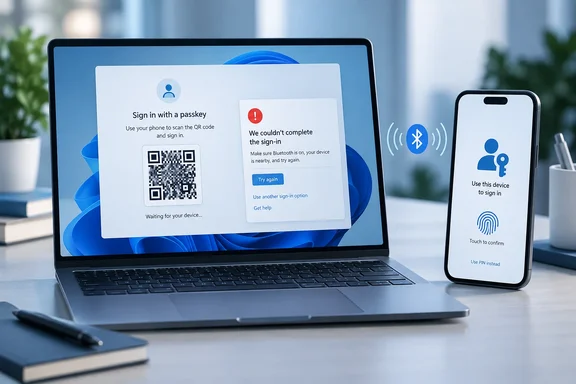
Microsoft's Passkey Troubleshooting Page Is Organized by Error Message
Microsoft's support page for passkey sign-in problems isn't a checklist you work through from the top. It tells users to check the error messages or scenario from the sections below, and select to expand for more information. The error text points to the cause, and the cause points to the fix.
First, it helps to know what a passkey is. According to Microsoft's "Create and save a passkey" documentation, a passkey is created and saved to a device or to a synced credential manager. After that, each sign-in prompts you to unlock it with that device's secure method, such as your face, fingerprint or PIN. When you create a passkey for a personal Microsoft account, you can save it in several places:
- Microsoft Password Manager, or another synced credential manager such as Google Password Manager or Apple iCloud Keychain.
- An iPhone, iPad or Android device, which you register by scanning a QR code.
- A physical security key.
- The Windows device itself, where Windows Hello protects the passkey locally.
So the passkey might not be on the PC you're signing in from. Before you change anything, work out where yours is stored: on this PC, on your phone, on a USB key, or in a password manager. A Windows Hello reset does nothing for a passkey that lives in iCloud Keychain. A Bluetooth fix is pointless if the passkey is stored locally on the PC.
Personal and work accounts are handled differently, too. Personal Microsoft account passkeys are created from Advanced Security Options by choosing "Add a new way to sign in or verify" and then "Face, Fingerprint, PIN, or Security Key." Work or school accounts use the Security info page instead. Microsoft notes that you can only create a work passkey if your organization supports it, and your organization may limit which storage options you can use. If you're signing in to an Entra ID work or school account, some of the fixes below may be blocked by policy, and your IT administrator is the right contact.
"This Passkey Can No Longer Be Used" Means Replace First, Delete Second
The most specific message you can get is that the passkey is not found, can no longer be used, or is no longer valid. Microsoft gives two causes. The passkey has been deleted from your account or device, or you have changed the way you authenticate yourself, for example if you have changed your PIN or biometric method.
The second cause catches people out. If you changed your Windows Hello PIN or re-enrolled your fingerprint and your passkey stopped working afterward, that's expected behavior as Microsoft describes it. Resetting Windows Hello again won't bring the old credential back. You need a new passkey.
Microsoft's fix is short: Set up a new passkey, then check the authenticator app on your phone for passkeys that no longer apply and delete them. The order is important. The general guidance on the same page says to set up new passkeys first, then check your account for passkeys that no longer apply and delete them. If you delete the old passkey before the new one works, you can lock yourself out of an account where the passkey was your easiest way in.
A related message, "Sign in another way. We couldn't use your device to verify your identity," means the passkey is no longer valid on that device. Microsoft's advice is to choose one of the other sign-in methods offered, then remove passkeys that no longer apply. The same pattern applies when you move to a new PC. If you get a new device, you may need to set up your passkeys again. Once completed, you can safely remove any old passkeys from your account.
A few other scenarios have narrow fixes of their own. Password managers such as Microsoft Password Manager, Google Password Manager and iCloud Keychain can only have one passkey per website, app or service, so registering the same passkey twice in a synced manager can cause errors. Android users with a Work profile can hit "We couldn't sign you in" when a work passkey was saved in the Personal profile. Microsoft warns: Don't use the camera app in your Personal profile to scan a sign-in or sign-up QR code; it won't save the passkey to your Work profile. For hardware keys, if your external security key wasn't found, or didn't respond in time, unplug and reinsert the key, making sure you respond in time.
Phone Passkeys on a Windows PC Need Bluetooth on Both Devices, Not the Same Wi-Fi
If your passkey is on an iPhone, iPad or Android phone and you're signing in on a PC, the phone has to talk to the computer. Microsoft calls this cross-device sign-in, and its requirements are specific. Bluetooth must be enabled on both devices: the one on which you are signing in and the device that contains your passkey. Also, your authenticating devices must be in range and connected to the internet. They do not need to be on the same network.
Bluetooth is used here to confirm the two devices are close together, while the internet connection carries the sign-in itself. That means a laptop on hotel Wi-Fi and a phone on cellular data can still work together, as long as Bluetooth is on and the devices are near each other. If the QR code for "iPhone, iPad, or Android device" never appears, Microsoft lists these same conditions as the main reasons.
Work users can add a third reason. Authenticating with another device using Bluetooth may not be allowed by your organization. If you've checked everything and the QR option still doesn't appear on a managed PC, it may be blocked by policy rather than broken.
Microsoft also covers "Something went wrong," the vaguest error. It says this error can be caused by many issues, from account credentials to device connectivity. The listed causes include duplicate passkeys in a credential manager, a timeout because a step wasn't finished in time, Bluetooth not being enabled on both devices, and older operating systems or browsers that may not fully support passkeys. If Bluetooth hangs during registration, especially with USB security keys, Microsoft says cancelling and refreshing the sign-in page usually helps. Answers in Microsoft's Q&A forum add that orphaned passkeys can cause trouble: if you have previously used a passkey that is no longer registered with your Microsoft account, it may cause issues. Those forum replies are marked as possibly AI-generated, so treat that as a lead to check rather than official documentation.
Windows Hello Repairs Help Only When the PIN, Face or Fingerprint Itself Fails
Windows Hello is involved in two ways. If your passkey is saved locally on Windows, Windows Hello unlocks it, so a PIN that's rejected or a face scan that keeps failing will block the passkey. Windows Report's advice fits this case: open Settings > Accounts > Sign-in options and make sure your PIN, fingerprint, or facial recognition method is working correctly before trying the Microsoft account passkey again.
The second case covers synced passkeys. Microsoft's "No passkeys available" entry says that if they aren't showing, you should ensure that your device's screen lock is not disabled, because passkeys can't be used on a device without face, fingerprint or PIN authentication. This check is quick and doesn't change anything. Do it before resetting any credentials.
If your Windows Hello PIN really is broken, Microsoft's PIN guidance for Windows 11 and Windows 10 depends on whether you're signed in:
- If you're signed in, open Settings, go to Accounts > Sign-in options, and select PIN (Windows Hello).
- If you know your current PIN, choose Change PIN. You'll need to enter the old PIN.
- If you've forgotten it, choose I forgot my PIN, verify your account, and create a new PIN.
- If you're at the Windows sign-in screen, look under the PIN box for "I forgot my PIN." Microsoft says this option exists only for Microsoft accounts, not local accounts. If it's missing, sign in with your password and reset the PIN from Settings.
Microsoft also points out that the PIN you use to unlock your device is not your Microsoft account password. Resetting one doesn't change the other.
There's a catch here. Microsoft's troubleshooting page lists changing your PIN or biometric method as one reason a passkey can stop being valid. A PIN reset can fix Windows Hello and still leave you needing a new passkey, so be ready to create one afterward. Treat a Windows Hello reset as a repair for a Windows Hello problem, not a general passkey fix. For face recognition, Microsoft's Windows guidance offers "Improve recognition" in Sign-in options, or removing and re-adding face sign-in. For fingerprint problems, try another enrolled finger, clean the reader, or re-register the fingerprint after signing in another way.
Windows Report also suggests going to Settings > Windows Update and checking for updates, because Microsoft says newer Windows versions may be required for the latest passkey features. That fits Microsoft's own warning about older Windows versions, and there's little downside to installing pending updates.
Browser Switches and Incognito Windows Help With Compatibility but Aren't Official Fixes
Windows Report's top advice is to try another browser, and before that to open the sign-in page in a private or incognito window. Switching to an up-to-date browser is a sensible compatibility check. Microsoft's troubleshooting page does warn that older versions of Windows, macOS, mobile operating systems and their browsers may not fully support passkeys. If one outdated browser fails and a current one works, you've found the problem.
The incognito tip is on weaker ground. It doesn't appear on Microsoft's passkey troubleshooting page. It does show up in a Microsoft Q&A forum answer for a user stuck in a loop of passkey prompts: If the passkey prompt persists, use InPrivate/Incognito mode and retry. Try it if you like, since a private window doesn't change your account. Just don't expect it to fix an invalid passkey, a missing screen lock or Bluetooth that's turned off. Those problems follow you into any browser.
A better step is to use another sign-in method if one is offered. Windows Report says Microsoft may offer options such as another passkey, Microsoft Authenticator, a verified email address, or another security method. The operative word is "may": you'll only see the methods you've set up for your account. The Q&A answer puts it more strongly for passwordless accounts, saying Microsoft requires one of those alternative methods (Authenticator, Outlook for Android approval, SMS, security key). Once you're signed in another way, you can do the cleanup Microsoft recommends: create a new passkey, then remove the stale ones.
Sign-in Helper Is the Last Step Before a Hard Limit on Microsoft Account Recovery
If none of your sign-in methods work, Microsoft points personal account users to its Sign-in Helper. The tool asks for the email address or phone number you're signing in with and checks it. If it finds a problem it tells you how to fix it, and if it doesn't, it offers self-help guidance. Microsoft says you can run it again if your account isn't found, and it has separate guidance for work or school account passwords. That's another sign the personal and Entra ID paths shouldn't be mixed up.
Beyond that, you're into account recovery, and Microsoft sets out firm limits. Its support pages say that to protect your account and its contents, support agents can't send password reset links or access and change account details. Microsoft's recovery-form guidance adds that if two-step verification is on and you can't reach any alternate verification method, agents can't get around it for you. No support call will override the security setup you chose.
That's why backup methods matter so much. A passkey is convenient, but if it's your only credential, any of the failures above can become a recovery problem. The Q&A answer suggests reviewing "Ways to prove who you are" in your account security settings, removing passkeys you no longer use, and adding backups such as a second phone, a backup email address or Authenticator.
What this means for you
Before you reset anything, read the exact error and work out where your passkey is stored. Most failures fall into one of four groups: a passkey that's no longer valid, a phone that can't connect to the PC, a device with no screen lock, or old software. Each needs one targeted fix. Personal account users can do all of this themselves. Work and school users should expect their organization's policy to decide which passkey storage options and Bluetooth sign-in flows are allowed, and should contact IT when an option is missing.
- If you see "This passkey can no longer be used" or a similar message, create a replacement passkey before deleting the old one, especially if you recently changed your Windows Hello PIN or biometrics.
- For phone-to-PC sign-in, turn on Bluetooth on both devices, keep them close together, and make sure both are online. They don't need to share a Wi-Fi network.
- If no passkeys appear, check that the device has a PIN, fingerprint or face screen lock turned on before you change anything else.
- Reset your Windows Hello PIN from Settings > Accounts > Sign-in options only when the PIN itself fails, and be aware that the reset may mean creating a new passkey.
- Treat switching to a current browser or an InPrivate window as a quick test. It won't fix a problem with the passkey itself.
- Set up at least one backup sign-in method now. Microsoft's support agents can't bypass two-step verification if you lose every method.
Passkeys remove the password as a weak point, and Microsoft's troubleshooting page shows the trade-off: the passkey depends on the device, credential manager or unlock method that holds it. Most failures come from one of those links changing, such as a new PIN, a new PC, Bluetooth being off or a deleted credential. The recovery is nearly always the same: sign in another way, create a new passkey, then remove the old one. Setting up that backup method before you need it keeps a passkey problem from turning into an account recovery case.
References
- Create and save a passkey | Microsoft Support support.microsoft.com
- Troubleshoot signing in with a passkey | Microsoft Support support.microsoft.com