

Windows Report's Teams Camera Fix List Needs a 2026 Correction
The guide behind this round of searches comes from Windows Report. It describes the classic symptom, a "No available camera found" message in Teams, and says the problem usually comes from Teams lacking camera permission. The same guide also blames outdated drivers and hardware glitches, especially with external webcams. Its seven fixes are:
- Grant camera permission.
- Update the driver through Device Manager.
- Run the Hardware and Devices troubleshooter.
- Re-register the webcam by uninstalling it in Device Manager.
- Update Teams.
- Disable other cameras.
- Uninstall Teams.
Several of those steps are still sound. Others need correcting. The troubleshooter step runs msdt.exe -id DeviceDiagnostic from an elevated Command Prompt, but Microsoft Learn's own page for the msdt command now says the Microsoft Support Diagnostic Tool is deprecated. That makes it a poor default for a current Windows 11 PC. The driver section also sends readers to Fortect Driver Updater, a commercial product that needs a paid upgrade for some tasks. Microsoft's guidance doesn't require a third-party updater, and nothing suggests one is more likely to find the right driver than Windows Update or the camera maker's support site.
The Windows 10 instructions need context too. Microsoft's camera privacy documentation says Windows 10 support ended on October 14, 2025, and that free Windows Update software updates, technical help and security fixes have stopped. The Windows 10 settings paths still work and are covered below. But a Windows 10 PC with camera trouble in September 2026 is running an unsupported OS, and that affects how much time is worth spending on it.
The ranking is also a matter of opinion. The claim that permissions are the "usual" cause is Windows Report's view from its readers' complaints. Microsoft's own Teams troubleshooting lists several possible causes without ranking them. The order that actually saves time is the one that tells you which layer is failing.
Teams Desktop and Teams on the Web Need Different Camera Permissions
Your camera can be blocked at up to three layers: Windows, the browser (if you use Teams on the web), and the device itself. The first job is knowing which Teams you're running, because the permission path is different for each.
Windows 11 camera privacy settings for Teams
Microsoft's Windows privacy documentation gives this path: Start > Settings > Privacy & security > Camera. Make sure Camera access and Let apps access your camera are both on. Microsoft Store apps get their own toggle in the list below those switches. Desktop apps don't. Microsoft says that if you can't find an app in the list, it's probably a desktop app, and those are controlled together through Let desktop apps access your camera.
This is where generic guides go wrong. Windows Report tells readers to toggle a Teams-specific switch. Microsoft's Teams work-or-school troubleshooting page also says to turn on the "Microsoft Teams (work or school)" toggle under Let apps access your camera, and to turn it off and back on if it's already enabled. Its Teams Free page says to turn on Camera access, Microsoft Teams, and Let apps access your camera.
So check your own list:
- If a Teams entry appears, turn it on.
- If Teams isn't listed, it's being treated as a desktop app, and Let desktop apps access your camera is the switch that matters.
Either way, close Teams and reopen it afterward. If the camera still doesn't show up, restart Windows.
Windows also shows you when the camera is active. On devices with a camera light, the light turns on. On devices without one, Windows shows a notification when the camera turns on or off. If the light or notification appears while Teams is still blank, some app has the camera. That may not be Teams.
Windows 10 camera privacy settings
On Windows 10 the path is Start > Settings > Privacy > Camera. The switches have slightly different names: Camera access for this device, Allow apps to access your camera, and Allow desktop apps to access your camera. Microsoft says the desktop-app control has been available since Windows 10 version 1903. Turning it off affects every desktop app listed under it, not just Teams.
Teams on the web in Edge, Chrome and Safari
Microsoft's Teams Free guidance says that when you join from a browser, both Windows and the browser must allow the camera. If the browser blocks it, Teams can load normally but show no video. The quick fix:
- Select the site permissions menu next to the address bar.
- Set Camera to Allow.
- Refresh the Teams page and rejoin the meeting.
Microsoft also notes that turning on the camera for Microsoft Edge doesn't grant it to every website. Each site still needs its own permission. For browser-wide settings, Microsoft gives these paths:
- In Edge, go to Settings > Privacy, search, and services > Site permissions > All permissions > Camera and turn on Ask before accessing. If that switch is off, Edge blocks the camera entirely.
- In Chrome, go to Settings > Privacy and security > Site settings > Permissions > Camera. Pick the correct device from the drop-down at the top, then set the default to Sites can ask to use your camera.
On a managed PC, a grayed-out camera setting usually means your organization controls it. Microsoft's Teams guidance says some settings may be managed by your IT admin and tells users to contact them. Don't try to get around an organizational policy to make a meeting work.
The Windows Camera App Tells You Whether Teams or the PC Is at Fault
The most useful step in any Teams camera checklist is opening the built-in Windows Camera app. If it shows a live image, the webcam, driver and Windows privacy settings are at least partly working, and the problem is inside Teams. Look at camera selection, the Teams permission entry, browser permission, or another app holding the device. If Camera also fails, Teams is probably not the cause. Look at Windows access controls, privacy modes, a disabled device, the driver or the hardware.
Microsoft's Teams guidance also suggests closing other apps that might be using the camera, unplugging and reconnecting an external webcam, and restarting the device. Traditionally, Windows gave the camera to one app at a time. Windows Latest explained this when reviewing Windows 11's newer camera settings: previously, Windows blocked apps from accessing the camera if camera was used by another app, such as Windows Camera. That's why closing other apps is a sensible first step. It also means you should close the Windows Camera app after testing, before going back to Teams.
For the Teams desktop app, Microsoft documents a built-in test: Settings > Devices > Make a test call. The Test Call Bot has you record a short message, plays it back, and then gives you a summary of how your mic, speakers and camera performed. Microsoft says the recording is deleted right after the call and isn't kept or used. The test call currently works only in English and isn't available in Teams on the web.
Camera selection causes its own problems. Windows Report claims that multiple cameras make it "hard" for Teams to recognize the right one, and it recommends disabling extra cameras in Device Manager. The simpler fix, which Microsoft's guidance points to, is choosing the camera you want in Teams' device settings or on the meeting pre-join screen. Disabling a built-in camera in Device Manager is a heavier change you'll have to undo later, so try the Teams camera picker first.
Privacy Shutters, Lenovo Vantage and Virtual Cameras Can Look Like Teams Bugs
Microsoft's Teams Free troubleshooting page, written for personal accounts, sorts symptoms by what you actually see. It's the clearest official diagnostic guide for this problem:
| What Teams shows | Likely cause, per Microsoft | First thing to try |
|---|---|---|
| No preview or no video feed | Windows camera privacy is blocking Teams or the browser | Allow camera access in Windows privacy settings |
| No preview in Teams on the web | The browser isn't allowed to use the camera | Allow camera from the address bar or site settings |
| Gray screen, lock icon or manufacturer privacy screen | Camera privacy mode is on | Open the shutter, press the privacy key, or disable privacy mode in the manufacturer's app |
| Only your background appears | Camera is covered, or a background effect is layered over a privacy screen | Turn off background effects and check the lens |
| Blur appears but your face doesn't | Blur is hiding a privacy screen or covered lens | Turn off blur and check the camera |
| Camera is detected intermittently or not at all | Driver or advanced camera feature issue | Try basic camera mode in Windows camera settings |
Background effects are the easy one to miss. Blur or a replacement background can hide the fact that the camera is sending a privacy screen instead of your face. Turn effects off before you decide the webcam is broken.
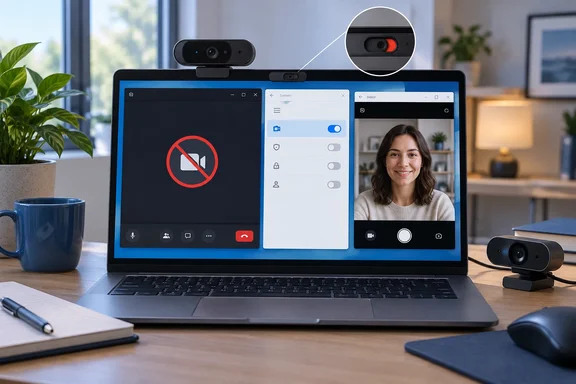
Hardware privacy controls come next. Microsoft notes that many Windows laptops have a physical shutter, a slider or a keyboard shortcut that disables the camera, and any of these can make Teams look broken even when every permission is correct. For Lenovo, Microsoft specifically mentions Lenovo Vantage. When Vantage's privacy mode is on, Teams can show a gray OEM screen with a lock icon, and on devices that support it, the privacy shortcut is often F8. Other manufacturers use their own utilities and key combinations, so the Lenovo steps don't carry over directly.
Virtual cameras are the last trap. Microsoft warns that if one is selected, Teams can show an unexpected image, no video, or a feed from another app. Check which camera is selected in Teams' video settings. If it's a virtual device, switch to your built-in or USB webcam, then turn video off and on again or restart Teams.
Basic Camera Mode Is Windows 11's Newer Fallback Than the Old Troubleshooter
The Hardware and Devices troubleshooter in Windows Report's list depends on MSDT, which Microsoft has deprecated. Windows 11 now has a purpose-built fallback in Settings. Microsoft's Teams Free guidance recommends it when a camera works only some of the time, works briefly and then stops, or isn't reliably detected.
Eleven Forum tracked when it arrived in regular releases. According to its tutorial, starting with build 26100.8524 (24H2), build 26200.8524 (25H2), and build 28000.2340 (26H1), Microsoft added a new Advanced camera options section on the Cameras page in Settings. The tutorial describes the setting as recommended as a last resort when your camera is not functioning correctly. It's an earlier Insider feature that has now shipped, so Windows 11 PCs on older builds may not have it. Windows Latest, covering the Insider version, reported that basic mode turns off all OEM related features and enforces the system's basic camera.
To turn it on in Windows 11:
- Open Settings with Win+I.
- Go to Bluetooth & devices > Cameras and select the camera that's misbehaving under Connected cameras.
- Select Edit next to Advanced camera options.
- Turn on Turn on basic camera and select Apply.
- Restart Teams and test the camera again.
A few side effects are worth knowing. According to The Windows Club, turning on basic mode will also turn on the Allow multiple apps to use camera at the same time setting and the same setting will be greyed out, and you can pick a preferred resolution (media type). The setting applies to one camera at a time, so repeat it for each webcam. Microsoft warns that basic mode can switch off some advanced features from the device maker. Treat it as a way to confirm the problem or keep working in the meantime, and turn it off once a proper driver fix is in place if you want those features back.
Some cameras won't appear on this Settings page at all. Microsoft's camera settings documentation lists infrared cameras used for Windows Hello face sign-in and cameras that use DirectShow, such as some DSLRs and action cameras used as webcams. If your camera isn't on the Cameras page, this fallback isn't available for it.
Drivers, Updates and Reinstalls Come Last on the Teams Camera Checklist
Microsoft's Teams guidance says to keep Windows and the Teams app up to date, and in Teams to check for updates to get the latest version. Windows Report gives the classic-style path: the three-dot menu in the top-right corner, then Check for updates. The menu layout depends on your Teams version, so if you can't find that option, look for the update check in Teams' own settings rather than assuming it's missing.
Microsoft says driver problems are most likely on Windows 10 or with external webcams. The standard Device Manager process is:
- Press Win+R, type
devmgmt.msc, and expand Cameras. - Right-click the webcam, choose Update driver, then Search automatically for drivers.
- If nothing turns up, get the driver from the camera or PC maker's support site.
That last step is the right fallback when Windows can't find a better driver. It's also the step that replaces the paid-updater pitch.
The re-registration trick is more disruptive but still reasonable. In Device Manager, right-click the camera, choose Uninstall device, confirm, then use Scan for hardware changes and restart. The goal is to make Windows detect the device again and reload its driver. On a work PC, check with IT before removing devices, because managed machines can have camera drivers or policies set by the organization.
Uninstalling Teams through Control Panel should be the very last option. It isn't among Microsoft's current camera troubleshooting steps, and the step-by-step checks above will locate the failing layer far more often than a reinstall. Microsoft also sends virtual desktop (VDI) users to their IT admin, because Teams camera behavior in those environments follows different rules.
What This Means for You
Before changing drivers or reinstalling anything, work out which layer is failing: Teams, the browser, Windows privacy, a device privacy control, or the hardware. The Windows Camera app answers that in under a minute. Home users on Windows 11 can work through every step here themselves. Users on managed work or school PCs should stop at any grayed-out setting and contact IT. Windows 10 users can still use the permission paths above, but they're troubleshooting an OS that stopped getting free security fixes in October 2025.
- Open the Windows Camera app first. If it shows a live image, the problem is in Teams, the browser, or another app holding the camera, not the webcam hardware.
- Check Camera access, Let apps access your camera, the Teams toggle if one is listed, and Let desktop apps access your camera under Settings > Privacy & security > Camera in Windows 11.
- In Teams on the web, allow the camera for the Teams site in the browser's site permissions menu, then refresh and rejoin. The desktop test call isn't available on the web.
- Turn off blur and background effects, open any physical shutter, and check manufacturer privacy modes such as Lenovo Vantage before blaming the driver.
- On recent Windows 11 24H2, 25H2 and 26H1 builds, use Turn on basic camera under Advanced camera options instead of the deprecated MSDT troubleshooter command.
- Get drivers from Windows Update, Device Manager or the device maker, not a paid third-party updater, and save the Teams uninstall for last.
The "not working today" headlines suggest an outage, but a failed Teams camera is almost always a local problem that follows a predictable order: permissions, device selection, privacy controls, drivers and, rarely, hardware. Windows 11's shipping basic camera mode now gives users a supported fallback where older guides relied on MSDT. As more PCs move off Windows 10 and onto builds with Advanced camera options, the most useful fix list starts with the Settings app and the Windows Camera test, and treats a reinstall as a last resort.
References
- Microsoft Teams Camera Not Working Today? 7 Fixes to Try Now Windows Report · 2026-09-23T14:25:35+00:00
- My camera isn't working in Microsoft Teams | Microsoft Support support.microsoft.com
- Windows camera, microphone, and privacy | Microsoft Support support.microsoft.com