

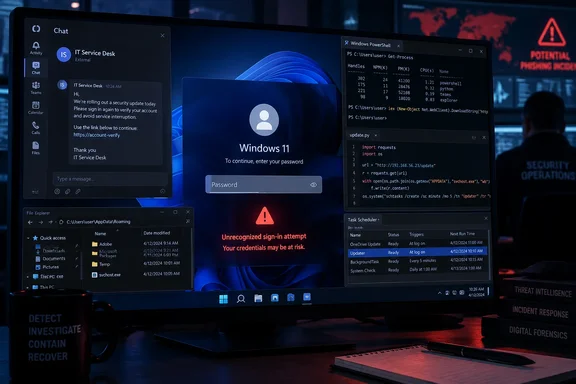
For employees, the immediate precaution is to verify unexpected support requests through an established help-desk channel before installing software. For administrators, the case provides concrete reasons to review Teams external-access policies and investigate suspicious scheduled tasks that launch Python from a user’s AppData folder.
Cyberpress highlighted the attack on September 21, following Expel’s analysis. Gridinsoft also covered the fake “IT Service Desk” approach and PowershellCleaner installer, explicitly attributing the findings to Expel; that coverage is not a separate reproduction of the attack.
From external Teams chat to a malicious installer
According to Expel, recovered Teams metadata showed a sender using an external Microsoft 365 account with an onmicrosoft.com address and a display name resembling “IT Service Desk,” followed by a person’s name. Expel could not recover the complete conversation, but its investigation established that the user was persuaded to download and install an MSI package presented as PowershellCleaner.
The download came from an Azure Blob Storage endpoint. That detail explains part of the deception: the attacker combined a familiar workplace application, a plausible support identity, and Microsoft-hosted storage. None establishes that the sender works for the recipient’s IT department or that Microsoft endorses the downloaded software.
Microsoft separately documented cross-tenant help-desk impersonation in an April 18 security analysis. Its researchers described attackers persuading users to approve remote assistance through Quick Assist and similar tools. That supports the broader social-engineering pattern, but it is a different intrusion chain: Expel’s documented SynkLoader entry point was the malicious MSI, not a confirmed Quick Assist session.
Microsoft says Teams presents protections such as external-tenant labeling, first-contact Accept/Block prompts, message previews, and phishing warnings. This case does not establish a Teams vulnerability or an infection triggered simply by receiving a message. The consequential step was accepting the supposed help desk’s instructions and executing software.
What Expel observed—and what it elicited in research
Expel began investigating on August 18 after an endpoint detection and response system alerted on a scheduled task in a customer environment. Researchers then reverse-engineered the loader and built an emulator that recorded attacker commands rather than executing them.
To obtain more tooling, Expel supplied fabricated system information suggesting that the infected machine belonged to a large corporate network. The attackers subsequently delivered additional modules to that research environment.
This separates two important parts of the evidence. Expel investigated a real Teams-delivered infection, but its detailed account of later tooling also draws on attacker interaction with an instrumented, simulated target. The report establishes the recovered modules’ behavior and purpose; it does not show that every described capability successfully operated against the original customer.
How the fake Windows lock screen captures a password
Expel calls the credential-phishing component PhishLocker. It retrieves the current user’s name, obtains a lock-screen background image from C:\Windows\Web\Screen, and renders a full-screen interface resembling the Windows sign-in screen.
The password box belongs to the malware. Typing into it therefore gives the attacker the entered text directly, without requiring a password-hash dump or a successful Windows authentication attempt.
According to Expel, the examined module did not validate the password. Any entry could dismiss its counterfeit screen. Consequently, a screen disappearing after a password is entered is no reassurance that Windows processed a legitimate sign-in.
There were also observable differences in Expel’s analysis:
- The imitation was styled after Windows 11, although Expel examined it on a Windows 10 system.
- The background lacked the blur visible in the genuine comparison when the password field had focus.
- Alt+Tab displayed the application switcher over the fake lock screen, something Expel noted would not happen while the system was genuinely locked.
- The malicious window immediately reclaimed focus, preventing ordinary switching away from it.
These are findings about the analyzed implementation, not a permanent visual checklist for all future variants. In particular, the Windows 11 appearance does not establish a Windows 11-only target scope.
Do not enter a real password to test a suspicious lock screen. Although Expel found that arbitrary input dismissed this sample, doing so would only dismiss the window. The underlying loader, persistence, and other modules would remain a separate security problem.
For organizations using the same credentials across Windows and other services, a captured password may also expose additional sign-in paths. Its usefulness still depends on the account configuration and protections on those services; the research does not establish a universal bypass of multifactor authentication.
The loader leaves more than a phishing window behind
The malicious MSI starts a chain spanning PowerShell, Python, C#, and native DLLs. According to Expel, it initially extracts files under %LocalAppData%\PowershellCleaner\script, then unpacks a self-contained Python environment beneath a randomly generated directory in %AppData%.
That bundled environment is operationally significant: the attack does not depend on the victim having separately installed Python. Its main script, ss.py, runs through the included pythonw.exe.
Expel describes the loader receiving encrypted command-and-control responses and executing supplied Python code in memory. Other components bridge into PowerShell and native DLL execution. However, “memory-resident” does not mean the infection leaves no disk artifacts: the installer, bundled runtime, scripts, and supporting files provide investigative leads.
The persistence module creates a randomly named scheduled task with two triggers:
- It launches the loader when the user logs on.
- It launches the loader daily at 10 a.m. local time.
Expel found that the module creates the task through the Task Scheduler COM interface rather than invoking schtasks.exe. For defenders, the practical implication is specific: a detection that watches only for suspicious schtasks.exe command lines can miss this task-creation path. Task creation and configuration telemetry matter alongside process-command-line monitoring.
The recovered TrafficRedirector component adds another concern. Expel describes it as a backconnect proxy that supports connections through the infected machine. Combined with a captured password, that capability could let an operator attempt access to services reachable from the endpoint and make traffic originate from the victim’s network position.
That is a reason to investigate both identity use and network activity. It does not prove that network-location controls or internal authentication were successfully bypassed in the original incident.
Restrict the Teams contact path deliberately
Microsoft’s Teams hardening guidance provides a documented way to limit external organizational communication. Before applying an allowlist, identify legitimate partner domains: a restrictive policy can interrupt real collaboration.
An administrator with the appropriate Teams permissions can configure it as follows:
- Open the Teams admin center, expand Users, and select External access.
- Under Teams and Skype for Business users in external organizations, set Choose which external domains your users have access to to Allow only specific external domains.
- Select Allow domains, enter the approved external domains, and select Done.
- Select Save.
Microsoft notes that the external organization must also allow your organization’s domain for communication to work. It also documents user- or group-specific external-access policies for organizations needing more granular rules.
The scope is important: this procedure controls communication with external organizations. Settings concerning unmanaged personal Teams accounts are a separate boundary. Disabling unsolicited contact from personal accounts alone would not address the attacker-controlled Microsoft 365 tenant described by Expel.
Block known senders where broad external access remains necessary
Microsoft also supports domain and sender blocks through the Defender portal for organizations with Teams and cloud mailboxes. This is useful where the business retains broad external access rather than moving to an approved-domain-only model.
The documented prerequisites include:
- The Teams external-organization setting must be Allow all external domains or Block only specific external domains.
- Allow my security team to manage blocked domains must be on.
- Block specific users from communicating with people in my organization must be on.
- The operator must hold an authorized role, such as Teams Administrator, Security Administrator, or Security Operator.
With those prerequisites satisfied, open Microsoft Defender portal > Email & collaboration > Policies & rules > Threat policies > Tenant Allow/Block Lists. Select Teams senders, choose Block, enter the malicious domains or addresses, and select Add.
Microsoft says these blocks cover new Teams communications, including chats, meetings, channels, and calls. Entries never expire and should become active within 24 hours. They are therefore not a substitute for immediate endpoint containment during an active intrusion.
The resulting entries appear in both the Teams senders list and Teams external-access settings. If a legitimate sender is blocked accidentally, an authorized administrator can select the entry and delete it; that also removes the corresponding block from Teams settings.
Enable Teams link checks where licensed
Microsoft’s hardening guidance also documents Safe Links protection for Teams. For organizations licensed for Defender for Office 365, administrators can open a relevant Safe Links policy, select Edit protection settings, enable Safe Links checks a list of known, malicious links when users click links in Microsoft Teams, and save the policy.
The guidance calls for reviewing each applicable custom policy, excluding the built-in, standard, and strict preset policies from that editing procedure. Some options are not available in every government cloud.
Link checks provide another layer, but support-request verification remains necessary. In Microsoft’s separate remote-assistance investigations, attackers sometimes navigated to downloads after obtaining control instead of sending the URL through Teams.
What defenders should investigate
Expel’s findings support a behavior-focused hunt rather than a search for one installer name. Useful leads include:
- A PowershellCleaner installation followed by PowerShell execution and files written into a randomly named AppData directory.
- A scheduled task launching
ss.pythroughpythonw.exe, particularly with logon and daily 10 a.m. triggers. - A bundled Python runtime under an unexpected user-profile path, followed by unusual outbound communications.
- Suspicious task creation even when there is no corresponding
schtasks.exeprocess. - New external Teams contact shortly before installer execution or unusual endpoint activity.
Python, PowerShell, and scheduled tasks all have legitimate uses. The stronger signal is their sequence, location, and relationship to an unexpected support interaction.
Microsoft’s separate research also supports examining Quick Assist activity followed rapidly by command shells. That is a useful hunt for the wider help-desk impersonation pattern, but it should not be treated as a required SynkLoader indicator.
If someone ran the installer, responders should treat the event as suspected endpoint compromise even if no password was entered. If credentials were typed into the counterfeit screen, the response also needs to address credential exposure: isolate the endpoint through the organization’s response process, reset affected credentials from a known-clean device, revoke relevant sessions, and investigate subsequent account and network activity.
Recovery should address the installed loader and persistence, with rebuilding or reimaging determined through the incident-response process. Closing the fake window or changing a password alone does not remove an attacker’s foothold.
References
- Reduce the Attack Surface for Microsoft Teams - Microsoft Defender for Office 365 | Microsoft Learn learn.microsoft.com
- Block domains and addresses in Microsoft Teams using the Tenant Allow/Block List - Microsoft Defender for Office 365 | Microsoft Learn learn.microsoft.com
- Your Privacy Choices Opt-Out Icon microsoft.com