

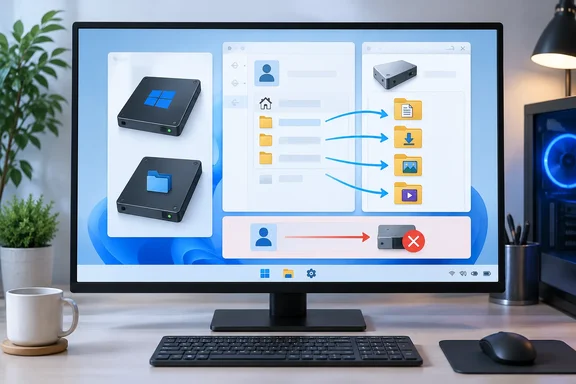
Here's what the author did, what Microsoft says about each method, and how to move folders the supported way.
What the XDA author did
The writer described two setups:
- Whole-profile move on a clean install. Right after a fresh Windows installation, they used a free GUI tool called Profile Locator to move the whole user folder to another SSD. They set Windows up offline with OneDrive turned off first. They also mention using Rufus to build install media that skips the Microsoft account requirement. According to the author, the tool itself warns "use at your own risk." It also recommends a backup and a temporary user account before you start.
- Individual folder moves on an existing install. On a PC that had been in use for a while, they moved only some of the default folders, such as Desktop, Downloads, Music and Videos, using the Location tab in each folder's Properties.
The author says the result was a more responsive system, more free space on C:, and faster file transfers between SSDs. They also admit one problem: Windows had trouble with the initial file indexing, and they recommend Voidtools' Everything as a search alternative. The author warns against moving the entire profile on an installation that has been used for weeks or months, because paths break and apps misbehave. That warning is correct.
Summary: The reported results come from one person's experience. There are no benchmarks, drive models, Windows version or indexer settings, so read it as an anecdote rather than a measurement.
Microsoft's position on moving the whole profile
Here the story needs a large asterisk. Windows does have a documented way to put the profiles directory on another drive: the ProfilesDirectory setting in an unattended setup answer file. You set it during deployment, not after. The destination must be an NTFS volume and can't be a drive that holds another copy of Windows. Microsoft's documentation says plainly that it doesn't recommend the setting except perhaps in a test environment. It also says Microsoft Store apps aren't supported when the setting is changed, and push-button reset isn't supported in that configuration either.
A separate Microsoft support article covers what happens in practice. After moving the Users directory, an individual user profile, or the ProgramData directory from their default locations, Microsoft Store Apps will no longer start. Symptoms include this: clicking the tile for a Microsoft Store App or the Microsoft Store will begin to launch the app but will return to the start screen. No error is displayed. Microsoft's fix is short: don't alter the default location of the USERS directory (c:\users by default) or any individual users profile. It describes the relocation methods as provided as is and intended for test environments only.
Raymond Chen of Microsoft explained the consequences on his Old New Thing blog: moving the profiles directory does prevent Store apps from working. And since many parts of the system are provided in the form of Store apps, moving the profiles directory will make many parts of the system inoperable. On Windows 11, many built-in apps (Photos, Calculator, Terminal and others) are Store-packaged apps.
Is Profile Locator safe? We couldn't independently check who publishes it, whether it's still maintained, or exactly what it changes. It is not a Microsoft tool. Whatever method it uses, the end state is a relocated profile, and Microsoft says Store apps aren't supported that way.
Summary: Moving the whole profile, even on a clean install, is something Microsoft says to leave to test machines. The author's own warning about moving an established profile is correct, but the clean-install version comes with support caveats of its own.
The safer method: moving individual folders
Redirecting individual folders is a standard, supported Windows feature, and it's worth doing if your C: drive is small. Desktop, Documents, Downloads, Music, Pictures and Videos are "known folders." By default they live under %USERPROFILE%. Redirecting one changes where that folder's files are stored. It does not move AppData, application settings or the profile itself, which is why it doesn't cause the Store app problem.
Prerequisites
- A second internal drive formatted NTFS, which is the normal format for internal Windows drives.
- A current backup of the folders you plan to move.
- If OneDrive folder backup protects the folder, sort that out first (see the next section).
Steps (Windows 10 and Windows 11)
- On the second SSD, create a dedicated destination folder for each folder you're moving, for example
D:\Data\Documents. Ctrl + Shift + N creates a new folder in File Explorer. Don't aim a known folder at the root of a drive or into another known folder. - Open your profile. The author presses Win + R, types
%HOMEPATH%, and clicks OK.%USERPROFILE%goes to the same place and includes the drive letter. - Right-click the folder you want to move (say, Downloads) and choose Properties.
- Open the Location tab and click Move….
- Browse to the destination folder you created and click Select Folder. The new path appears in the Location field.
- Click Apply, then Yes when Windows asks whether to move the existing files to the new location.
These steps match Microsoft's own documented procedure: Properties, the Location tab, Move, pick the destination folder, confirm.
What success looks like
- The folder's Location tab shows the new path on the second drive.
- Saving a file to that folder (browser downloads, for example) puts it on the new SSD.
- Free space on C: goes up by about the size of the files that moved.
Common failure points
- Folder mapped into another personal folder. Microsoft says that if you point a personal folder at another personal folder, for example Documents into Videos or into a OneDrive-managed folder, later attempts to move it again can fail. With OneDrive you may get an "Access is denied" message. With two local folders, the locations silently stay merged. Microsoft's workaround is resetting values in the registry, and it warns that registry mistakes can cause serious problems. It's easier to use a clean, dedicated destination from the start.
- "Restore Default" is available. If you change your mind, the Location tab has a Restore Default button that sends the folder back under your profile.
- The drive must stay attached. A redirected folder depends on the second drive being there. This works well with an internal SSD and poorly with removable storage.
Summary: Individual folder redirection is supported, can be undone, and gets you most of the free-space benefit without breaking Store apps.
OneDrive
The author turned OneDrive off before moving anything. Their reasoning is that you can't move files that are actively backing up, and you can point OneDrive at the new locations afterward. The key point is that OneDrive folder backup and the physical location of a folder are separate settings.
- If OneDrive backup is on for Desktop, Documents or Pictures, stop backup for that folder first. Microsoft's flow lets you choose where the files end up. Files that exist only in the cloud may need to be downloaded before you can move them.
- If you want to move the OneDrive folder itself, Microsoft documents a different method: unlink the PC in OneDrive settings, move the local OneDrive folder, then sign back in and choose Change Location during setup. If the destination already contains your files, choose Use this location.
- Don't redirect a known folder into the OneDrive folder with the Location tab. That's the setup Microsoft's troubleshooting article warns about.
Checking the performance and security claims
Speed. An NVMe SSD is fast whether it holds Windows or your photos, and moving Documents doesn't remove work from Windows. What you can count on is free space on a small boot drive, and a nearly full SSD can slow down noticeably. Beyond that, results depend on your drives and how you work. The author's "surprising difference" is real for them, but no measurements back it up. The author also says it reduced fragmentation. That doesn't really apply to SSDs, which Windows trims rather than defragments like hard drives. (This is general industry knowledge, not something the author tested.)
Indexing. The author ran into trouble with the first index pass after the move. If search results are missing files, check that the new locations are included in Windows Search's indexed locations. Or do what the author did and use Everything.
Security. This claim needs correcting. The author suggests that malware on one drive typically can't see data on another drive. Malware runs with your permissions and can read any drive your account can read, including a second internal SSD. None of the Microsoft material we reviewed supports the idea that a separate drive protects files from malware. The real benefit is recovery. Microsoft notes that when user data sits on a separate volume, an administrator can manually recover it after Windows is reinstalled on the system drive. A second drive still isn't a backup. If it holds the only copy of your files, one drive failure loses them.
Bottom line
The author's instincts are mostly right. Separating data from the OS is useful, moving the whole profile on a well-used install is asking for trouble, and redirecting individual folders is easy. The difference is the clean-install full-profile move. Microsoft's own documentation says it's for test environments and that Store apps aren't supported afterward. For a daily-use PC:
- ✅ Redirect Documents, Downloads, Pictures, Videos and similar folders to dedicated folders on a second SSD.
- ✅ Handle OneDrive backup before moving folders, not after.
- ✅ Keep a real backup somewhere other than that second drive.
- ⚠️ Treat the speed gains as one person's experience, not a promise.
- ❌ Don't count on a second drive to protect you from malware.
- ❌ Don't relocate the whole profile unless you accept that Microsoft won't support Store apps on that machine.
References
- I moved my Windows user folder to another SSD, and it made a surprising difference XDA · 2026-09-26T13:30:16+00:00
- Microsoft Store Apps can't start - Windows Client | Microsoft Docs support.microsoft.com
- ProfilesDirectory | Microsoft Learn learn.microsoft.com