

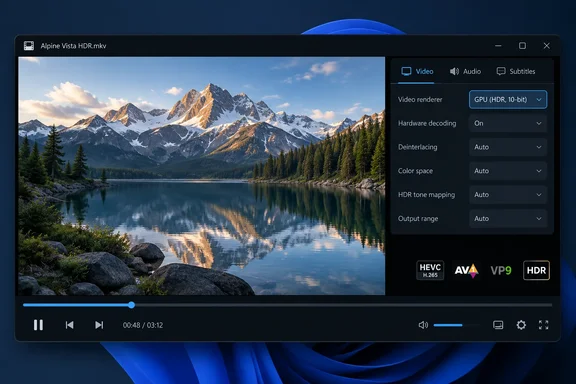
This piece looks at what the opinion gets right and where it needs a caveat. It also covers the setup steps that decide whether MPC-HC actually works well on your PC.
Which MPC-HC is still alive?
Your download source matters here, because two projects share the name.
- The original MPC-HC project is abandoned. TechSpot's download listing says the original MPC-HC project ended in July 2017 with version 1.7.13, and the original team stopped due to a lack of developers.
- The clsid2 fork is the one being maintained. On GitHub it shows as forked from the original mpc-hc repository. How-To Geek says clsid2 is the same developer who made the last version of the original Media Player Classic, and that the fork started in early 2018. The project README puts the handover in 2017: "a huge amount of improvements have been made since I have taken over development in 2017."
How-To Geek counts 140 releases of the fork since 2018. TechSpot is more restrained, saying updates are less frequent than flashy media players, but they still occur several times a year. Both describe a project that is alive but not flashy.
Bottom line: Get MPC-HC from the clsid2 fork's GitHub Releases page (or a package built from it). An old 1.7.x installer from a random mirror is a 2017 player, not the current one.
What's new: MPC-HC 2.8.2 and the 2.8 series
The fork has been busy lately. The current stable version, 2.8.2, came out on September 17, 2026. According to its release notes, it updated LAV Filters to version 0.83-5-gd65a9 and MPC Video Renderer to version 0.10.8.2587 and added:
- ReplayGain support, with options in the audio switcher
- Improvements for exclusive mode seekbar when using MPCVR
- Better handling when you open a selection of files from Explorer, now through the DropTarget interface
- Playback rate shown in the status bar for audio files
- Keyboard shortcut editing without a mouse, which helps keyboard-only and accessibility users. The release page says you press Space or Enter to start editing a command, then Enter or Tab to apply the new key combination.
On the project's Releases page, 2.8.2 is the latest stable build and 2.8.2.18 (September 24, 2026) is the latest development build. The maintainer asks people to test development builds and report problems quickly so regressions get fixed before the next stable release. If you want a stable player, stick with 2.8.2.
The releases just before it added useful features too:
- 2.8.1 (August 22): The ability to load a secondary subtitle track from the subtitle menu, which supports only external text-based formats (SRT). It also added a new "remote" page in the web interface for controlling MPC-HC from any phone or web browser on your local network.
- 2.8.0 (August 10): Admins should note this one. You can now provide default settings through HKLM, which are read whenever a fresh settings profile is created in HKCU. The maintainer adds that the Registry is still the preferred location for storing settings, because it performs better than an INI file.
Feature check: does it live up to the review?
Damnjanovic lists what he considers modern must-haves. The project's own documentation confirms most of them and shows where each one lives in the menus:
| Feature | Where to find it |
|---|---|
| Dark or light theme | Options > Player > User Interface |
| Seek-bar thumbnail preview | Options > Player > User Interface > Hover type |
| Resume where you left off | Options > Player > History |
| Playback speed | Menu > Play > Playback rate; step size in Options > Playback > Speed step |
| Subtitle search | Press D for manual search; automatic search in Options > Subtitles > Misc |
| Next/previous file in folder | PageUp / PageDown |
| Action after playback (next file, close player) | Options > Playback > After Playback (permanent) or Menu > Play > After Playback (current file only) |
| Rotate, flip, mirror, stretch, zoom | Menu > View > Pan&Scan |
| A-B repeat | Press [ and ] to set start and stop markers |
| Custom hotkeys | Options > Player > Keys (the table has a search box) |
A practical tip from the documentation: if you change playback speed often, switch the audio renderer (Options > Playback > Output > Audio Renderer) to MPC Audio Renderer or SaneAR. Those two correct pitch automatically, and DirectSound doesn't.
The README also lists support for HEVC (H.265), VVC (H.266), AV1 video, AC-4 audio, WebVTT subtitles and libass rendering. The system requirements cover Windows 7, 8, 8.1, 10 and 11, and the code is GPL v3.
Bottom line: For playing local files, the review's feature list holds up. It isn't hype.
The caveats the review skips
HDR needs the right renderer
How-To Geek says MPC-HC "supports HDR," which is true, but only if it's configured correctly. The project's HDR notes say:
- Go to Options > Playback > Output.
- Choose MPC Video Renderer (MPCVR). It's included and is the default for modern systems. The alternative is madVR, which you install separately.
- Don't use any other renderer for HDR content. The maintainer warns that other renderers produce wrong colors.
- On Windows 10/11, open the LAV Video Decoder settings and set the hardware decoder to D3D11 for best performance, since MPCVR uses DirectX 11.
The release notes also say MPCVR supports Dolby Vision and madVR doesn't. Your display, GPU, source file and Windows HDR settings still decide the final picture.
YouTube streaming needs extra files
The review says you can stream from YouTube and other sites. You can, but it doesn't work out of the box. According to the documentation:
- Put yt-dlp.exe in the MPC-HC installation folder, or set a custom path under Options > Advanced.
- Install the Microsoft Visual C++ 2010 SP1 Redistributable (x86).
- Optionally, add ffmpeg.exe to the same folder so you get the best quality. The release notes add that you may also need deno.exe next to yt-dlp for the most reliable YouTube support.
- Open links with File > Open File/URL. You can also save a copy through File > Save a copy.
Subtitle downloads can hit a quota
The project warns that OpenSubtitles downloads can fail at certain times of day (it's listed as a "406" error) because the shared daily quota runs out. The maintainer says donations barely cover the current quota. The suggested fix is to add your own OpenSubtitles account: Options > Subtitles > Misc, right-click OpenSubtitles.com, choose Setup, and enter your username and password.
Do you need K-Lite?
How-To Geek recommends the K-Lite Codec Pack for best compatibility, and the maintainer agrees in a way. He calls MPC-HC's own installer very basic and says it will stay that way. K-Lite includes MPC-HC, sets up file associations, subtitle language preferences, the renderer and hardware decoding for you. He says the Standard edition is enough for most people and suggests Full only if you want madVR.
You don't need K-Lite for normal playback, though. TechSpot notes that MPC-HC comes bundled with LAV Filters, which play most modern formats, including H.264, HEVC, VP9 and AV1, without additional codec packs. Think of K-Lite as a way to skip the setup work.
For IT admins: deployment notes
If you manage fleets, the fork is packaged by the community. Chocolatey has a "MPC-HC (fork by clsid2)" package, version 2.8.2, updated 17 Sep 2026, maintained by chocolatey-community. Chocolatey states the package is not affiliated with or endorsed by clsid2, MPC-HC Team, so check the package source before relying on it. Combined with the HKLM defaults added in 2.8.0, you can deploy a standard configuration without scripting every user's profile by hand.
One cultural note: the maintainer says he isn't accepting new feature requests, though pull requests are welcome. If your organization depends on a missing feature, don't expect it to be added on request.
Verdict: a good fit if you know its limits
Is MPC-HC objectively "the best video player for Windows"? That's Damnjanovic's opinion. His other claims (a roughly 21MB installer, smooth performance on old hardware, handling every file he tried) come from his own testing and weren't independently checked here.
What the evidence does support: MPC-HC is free, open source, actively maintained and Windows-native. It covers modern codecs, does HDR through MPCVR, and has the conveniences most people want, without VLC's extra tools for webcam capture and file conversion. VLC is still the more flexible cross-platform tool, and MPV is still ideal if you like configuring through text files. If you want a traditional local-media player that's still being updated, MPC-HC is a good choice. Just install the current fork, check your renderer, and add yt-dlp if you want web video.
References
- VLC is too messy and MPV is too bare, but this open-source video player hits the sweet spot - How-To Geek How-To Geek · 2026-09-27T11:00:14+00:00
- GitHub - clsid2/mpc-hc: Media Player Classic · GitHub github.com
- MPC-HC (Media Player Classic) Download Free - 2.8.2 | TechSpot techspot.com