

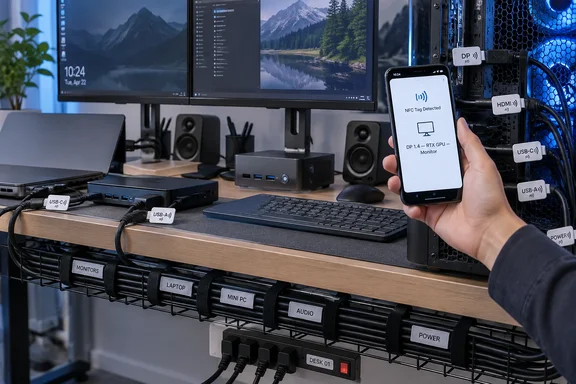
The premise is simple. Put a small NFC tag on the accessible portion of each cable, write a plain-text identifier to it with a phone, and scan the tag when the cable has to move. The How-To Geek setup uses labels such as “DP 1.4 - RX 9070 XT - LG Monitor,” recording both cable type and endpoints rather than an ambiguous one-word label like “HDMI.”
That extra detail is the part worth copying. A desk with two monitors can easily have three or four visually identical video cables; “Monitor 1” becomes meaningless the moment a dock, KVM, laptop, or mini PC is added. A label that identifies both ends turns a physical cable into a small, searchable asset record.
The practical gain is at the unplugging point
Conventional cable labels work well when the identifier can be read at a glance. Under a desk, behind a tower, or inside a rack, that assumption breaks down. Small text is difficult to read in low light, labels twist around round cables, and a cable’s visible segment may not be near the connector that matters.
An NFC tag avoids the readability problem but introduces a different interaction: the user has to scan it with a phone. That will be slower than reading a large flag label on a well-managed patch panel. It is faster than blindly following a black cable through a dense bundle, especially when the cable is temporarily needed for troubleshooting or hardware swaps.
The method is particularly suited to a desk where cabling changes often. Think of a Windows workstation that shares monitors with a mini PC, a laptop dock, a gaming system, or a test machine. In that environment, permanent cable routing can be counterproductive: the bundle is organized until the next GPU replacement, monitor test, or desk rearrangement.
How-To Geek’s author specifically describes adhesive hook-and-loop routing and clamp-on trays as poor fits for that desk. That conclusion will vary by furniture and cable weight, but the broader lesson holds: cable management and cable identification are separate jobs. A tray can hide excess length; it does not tell an administrator which USB-C lead supplies a dock or which DisplayPort cable runs from a discrete GPU rather than an integrated graphics output.
NTAG213 is already sufficient for a cable inventory
The article recommends NTAG215 stickers, while noting that NTAG213 tags have enough space for the task. NXP’s specifications support that distinction: NTAG213 provides 144 bytes of user memory, while NTAG215 provides 504 bytes. Both capacities are ample for concise, human-readable endpoint records.
For cable tags, buying the larger-capacity chip solely for storage is unnecessary. A useful label can be short:
USB-C PD — Anker 737 — ThinkPad T14
DP 1.4 — RTX 5070 — Dell U2723QE
USB-A — Rear I/O — Audio Interface
The more important purchasing criteria are physical. Choose a tag that is actually an NFC Forum-compatible Type 2 tag from a reputable seller, with an adhesive backing that will survive cable flexing and desk heat. A cheap listing that calls every sticker “NFC” may not clearly identify the chip, the usable memory, or whether it is rewritable.
NXP says the NTAG21x family is designed for NFC Forum Type 2 and ISO/IEC 14443 Type A compatibility, with 100,000 write cycles and a stated 10-year data-retention period. That makes it more than durable enough for a label that may be revised occasionally as hardware changes. It does not mean every sticker sold under an NTAG name has the same antenna quality or adhesive performance; the chip specification cannot guarantee the construction of a no-name label.
The article’s sticker placement advice also deserves emphasis. Keep the tag flat rather than curling it tightly around the cable. NFC works through an antenna built into the tag, and bending or creasing that antenna can reduce reliability. Apply tags to a relatively straight section with enough exposed surface to let a phone sit against it.
Use plain-text NDEF records, not automations
How-To Geek used NFC Tools on Android to write text to each sticker. That is a sensible choice because it writes a standard NFC data format rather than creating a dependency on a particular cable-management application. Android’s NFC documentation identifies NDEF, the NFC Data Exchange Format, as the format with the broadest device support, while the NFC Forum describes NDEF as a common format for data held on compatible tags.
For this application, a plain-text NDEF record is the conservative option. It keeps the tag useful even if the phone changes, the original writing app is removed, or the cable is handed to someone else. Microsoft’s own Windows NFC driver documentation also recognizes NDEF messages and publication to NFC Forum tags, although most Windows desktop users will still find a phone more convenient than an NFC reader attached to their PC.
Avoid writing URLs, credentials, remote-control commands, or smart-home automations to tags that serve only as cable labels. There is no practical benefit to making a DisplayPort lead open a webpage or perform an action when scanned. Plain text makes the behavior predictable: scan the tag, read the endpoint description, unplug the cable if it is the right one.
The tags should also be treated as public labels. Do not store Wi-Fi passwords, BitLocker recovery keys, serial numbers tied to support accounts, internal hostnames that expose sensitive infrastructure, or other confidential data. An NFC tag is excellent for low-risk identification; it is not a secure secrets store.
A naming standard prevents the labels from becoming another mess
The strongest improvement over the original project is not a different tag or app. It is deciding on a naming convention before programming the first sticker.
A consistent pattern lets someone scan several tags quickly without mentally translating each author’s phrasing. For a single workstation, this format is compact and sufficiently descriptive:
[TYPE/SPEC] — [SOURCE PORT OR DEVICE] — [DESTINATION]
Examples include:
HDMI 2.1 — RTX 5070 — LG C4DP 1.4 — Mini PC — Dell U2723QEUSB-C 100W — Charger — Framework 16USB-B — Focusrite Scarlett — Rear USB-AAC — UPS Outlet 4 — Desktop PSU
Where ports are relevant, record them. “Rear USB-A” may be enough for a keyboard; “USB-C TB4 left” can prevent a much more frustrating mistake on a laptop dock. For video connections, record the actual source device rather than merely “PC,” particularly when a desktop has both a discrete GPU and motherboard display outputs.
Do not try to turn every tag into a full configuration database. Cable length, brand, purchase date, and exact model can be useful for storage bins or a home-lab inventory, but they add friction at the desk. The label’s job is to identify the correct cable in seconds. If the cable needs a longer record, store it in a spreadsheet, an asset-management system, or a note linked by an asset ID—not in the tag’s text.
Where NFC labels lose to old-fashioned tags
NFC is not the universal answer. A cable that must be identified during an outage is better served by a visible printed flag label, because it requires no charged phone, no NFC setting, and no scan. A rack full of network patch cables similarly benefits from obvious visual numbering at both ends, ideally with a documented port map.
The strongest setup is hybrid. Use a visible short identifier such as VID-03, USB-07, or PWR-02 on a wraparound flag label, then place a flat NFC sticker nearby for the full endpoint record. The visible ID handles emergency identification; the tag handles the detail that will not fit on a small label.
There is also a mechanical limitation. Tags placed on cables that are frequently flexed, pulled, or coiled are more likely to peel off than purpose-built cable flags or reusable hook-and-loop markers. Keep NFC stickers close to the end that remains accessible and relatively stationary, rather than on a section repeatedly moved with a monitor arm or laptop.
For a stable desk with only a monitor, keyboard, mouse, and power strip, NFC stickers are probably overkill. For the sprawling multi-device arrangement described by How-To Geek—two displays, a television, multiple audio devices, lamps, a mini PC, and laptop connections—the approach earns its keep because every unplug operation starts with identification.
The next time a GPU, monitor, dock, or mini PC has to come off a crowded Windows desk, the goal should not be a prettier cable bundle. It should be certainty about which connector can be removed without taking down the wrong display, speaker, or power path.