

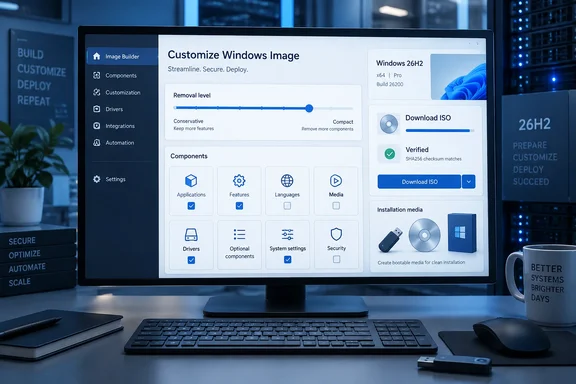
NTLite's own download page lists v2026.09.12311 as the latest release, dated September 30th, 2026. Neowin's listing followed on October 1.
A crowded September for NTLite
This is the latest in a run of quick builds. Third-party mirrors were still showing NTLite at version 2026.09.12209, updated Sep 25, 2026. Before that, lo4d listed 2026.09.11904, updated Sep 17, 2026. That's three builds in about two weeks. If you saved presets on an earlier September build, check them carefully after upgrading.
WindowsForum covered the start of this cycle earlier in the month. That release, dated September 1, 2026, added support for Windows 11 26H2 Preview images. At the time, Microsoft had released Windows 11 version 26H2, build 26300.9278, to the Release Preview Channel on August 27 and described general availability as coming later in 2026. Several fixes in the new build also mention 26H2, so the 26H2 work is still going.
Section summary: Version 2026.09.12311 is the third NTLite build in roughly two weeks, after a September 1 release that added 26H2 Preview support.
The headline feature: removal levels that state the tradeoff
Anyone who has used NTLite knows the routine. You untick a component, then wonder whether you've just broken Windows Update, SFC or a Start menu tile. This release puts those decisions into a single control.
NTLite's components documentation describes two modes, chosen with a new Mode button on the toolbar:
- Native lists only fully supported Windows operations: apps, features, third-party drivers and ISO files that are safe to remove. Everything else is hidden and kept. NTLite pitches it as the choice when an image has to stay as serviceable as Microsoft ships it. That's NTLite's description, not an endorsement from Microsoft.
- Custom lists every component. It uses native removal where it can and NTLite's own removal for the rest. NTLite warns that custom-removed components can't be restored in place, though its Host Refresh wizard can bring most of them back from an image that still has them. You have to tick an acknowledgement of the risks before you continue.
A Level slider sits on top of those modes. Dragging it changes the options underneath, and changing an option moves the slider:
| Level | What it means (per NTLite's docs) |
|---|---|
| Native | Native mode only |
| Default | Custom mode, Update support on |
| Default+ | Default plus Custom app cleanup |
| Deep | Update support off, SFC compatibility kept |
| Max | Update support and SFC compatibility both off; smallest image |
The changelog says three older options now live inside this slider: "Update support" (formerly Servicing Stack compatibility), "SFC compatibility" and the DISM custom app cleanup.
These levels change how you'll maintain the machine later, so pick one deliberately:
- Update support on: later updates, language packs and features can still be installed. The image is bigger.
- Update support off: NTLite says updates can no longer be installed directly and recommends Host Refresh instead. Turning it off asks for a separate confirmation and unticks Windows Update and the other servicing rows for you.
- SFC compatibility: offered when Update support is off. It keeps the files System File Checker needs to repair the components you keep, at a size cost.
A new Default removal level option in the app's Settings controls where new sessions start. Prompt is the default and opens the mode dialog the first time you visit the Components page. You can also set a fixed level, and a loaded preset can set its own. NTLite adds one caveat: an image you've already edited can lock some choices, because a gentler level can't undo removals that have already happened. To change those choices, start from a fresh image.
Practical guidance: If you manage machines that must keep taking Patch Tuesday updates, Native or Default is the sensible starting point. Deep and Max suit kiosks, test VMs or throwaway builds you'll re-image rather than patch. This is general servicing practice, not an NTLite rule.
Section summary: The slider makes the size-versus-serviceability tradeoff visible. Native mode is the conservative option; Max gives the smallest image with no direct updating.
Other component changes
- Apps by version and architecture: each app version and architecture gets its own row, so you can remove an old leftover version and keep the current one. In Native mode, an app version Windows hasn't provisioned stays locked and only Custom mode can remove it.
- Tied tweaks follow removals: removing a component now also applies the "off" values of tweaks tied to it. The documentation says tied tweak, visual-effect and event rows leave the Settings and Apply pages, while related services and scheduled tasks stay visible, greyed out and marked "Removing." The order you do things in no longer matters.
- Security reshuffle: VBS can be kept without Hyper-V, and Code Integrity moves to the Security & Identity category. The documentation says Code Integrity here covers the application-control side that Smart App Control and WDAC rules run on, not the signature checks Windows needs to boot.
- Defender checklist: if only the Windows Security app was removed, the checklist offers to repair it.
- New and split entries: Camera Class Extension (CCX) is a new component, and Perception Simulation is split out from Mixed Reality.
Downloading Windows from inside NTLite
The new Add → Download Image option fetches Windows ISO or ESD media straight from Microsoft and checks it against Microsoft's published checksum before adding it to the image list. According to NTLite's guide:
- On the Image page, open the Add drop-down and choose Download.
- Pick the Windows release, Platform (x64, ARM64 or x86, depending on the release), Language and Edition set (Consumer or Business, where offered).
- Choose an ISO (consumer editions only, from Microsoft's download page) or an ESD. ESDs are Microsoft's compressed Media Creation Tool media, usually a newer build, and the only source of Business editions.
- Click Download. Interrupted transfers are kept as Incomplete and resume next time. A file that fails the checksum is deleted and reported instead of being added.
Success means the file appears in the image list, marked as downloaded and selected. If you already have a matching file, even a renamed one, the button changes to Locate so you don't download a duplicate. NTLite says Windows files come from Microsoft's servers and aren't hosted by NTLite.
Common failure points:
- Microsoft refused the request: too many downloads in a short time, a VPN or a proxy can trigger this. Try again later or from another network.
- Microsoft no longer serves this file: the build has been retired, so pick another release.
- Could not read the download list: a connection problem. Use Refresh.
Related image changes: a packed ESD can be turned into a bootable ISO of its setup files and the editions you tick, in one popup. You can keep the ESD or delete it. Editions can also be exported straight from an ISO, and Export now remembers your last three paths, as Create ISO already did.
Section summary: NTLite can now fetch and verify official Microsoft media itself, which removes a third-party download step from image builds.
Settings: Copilot, Edge, TLS and services
New and upgraded settings:
- A Copilot and AI group covering the Copilot key, Ask Copilot, agents, and Notepad and Paint AI settings. A matching Copilot and AI and Sidebar group appears under Microsoft Edge. The changelog lists these as configurable options. It doesn't claim they switch anything off automatically.
- Security > SSL / TLS gains separate Client and Server rows for each protocol, plus WinHTTP TLS 1.2 and .NET TLS options. There's also a Certificate revocation check wait setting.
- System > Phone-PC linking.
- Services: disabling a service now warns you about services that depend on it and offers to remove the dependency entry. Hovering over a service lists what it needs and what needs it. Services protected by Compatibility are no longer locked and can be set to start earlier.
- Search – Find My Files gains a Policy level and is updated for Windows 11. Show most used apps gets its own Start Menu row for Windows 10 and 11.
- Adding a language pack now automatically queues the checkpoint and latest cumulative update it needs.
- On Windows 7 and Server 2012 hosts where NTLite can't connect, the app offers to turn on TLS 1.2. Treat that as a fix for connectivity, not a security upgrade for those old hosts.
The cautions from WindowsForum's September 1 coverage still apply: the release notes establish that NTLite now exposes these controls, but that doesn't make every change wise. Turning off TLS protocols or revocation checks on an image that has to reach older internal services can break things quietly.
Fixes worth knowing
According to the vendor's changelog (these haven't been independently tested):
- Create ISO no longer hangs after copying WinRE.
- Removing
Microsoft.AIFabric.CBS.1.6no longer breaks Open With on the latest 26H2. - .NET 3.5 can be enabled from the media's
sources\SxSfolder on 24H2 and newer. - WMIC is no longer listed on images where an update has removed it, 26H2 included.
- Disabling DiagTrack no longer causes unexpected-shutdown events in Event Viewer.
- A crash when deleting superseded downloads is fixed.
Requirements, installers and licensing
The download page offers a standard x64 installer for Windows 10 or newer hosts, plus legacy x64 and x86 installers for Windows 7 or newer. It also publishes a SHA-256 checksum for each installer. For the standard x64 build, it's F59D707EBE30A4FAA9E25CBFA07E623148FF07FC9C9A3C742D1944A247BF2B71. NTLite can also be installed with winget install ntlite or choco install ntlite.
For target images, NTLite's feature matrix lists Windows 11 x64 and ARM64 images, Windows 10, 8.1 and 7. ARM64 editing is still in preview, and NTLite can't run on an ARM64 Windows host. Server images are supported, but not for component removal or feature configuration. Checked/Debug, Embedded, IoT Core, Surface Recovery images, Vista and XP are excluded.
On licensing, Neowin lists the download as free with a paid upgrade. NTLite's pricing page puts it more precisely: the free version is for personal or evaluation use, and commercial use and premium features, including the full set of component removals, need a paid license.
The bottom line
The removal slider is the main reason to upgrade. It labels the risks that used to be learned the hard way. Native mode gives cautious admins a way to trim an image that NTLite says stays serviceable, and Max still exists for anyone after the smallest possible image. With 26H2 general availability coming later this year, the built-in Microsoft download and the 26H2 fixes make this a timely update for anyone already refreshing their deployment media.
References
- NTLite 2026.09.12311 - Neowin Neowin · 2026-10-01T13:00:04+00:00
- NTLite Download Free - 2026.09.12209 techspot.com
- NTLite 2026.03.10902 Windows customizer app for Windows ntlite.en.lo4d.com