

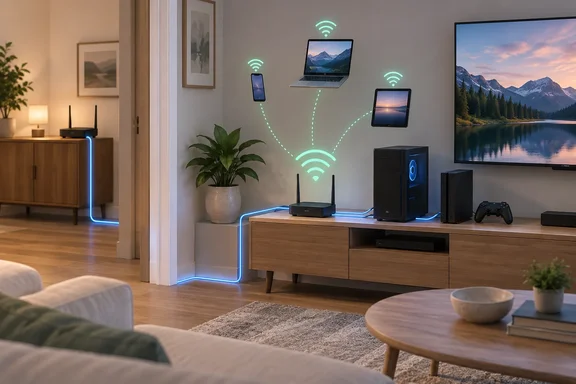
It isn't a product launch or a security patch. It's a useful way to plan a home network, and it's worth setting up properly, because one configuration mistake can cause trouble across the whole house.
The plan that grew into a renovation
White calls herself an Ethernet loyalist. She says swapping Wi-Fi for a cable gives her great results almost every time. Her first plan was simple: anything that could take a cable would get one, and anything without a port would get a USB-to-Ethernet adapter. That meant separate runs for her desktops, PC, TV, consoles and other stationary gear, plus an optional wired spot for a laptop she admits she doesn't like.
Then the logistics hit. Every device needed its own route. She had to work out where each cable would start, where it would be hidden, how many walls she'd have to drill and how long each run would be. In her words, the project started to sound like a home renovation.
The fix came from noticing something simple. Most of the devices she wanted to wire weren't spread around the house. They were grouped together, so she didn't need a cable for each device. She needed one cable to the area where they sat.
Section summary: Plan cable runs around rooms and locations, not individual devices. If your gear is grouped together, the job can shrink from many runs to one.
Backhaul: the cable carries the network, not just a device
The key change is to treat that single cable as backhaul. The cable doesn't end at one device. It carries the network itself to another part of the house. White's setup runs Ethernet from the main router to the area where the devices are grouped. At the far end, an old router running in access point mode takes the connection and sends out Wi-Fi from a much better location.
This doesn't turn Wi-Fi into Ethernet. Wireless devices still connect over the air to the access point. The difference is that the access point now sits close to them, and its link back to the main router is a cable instead of another wireless hop. Whether that fixes the stability problems in your home depends on placement, building materials, interference and the devices you own. White expects it to fix hers, but she doesn't publish any speed tests or before-and-after numbers.
The far end can still be wired
White didn't give up on Ethernet entirely. The router she reused as an access point kept its LAN ports, so nearby devices can still plug straight into it. If you need more ports, a cheap unmanaged switch adds them.
This is the part people often get wrong, so it's worth being precise. A switch adds ports, not bandwidth. Every device at the far end shares the one cable back to the main router. Local connections stay wired and stable, but all those devices split the uplink's capacity. White puts it as a choice between stability and bandwidth. For a console, a TV and a desktop that are rarely all busy at once, that trade is usually fine. If two machines are pulling large downloads at the same time, they'll share the pipe.
Section summary: One uplink can feed both Wi-Fi and wired ports at the far end. Everything there shares that single link.
Setting it up without breaking your network
White doesn't name her router model, cable category or speeds, so the steps below come from vendor documentation and common practice, not her own setup. Check your router's manual first.
Step 1: Check whether your old router has an AP mode
Many routers include a dedicated access point or bridge mode. FS.com's guide to converting a router into an access point says to verify if your router supports operation in a bridge or AP mode, using the manual or the manufacturer's website. The same guide suggests updating the firmware and resetting the old router to factory settings first, so leftover configuration doesn't cause conflicts.
Step 2: Use the correct port
This depends on the device:
- Routers with a built-in AP mode: NETGEAR's setup guide for some models says to connect the AP router's Internet port to a LAN port on the main router. On a NETGEAR community thread, one participant explained that Netgear's newer routers that have an AP mode setting repurpose the WAN port to behave like a LAN port.
- Older routers without an AP mode: Older routers that don't have an AP mode setting do not repurpose the WAN port, so the router must be connected through a LAN port. A retired NETGEAR employee on the same thread warned that if you use the WAN port instead, the router will use NAT, therefore you will have a double NAT. It will be a DHCP server behind another DHCP server.
Step 3: Leave one device in charge of IP addresses
In a typical home network, the main router hands out IP addresses and the access point just passes traffic along. If your router has no AP mode and you're setting it up manually, the usual advice is to connect to a LAN port not WAN, disable DHCP and give it a IP address that isn't used. FS.com recommends a static address within the same subnet as your main router but outside its DHCP scope to prevent IP conflicts.
Built-in AP modes usually handle this for you. TP-Link's Deco documentation says that in AP mode the system doesn't create its own subnet or act as a DHCP server, so DHCP must stay enabled on the main router. TP-Link also confirms that Ethernet backhaul works in Deco AP mode.
Step 4: Know what you lose
AP mode turns off features. According to NETGEAR, guest networking, website blocking, VPN service and remote management are among the features disabled in AP mode. Its first-time AP setup guide adds parental controls, port forwarding, Dynamic DNS, UPnP and IPv6 settings to that list. TP-Link's Deco AP mode similarly drops features such as parental controls, port forwarding and address reservation. Those jobs move to the main router, so set them up there.
Step 5: Confirm it worked from a Windows PC
On a Windows machine plugged into the access point, or connected to its Wi-Fi, run ipconfig in Command Prompt or Terminal. If the setup is right, the PC gets an address in the main router's subnet, and the default gateway is the main router, not the old one. If you see a different subnet, the old router is still routing. Usually that means the cable is in its WAN port without AP mode turned on, or its DHCP server is still running. That's the double NAT the NETGEAR employee warned about. It can cause problems with console online play, port forwarding, and discovering printers and network drives.
Common failure points
| Symptom | Likely cause | Fix |
|---|---|---|
| Devices at the far end get a different subnet | Old router still routing (WAN port, no AP mode) | Turn on AP mode, or move the cable to a LAN port and disable DHCP |
| Random IP conflicts | AP's static address sits inside the main router's DHCP range | Choose an unused address outside that range |
| Can't reach the AP's admin page | Its IP changed after switching modes | Find it in the main router's client list, then give it a fixed address |
| Parental controls or guest Wi-Fi vanished | Those features are disabled in AP mode | Set them up on the main router |
For mesh systems, the requirements are stricter. ASUS's AiMesh guidance recommends at least Cat5e cabling and a gigabit-capable switch when using a wired backhaul. It also warns that VLAN settings on managed switches can interfere with setup. That applies to AiMesh specifically, but it's a good reminder that mesh gear has its own rules.
When the one-cable approach isn't the answer
White admits it's a compromise. Wiring every room still makes sense when walls are already open for renovation, a point she makes herself. It also makes sense when several machines regularly need full, simultaneous throughput, such as a home lab, a NAS serving several heavy users, or a household where people stream and download at the same time.
Her claim that the single run is cheaper and good enough for most people is a reasonable rule of thumb, not a guarantee. Cost depends on your building, the cable route, the equipment you already own and whether you're paying an installer. If your devices are spread around the house instead of grouped, one cable may only fix one corner.
For the common case of a living room or office full of stationary gear and one manageable cable route, the logic holds. Put the access point where the devices are, wire it back to the main router, and add a switch if you run out of ports. You keep most of the benefits of Ethernet without drilling holes in every wall.
References
- I ditched my whole-home network wiring plan after realizing one cable was enough How-To Geek · 2026-10-01T15:30:13+00:00
- Can I continue to use my old router as access point? community.ui.com
- Using wifi router as an access point community.netgear.com