

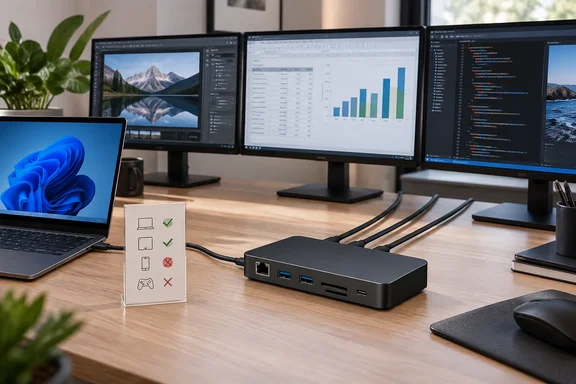
This piece draws on How-To Geek's hands-on review (7.5/10), Plugable's product documentation and Plugable's launch announcement. The reviewer's test results are his own. They are not manufacturer specifications.
What the dock is
Plugable announced the UD-MSTH3 on August 4, 2026. It calls it the company's first triple-display USB-C dock for Windows and ChromeOS built around driver-free Multi-Stream Transport (MST). MST lets one DisplayPort signal from your computer carry several independent video streams. That requires the host device to be able to split one DisplayPort signal into multiple independent streams.
The practical difference from DisplayLink docks is that the video comes from your PC's own graphics hardware, not from a software-driven adapter chip. The dock adds no video capability of its own. It only divides what your USB-C port already provides.
Ports and power
Plugable's specification lists the following:
- Three HDMI 2.0 outputs.
- Six USB data ports: two front USB-C and one front USB-A at 10Gbps, two rear USB-A at 5Gbps, and one rear USB-A 2.0.
- A front USB-C port for charging only, rated up to 30W. It carries no data, and its power is shared with the power going to the host.
- 2.5Gbps Ethernet, SD and microSD readers, and a 3.5mm audio jack.
- Up to 100W Power Delivery to the host through the rear connection.
- Vertical or horizontal placement, plus K-lock security slots.
The reviewer describes a metal body with plastic ends and rubber feet on two faces. It was stable upright and warm but not hot, about 94°F. He saw no rattles and found the ports snug. He also ran a stress test with three monitors, two phones, a mouse, a keyboard, a USB drive and Ethernet attached. Everything worked.
Price
Plugable's page lists the dock at $149.99. At launch, Plugable offered a 30% discount, bringing the launch price to $104.99. That was a launch promotion, and I can't confirm whether it is still running. A Staples listing returned in a search showed $209.99, so retailer pricing varies. Check the current price before you buy.
Display configurations
The official numbers are the part to read closely.
| Host | Plugable's stated support |
|---|---|
| Intel 12th Gen or newer, AMD Ryzen 6000 or newer | One display up to 4K 60Hz, two displays up to 2×4K 60Hz, or three displays at 1×4K 60Hz plus 2×1080p 60Hz |
| Intel 11th Gen or older, AMD Ryzen 5000 | One display up to 4K 30Hz, two displays at 2×1080p 60Hz, no triple-display support |
| Windows on ARM, Snapdragon X, ARM Chromebooks | Plugable's table lists up to two displays and says three are not supported, and it does not recommend the dock for these systems |
On select hosts that support Display Stream Compression (DSC), triple output may reach two 4K 60Hz displays plus one 4K 30Hz display. Plugable adds that actual support varies by host, graphics, DSC ratio and display setup. The reviewer repeats the conditional detail. At a 2.4:1 DSC ratio you get one 4K 60Hz and two 4K 30Hz displays. At 3:1 you get two 4K 60Hz and one 4K 30Hz. Plugable itself recommends at most one 4K display plus two 1080p displays for triple setups.
The reviewer's own result
The reviewer used three 1440p monitors rated for 144Hz. All three ran at 100Hz. When he unplugged one, the other two reached 144Hz. That is one setup, not a guarantee. The desktop was an AMD Ryzen 9 9950X on an X870E board, and he says the dock was limited to the integrated GPU's output. The lesson is that three HDMI sockets don't mean three monitors at the speeds you want.
Check your PC before buying
- Check the port. It must be USB-C with DisplayPort video, USB4 or Thunderbolt. A USB-C port that only handles data or charging can't feed this dock.
- Check the display count. Plugable says the dock can't exceed your laptop's total display limit. The built-in screen may count toward that limit, and some laptops need the lid closed.
- Check Intel Core Ultra. Plugable notes that some Core Ultra processors support only three displays in total. To use three external screens you may need to disable the built-in display or keep the system running with the lid closed.
- Check the charger. The dock can replace a USB-C charger rated up to 100W. It won't cover a laptop that needs more than that.
Setup on Windows
Plugable's quick-start sequence is short:
- Connect the power supply to the dock. The power LED turns green.
- Use the original USB-C cable. Plugable warns that other cables may not support all features.
- Plug it into the rear "To Host" port first, then into the computer. The LED turns blue.
- Press Win+P and choose Extend.
- Right-click the desktop, open Display settings, and use Identify to arrange the screens to match your desk.
If the Ethernet port misbehaves, Plugable says to try the drivers listed on its site. If that fails, it points to the latest Realtek drivers. Windows Update normally installs them on its own. Plugable also suggests keeping graphics drivers current.
Two cable warnings apply. Plugable says DisplayPort-to-HDMI adapter cables won't work, because they are generally one-way adapters. It also says USB-C-only portable monitors are incompatible.
Mac and Linux
Macs are a poor fit. macOS doesn't support MST for multiple independent extended displays. Plugable says a Mac gets one extended display, and any extras mirror it. The other ports still work. The reviewer reached the same conclusion, and Plugable suggests its DisplayLink or Thunderbolt docks for Macs.
Linux is not an officially supported platform. The reviewer connected the dock to a Surface Laptop 4 running Kubuntu. All three 1440p monitors ran at 100Hz and Ethernet worked. He didn't test Fedora or Arch. Treat this as one successful report, not a guarantee.
Who should buy it
Buy it if you have a recent Intel or AMD Windows laptop or PC with a video-capable USB-C or USB4 port, and you want two 4K screens or one 4K plus two 1080p. The build quality and port count are the selling points. The review's caveat holds up against Plugable's own documentation. If your PC is older, uses Snapdragon, or is a Mac, you're paying for HDMI ports you can't fully use.
One caution on the review's wording: it says a "current-generation" processor is enough. Plugable's pages are more specific. They name Intel 12th Gen or AMD Ryzen 6000 as the baseline and flag the Core Ultra and ARM exceptions. Follow Plugable's list.
For IT administrators, the driverless design means one fewer agent to manage. That is a real advantage over DisplayLink. The trade-off is that you must confirm each model's display limits before a bulk order. Plugable's support team will check compatibility for buyers who are unsure.
References
- Plugable UD-MSTH3 review: Three monitors, 15 ports, and no Thunderbolt needed How-To Geek · 2026-10-05T15:30:13+00:00
- Plugable USB-C Triple Monitor Docking Station for Windows, 100W Laptop ~ Plugable Technologies plugable.com
- Plugable Debuts Triple-Display Dock With True Dual 4K 60Hz Over USB-C ~ Plugable Technologies plugable.com