

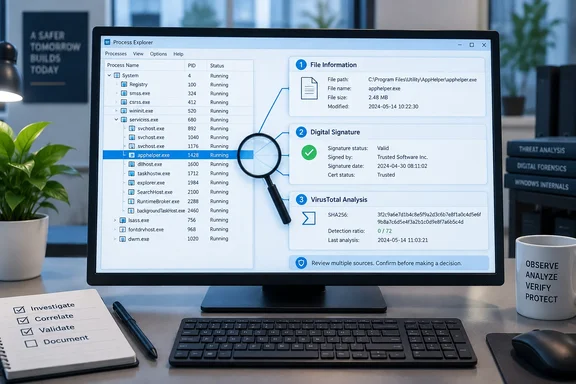
RuntimeBroker.exe. His conclusion holds up: a process name tells you almost nothing, and each clue is only useful when you read it alongside the others.
Process Explorer 17.14 gives you file evidence instead of a process name
Task Manager is where most people start when a fan spins up for no clear reason. Onyimadu describes doing exactly that, which he calls hunting for "the burglar mid-heist." His realisation was that not recognising a process wasn't the real problem. The real problem was having no reliable way to decide whether an unfamiliar process deserved attention.
Process Explorer fills that gap. Microsoft's Sysinternals page lists Process Explorer v17.14, published September 10, 2026, as a 3.5 MB download written by Mark Russinovich. There's nothing to install: you run procexp.exe. The window has two panes. The top pane always lists running processes and the accounts that own them. The bottom pane shows either the handles the selected process has open or the DLLs and memory-mapped files it has loaded, depending on which mode you pick. Microsoft also highlights a search feature that finds which processes have a particular handle open or a particular DLL loaded.
Microsoft pitches the tool for troubleshooting, such as tracking down DLL version conflicts and handle leaks. Security work has long been another common use. Nasreddine Bencherchali's malware-hunting guide calls it a powerful tool that can be leveraged to perform some advance malware hunting and analysis. 4sysops, a site for Windows administrators, puts it among the utilities every admin should have in his tool box.
RuntimeBroker.exe shows why a process name proves nothing
Onyimadu's example is a good one because the name sounds suspicious. He spotted five RuntimeBroker.exe instances with PIDs 18900, 23036, 19616, 20936 and 7104. Each used slightly different amounts of memory, and the first used about 7.8 MB of private memory. He admits that at one point he thought it looked like a name a scammer would give a fake process, because it sounded "both vague and official at once."
Instead of relying on the name, he opened the process's Properties window in Process Explorer. That showed the executable's path and its digital-signature information. The Company Name column said Microsoft Corporation, and the path pointed to System32. He treated those two details as making a fake RuntimeBroker much less likely, but not impossible.
Neither clue is conclusive on its own. The Company Name column shows what the file claims about itself. A verified digital signature is stronger evidence than that text, and Onyimadu's account doesn't clearly say which of the two he relied on. A plausible folder is also only one data point. The PIDs and memory figures are a snapshot of one machine at one moment, not a baseline to compare your own PC against. The method is what carries over.
What Process Explorer's VirusTotal column actually sends
The most useful part of the story is the VirusTotal integration, and in particular what it does and doesn't transmit. Onyimadu turned it on with Options > VirusTotal.com > Check VirusTotal.com, then accepted a one-time terms prompt. Independent guides describe the same path. The AskWoody forums note that this adds a column that is supposed to report the results, usually in the form of xx/yy, where xx of yy anti-virus vendors show each hash as suspicious/malicious.
By default, what leaves your PC is a hash, not the file. A hash is a short fingerprint calculated from the file's contents. 4sysops explains that the feature lets you send hashes of files to VirusTotal. If VirusTotal can identify the file by its hash, Process Explorer displays a link to the VirusTotal website containing a list of the scan results of various well-known antivirus tools. If the hash isn't recognised, Process Explorer will display "Unknown" in the new VirusTotal column. The Bandaid Sysadmin blog says the column initially show "Hash submitted…" before the results appear.
That's why Onyimadu was surprised to learn the check isn't a live scan. VirusTotal looks up a database of past reports to see whether that exact file has been seen before and what antivirus vendors said about it.
Uploading the actual file is a separate choice, and there are two ways to do it:
- The "Submit Unknown Executables" option under the same VirusTotal menu uploads files automatically when their hash isn't recognised. According to one guide, with this option Process Explorer uploads the complete executable file to VirusTotal and does not just submit the hash value.
- To submit one file by hand, including files VirusTotal already knows, double-click a process, open the Image tab and click the Submit button, then exit the Properties window and wait until you see a result in the VirusTotal column for that process. The same guide warns this can take a few minutes.
On what an upload includes, a Microsoft Q&A answer explains that the data being sent is the binary file on the drive. Anything sensitive the running program holds in memory isn't sent. This comes from a community answer, not Microsoft's formal documentation, but it matches how every guide above describes the feature.
Uploading does share the file. VirusTotal's own documentation describes its standard service as a crowdsourced corpus shared with security vendors and industry peers. The private option, Private Scanning, is a separate paid product. Its reports don't include the multi-antivirus verdicts that make the Process Explorer column useful. So if you have in-house or licensed binaries you can't share, don't turn on automatic submission of unknown executables.
Two practical details from administrators' guides are worth knowing. Processes running as System won't show a VirusTotal result until Process Explorer is restarted with elevated permissions, so expect a UAC prompt if you want full coverage. You can also check the libraries a process loads: Select a process and press Ctrl+L to toggle the lower pane. It will submit the file hashes to VirusTotal and show the result after a few seconds.
The integration has had outages before. In December 2020, users on Microsoft Q&A reported that most of the processes are displaying "Unknown" even after clicking the check menu item, and it later started working again without any action on their part. A column full of "Unknown" results can be a service problem, not a sign that your system is full of unrecognised files.
Reading a 0/76 VirusTotal score as one signal among three
Onyimadu's RuntimeBroker check came back 0/76 at the time. The VirusTotal report page said "No security vendors flagged this file as malicious." That score is from his check on one date and isn't a current reference value.
He was tempted to stop there and deliberately didn't. A zero-detection result can simply mean none of the engines flagged the file, or that the file is too new or unusual for existing detections to catch. He also noted that the reverse applies: one detection out of dozens doesn't make a file malware. Other guides say the same. The Bandaid Sysadmin advises that if only one antivirus engine flags something, chances are that it's a "false positive".
So the VirusTotal count adds to the evidence without settling it. Onyimadu's final judgement came from three signals agreeing: the file was where a genuine RuntimeBroker should be, the signer was Microsoft, and no vendor flagged the hash. When all three point the same way, you can move on. When they disagree, that's the process worth looking into further.
If you do find something that looks malicious, don't kill it immediately. Several guides repeat a recommendation attributed to Russinovich: when you find more than one suspicious process, first suspend (via right click menu) them. Another guide explains that in most cases, malware has other capabilities and processes. If the malware detects that it is being tracked, it may start actions to stay on the system.
svchost.exe shows the limits of familiar process names
Onyimadu says svchost.exe made his point better than RuntimeBroker did. He saw one instance, PID 1352, using about 20 MB of private memory. It's one of the most familiar names in Windows. That familiarity is exactly why it's a problem: it doesn't tell you which services that particular instance is hosting, and malware sometimes borrows familiar-looking names.
The same checks apply to every svchost instance, however common the name. Look at where the executable is stored and who signed it before you trust it. Onyimadu's account doesn't include a step-by-step method for mapping each svchost instance to its services, and the documentation reviewed here doesn't provide one either. Treat path and signer as the minimum check. Deeper service-level investigation is a separate task.
His summary table works as a triage flow:
| What you notice | What to check next |
|---|---|
| A process you don't recognise | Where its file actually lives |
| The file location | Who signed it |
| Something still doesn't add up | What VirusTotal already knows about the hash |
| Several signals pointing the same way | Worth investigating properly |
A three-check routine for unfamiliar Windows processes
Enable the VirusTotal hash check if you're comfortable sending hashes to a third party. Leave automatic submission of unknown executables off unless you're sure the files can be shared. Home users on Windows 11 can run Process Explorer 17.14 as needed with no installation. Administrators on Windows Server 2019 or later can use the same tool. Anyone managing proprietary software should treat an upload as sharing that software with the VirusTotal community.
- Download Process Explorer 17.14 from Microsoft Sysinternals and run
procexp.exe. It supports Windows 11 and Windows Server 2019 or later. - Enable the check with Options > VirusTotal.com > Check VirusTotal.com. Restart Process Explorer elevated if you need results for processes running as System.
- Check every unfamiliar process the same way: file location first, then signer, then the VirusTotal result. Only trust it when all three agree.
- Read 0 detections as "nothing known so far" and a single detection as a possible false positive. Neither is a final verdict.
- Leave "Submit Unknown Executables" off for sensitive in-house binaries. Standard VirusTotal uploads go into a shared corpus, and the private option is a paid service without antivirus verdicts.
- If a process looks malicious, suspend it before terminating it, and investigate related processes before cleaning up.
Onyimadu ends his piece still not knowing what half his processes do, and that's the right outcome. Nobody can memorise everything Windows runs, and attackers pick names that sound official. With Process Explorer's September 10 release keeping the tool current on Windows 11 and Server 2019 or later, anyone who can open Task Manager can make a quick evidence-based call on a suspicious process in a couple of minutes.
References
- You probably don’t recognize half the processes running on Windows, and that’s a security problem MakeUseOf · 2026-09-23T19:00:14+00:00
- Process Explorer - Sysinternals | Microsoft Learn learn.microsoft.com