

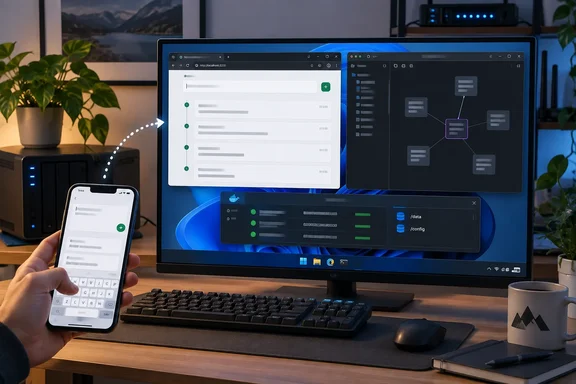
The idea is simple. For Windows users it's also a tidy first self-hosting project. Here's how it works, what the official documentation confirms, and where it can go wrong.
The problem: lots of tiny notes with no links
Obsidian keeps each note as a Markdown file in a local folder called a vault. That's a big reason people trust it with long-term notes. The catch is that anything you jot down becomes its own file, often named something like "Untitled 14."
When Mahmood counted, the numbers were clear:
- 48 notes in the vault
- 32 of them under 30 words
- All 32 were orphans, Obsidian's term for notes with no links in or out
- A search for "obsidian" returned 17 results, and several were throwaway fragments
He's careful to say this isn't an Obsidian bug. Obsidian indexes everything in the vault, including notes that never needed to be there. Search and Graph view can only show what you put in.
Section takeaway: a vault full of unlinked one-liners makes search and the graph worse, and that's a habit problem rather than a software problem.
Why Memos works for quick capture
Memos is an open-source, MIT-licensed note app that you host yourself. It stores data in SQLite by default, with MySQL and PostgreSQL also supported. Mahmood is running version 0.31. The project's GitHub release list shows v0.31.0 as the latest release, published September 19, 2026. As with any fast-moving project, "current" won't stay current for long.
Memos works more like a private social feed than a notebook:
- One text box. No title field, no folder to choose. You type and save.
- Timeline. Memos appear in order, and any word starting with a hashtag becomes a sidebar tag with a count.
- Pinning keeps the one or two memos you need daily at the top.
- A plus menu for attachments, audio recordings and links to other memos.
- Calendar view groups memos by day, and a Map view shows memos that have location data.
- Views are saved filters written as expressions such as
pinned && tag in ["work"]. The docs say Views only filter existing memos. They don't copy them or grant access.
Version 0.31 is a significant release. It adds Spaces for collaboration, turns the old Shortcuts into Views, and adds a built-in Export & Import tool in Settings that packages your memos as a ZIP. It also removes RSS feeds completely, so if you relied on them, don't upgrade blindly.
Section takeaway: Memos is built so that saving a thought takes about as long as having it. That's what a capture tool should do.
How to set up Memos on Windows with Docker Desktop
"Self-hosted" sounds harder than this is. Here is Mahmood's setup, with version notes from the official documentation.
What you need first
On Windows, Docker Desktop normally runs on the WSL 2 backend. Docker's requirements have changed over time. Older versions of its Windows install guide asked for WSL version 1.1.3.0 or later and Windows 11 64-bit: Home or Pro version 21H2 or higher, or Enterprise or Education version 21H2 or higher. Docker's current Windows documentation lists WSL 2.1.5 or later, so check the live requirements before you install instead of trusting an old checklist. On the hardware side, WSL 2 needs a 64-bit processor with Second Level Address Translation (SLAT), 4GB system RAM, and BIOS-level hardware virtualization support must be turned on in the BIOS settings.
If WSL isn't installed yet, it takes one PowerShell command, elevated to admin: wsl --install. On a system that already has WSL, run wsl --update instead.
The steps
- Install Docker Desktop and let it finish setting up WSL 2. Keep in mind that Docker Desktop does not start automatically after installation. Start it from the Start menu. Once Docker Desktop is started, you should see its icon in the system tray.
- Start Memos from PowerShell:
docker run -d --name memos -p 5230:5230 -v memos:/var/opt/memos neosmemo/memos:stable
This runs Memos in the background under the namememos. It publishes port 5230, stores data in a named Docker volume calledmemos, and uses the image'sstabletag. - Open
localhost:5230in a browser and create the admin account. - For phone access, open your PC's local IP address followed by
:5230on your phone and add the page to your home screen.
How this differs from the official command
Memos' own quick-start command does two things differently. It mounts a host folder (~/.memos) instead of a named volume, and it adds --restart unless-stopped. Both approaches keep your data outside the container, so it survives if you remove the container. The restart flag is worth adding if you want Memos to come back on its own after a reboot. Otherwise your phone shortcut will simply fail to load until you start the container again.
On image tags, the docs describe stable as the safe default and latest as development-oriented. If you want an install that never changes under you, pin a version tag such as 0.31.0.
What success looks like
- The Memos sign-in or setup page loads at
localhost:5230. docker psin PowerShell shows a running container namedmemos.
Section takeaway: one install, one command and one browser tab. The fiddly parts are Docker's prerequisites, not Memos.
Troubleshooting common problems
- PowerShell returns a connection error when you run
docker run. Docker Desktop isn't running. Start it, wait for the tray icon to settle, then run the command again. - "Container name already in use." You've run the command before. Use
docker start memosrather than creating a new container. - Your phone can't connect. The PC and phone need to be on the same local network, the PC has to be awake, and the container has to be running. From general experience, the Windows firewall or a guest-Wi-Fi setting that isolates devices is the usual cause if everything else looks fine.
- You want access away from home. Using the local IP doesn't cover this, and it's a separate job. Mahmood suggests a VPN such as Tailscale rather than exposing the port to the internet.
- You're unsure how private your memos are. Each memo can be Private, Protected or Public, and 0.31 adds a Space-only option. The docs say a fresh instance started without an instance URL begins with private access. Still, check the ACCESS setting and each memo's visibility yourself instead of assuming. Also note that in 0.31, instance admins can read and manage individual memos, including private ones. That doesn't matter much for a single-user setup, but it matters if family members share your instance.
Backups and updates are your job
A persistent Docker volume keeps your data if the container is removed. It doesn't protect you if the disk fails. You have two practical options:
- Memos' built-in export (Settings → Export & Import in 0.31). It includes archived memos, comments you wrote and attachment files. It doesn't include instance settings or other users' data.
- A volume-level backup. A common Docker method is docker run --rm -v myapp-data:/data -v ${PWD}:/backup alpine tar czf /backup/backup.tar.gz -C /data . Replace
myapp-datawithmemos. Stopping the container first is a sensible precaution, so the SQLite database isn't being written while you copy it.
To upgrade, the official docs say to pull the new stable image, stop and remove the old container, then run it again against the same data location. Replacing the container is safe only if you keep the same volume and have a backup.
The rule that decides where each note goes
The tool matters less than the rule, and Mahmood's is easy to apply without thinking:
- Obsidian gets notes that will link to something, need headings, or that you'll come back to within a month.
- Memos gets everything else.
When a memo looks like it might grow, he tags it #obsidian. Once a week he filters by that tag, moves the keepers into the vault as linked notes, and archives the rest. Over five days he captured 32 memos, and six got the tag.
The results he reports: the vault went from 48 notes to 16, orphans went from 32 to zero, and Graph view now shows one connected web instead of a ring of loose dots. These are one person's numbers from one vault, not a controlled test. Still, fewer fragments in the index means fewer irrelevant search results.
The counterargument: why not keep it all in Obsidian?
Mahmood brings this up himself. An Inbox folder, Daily Notes or a capture plugin like QuickAdd all work, and they keep everything in one app. For plenty of people that's the better choice, because it means one app, one backup and one search.
The difference is where the fragments live. Captures stored inside the vault show up in search and sit in the graph until you sort them. A separate tool keeps them out of the vault until you decide they deserve a place there.
The cost is a second system to maintain: a container to update, a volume to back up and a network to configure. If that sounds like too much, Mahmood says any lightweight notes app can do the same job. The value is in keeping capture separate from the vault, not in Memos specifically.
Try it for a week
If your vault feels cluttered, Mahmood's suggested test is cheap:
- Count the notes in your vault that are under 30 words.
- For one week, send every passing thought somewhere outside Obsidian.
- Count again, and move into the vault only the notes that grew into something.
The 30-word cutoff and the one-month rule are his own heuristics, not official guidance, so adjust them to suit you. For WindowsForum readers, the setup is a good first container project on Windows, and our Docker Desktop, WSL 2 and self-hosting threads are good places to compare notes on firewall settings, backups and upgrades.
References
- Obsidian got much better once I stopped using it for every tiny thought MakeUseOf · 2026-09-26T13:00:14+00:00
- Docker - Memos usememos.com