

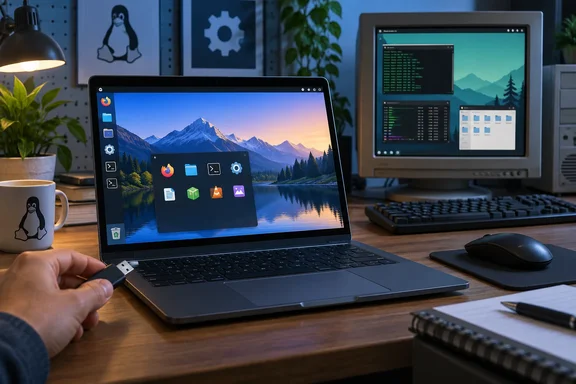
A lot of the argument is fair. Some of it is overstated. The timing matters because Windows 10 support has ended and many PCs can't officially run Windows 11. Here is what holds up, what needs correcting, and how to test Linux on your own hardware without risking the machine.
The five Linux personas, with a reality check
1. Programmers and people learning to code
The column's case is simple. Most Linux distributions include compilers, debuggers, editors and Python, or make them a quick install through the package manager. That saves you from downloading installers and fiddling with environment variables. The author also points out that Docker, PostgreSQL and Redis run natively on Linux, and that most server and cloud systems run Linux too, so daily use is real practice.
That's all reasonable. What the column leaves out is that Windows developers don't have to leave Windows to get a real Linux environment. Microsoft's Windows Subsystem for Linux (WSL) does much of this inside Windows. Microsoft's documentation says WSL lets developers install a Linux distribution (such as Ubuntu, OpenSUSE, Kali, Debian, Arch Linux, etc) and use Linux applications, utilities, and Bash command-line tools directly on Windows, unmodified, without the overhead of a traditional virtual machine or dualboot setup.
Setup takes one command:
- Confirm your version. The wsl --install command requires Windows 10 version 2004 (Build 19041) or later, or Windows 11.
- Open PowerShell in administrator mode by right-clicking and selecting "Run as administrator", enter the wsl --install command, then restart your machine.
- By default, that command will enable the features necessary to run WSL and install the Ubuntu distribution of Linux.
- If you want a different distro, you can find a list of Linux distributions available to install by entering the command wsl --list --online, then install one with
wsl --install -d <DistroName>.
Two common snags:
- You see the WSL help text instead of an install. The above command only works if WSL is not installed at all. In that case, Microsoft says to list the available distros and install one by name.
- The install hangs at 0%. Microsoft's fix: If the install process hangs at 0.0%, run wsl --install --web-download -d <DistroName> to first download the distribution prior to installing.
WSL is not the same as running Linux directly on the hardware. WSL 2 uses virtualization tech to run a full Linux kernel inside a lightweight virtual machine (VM), and it's tightly linked to your Windows files. If you want to learn desktop Linux administration or test hardware-specific behaviour, a live USB or a full install will teach you more. If you just need Linux toolchains while keeping Office and your Windows apps, WSL may be all you need.
Section summary: Programming is a good reason to learn Linux. For many Windows developers, WSL gets you most of the way without replacing Windows.
2. Old hardware Microsoft won't support
This is the strongest argument in the column. It's also where it needs the biggest correction.
The author suggests lightweight distros such as Lubuntu, Xubuntu and Puppy Linux for older machines. Then comes a personal claim that Windows 11 "demands 16GB RAM to function smoothly," while Linux performs about as well on 4–8 GB. Treat that as one person's experience, not a spec. Microsoft lists 4 GB of RAM as the Windows 11 minimum. The other requirements are a compatible 64-bit processor with two or more cores, 64 GB of storage, UEFI with Secure Boot capability, TPM 2.0, and DirectX 12-compatible graphics. How fast Windows feels depends on your workload, but 16 GB is not an OS requirement.
"Linux" doesn't have one memory requirement either. It depends on the distro and desktop:
| Distribution | Stated requirements |
|---|---|
| Windows 11 (for comparison) | 4 GB RAM minimum, 64 GB storage, TPM 2.0, Secure Boot capable |
| Ubuntu Desktop 26.04 LTS | 2 GHz dual-core, 6 GB RAM, 25 GB free storage "for a comfortable experience" |
| Xubuntu / Lubuntu | Canonical says they can be installed on systems with 2 GB RAM or more |
| Linux Mint | 2 GB RAM (4 GB recommended), 20 GB disk (100 GB recommended) |
So standard Ubuntu actually recommends more RAM than Windows 11's minimum. The real advantage for old PCs is that many distros don't require TPM 2.0 or a recent CPU, and the lighter flavours are built for modest hardware. The difference is in the hardware gate, not in raw efficiency.
The Windows 10 background matters here. Windows 10 support ended on October 14, 2025. Machines enrolled in consumer Extended Security Updates get security patches until October 13, 2026, which is weeks away. If you're on Windows 10 with hardware that can't pass the Windows 11 check, now is the time to plan. Linux is one good option. The others are continuing on ESU where your terms allow it, or replacing the hardware.
Section summary: Linux can give an unsupported PC years more of patched use. Pick a lightweight flavour, and ignore the 16 GB claim.
3. People who mostly use a browser
If your working day is Google Docs, Notion, Slack and webmail, the operating system matters less. Chrome, Firefox, Edge and Brave all have Linux builds, as the column notes. The author also makes a fair point: installing browsers from a distro's repository avoids the bundled extras some Windows installers push.
The column's claim that browsers work "flawlessly" goes too far. A browser being available doesn't mean extensions, DRM video, hardware acceleration, video-call features or enterprise single sign-on will behave the same on every distro and every GPU. The author's observation that Linux handled more tabs than Windows on the same dual-boot machine is one person's result, not a controlled benchmark.
The security claim needs the same care. The author does say Linux isn't invulnerable and recommends prompt updates and avoiding untrusted software. Even so, "less malware targets Linux" is not a security model. A Linux PC with stale packages and random scripts pasted from forums is not safer than a patched Windows machine.
4. People who already use FOSS
If you already use LibreOffice, GIMP, Inkscape, Krita, Blender and Audacity, the move is small, because all of them run on Linux. The author also mentions Linux-focused apps such as Apostrophe, Amberol and Planify.
The column admits that Microsoft Office and Adobe Creative Suite don't run natively on Linux. That's the question that settles it for most readers. Check each app you rely on: specialist business software, macros, plug-ins, games that use anti-cheat, printers and scanners. "There's a free alternative" is not the same as "it opens my client's file perfectly."
5. People who want something different
This section holds up best. GNOME offers a clean, minimal workflow. KDE Plasma lets you tweak nearly everything. Xfce stays light, and Cinnamon will feel familiar to anyone who misses Windows 7. On most distros you can swap or add desktops, which Windows doesn't allow. If you enjoy tinkering, this is a real draw, and there's no need to overstate it.
How to try Linux without risking your Windows install
The column recommends dual boot or a VM. The safest first step is actually a live USB, which runs Linux on your real hardware without changing the internal drive. Canonical's Ubuntu 26.04 guide works like this:
- Get an 8 GB or larger USB stick. Writing the image erases it, so back it up first.
- Download the Ubuntu Desktop ISO. The file is named something like
ubuntu-26.04-desktop-amd64.iso. - Write it with Rufus on Windows. Select the USB stick under Device, click SELECT to choose the ISO, then START. When prompted, confirm Write in ISO Image mode. Canonical says this usually takes around 10 minutes. If the stick won't boot later, set Partitioning scheme to GPT and Target system to UEFI (non CSM).
- Boot from the USB. Restart and open your boot menu, most often with F12. Escape, F2 or F10 are common alternatives.
- Choose "Try Ubuntu," not install. Canonical says the preview makes no permanent changes.
What to test while you're in the live session:
- Wi-Fi, Bluetooth, sound, webcam and microphone
- Touchpad gestures, screen brightness, and sleep and wake
- External monitors, printers and any specialist peripherals
- Your actual files and web services, including sign-in to work accounts
One caveat: Canonical says the preview uses only open-source drivers. Hardware that needs proprietary drivers, such as some NVIDIA cards, may not work properly until you enable those drivers during or after installation. A live USB also runs slower than an installed system, so don't judge performance from it alone.
Only after that is it worth thinking about dual boot, and back up everything first. Repartitioning a drive that holds your only copy of important files is risky. A VM is fine for trying out desktops, but it won't tell you whether your laptop's Wi-Fi chip works with Linux.
The bottom line
The How-To Geek column gets the main point right. Some Windows users really would be happier on Linux, especially people with sturdy but "unsupported" hardware and anyone whose work lives in a browser or in FOSS. Where it goes wrong is on performance and security, where one person's experience gets presented as a rule.
A practical way to decide:
- Developer who needs Office and Windows apps? Try WSL first.
- Windows 10 PC that fails the Windows 11 check? Test a lightweight distro from a live USB before ESU coverage ends.
- Depend on Adobe, Office desktop features or anti-cheat games? Check every one of those before you switch.
If you're thinking about it, the live USB costs you an hour and a spare flash drive, and it tests your actual hardware and apps.
References
- If this is you, you should consider switching to Linux How-To Geek · 2026-09-26T13:30:14+00:00
- Try Ubuntu Desktop - Ubuntu Desktop documentation ubuntu.com
- How to install Linux on Windows with WSL learn.microsoft.com