

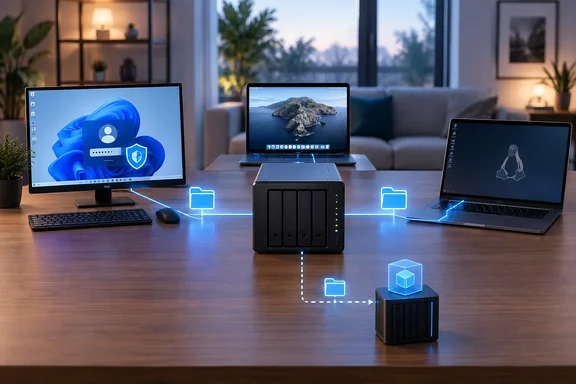
Their answer is sensible, and so is its one exception. Below is what the writer did, what can be checked, and what Windows 11 users need to know before copying it. The last part matters because Windows 11 has changed how it connects to NAS shares.
One Question Instead of a Protocol Debate
The writer's home started with a mix of Windows, Linux and macOS machines. Most of the advice they found said SMB was the easier choice for Windows, so they chose SMB and never looked back.
In their experience, SMB was even easier on the other platforms:
- Windows 11: they usually had to add the network location in File Explorer by hand.
- Linux and macOS: the shares showed up on their own, and signing in only needed a username and password.
- Phones: they hadn't tried it. Their reading suggested SMB is easier than NFS on Android and iOS, but that is research, not testing.
Speed didn't matter much to them. They seldom move large amounts of data, and they usually reach the NAS over Wi-Fi, which would limit either protocol. Their Jellyfin container streams high-resolution media from the NAS over SMB without trouble. They also added an SMB share as storage for a Nextcloud virtual machine, so files kept on the NAS appear in the Nextcloud interface.
Section summary: For a home NAS used for backups and media, the writer found that one well-supported protocol covered everything, and speed wasn't the bottleneck.
Why Immich Ended Up on NFS
The exception came when the writer moved from TrueNAS to a split setup: Proxmox for the homelab and Synology for storage. They tried pointing Immich's data storage at an SMB share in Proxmox, and it didn't work. They set up NFS for that one job, and Immich has run fine since. Everything else stayed on SMB.
Be careful with the conclusion here. The column doesn't include error logs, software versions, mount settings or speed tests. It shows that NFS fixed this writer's problem. It doesn't show that Immich needs NFS or that SMB can't work with Immich.
Immich's own documentation explains why storage setup can be fussy:
- Keep the database off the NAS. Immich says its PostgreSQL database should ideally sit on local SSD storage and never on a network share of any kind. Photo and video storage is a separate question from the database folder.
- Permissions have to be right. At startup, Immich checks that it can create, read and overwrite marker files in its storage folders. If a mount is missing or permissions are wrong, it can refuse to start, even when the same share opens fine from a desktop.
- Some platforms have extra ACL rules. Immich's TrueNAS guide says that datasets using SMB/NFSv4 ACLs need ACL mode set to
Passthroughwhen a storage template is combined with network sharing. That rule applies to that TrueNAS setup, not to every share.
Here's what that means in practice. A share that opens in File Explorer can still fail inside a container, because the container may use a different path, a different user identity and different permissions. The writer also points out that NFS permissions are harder to get right. A clear guide got them through, but plenty can go wrong.
Section summary: Use a second protocol only when a specific app gives you a specific reason, and treat that fix as a lesson about your setup rather than a rule for everyone.
What Windows 11 Users Need to Know
"SMB just works" comes with a caveat on current Windows. If you have an older NAS or a router with a USB drive attached, check this before blaming your settings.
Microsoft made two security changes in Windows 11 24H2 that can break drive mapping to consumer NAS boxes and USB storage on routers. By default, SMB signing is required on all connections, and guest fallback is disabled on Windows 11 Pro edition. Microsoft explains the risk of guest access plainly: your device can be tricked into connecting to a malicious server without prompting for credentials, then given ransomware or having your data stolen.
The two changes affect each other. SMB signing cannot be used with guest credentials. So even if you have guest fallback enabled, SMB signing will prevent it from working. Microsoft's documentation also notes that SMB signing is required by default for Windows 11, version 24H2, Windows Server 2025, and later builds which results in compatibility issues with guest authentication if signing doesn't succeed. When the Register covered the change, it described it as something that might call time on that old NAS under the stairs.
This fits neatly with the writer's advice. Their "it just works" setup depends on a real user account with access to the shared folder and permission to use SMB, not a guest share with no password. That is the kind of setup 24H2 expects.
How to Connect a Windows 11 PC to an SMB Share
- Create a real user account on the NAS. Give it access to the shared folder and permission to use SMB. Avoid guest shares that need no password.
- Test the direct path first. In File Explorer, enter the UNC path in the form
\\server\share. The share doesn't have to appear under Network for this to work. - Map it if you like. Open File Explorer, select This PC, then choose More > Map network drive. If that option isn't in the More menu, right-click This PC in the folder pane instead. Pick a drive letter, type the folder path, tick Reconnect at sign-in if you want it to stay connected, and select Finish.
- If it fails, read the error message. One guide for home users sorts the common messages into guest-blocked, signature-invalid, 0x80070035 (the PC can't reach the NAS) and 0x80070043 (wrong share name). If it's a reachability error, fix connectivity first before SMB settings.
- Fix the NAS before weakening Windows. The same guide recommends that you enable/require SMB signing (or update Samba), set minimum SMB protocol to SMB2/SMB3, and create a real user account instead of guest. Menu names differ between NAS vendors, so check your NAS's own documentation.
Guides online explain how to turn off the signing requirement or re-enable insecure guest logons. Treat those as a last resort on a trusted home network. One guide admits that this can restore access to older network shares, but it does reduce security. It adds that the better long-term fix is to update your NAS or server, use proper username/password access, and avoid insecure guest shares on business or public networks.
If you want more protection, Microsoft also offers SMB 3 encryption. Starting with Windows 11 24H2, administrators can require encryption on every outgoing SMB connection. With that turned on, Windows won't connect to servers that lack SMB 3.0 or later and encryption support. It's off unless an administrator enables it, but if a strict policy is in place, it explains why an older third-party NAS might suddenly refuse to connect.
Section summary: SMB is still the simplest protocol for Windows, but on 24H2 and later, "simple" means signed connections with real credentials, not open guest shares.
Will Experienced NAS Users Disagree?
Probably, and the writer expects it. They say their approach isn't right for everyone. If you move large amounts of data, run many self-hosted services or automate lots of file operations, the differences between SMB and NFS matter more. XDA has published the counterpoint too, with a colleague arguing that NFS is finicky but much faster, and it's a fair argument in the right setup.
Remember what kind of evidence this is. The column is one person's experience, not a benchmark. Claims like "NFS is faster" or "SMB is easier on phones" depend on your hardware, network, protocol versions and server settings. Without measurements, don't treat them as settled for your own setup.
The more useful point is about process. Many beginners assume they have to pick a protocol perfectly before using a NAS at all. In practice, most home workloads fall into a few groups:
| Workload | Reasonable starting point | When to reconsider |
|---|---|---|
| Browsing and backing up files from Windows, macOS or Linux | SMB with a real user account | Older NAS firmware can't meet 24H2 signing requirements |
| Media streaming (e.g., Jellyfin) | SMB, as in the writer's setup | You can show the network share is causing playback problems |
| App storage inside containers or VMs (e.g., Immich) | Whatever mounts correctly with the permissions the app needs | Startup permission checks fail, or the mount doesn't appear inside the container |
| App databases | Local SSD, per Immich's guidance | Never move them to a network share |
| Heavy, automated file operations | Measure both protocols | Only when measurements show a real difference |
Bottom Line: Start Simple, Then Fix Real Problems
For many readers, the writer's approach is a good default. Start with the protocol that every device in your home already supports, test it with the workloads you actually run, and add a second protocol only when a specific app gives you a concrete reason. In their case, SMB covered almost everything, and NFS was the right fix for one self-hosted app.
Two points from the Windows side are worth adding:
- Stop using guest shares. Windows 11 24H2 and later push you toward signed, authenticated SMB, and your data is safer for it.
- A share you can reach isn't a backup. Immich itself recommends backing up both its database and your important media files. A NAS share that mounts easily doesn't replace a real backup plan.
Before you spend a weekend benchmarking protocols over Wi-Fi, check whether your current setup already works. If it does, and it's secured properly, you may not need to change anything.
References
- My NAS got simpler when I stopped overthinking whether to use SMB or NFS XDA · 2026-09-26T18:30:16+00:00
- Accessing a third-party NAS with SMB in Windows 11 24H2 may fail | Microsoft Community Hub techcommunity.microsoft.com